
1. Увод
The Tenveo 4K NDI AI Auto-Tracking PTZ Camera (Model TEVO-VHD20H4KN) is designed for professional video conferencing and live streaming applications. It features 4K resolution at 30FPS, a 1/2.8" Sony CMOS sensor, and 20x optical zoom. Advanced AI humanoid and face auto-tracking ensures subjects remain centered. Connectivity options include USB 3.0, HDMI, LAN/NDI, and Power over Ethernet (PoE) for simplified installation and operation. This camera supports various streaming protocols like RTMP, RTSP, and SRT, making it compatible with platforms such as YouTube, Facebook, OBS, and vMix.
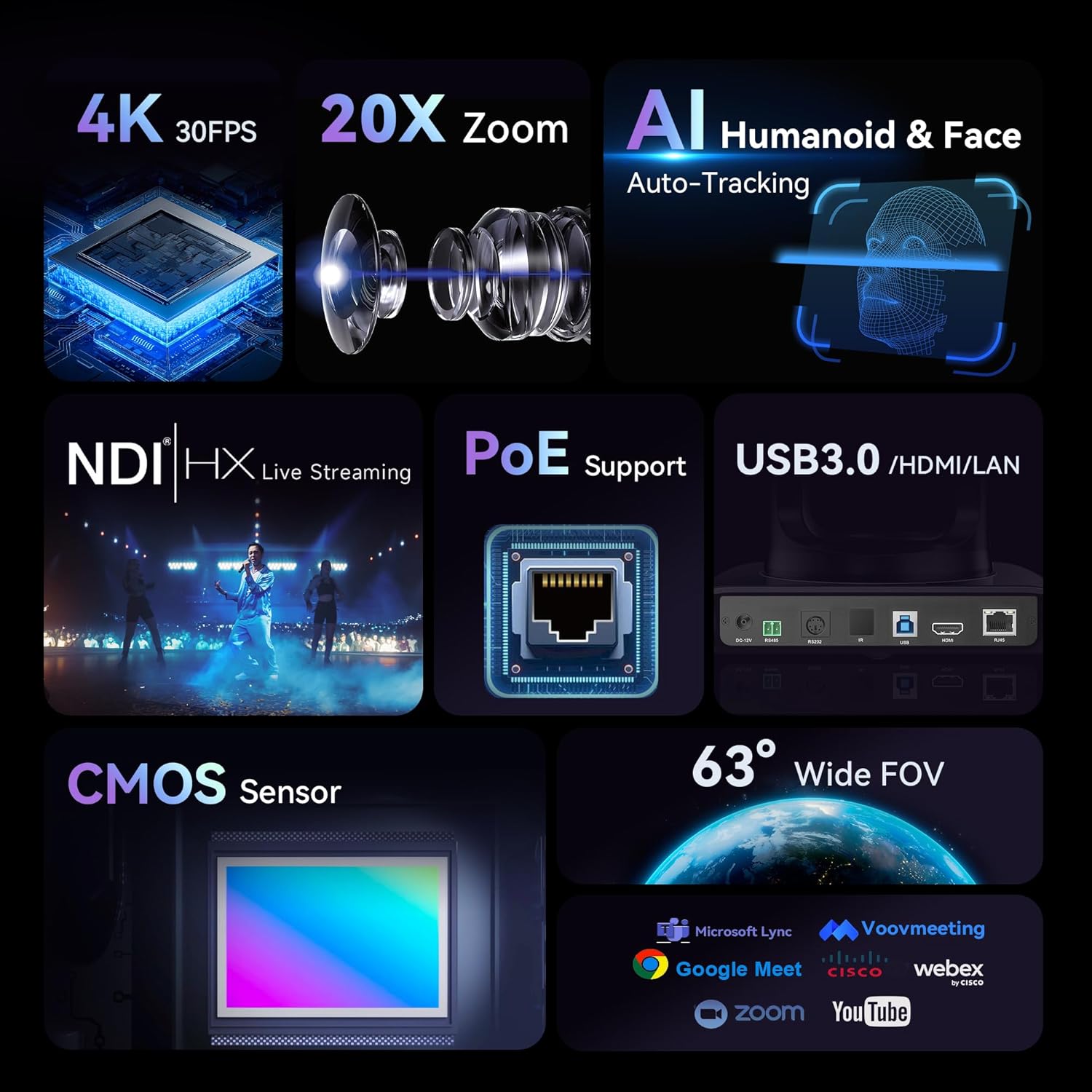
This image highlights the key features of the Tenveo PTZ camera, including 4K 30FPS resolution, 20x optical zoom, AI humanoid and face auto-tracking, NDI|HX live streaming, PoE support, USB3.0/HDMI/LAN connectivity, CMOS sensor, and a 63° wide field of view.
2. Шта је у кутији
Пакет укључује следеће ставке:
- Tenveo NDI AI Auto Tracking 4K PTZ Live Streaming Camera
- ИР даљински управљач
- ДЦ12В адаптер за напајање
- УСБ3.0 кабл
- Упутство за употребу
- Зидни носач
- Монтажни завртњи
3. Упутства за подешавање
Follow these steps to set up your Tenveo PTZ camera:
- Распакивање и преглед: Carefully remove all components from the packaging. Inspect for any signs of damage.
- Повер Цоннецтион: Connect the DC12V Power Adapter to the camera's power input. Alternatively, if using Power over Ethernet (PoE), connect an Ethernet cable from a PoE-enabled switch to the camera's LAN port.
- Видео излазна веза:
- For USB 3.0 output, connect the provided USB3.0 cable to your computer.
- For HDMI output, connect an HDMI cable (not included) to a display or video switcher.
- For LAN/NDI streaming, connect an Ethernet cable (not included) to your network.
- Монтажа: The camera supports desktop, monitor, wall, or ceiling mounting. Use the provided wall mount and screws for wall installation, or place the camera on a stable surface for desktop use.

This image shows the rear panel of the Tenveo PTZ camera, detailing the power input, USB3.0, HDMI, and LAN/NDI ports for various connections.
4. Упутство за употребу
The camera offers various control methods for flexible operation.
AI Auto-Tracking
The camera features advanced AI humanoid and face auto-tracking. This function automatically adjusts the camera's pan, tilt, and zoom to keep the subject in frame.
- Пресентер Моде: Tracks a single presenter, ensuring they remain centered even if they move.
- Autoframing Mode: Automatically frames multiple participants in a meeting room.
To activate or deactivate AI tracking via remote control:
- For Auto-framing: Press the 'A' button on the remote control.
- To initiate AI tracking: Briefly press 'AI', then select the target (if multiple people are present), and press 'Home' to confirm.
- To disable AI tracking: Briefly press 'AI' to exit tracking (returns to auto-framing), or press 'A' directly to disable AI (returns to normal mode).

This image shows the Tenveo PTZ camera remote control, highlighting the buttons used for AI auto-tracking and auto-framing functions. The 'A' button is for auto-framing, and the 'AI' button is for initiating or disabling AI tracking.
Web Контрола интерфејса
The camera can be controlled via a web interface for advanced settings and real-time preview.
- Connect the camera to your network via the LAN port.
- Find the camera's IP address (refer to the network settings or camera's display if available).
- Отвори а web browser and enter the camera's IP address.
- Log in using the default credentials (refer to the user manual for default username/password).
- Фром тхе web interface, you can control pan, tilt, zoom, focus, and access AI tracking settings.

This image displays the Tenveo PTZ camera's web interface, showing video preview, PTZ controls, and settings for tracking modes like Presenter and AutoFraming.
5. Connectivity and Streaming
The Tenveo PTZ camera offers multiple interfaces for versatile live streaming and video production:
- УСБ 3.0: Provides simultaneous video output up to 4K@30fps for direct connection to a computer.
- ХДМИ: Outputs video up to 4K@30fps, suitable for monitors or video switchers.
- LAN/NDI: Supports Power over Ethernet (PoE) for power, control, and video transmission over a single Ethernet cable. NDI enables low-latency IP-based production workflows.
- Стреаминг Протоцолс: Compatible with RTMP, RTSP, and SRT for direct streaming to platforms like YouTube, Facebook, and OBS without additional hardware.

This image illustrates the various connectivity ports on the Tenveo PTZ camera, including USB 3.0, HDMI, and LAN/NDI, demonstrating its versatile integration into different streaming setups.
6. Методе инсталације
The camera can be installed in various ways to suit different environments:
- Монтажа на радну површину: Place the camera on a flat, stable surface.
- Валл Моунтинг: Use the provided wall mount and screws to secure the camera to a wall.
- Плафонска монтажа: The camera can also be mounted to the ceiling using appropriate hardware (not included, but compatible with the camera's design).
- Носач статива: For temporary setups or portability, the camera can be mounted on a standard tripod.

This image displays the Tenveo PTZ camera installed in various configurations: wall-mounted, ceiling-mounted, desktop placement, and on a tripod, illustrating its adaptability for different usage scenarios.
7. Спецификације
| Феатуре | Детаљ |
|---|---|
| Бранд | Тенвео |
| Назив модела | TEVO-VHD20H4KN |
| Број модела | DE-CA-VHD20H-AI-4K |
| Сензорна технологија | ЦМОС |
| Величина оптичког сензора | 1/2.8 инча |
| Резолуција снимања видео записа | 4K (3840x2160) |
| Фраме Рате | 30FPS (at 4K) |
| Ефективна видео резолуција | 8.29 МП |
| Оптицал Зоом | 20к |
| Максимална жижна даљина | 99 милиметара |
| Минимална жижна даљина | 4.95 милиметара |
| Максимални отвор бленде | ф/1.7 |
| Минимални отвор бленде | ф/3.7 |
| Фоцус Типе | Аутоматски фокус, ручни фокус |
| Стабилизација слике | Дигитал |
| Технологија повезивања | Ethernet, HDMI, USB 3.0 |
| ПоЕ подршка | Да |
| Подржани оперативни системи | Windows, Mac, Linux, Android |
| Карактеристике производа | AI Auto-Tracking (Humanoid & Face), Multiple Connections (HDMI/LAN/NDI/USB3.0), PoE Support |
| Боја | Nero Classico (Classic Black) |
| Compatible Display Size | 20 инча |
| Препоручена употреба | Live Concert, Church Events, Sports Events, University Lecture, Online Meeting, Studio Live Streaming, Video Conferencing |
8. Одржавање
To ensure optimal performance and longevity of your Tenveo PTZ camera, follow these maintenance guidelines:
- Чишћење: Use a soft, dry cloth to clean the camera body. For the lens, use a specialized lens cleaning cloth and solution. Avoid harsh chemicals or abrasive materials.
- Складиштење: When not in use for extended periods, store the camera in a dry, dust-free environment.
- Ажурирања фирмвера: Periodically check the Tenveo official website for any available firmware updates to ensure the camera operates with the latest features and improvements.
КСНУМКС. Решавање проблема
If you encounter issues with your Tenveo PTZ camera, refer to the following common troubleshooting steps:
- Но Повер: Ensure the DC12V power adapter is securely connected to both the camera and a working power outlet. If using PoE, verify the Ethernet cable is connected to a PoE-enabled switch and the switch is powered on.
- Нема видео излаза:
- Check all video cables (USB, HDMI, Ethernet) for secure connections.
- Verify the input source on your display or video switcher is correctly selected.
- Уверите се да је камера укључена и да су њене индикаторске лампице активне.
- AI Tracking Not Working:
- Ensure there is sufficient lighting in the environment.
- Check for obstructions between the camera and the subject.
- Verify AI tracking is enabled via the remote control or web интерфејс.
- Ensure the subject is within the camera's effective tracking range.
- Даљински управљач не реагује:
- Проверите батерије у даљинском управљачу и замените их ако је потребно.
- Ensure there are no obstructions between the remote control and the camera's IR receiver.
- Проблеми са мрежном повезивањем:
- Verify the Ethernet cable is properly connected.
- Check network settings on your computer and the camera's web интерфејс.
- Ensure the camera's IP address is correct and not conflicting with other devices on the network.
За додатну помоћ, обратите се корисничкој подршци компаније Tenveo.
10. Гаранција и подршка
The Tenveo 4K NDI AI Auto-Tracking PTZ Camera comes with a 3-годишња гаранција на производ.
For any technical support or inquiries, please contact Tenveo customer service via email at салес@тенвео.цом. Tenveo offers 24/7 after-sales email support.
Поред тога, а 30-дневна гаранција поврата новца је обезбеђен.