
1. Увод
This manual provides instructions for the Tenveo PTZ NDI Camera with AI Auto Tracking. This camera is designed for professional videoconferencing and live streaming applications, offering high-quality video capture and advanced features for various environments.
Кључне карактеристике укључују:
- Full HD 1080P resolution at 60 frames per second (FPS)
- 20x optical zoom for detailed imaging
- AI-powered humanoid and face auto-tracking
- Multiple video output interfaces: USB3.0, HDMI, and LAN with Power over Ethernet (PoE) support
- NDI protocol support for low-latency IP-based production workflows

Слика 1.1: Готовоview of Tenveo PTZ NDI Camera features, including 20x zoom, AI tracking, NDI, PoE, USB3.0/HDMI/LAN, 1080P 60FPS, and 61-degree field of view.
2. Подешавање
2.1. Садржај пакета
Проверите да ли су све ставке присутне у пакету:
- Tenveo PTZ NDI Camera
- ИР даљински управљач
- Валл Моунт
- УСБ3.0 кабл
- 12В 2А адаптер за напајање
- Монтажни завртњи
- Кориснички приручник (овај документ)
2.2. Методе инсталације
The PTZ camera supports various installation methods to suit different environments:
- Монтажа на сто: Поставите камеру на равну, стабилну површину.
- Монтажа на зид: Користите приложени зидни носач и завртње да причврстите камеру на зид.
- Монтажа на плафон: Attach the camera to the ceiling using appropriate mounting hardware (not always included, check specific model).
- Монтажа статива: Камера се може монтирати на стандардни статив за преносиве поставке.

Image 2.1: Illustration of various installation methods: wall, ceiling, desktop, and tripod mounting.
2.3. Повезивање камере
The camera offers multiple connectivity options:
- Прикључак за напајање: Connect the 12V 2A power adapter to the camera's power input. Alternatively, if using a PoE-enabled network, connect an Ethernet cable from a PoE switch to the camera's LAN port.
- USB3.0 Connection: Connect the provided USB3.0 cable from the camera to your computer for direct video and control.
- ХДМИ веза: Connect an HDMI cable from the camera to a display or video mixer.
- LAN Connection (IP/NDI): Connect an Ethernet cable from the camera's LAN port to your network router or switch. This enables IP streaming, NDI streaming, and IP control.

Image 2.2: Diagram illustrating easy plug-and-play installation: connecting to a local network with PoE, accessing the camera's IP address, and live streaming via OBS, vMix, YouTube, or Facebook.

Image 2.3: Diagram showing the camera's multiple connection interfaces including power, USB3.0, HDMI, and LAN, and how they integrate into a streaming setup with a joystick controller and display devices.
3. Упутство за употребу
3.1. PTZ Control (Pan, Tilt, Zoom)
The camera features pan, tilt, and zoom capabilities. Pan allows horizontal movement, tilt allows vertical movement, and zoom adjusts the focal length. The 20x optical zoom provides clear magnification without loss of quality.

Image 3.1: The camera's 20x optical zoom and pan (350°) and tilt (180°) capabilities, shown in a church setting.
3.2. AI Auto Tracking
The camera incorporates advanced AI algorithms for humanoid and face auto-tracking, ensuring subjects remain centered and in focus during movement. This feature supports both Presenter mode and Auto Cropping.
- Режим излагача: Tracks a single designated speaker.
- Auto Cropping: Automatically adjusts the frame to keep the subject optimally positioned.
- Uninterrupted Tracking: Maintains smooth tracking even if the target is temporarily obscured or moves quickly.
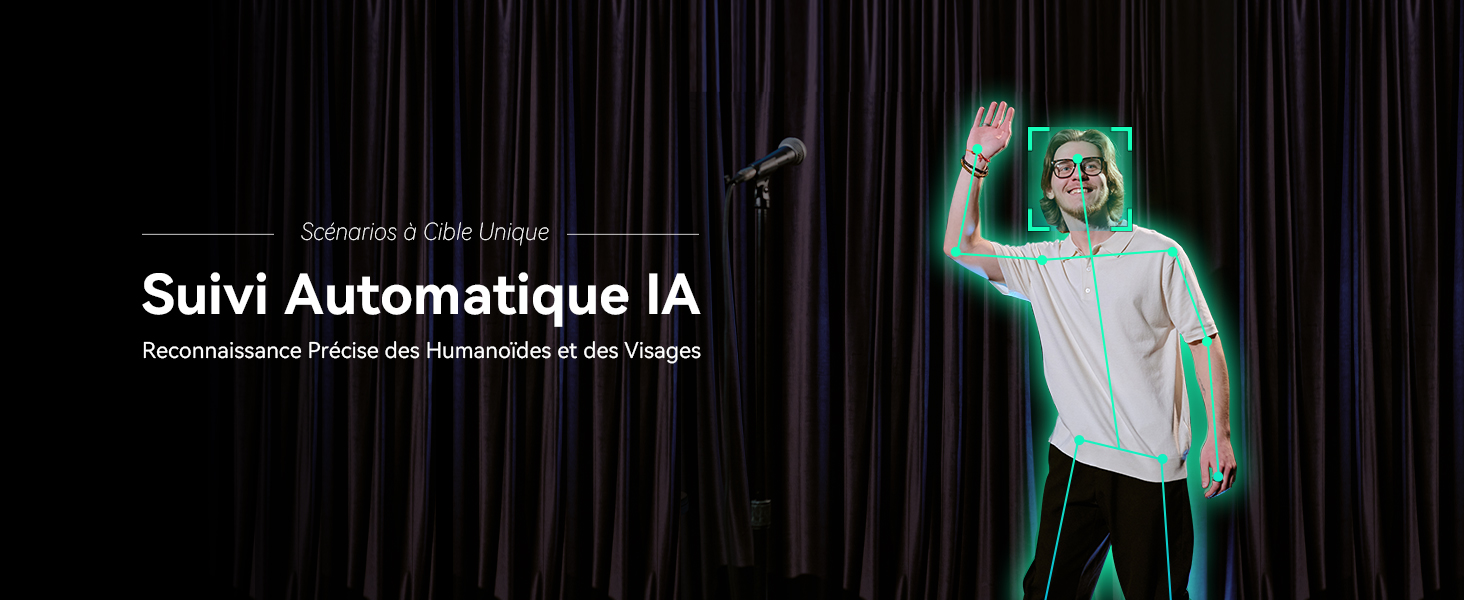
Image 3.2: Illustration of AI Auto Tracking with precise humanoid and face recognition.
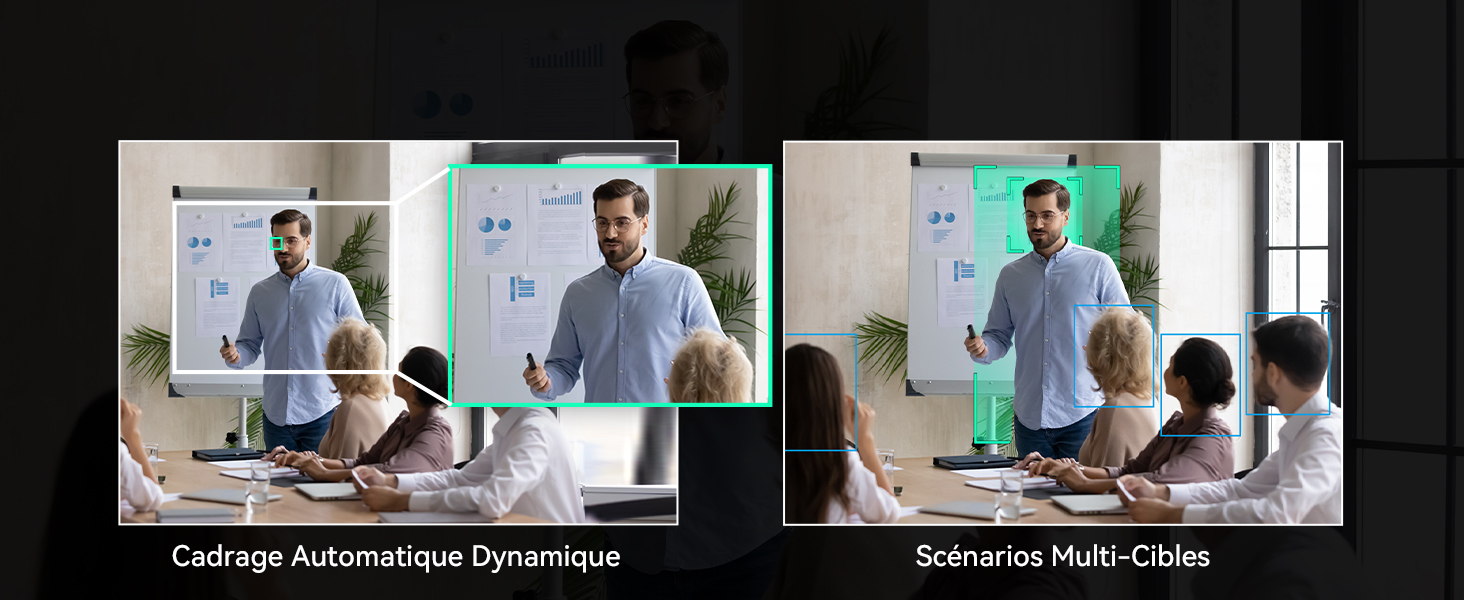
Image 3.3: Comparison of Dynamic Auto Framing for a single target and Multi-Target Scenarios, showing how the camera adapts its framing.
3.3. Методе контроле
The camera can be controlled via the included IR remote control or a web интерфејс.
3.3.1. Даљински управљач
Use the IR remote control to manage PTZ functions, AI tracking, and other camera settings.
- Аутоматско кадрирање: Press the dedicated button to activate/deactivate auto framing.
- Activate AI Tracking: Briefly press the AI button, then select the target (if multiple are present), and confirm.
- Deactivate AI Tracking: Briefly press the auto framing button to exit tracking, or press the AI button directly to disable AI (returns to normal mode).
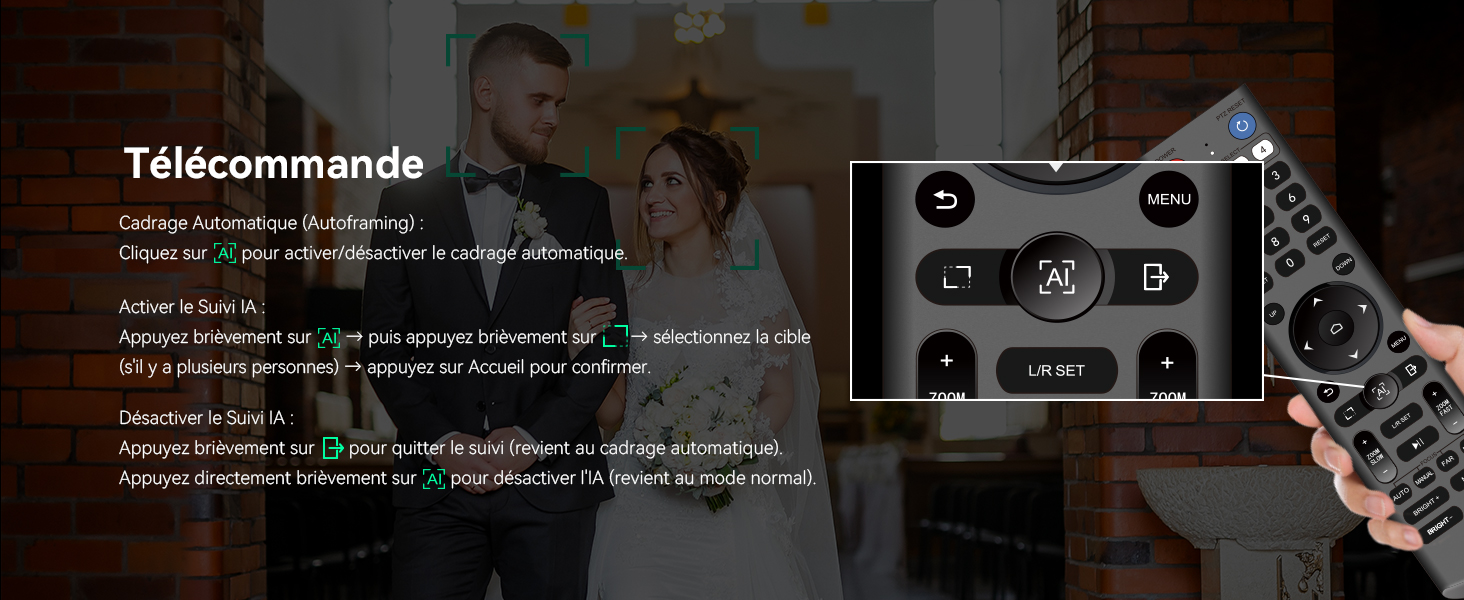
Image 3.4: The IR remote control, highlighting buttons for auto framing and AI tracking activation/deactivation.
3.3.2. Web Контрола интерфејса
Приступите камери web интерфејс уношењем његове ИП адресе у а web browser. The interface allows for comprehensive control over PTZ movements, tracking modes, image settings, and network configurations.

Image 3.5: Screenshot of the web interface for controlling the camera, showing options for tracking, PTZ, and various settings.
3.4. Live Streaming and Connectivity
The camera supports various streaming protocols and integrates with popular platforms:
- NDI Protocol: Enables low-latency, high-quality video streaming and PTZ control over IP networks.
- RTMP, RTSP, SRT: Compatible with these protocols for direct broadcasting to platforms like YouTube, Facebook, OBS, vMix, and more.
- Multi-Camera Synchronization: Supports multi-camera setups for complex productions, compatible with video mixers and Tenveo PTZ controllers.

Image 3.6: System diagram showing the Tenveo NDI AI-Tracking PTZ Camera connected via HDMI to a Blackmagic ATEM, USB3.0 to a computer, and LAN for IP control and streaming (RTSP, RTMP, NDI) to various platforms like Zoom, Google Meet, Webex, and YouTube.
4. Одржавање
To ensure optimal performance and longevity of your Tenveo PTZ NDI Camera, follow these maintenance guidelines:
- Чишћење: Gently wipe the camera lens with a soft, dry, lint-free cloth. For the camera body, use a slightly damp cloth and avoid harsh chemicals or abrasive materials.
- Окружење: Operate and store the camera in a clean, dry environment, away from extreme temperatures, humidity, and direct sunlight.
- Руковање: Avoid dropping or subjecting the camera to strong impacts. When adjusting manually, do so gently.
- Снага: Always use the provided power adapter or a compatible PoE switch to prevent electrical damage.
КСНУМКС. Решавање проблема
If you encounter issues with your Tenveo PTZ NDI Camera, consider the following basic troubleshooting steps:
- Нема напајања: Ensure the power adapter is securely connected to both the camera and a working power outlet, or that the PoE switch is active and providing power through the Ethernet cable.
- Нема видео излаза: Check all video cable connections (USB, HDMI, LAN). Verify that the correct input source is selected on your display or video mixer. Ensure drivers are installed for USB connections if required by your operating system.
- No PTZ Control: Confirm that the remote control batteries are functional and that there are no obstructions between the remote and the camera's IR receiver. For IP control, verify network connectivity and the camera's IP address.
- Проблеми са праћењем: Ensure the lighting conditions are adequate and that the subject is clearly visible to the camera. Avoid rapid, erratic movements that might exceed the tracking system's capabilities.
- Лош квалитет слике: Check for dirt or smudges on the lens. Ensure the camera's resolution and frame rate settings are appropriate for your setup.
For more complex issues or persistent problems, please refer to the support section for assistance.
6. Спецификације
| Феатуре | Спецификација |
|---|---|
| Бранд | Тенвео |
| Број модела | EU-CA-VHD20H-AI-N |
| Назив модела | TEVO-VHD20HAN |
| Боја | Мат црна |
| Технологија фото сензора | ЦМОС |
| Резолуција снимања видео записа | 1080п |
| Максимална жижна даљина | 99 милиметара |
| Минимална жижна даљина | 4.95 милиметара |
| Мак Апертуре | 1.8 ф |
| Min Aperture | 3.9 ф |
| Оптицал Зоом | 20к |
| Дигитални зум | 8x |
| Технологија повезивања | USB, HDMI, LAN |
| Величина оптичког сензора | 1/2.8 инча |
| Стабилизација слике | Оптицал |
| Фоцус Типе | Аутоматски фокус, ручни фокус |
| Формат видео снимања | МП4 |
| Подржани аудио формат | ААЦ, МП3 |
| Препоручена употреба | Live streaming, religious services, video production, videoconferencing, education, live events |
| Компатибилни уређаји | Лаптоп, лични рачунар, таблет, паметни телефон |
7. Гаранција и подршка
7.1. Гаранција на производ
The Tenveo PTZ NDI Camera comes with a standard 3 година гаранције covering parts and labor. This warranty ensures your product is free from defects in materials and workmanship under normal use.
Additionally, Tenveo offers a 30-дневна гаранција поврата новца for risk-free purchase.
7.2. Техничка подршка
Тенвео пружа доживотна техничка подршка for this product. If you have any questions, require assistance with installation, or encounter any issues, please contact our support team.
Our support team aims to respond within 12 hours and provide a satisfactory solution. Remote assistance for installation can be provided if necessary.
Контакт е-маил: салес@тенвео.цом