
1. Увод
This manual provides detailed instructions for the setup, operation, maintenance, and troubleshooting of your Tabwee T90 Android 16 Tablet. Please read this manual thoroughly before using your device to ensure proper functionality and to maximize your user experience.

Image: The Tabwee T90 tablet shown with its full suite of accessories, including a detachable keyboard, wireless mouse, stylus, protective case, charging adapter, and USB cable. This illustrates the complete package contents.
2. Садржај пакета
Проверите да ли су све ставке присутне у пакету:
- Tabwee T90 Tablet
- Блуетоотх тастатура
- Бежични миш
- Стилус Пен
- Протецтиве Цасе
- Екран Заштитник филм
- Power Adapter (Type-C)
- USB кабл за пренос података (тип C)
- Упутство за употребу

Image: A visual representation of the Tabwee T90 tablet's dimensions and all components included in the retail package, such as the tablet, keyboard, mouse, stylus, and various cables and covers.
3. Почетно подешавање
3.1 Пуњење таблета
Before first use, fully charge the tablet using the provided Type-C power adapter and USB cable. The charging port is located on the side of the tablet.

Image: The Tabwee T90 tablet being charged via its Type-C port, highlighting its 8000mAh battery and estimated usage times for various activities like web browsing, video playback, gaming, and music.
3.2 Укључивање/искључивање
- За укључивање: Притисните и држите дугме за укључивање док се екран не укључи.
- За искључивање: Press and hold the Power button, then select "Power Off" from the options.
3.3 Почетна конфигурација
Пратите упутства на екрану да бисте завршили почетно подешавање, укључујући:
- Избор језика
- Ви-Фи мрежна веза
- Пријављивање на Google налог
- Подешавања датума и времена
- Security settings (PIN, pattern, password, or face recognition)

Image: A collage of screenshots demonstrating key Android 16 features such as real-time notifications, robust security measures, access to the Google Play Store for app downloads, and options for regional language optimization.
3.4 Повезивање додатне опреме
The Tabwee T90 comes with a Bluetooth keyboard and mouse. To connect them:
- Enable Bluetooth on your tablet via Settings > Connected devices > Bluetooth.
- Put the keyboard/mouse into pairing mode (refer to their individual manuals if needed).
- Select the accessory from the list of available devices on your tablet to pair.
The stylus pen does not require pairing.
4. Управљање таблетом
4.1 Андроид 16 интерфејс
The Tabwee T90 runs on Android 16, offering an intuitive and enhanced user experience with improved security and performance. Features include real-time notifications, efficient multitasking, and smart operational capabilities.
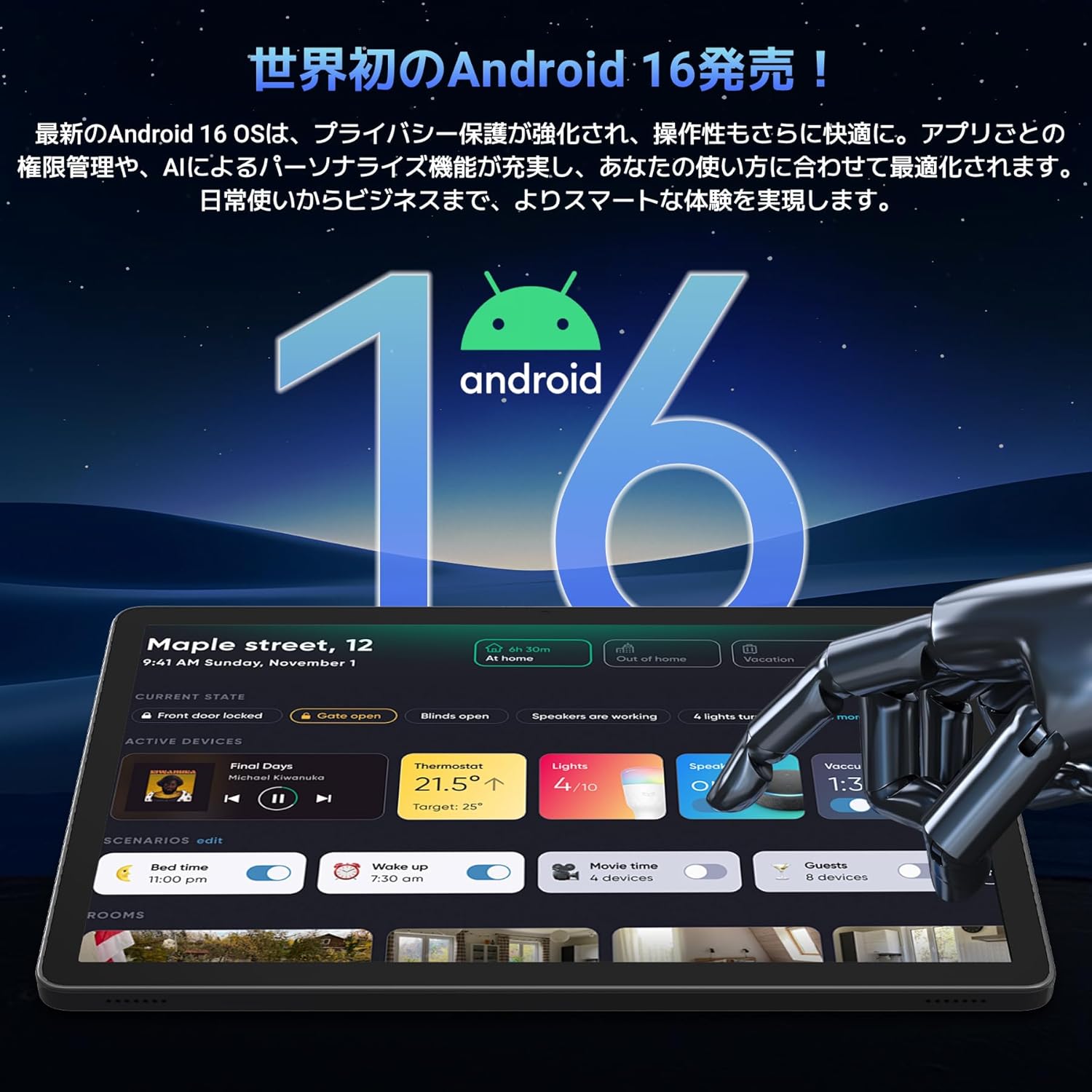
Image: A visual representation of the Android 16 operating system logo and its modern interface displayed on the Tabwee T90 tablet, emphasizing its new features and design.
4.2 Display and Media Playback
The 11-inch FHD IPS display (1920x1200 resolution) provides clear and vibrant visuals. With Widevine L1 support, you can stream high-definition content (1080p and above) from services like Netflix and Amazon Prime Video.

Image: The Tabwee T90 tablet showcasing a high-definition video of a baseball game, demonstrating its 11-inch FHD display and compatibility with streaming platforms like Netflix, YouTube, HBO, and Prime Video via Widevine L1.
4.3 Camera and Imaging
The tablet features a 5MP front camera for video calls and selfies, and a 13MP rear camera for capturing photos. Android 16's AI image processing enhances photo quality, and HEVC video encoding ensures stable editing and improved video quality. Google Lens integration allows for smart recognition, scanning, translation, and search functions.
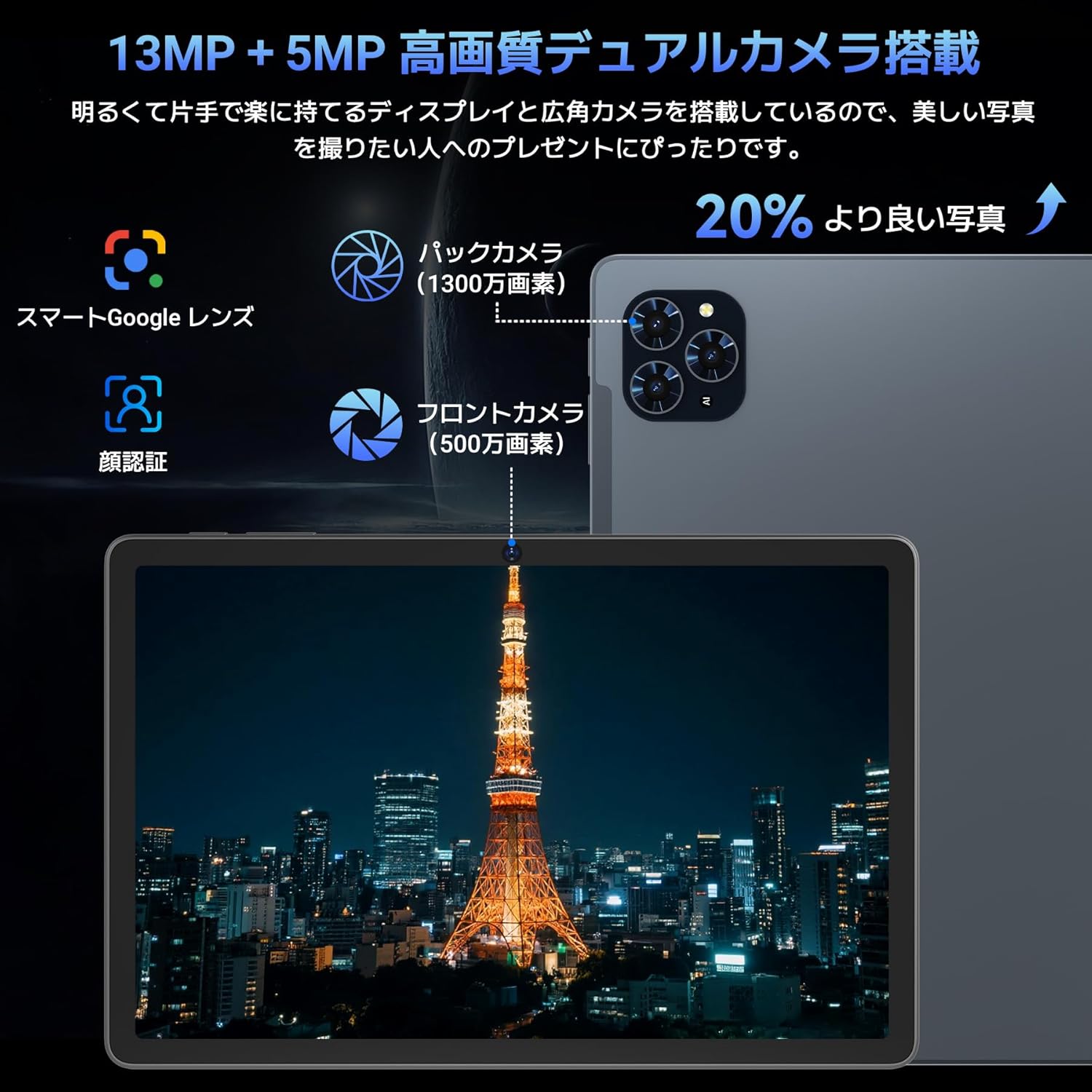
Слика: Детаљна view of the Tabwee T90 tablet's camera system, indicating a 13MP rear camera and a 5MP front camera. An example photo of Tokyo Tower is displayed on the screen, illustrating image capture capabilities.
4.4 Препознавање лица
Utilize the face recognition feature for quick and secure unlocking of your tablet. Set it up in Settings > Security & privacy > Face unlock.
4.5 Интеграција вештачке интелигенције са Gemini-јем
The tablet integrates with Gemini AI, optimizing performance across various scenarios. This AI assists with content recommendations, image processing, and semantic understanding, enhancing daily operations.

Image: A conceptual image depicting Gemini AI as a robotic figure interacting with multiple tablet screens, symbolizing its ability to support various tasks like email composition, schedule management, and information retrieval, enhancing user productivity.
4.6 Custom Keyboard Shortcuts
After connecting a Bluetooth keyboard, you can set custom shortcut keys to launch frequently used applications with a single press. Navigate to Settings > System > Keyboard > Keyboard shortcuts to configure.
5. Одржавање
5.1 Чишћење
- Користите меку крпу која не оставља влакна да бисте очистили екран и кућиште таблета.
- Избегавајте употребу јаких хемикалија или абразивних материјала.
- За тврдокорне мрље, благо дampОперите крпу водом или средством за чишћење екрана намењеним за електронику.
5.2 Одржавање батерије
- Избегавајте излагање таблета екстремним температурама.
- Не дозволите да се батерија често потпуно празни.
- Користите само приложени пуњач или сертификовани компатибилни пуњач.
5.3 Ажурирања софтвера
Редовно проверавајте и инсталирајте системска ажурирања како бисте осигурали оптималне перформансе и безбедност. Идите на Подешавања > Систем > Ажурирање система.
КСНУМКС. Решавање проблема
6.1 Таблет се не укључује
- Уверите се да је таблет довољно напуњен. Повежите га са пуњачем најмање 30 минута.
- Притисните и држите дугме за напајање 10-15 секунди да бисте извршили присилно поновно покретање.
6.2 Проблеми са Wi-Fi везом
- Поново покрените Wi-Fi рутер и таблет.
- Заборавите мрежу у подешавањима таблета и поново се повежите.
- Уверите се да сте у домету Wi-Fi сигнала.
6.3 Accessories Not Connecting
- Ensure Bluetooth is enabled on the tablet.
- Check that the accessory is in pairing mode and has sufficient battery.
- Try restarting both the tablet and the accessory.
6.4 Споре перформансе
- Затворите непотребне позадинске апликације.
- Clear cache for frequently used apps (Settings > Apps > [App Name] > Storage & cache > Clear cache).
- Обезбедите довољно простора за складиштење.
- Повремено поново покрећите таблет.
7. Спецификације
| Феатуре | Детаљ |
|---|---|
| Бранд | TABWEE |
| Назив модела | Т90 |
| Оперативни систем | Андроид 16 |
| ЦПУ | Unisoc T615 Octa-core (2x Cortex-A75 @ 2.0GHz, 6x Cortex-A55 @ 1.8GHz) |
| ГПУ | Мали-Г57 |
| РАМ | 8GB (expandable to 24GB with virtual RAM) |
| Интерна меморија | 128ГБ |
| Екпандабле Стораге | Up to 2TB via microSD card (not included) |
| Величина екрана | 11 инча |
| Дисплаи Типе | IPS FHD |
| Резолуција | 1920 к 1200 пиксела |
| Предња камера | 5МП |
| Задња камера | 13МП |
| Капацитет батерије | 8000мАх |
| Порт за пуњење | Типе-Ц |
| Повезивање | Wi-Fi (2.4G/5G, 802.11ac), Bluetooth 5.0 |
| Тежина | 1.37 кг (приближно 3.02 лбс) |
| Димензије | 29.1 x 20 x 5.7 цм (паковање) |
| Цертификати | PSE, GITEKI, GMS |

Image: A detailed diagram illustrating the Unisoc T615 Octa-core CPU, highlighting its architecture with Cortex-A75 and Cortex-A55 cores, Mali-G52 MP1 GPU, and 12nm low power consumption, indicating its high performance.

Image: The Tabwee T90 tablet's screen showing multiple applications, emphasizing its 128GB internal storage and support for up to 2TB external storage, with examples of how many photos, songs, and videos can be stored.
8. Гаранција и подршка
The Tabwee T90 Tablet comes with a 2 година гаранције. This warranty covers manufacturing defects and ensures product quality.
8.1 Контактирање подршке
If you encounter any issues or have questions, please contact customer support through your Amazon account:
- Go to your Amazon account > Order History > Select the relevant order.
- Click on the seller's name (TABWEE Official Store).
- Use the "Ask a question" option to send an email.
Support is available from 9:00 AM to 6:00 PM (excluding holidays). Inquiries will be responded to as quickly as possible.

Image: An illustration representing customer support, featuring a person wearing a headset and working on a laptop, symbolizing assistance for product inquiries and warranty claims.


