
1. Увод
This manual provides detailed instructions for the setup, operation, maintenance, and troubleshooting of your ATTACK SHARK G3PRO Wireless Gaming Mouse. Please read this manual thoroughly to ensure proper use and to maximize your gaming experience.

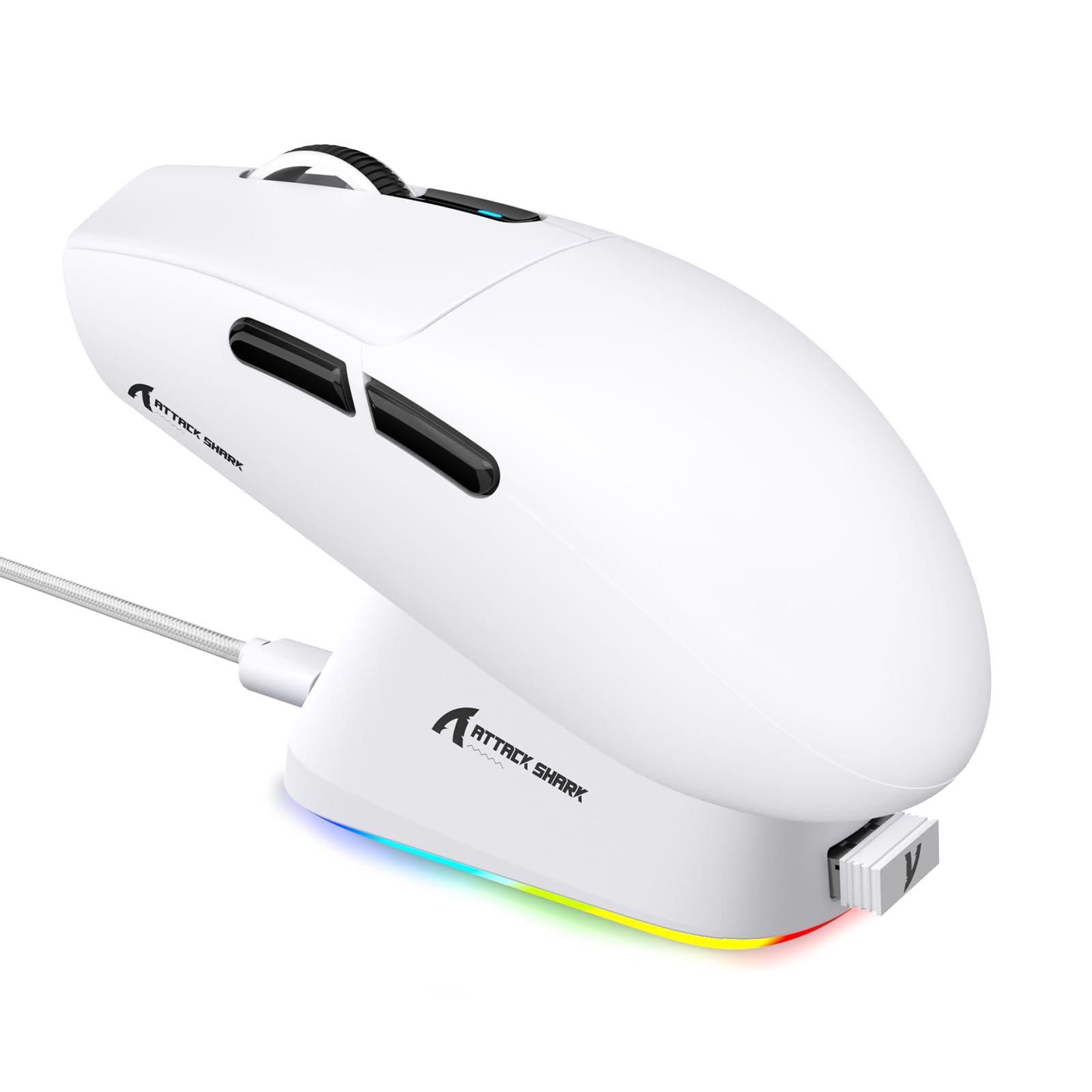
Слика: Оверview of the ATTACK SHARK G3PRO mouse and its features, including magnetic fast charging, PAW3311 sensor, web cloud drive, RGB rapid charging dock, and lightweight design.
2. Садржај пакета
Проверите да ли су све ставке присутне у вашем пакету:
- ATTACK SHARK G3PRO Wireless Gaming Mouse
- RGB Magnetic Charging Dock
- 2.4Г УСБ пријемник
- УСБ-Ц на УСБ-А кабл за пуњење/дата
- Упутство за употребу
3. Подешавање
3.1 Почетно пуњење
Before first use, it is recommended to fully charge the mouse. Connect the USB-C cable to the charging dock and a power source. Place the mouse onto the magnetic charging dock. The RGB lighting on the dock will indicate charging status.
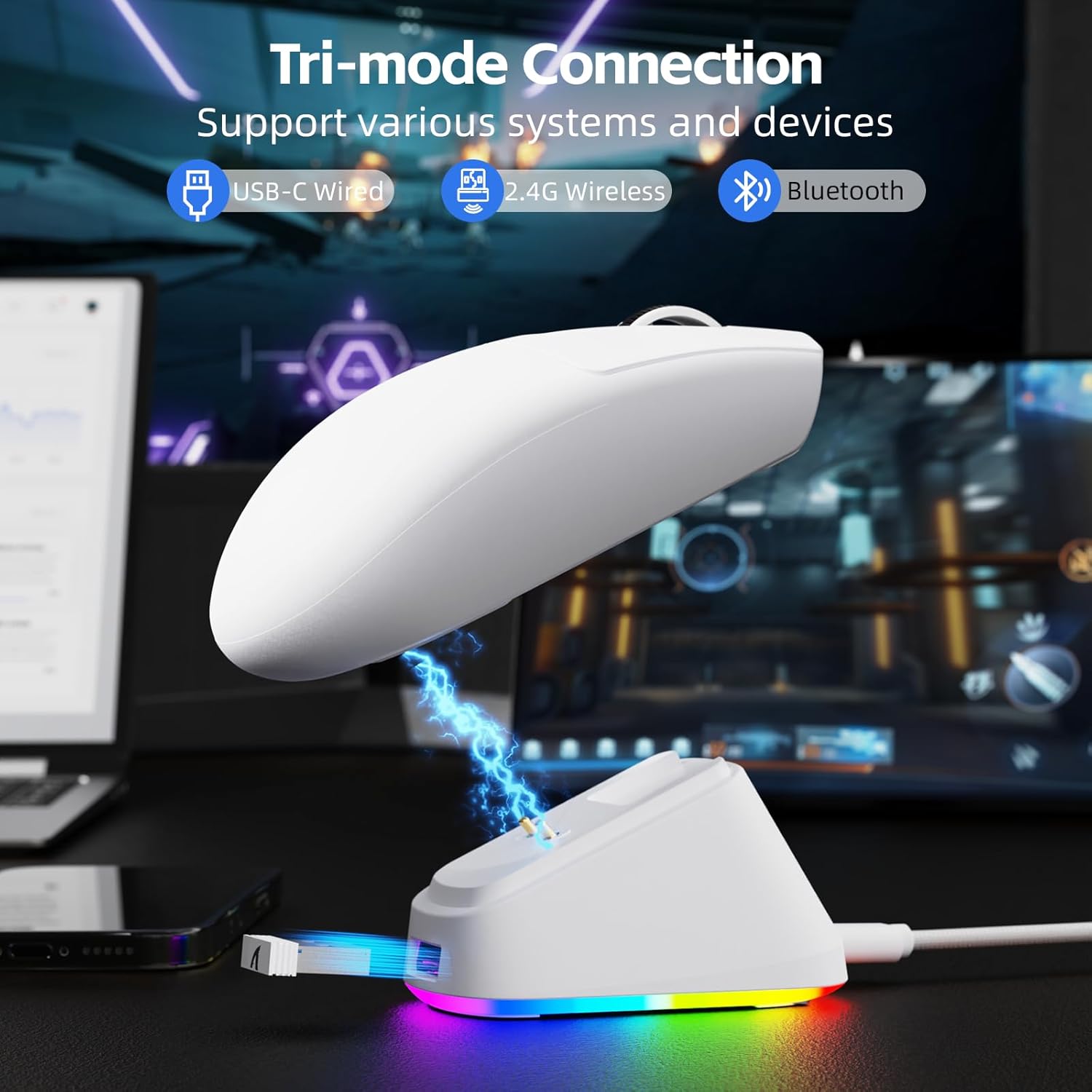
Image: The ATTACK SHARK G3PRO mouse magnetically attached to its RGB charging dock, showing the charging thimbles and USB-C port.
For a visual guide on charging, please watch the following video:
Video: This video demonstrates the magnetic charging dock and its features for the ATTACK SHARK G3PRO Wireless Gaming Mouse.
3.2 Повезивање миша
The G3PRO supports three connection modes: 2.4GHz Wireless, Bluetooth, and USB-C Wired. A switch on the bottom of the mouse allows you to select the desired mode.

Image: The ATTACK SHARK G3PRO mouse with visual indicators for Wired, 2.4G, and Bluetooth connectivity modes.
2.4 ГХз бежични режим:
- Locate the 2.4G USB receiver, typically stored within the charging dock or the mouse itself.
- Укључите УСБ пријемник у слободан УСБ порт на рачунару.
- Set the switch on the bottom of the mouse to "2.4G".
- Миш би требало да се аутоматски повеже.
Блуетоотх режим:
- Set the switch on the bottom of the mouse to "BT".
- On your computer or device, navigate to Bluetooth settings and enable Bluetooth.
- Тражи new devices and select "ATTACK SHARK G3PRO" to pair.
Жични режим рада са USB-C каблом:
- Connect the USB-C cable directly from the mouse to your computer.
- Миш ће функционисати као жични миш и истовремено се пунити.
For a visual guide on product features and connectivity, please watch the following video:
Video: This video demonstrates the various color options and the magnetic charging feature of the ATTACK SHARK G3PRO Wireless Gaming Mouse, showcasinг његов дизајн и функционалност.
4. Управљање мишем
4.1 Функције дугмета
The ATTACK SHARK G3PRO features 5 programmable buttons:
- Леви клик: Примарна акција.
- Десни клик: Секундарни радни/контекстни мени.
- Средњи точкић за клик/померање: Scroll up/down, middle click for universal scroll or other functions.
- Дугме за напред: Default for navigating forward in web прегледачи/фасцикле.
- Дугме за назад: Default for navigating backward in web прегледачи/фасцикле.
- ДПИ прекидач: Прелази кроз унапред подешаване нивое DPI-ја.

Image: A detailed diagram illustrating the location and default functions of the multi-functional buttons on the ATTACK SHARK G3PRO mouse.

Слика: Експлодирана view and labeled diagram of the G3PRO mouse components, including buttons, switches, charging points, and the 2.4G/OFF/BT mode switch.
4.2 ДПИ подешавање
The mouse features a dedicated DPI switch to cycle through various sensitivity levels, ranging from 800 to 25,000 DPI. The current DPI setting is indicated by an LED light.

Image: A visual representation of the 25,000 DPI optical sensor's precision and how mouse movement trajectory sensitivity scales with DPI settings.
4.3 Стопа анкетирања
The G3PRO supports a 1000Hz polling rate in both wired and 2.4GHz wireless modes, ensuring rapid response times for competitive gaming.

Image: A diagram illustrating the 1000Hz polling rate capability in both wired and wireless modes, highlighting millisecond response times.
5. Software and Customization
Customize your G3PRO mouse settings using the intuitive web driver or downloadable software from ATTACK SHARK. This allows for personalization of DPI, polling rate, macros, and more.
- Web Возач: Приступите web-based configuration tool for quick adjustments without installation.
- Downloadable Software: For advanced customization and profile management, download the dedicated software.

Image: A screenshot of the ATTACK SHARK Hub software interface, showing options for mouse settings, DPI settings, parameter settings, macro editing, and personal center.

Image: The cloud-driven programming interface for the G3PRO mouse, displaying options for button settings, DPI adjustments, polling rate settings, and power management.
6. Одржавање
6.1 Чишћење
Да бисте одржали оптималне перформансе, редовно чистите миш. Користите меку, суву крпу за брисање површине. За тврдокорну прљавштину, благо дamp Може се користити крпа, водећи рачуна да влага не уђе у унутрашње компоненте. Избегавајте јаке хемикалије или абразивне материјале.
6.2 Складиштење
When not in use for extended periods, store the mouse and charging dock in a cool, dry place. Ensure the USB receiver is securely stored, ideally within the charging dock's designated slot, to prevent loss.
КСНУМКС. Решавање проблема
| Проблем | Могући узрок | Решење |
|---|---|---|
| Миш не реагује (2.4G) | Low battery; Receiver not plugged in; Incorrect mode selected; Driver issue. | Charge the mouse; Ensure receiver is firmly plugged in; Set mouse to "2.4G" mode; Reinstall mouse drivers. |
| Миш не реагује (Блутут) | Low battery; Bluetooth not enabled on device; Not paired; Incorrect mode selected. | Charge the mouse; Enable Bluetooth on your device; Re-pair the mouse in Bluetooth settings; Set mouse to "BT" mode. |
| Charging dock RGB not lighting up | Cable not connected; Power source issue. | Ensure USB-C cable is securely connected to dock and power source; Try a different USB port or power adapter. |
| Inconsistent tracking | Dirty sensor; Uneven surface; Interference (wireless). | Clean the optical sensor; Use a clean, even mouse pad; Reduce wireless interference by moving other devices or using wired mode. |
| Дугмад не реагују | Software conflict; Physical damage. | Check software settings for button remapping; Test on another computer; Contact support if physical damage is suspected. |
8. Спецификације
| Феатуре | Детаљ |
|---|---|
| Бранд | АТТАЦК СХАРК |
| Модел | Г3ПРО |
| Боја | Бела |
| Технологија повезивања | 2.4Ghz Wireless, Bluetooth, USB-C Wired |
| Технологија детекције покрета | Оптички (PAW3311 сензор) |
| Мак ДПИ | 25,000 ДПИ |
| Поллинг Рате | 1000Хз |
| Убрзање | 40Г |
| Брзина праћења | КСНУМКС ИПС |
| Прекидачи | Mechanical (100 Million Clicks) |
| Капацитет батерије | 500мАх |
| Трајање батерије | До 200 сати |
| Тежина | 59г ± 3г |
| Дугмад | 5 |
| Оријентација руке | Амбидектроус |
| Компатибилни уређаји | Лаптоп, лични рачунар, паметни телефон, таблет |
| Оперативни систем | Виндовс, мацОС |
For a comparison of G3 and G3PRO models, refer to the image below:

Image: A table comparing the specifications of the ATTACK SHARK G3 and G3PRO models, highlighting differences in components and features.
9. Безбедносне информације
- Не излажите уређај екстремним температурама или влази.
- Избегавајте испуштање или излагање уређаја јаким ударима.
- Чувати ван домашаја деце.
- Не покушавајте да растављате или модификујете уређај, јер ће то поништити гаранцију и може проузроковати оштећења.
- Use only the provided charging cable and dock.
10. Гаранција и подршка
The ATTACK SHARK G3PRO Wireless Gaming Mouse comes with a standard manufacturer's warranty. For detailed warranty information, please refer to the warranty card included in your package or visit the official ATTACK SHARK webсајту.
For technical support, troubleshooting assistance, or to inquire about replacement parts, please contact ATTACK SHARK customer service through their official webсајт или контакт информације које су наведене у паковању вашег производа.
Службено Webсајт: ATTACK SHARK Store on Amazon