
1. Увод
This user manual provides detailed instructions for the Bemi Cognita Tab 6+ E-Reader. Please read this manual carefully before using your device to ensure proper operation and to maximize your reading experience. Keep this manual for future reference.
1.1 Садржај пакета
- Bemi Cognita Tab 6+ E-Reader
- УСБ кабл за пуњење
Ensure all items are present and in good condition upon unboxing.
2. Девице Оверview
Familiarize yourself with the physical components of your Bemi Cognita Tab 6+ E-Reader.

Слика 2.1: Фронт view of the Bemi Cognita Tab 6+ E-Reader. The device features a 6-inch E-Ink display with the Bemi logo and model name visible. The screen is designed to mimic paper for a comfortable reading experience.

Слика 2.2: Предње и задње view of the Bemi Cognita Tab 6+ E-Reader. This image highlights the device's thin design and the textured back cover, which provides a secure grip.

Слика 2.3: Сиде view of the Bemi Cognita Tab 6+ E-Reader, illustrating the location of the power button and a small LED indicator. This button is used for turning the device on/off and waking it from sleep.
2.1 Key Components:
- 6-inch E-Ink Touchscreen: Glare-free display for comfortable reading.
- Дугме за напајање: Located on the side for turning the device on/off and sleep/wake.
- УСБ-Ц порт: За пуњење и пренос података.
- Утор за мицроСД картицу: Expandable storage up to 256GB.
- Side Control Buttons: For page turning and navigation.
- SMARTlight: Adjustable front light for reading in various conditions.
3. Подешавање
3.1 Почетно пуњење
Before first use, fully charge your Bemi Cognita Tab 6+ E-Reader. Connect the provided USB cable to the device's USB-C port and the other end to a compatible USB power adapter (not included) or a computer's USB port.
- Потпуно пуњење обично траје отприлике 2-3 сата.
- Индикаторска лампица пуњења ће показати статус пуњења.
3.2 Укључивање/искључивање
- За укључивање: Press and hold the Power button (refer to Figure 2.3) for a few seconds until the screen activates.
- За искључивање: Press and hold the Power button until a power-off menu appears, then select "Power Off".
- За спавање/буђење: Briefly press the Power button to put the device into sleep mode or wake it up.
3.3 Ви-Фи веза
Connecting to Wi-Fi allows you to download books, transfer files, and access online services.
- From the home screen, tap the Подешавања икона.
- Изаберите Ви-Фи.
- Пребаците прекидач за Wi-Fi на On.
- The device will scan for available networks. Select your desired network from the list.
- Унесите лозинку ако се то од вас затражи, а затим додирните Повежите се.
3.4 Почетна конфигурација
Upon first power-on, you may be guided through initial setup steps, including language selection and time zone settings. Follow the on-screen prompts.
4. Упутство за употребу
4.1 Навигација кроз интерфејс
The Bemi Cognita Tab 6+ features a touch-sensitive E-Ink screen and physical side buttons for navigation.
- Покрети додиром: Tap to select, swipe to scroll, pinch to zoom (where supported).
- Бочна дугмад: Use the physical buttons on the side to turn pages forward or backward during reading.
- Г-сензор: The device automatically rotates the screen orientation based on how you hold it, accommodating both right and left-handed users.
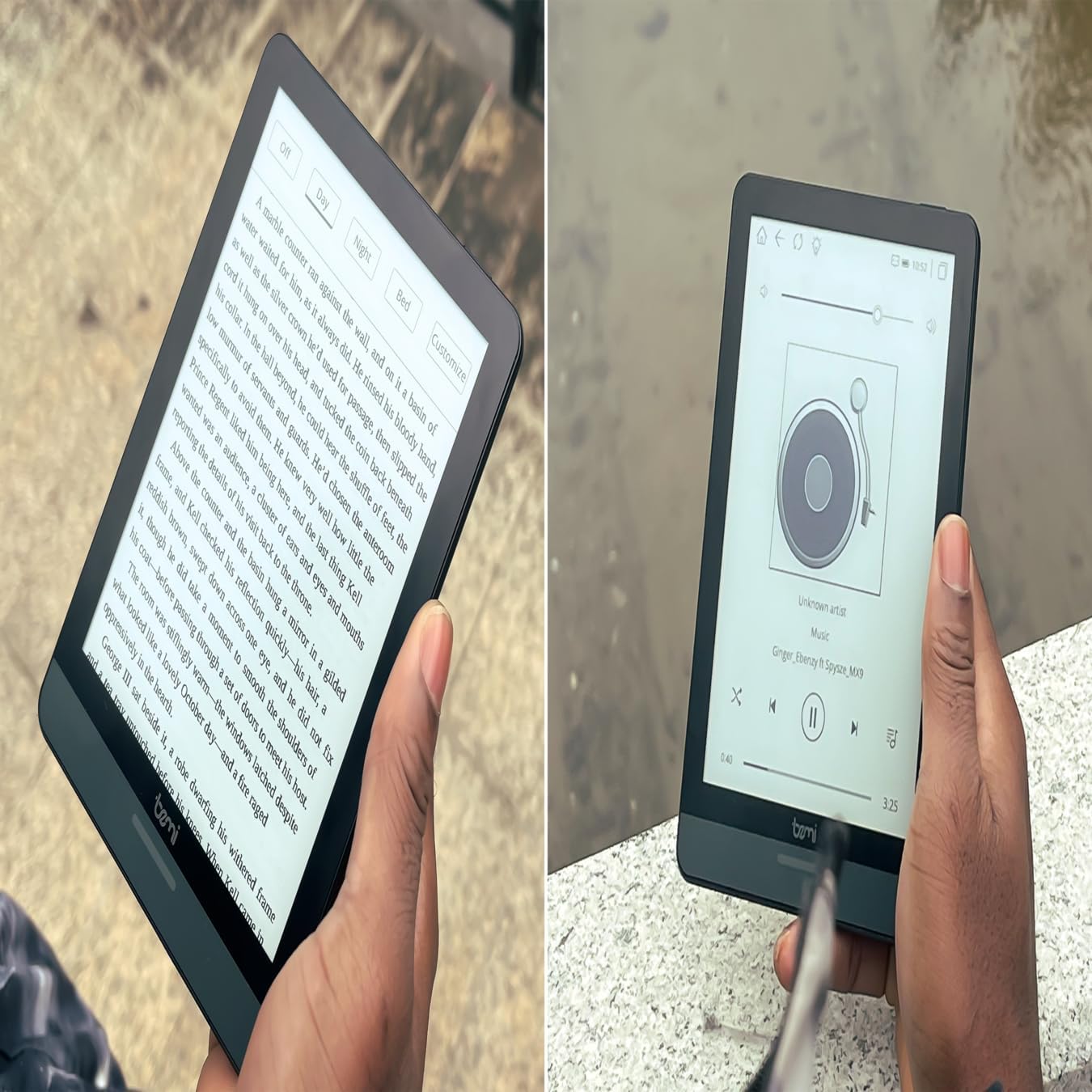
Слика 4.1: User holding the Bemi Cognita Tab 6+ E-Reader while reading. The image shows the clear text display on the E-Ink screen, highlighting the device's readability.
4.2 Читање књига
Да бисте отворили и прочитали књигу:
- From the home screen, tap on the Библиотека or Књиге икона.
- Browse your collection or use the search function to find a book.
- Tap on the book cover to open it.
- Use the touch screen or side buttons to turn pages.
4.3 Adjusting SMARTlight
The SMARTlight feature allows you to adjust both the brightness and color temperature of the screen's front light.
- During reading, tap the center of the screen to bring up the reading menu.
- Потражите Светлост or SMARTlight икона.
- Adjust the sliders for brightness (intensity) and color temperature (warm to cool) to your preference.
4.4 Преношење Files
You can transfer e-books and other supported files to your device via Wi-Fi or USB cable.
- Преко Ви-Фи мреже: If your device supports cloud services or direct Wi-Fi transfer, follow the specific application instructions.
- Преко УСБ кабла:
- Connect your E-Reader to a computer using the provided USB cable.
- The device will appear as a removable storage drive on your computer.
- Превуците и испустите жељену files (e.g., EPUB, PDF, MOBI) into the appropriate folders on the E-Reader (e.g., "Books" folder).
- Безбедно избаците уређај из рачунара пре него што искључите кабл.
4.5 Using MicroSD Card
To expand storage, insert a microSD card (up to 256GB) into the designated slot.
- Gently insert the microSD card with the gold contacts facing down until it clicks into place.
- To remove, gently push the card inward until it springs out.
- Files on the microSD card will be accessible through the device's file manager or library.
5. Одржавање
5.1 Чишћење уређаја
- Користите меку крпу која не оставља влакна да нежно обришете екран и кућиште уређаја.
- За тврдокорне мрље, благо дampОперите крпу водом или средством за чишћење екрана посебно дизајнираним за електронику.
- Избегавајте употребу јаких хемикалија, абразивних материјала или прекомерне влаге.
5.2 Одржавање батерије
- Да бисте продужили век трајања батерије, избегавајте често потпуно пражњење батерије.
- Чувајте уређај на хладном и сувом месту када се не користи дуже време.
- Charge the device regularly, even if not used, to prevent deep discharge.
5.3 Складиштење
When not in use, store your E-Reader in a protective case to prevent scratches and damage to the screen.
КСНУМКС. Решавање проблема
If you encounter issues with your Bemi Cognita Tab 6+, refer to the following common solutions:
| Проблем | Решење |
|---|---|
| Уређај се не укључује. | Ensure the battery is charged. Connect the device to a power source for at least 30 minutes. If it still doesn't turn on, try a hard reset by holding the power button for 10-15 seconds. |
| Екран је замрзнут или не реагује. | Perform a soft reset by holding the power button for 5-7 seconds until the device restarts. If the issue persists, try a hard reset. |
| Повезивање на Ви-Фи није могуће. | Check if Wi-Fi is enabled in settings. Verify the Wi-Fi password. Restart your E-Reader and your Wi-Fi router. Ensure you are within range of the Wi-Fi signal. |
| Books are not appearing in the library. | Осигурајте files are in a supported format (e.g., EPUB, PDF). If transferred via USB, ensure they are in the correct folder. Try refreshing the library or restarting the device. |
| Батерија се брзо празни. | Reduce screen brightness. Turn off Wi-Fi and Bluetooth when not in use. Close background applications. Ensure the device is not constantly searching for networks. |
7. Спецификације
| Феатуре | Детаљ |
|---|---|
| Назив модела | Bemi Cognita Tab 6+ |
| Величина екрана | 6 Inches (E-Ink Carta, 1024x758, 212 ppi) |
| Интерна меморија | 32 ГБ |
| Екпандабле Стораге | MicroSD card slot, up to 256 GB |
| Повезивање | Ви-Фи, Блуетоотх |
| Оперативни систем | Андроид 8.1 |
| Унос људског интерфејса | Touchscreen, Side Control Buttons |
| Посебне карактеристике | Adjustable SMARTlight, G-Sensor for auto-rotation, Glare-Free & Eye-Friendly E-Ink Display |
| Димензије (приближно) | 7 мм дебљине |
| Укључене компоненте | УСБ кабл |
8. Гаранција и подршка
8.1 Информације о гаранцији
Your Bemi Cognita Tab 6+ E-Reader comes with a standard manufacturer's warranty. Please refer to the warranty card included in your product packaging or visit the official Bemi webсајт за детаљне услове и одредбе у вези са гаранцијом и њеним трајањем.
За продужено покриће могу бити доступни опциони планови заштите. За детаље се обратите продавцу.
8.2 Корисничка подршка
For technical assistance, troubleshooting beyond this manual, or warranty claims, please contact Bemi customer support:
- Webсајт: ввв.беми-елецтроницс.цом
- Емаил: Refer to the Bemi webсајт за контакт имејл.
- Телефон: Refer to the Bemi website for contact phone numbers.
When contacting support, please have your device model (Cognita Tab 6+) and purchase information ready.