
1. Увод
The TABWEE 10.1 Inch WiFi Digital Calendar, Model P10, is an interactive touchscreen display designed to streamline family organization. It integrates calendars, task management, meal planning, and digital photo frame capabilities into a single device. This manual provides detailed instructions to help you set up and utilize all features of your new digital calendar.

Слика 1.1: The TABWEE Digital Calendar in use, showcasing its calendar interface and mobile app synchronization.
2. Безбедносне информације
- Уверите се да је уређај постављен на стабилну, равну површину како бисте спречили случајне падове.
- Користите само приложени адаптер за напајање. Коришћење неовлашћених адаптера може оштетити уређај и поништити гаранцију.
- Држите уређај даље од воде, влаге и екстремних температура.
- Do not attempt to open or repair the device yourself. Refer to qualified service personnel for any maintenance or repair needs.
- Keep out of reach of small children to prevent accidental ingestion of small parts or damage to the device.
3. Садржај пакета
Проверите да ли су све ставке присутне у пакету:
- TABWEE 10.1 Inch WiFi Digital Calendar (Model P10)
- Повер Адаптер
- Кориснички приручник (овај документ)
4. Производ је готовview
Familiarize yourself with the physical components of your TABWEE Digital Calendar.

Слика 4.1: Technical details and component layout of the TABWEE Digital Calendar.
- Дугме за укључивање/искључивање: Located on the side for turning the device on or off.
- Дугмад за појачавање / смањење јачине звука: Adjust the device's audio output.
- Светлосни сензор: Automatically adjusts screen brightness based on ambient light.
- Постоље за подршку: Integrated stand for desk placement.
5. Подешавање
5.1 Почетно укључивање
- Connect the provided power adapter to the device's power port.
- Plug the adapter into a standard electrical outlet. The device will automatically power on.
- Пратите упутства на екрану да бисте изабрали језик и регион.
5.2 Мрежна веза
- On the initial setup screen, select your Wi-Fi network from the list.
- Enter your Wi-Fi password and tap 'Connect'.
- Ensure the device is connected to a stable internet connection for full functionality.
5.3 Инсталација апликације и креирање налога
To fully utilize the calendar's features, download and set up the companion 'eCalendar' app on your smartphone (iOS or Android).

Слика 5.1: Steps for downloading and creating an account on the eCalendar app.
- Scan the QR code displayed on the calendar screen or search for 'eCalendar' in your device's app store (Google Play Store for Android, Apple App Store for iOS).
- Преузмите и инсталирајте апликацију.
- Open the eCalendar app and follow the prompts to create a new account or log in if you already have one.
- Прихватите Кориснички уговор и Политику приватности.
5.4 Device Linking
Link your TABWEE Digital Calendar to your eCalendar app account.

Слика 5.2: Linking the calendar device to the eCalendar app and setting up your unique calendar email.
- In the eCalendar app, select the option to 'Add Device' or 'Activate a new eCalendar Frame'.
- Follow the on-screen instructions to pair your device. This may involve scanning a QR code displayed on the calendar or entering a pairing code.
- Once linked, you can set up your unique calendar email address within the app.
6. Операција
6.1 Основна навигација
The TABWEE Digital Calendar features a responsive touchscreen. Navigate through menus and features by tapping, swiping, and pinching as you would on a tablet device.
6.2 Calendar Management
The core function of your device is calendar management, allowing for seamless synchronization and event organization.
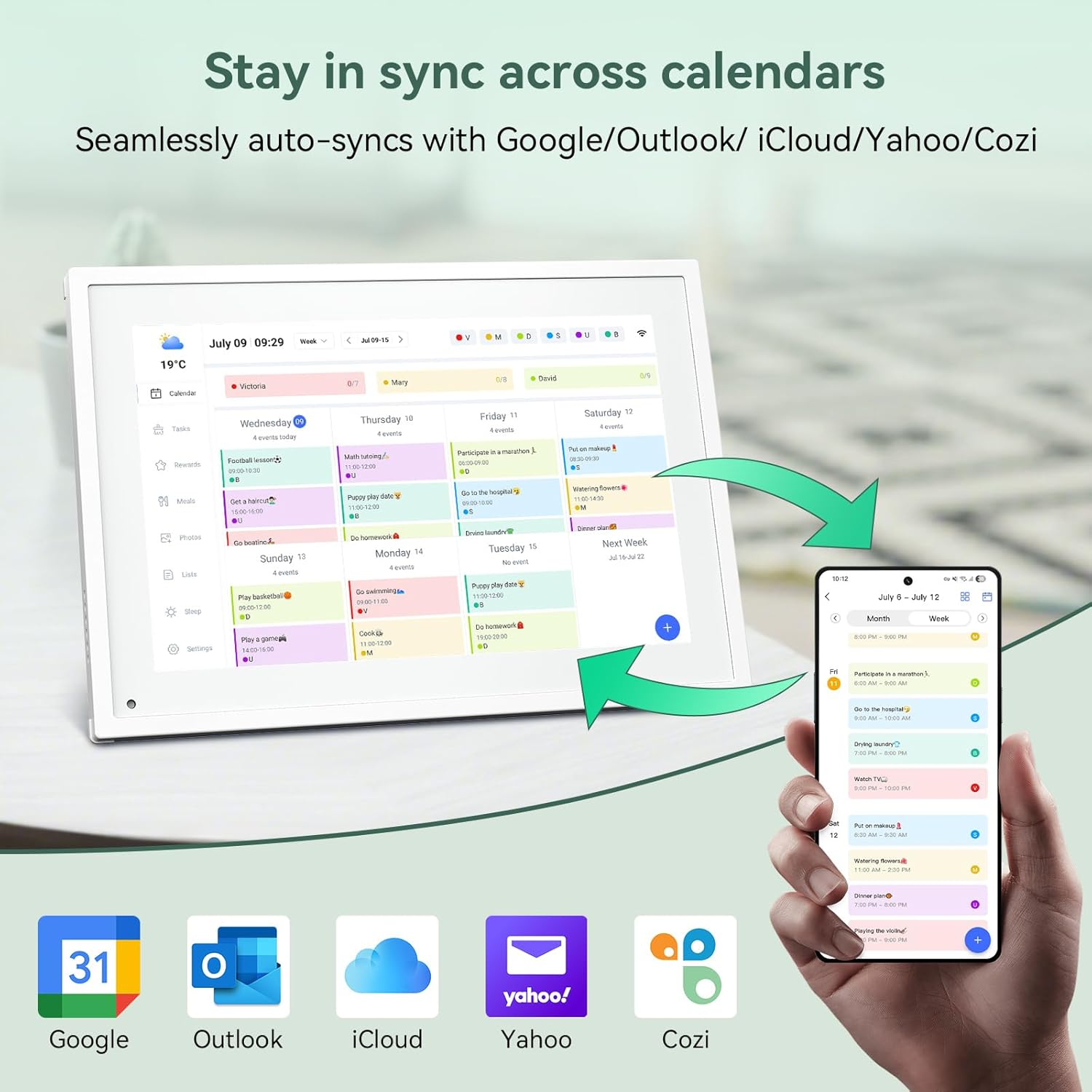
Слика 6.1: Seamless synchronization of the digital calendar with various external calendar services.
- Syncing External Calendars: Within the eCalendar app settings, you can link your Google, Apple, Outlook, Yahoo, or Cozi calendars. Events from these linked accounts will automatically appear on your TABWEE Digital Calendar.
- Adding/Editing Events: Tap on a date or time slot on the calendar display or use the eCalendar app to add new events. You can specify event details, set reminders, and assign participants.
- Прилагођено Views: Switch between day, week, or month views directly on the device or through the app.
6.3 Task Management (Chore Chart)
Organize tasks and chores for family members with a built-in reward system.
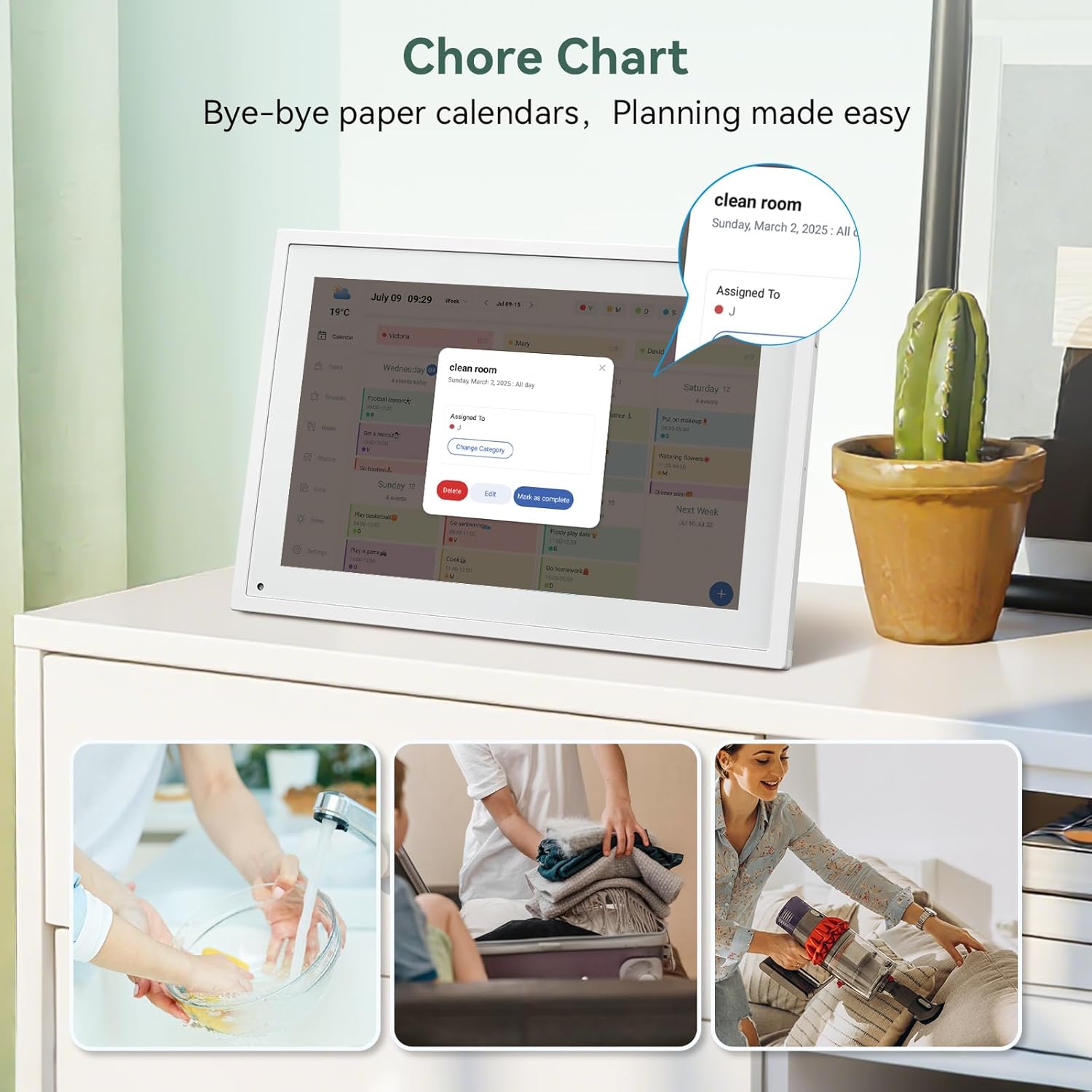
Слика 6.2: Managing tasks and chores on the digital calendar interface.
- Creating Tasks: Use the 'Tasks' section on the device or app to create new tasks. Assign them to specific individuals, set due dates, and configure recurring tasks.
- Праћење напретка: Users can mark tasks as complete. The system tracks completion and can be configured to award points.
- Систем награђивања: Set up a star-point reward system within the app. Points earned from completed tasks can be redeemed for custom rewards, encouraging participation.

Слика 6.3: The task manager and rewards interface, designed for engaging users.
6.4 Meal Planning
Plan your meals directly on the device or through the app.

Слика 6.4: Visual meal planning interface on the digital calendar.
- Create Meal Plans: Access the 'Meals' section to plan breakfasts, lunches, dinners, and snacks for the week.
- Custom Recipes: Upload and store your favorite recipes.
- Grocery Lists: Generate grocery lists based on your meal plans.
6.5 Digital Photo Frame Functionality
The device can also function as a digital photo frame.

Слика 6.5: The digital calendar switching between calendar and photo frame modes, in both landscape and portrait orientations.
- Промена режима: Navigate to the 'Photos' section on the device or app to activate the digital photo frame mode.
- Отпремање фотографија: Upload your favorite memories directly from your smartphone via the eCalendar app.
- Оријентација: The device supports both landscape and portrait orientations, automatically adjusting the display.
6.6 Остале карактеристике
The TABWEE Digital Calendar includes additional smart features to enhance usability.
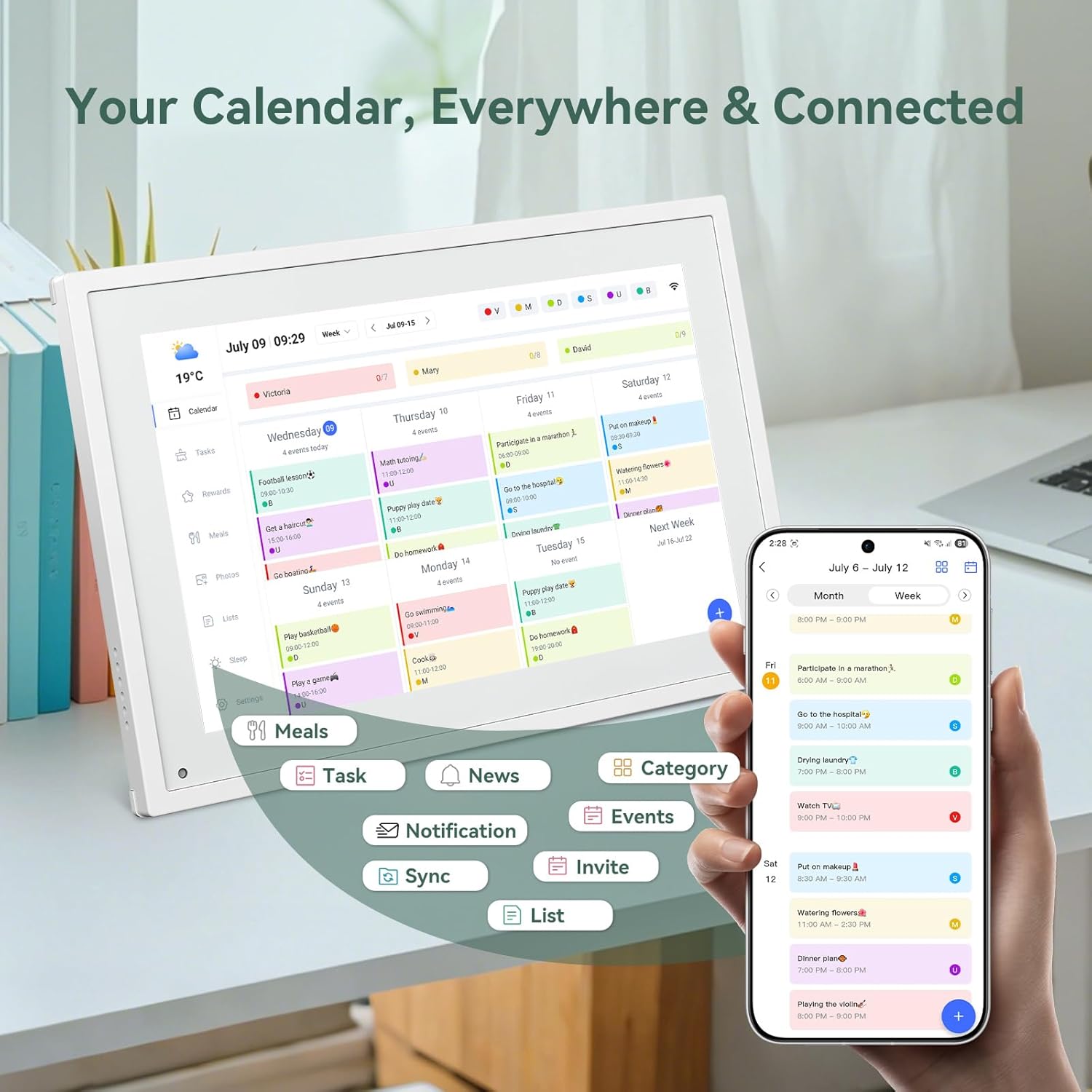
Слика 6.6: Готовоview of smart features and app connectivity.
- Live Weather Forecasts: Приказује тренутне временске услове и прогнозе.
- Аутоматска осветљеност: The built-in light sensor automatically adjusts screen brightness for optimal viewинг.
- Режим спавања: Configure scheduled times for the device to enter a low-power sleep mode.
- Custom Lists: Create and manage various lists (e.g., shopping lists, packing lists).
- Кодирање боја: Assign different colors to events or tasks for easy visual identification.
7. Одржавање
7.1 Чишћење уређаја
- Нежно обришите екран меком крпом која не оставља влакна. За тврдокорне мрље, благо обришитеampобришите крпу водом или средством за чишћење екрана.
- Избегавајте употребу јаких хемикалија, абразивних материјала или аеросолних спрејева директно на уређају.
- Уверите се да је уређај искључен и искључен пре чишћења.
7.2 Ажурирања софтвера
The device may receive periodic software updates to improve performance and add new features. Ensure your device is connected to Wi-Fi to receive these updates. You will typically be notified on-screen when an update is available.
КСНУМКС. Решавање проблема
| Проблем | Могући узрок | Решење |
|---|---|---|
| Уређај се не укључује. | Адаптер за напајање није повезан или је неисправан. | Уверите се да је адаптер за напајање безбедно повезан са уређајем и исправном утичницом. |
| Повезивање на Ви-Фи није могуће. | Нетачна лозинка, ван домета или проблем са мрежом. | Verify Wi-Fi password. Move the device closer to the router. Restart your router. |
| Calendar events are not syncing. | App not linked, external calendar not connected, or internet issue. | Check app-device linking. Ensure external calendars are correctly linked in the eCalendar app. Verify internet connection. |
| Екран не реагује. | Привремени софтверски квар. | Restart the device by holding the power button until it turns off, then power it back on. |
9. Спецификације
| Феатуре | Детаљ |
|---|---|
| Број модела | П10 |
| Величина екрана | 10.1 инча |
| Дисплаи Типе | Тоуцхсцреен |
| Повезивање | ВиФи |
| Димензије производа | 10.51 к 0.91 к 7.32 инча (26.7 к 2.3 к 18.6 цм) |
| Тежина артикла | 2.58 фунте (1.17 кг) |
| Тип монтаже | Desk Mount (not wall-mountable) |
| Извор напајања | Plug-in (no internal battery) |
| Боја | Бела |
10. Гаранција и подршка
The TABWEE Digital Calendar comes with a standard manufacturer's warranty. For specific warranty terms and conditions, please refer to the warranty card included in your product packaging or visit the official TABWEE webсајту.
For technical support, troubleshooting assistance, or any inquiries regarding your product, please contact TABWEE customer service through their official webсајт или контакт информације наведене у документацији вашег производа.