
1. Увод
This manual provides essential information for the proper setup, operation, and maintenance of your Veout 15.6-inch Portable Monitor. Please read these instructions thoroughly before using the product to ensure optimal performance and longevity.
2. Садржај пакета
Проверите да ли се све ставке наведене у наставку налазе у паковању вашег производа:
- 1 к преносиви монитор
- 1 к УСБ-А на УСБ-Ц кабл
- 1 к УСБ-Ц на УСБ-Ц кабл
- 1 к Мини ХДМИ на ХДМИ кабл
- 1 к Упутство за употребу

Figure 2.1: Included accessories with the portable monitor.
3. Производ је готовview
The Veout portable monitor features a 15.6-inch IPS display with a slim profile and integrated kickstand for versatile use.
3.1. Физичке карактеристике

Слика 3.1: Предња страна view of the Veout 15.6-inch Portable Monitor.

Слика 3.2: Задња страна view highlighting connectivity ports.

Слика 3.3: Бочни професионалацfile demonstrating the monitor's thin design.
3.2. Портови и контроле
- Full-Function USB-C Ports: For video, audio, data, and power delivery with a single cable.
- Мини-ХДМИ порт: For video and audio input. Requires external power via USB-C when used.
- 3.5 мм аудио прикључак: За повезивање екстерних слушалица или звучника.
- Control Wheel/Buttons: Used for adjusting volume, brightness, and navigating the On-Screen Display (OSD) menu.
3.3. Integrated Kickstand
The monitor features a foldable kickstand for stable positioning at various viewинг углова.
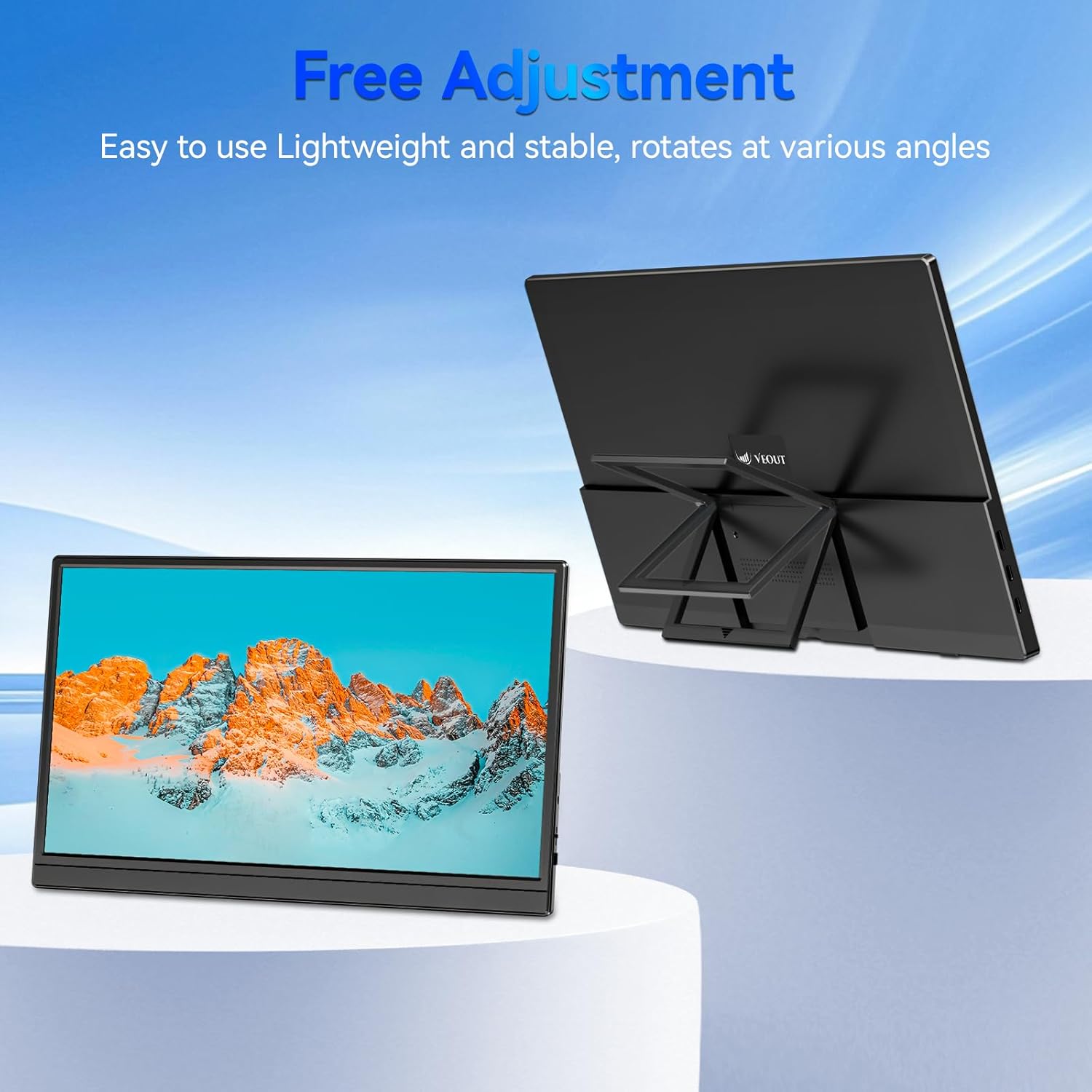
Figure 3.4: Monitor with kickstand for adjustable viewинг.
4. Подешавање
The Veout portable monitor supports plug-and-play functionality, requiring no driver installation for most devices.
4.1. Повезивање са уређајем
- USB-C Connection (Single Cable):
- Connect one end of the USB-C to USB-C cable to a full-function USB-C port on your laptop, smartphone, or other compatible device.
- Connect the other end of the USB-C to USB-C cable to one of the full-function USB-C ports on the portable monitor.
- This connection provides video, audio, and power to the monitor.
- HDMI Connection (Requires Additional Power):
- Connect one end of the Mini-HDMI to HDMI cable to the Mini-HDMI port on the monitor.
- Connect the other end of the Mini-HDMI to HDMI cable to the HDMI port on your device.
- For power, connect the USB-A to USB-C cable or a USB-C to USB-C cable from your device's USB port or a power adapter (not included) to one of the monitor's USB-C ports.
4.2. Positioning the Monitor
Deploy the integrated kickstand to position the monitor on a flat surface. Adjust the angle for optimal viewing. The monitor can be used in both landscape and portrait orientations.

Figure 4.1: Monitor used in portrait mode for document viewинг.
5. Упутство за употребу
5.1. Режими приказа
When connected to a computer, you can configure the display mode through your operating system's display settings:
- Copy Mode (Mirror Display): Duplicates your primary screen's content onto the portable monitor. Useful for presentations or sharing content.
- Проширени режим: Extends your desktop across both screens, providing additional workspace for multitasking.
- Режим само другог екрана: Displays content only on the portable monitor, with the primary device's screen turned off.
5.2. Подешавање подешавања
The monitor features an intuitive control mechanism for quick adjustments:
- Подешавање осветљености: Scroll the control wheel up or down to instantly adjust screen brightness.
- Подешавање јачине звука: Scroll the control wheel up or down to instantly adjust speaker volume.
- ОСД мени: Press the control wheel or designated button to access the On-Screen Display menu for advanced settings like color, contrast, and input source selection.
5.3. Технологија неге очију
The monitor incorporates advanced eye-care technology designed to reduce blue light emission and screen flicker, promoting comfortable viewтоком дуже употребе.
6. Одржавање
To maintain your monitor's performance and appearance, follow these guidelines:
- Чишћење екрана: Нежно обришите екран меком крпом која не оставља влакна. За тврдокорне мрље, лагано дampОперите крпу водом или раствором за чишћење екрана. Избегавајте јаке хемикалије или абразивне материјале.
- Чишћење Цasing: Користите меку, суву крпу за чишћење површине монитораasing.
- Складиштење: When not in use, store the monitor in a cool, dry place, preferably in its original packaging or a protective sleeve.
- Избегавајте течности: Do not expose the monitor to excessive moisture or spill liquids directly onto it.
КСНУМКС. Решавање проблема
Ако наиђете на проблеме са монитором, погледајте следеће уобичајене проблеме и решења:
| Проблем | Могући узрок | Решење |
|---|---|---|
| Нема дисплеја/порука „Нема сигнала“ | Incorrect cable connection, insufficient power, incorrect input source. | Ensure cables are securely connected. If using HDMI, ensure a separate power source is connected to the monitor's USB-C port. Check your device's display settings to ensure the monitor is detected and enabled. Select the correct input source via the OSD menu. |
| Треперећи екран | Loose cable connection, incompatible resolution/refresh rate, power fluctuations. | Reconnect cables. Adjust display resolution or refresh rate on your connected device. Ensure stable power supply. |
| Нема звука из звучника монитора | Monitor volume too low, incorrect audio output selected on device. | Increase monitor volume using the control wheel. On your connected device, ensure the portable monitor is selected as the audio output device. |
| Монитор се не укључује | No power supply, faulty cable. | Ensure the monitor is receiving power via a USB-C connection from a compatible device or power adapter. Try a different USB-C cable. |
8. Спецификације
| Феатуре | Детаљ |
|---|---|
| Број модела производа | Veout-15.6 |
| Величина екрана | 15.6 инча |
| Резолуција | 1920 x 1080 пиксела (FHD 1080p) |
| Аспецт Ратио | 16:9 |
| Панел Типе | ИПС |
| Површина екрана | Мат |
| Димензије производа | 1.97 к 13.78 к 11.02 инча |
| Тежина артикла | 3.08 фунти |
| Улазни волtage | 5V |
| Називна струја | 3A |
| Излазна снага | 5.5В |
| Произвођач | Guangdong Zhanwei electronic Technology Co., LTD |

Figure 8.1: Product information and certification details.
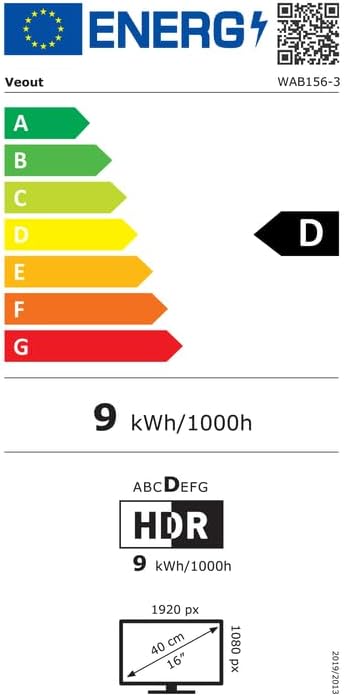
Figure 8.2: EU Energy Label for model WAB156-3. For more details, visit епрел.ец.еуропа.еу/кр/2209122.
9. Гаранција и подршка
Your Veout Portable Monitor is backed by a 12-month warranty from the date of purchase. We are committed to providing customer service and support.
- Гарантни период: 12 месеци
- Политика враћања: 30-дневна гаранција поврата новца
- Служба за кориснике: Доступно 24 сата

Слика 9.1: Информације о гаранцији и подршци.
For technical assistance or warranty claims, please contact Veout customer support at support@veout.com.