
1. Увод
This manual provides detailed instructions for the setup, operation, and maintenance of your KYSONA Jupiter SE Wireless Gaming Mouse. Please read this manual thoroughly before using the product to ensure optimal performance and longevity.

Image 1.1: KYSONA Jupiter SE Wireless Gaming Mouse (White and Black variants shown).
2. Садржај пакета
Проверите да ли су све ставке присутне у паковању вашег производа:
- KYSONA Jupiter SE Wireless Gaming Mouse
- USB 2.4G Wireless Receiver
- УСБ-Ц на УСБ-А кабл за пуњење/дата
- Кориснички приручник (овај документ)
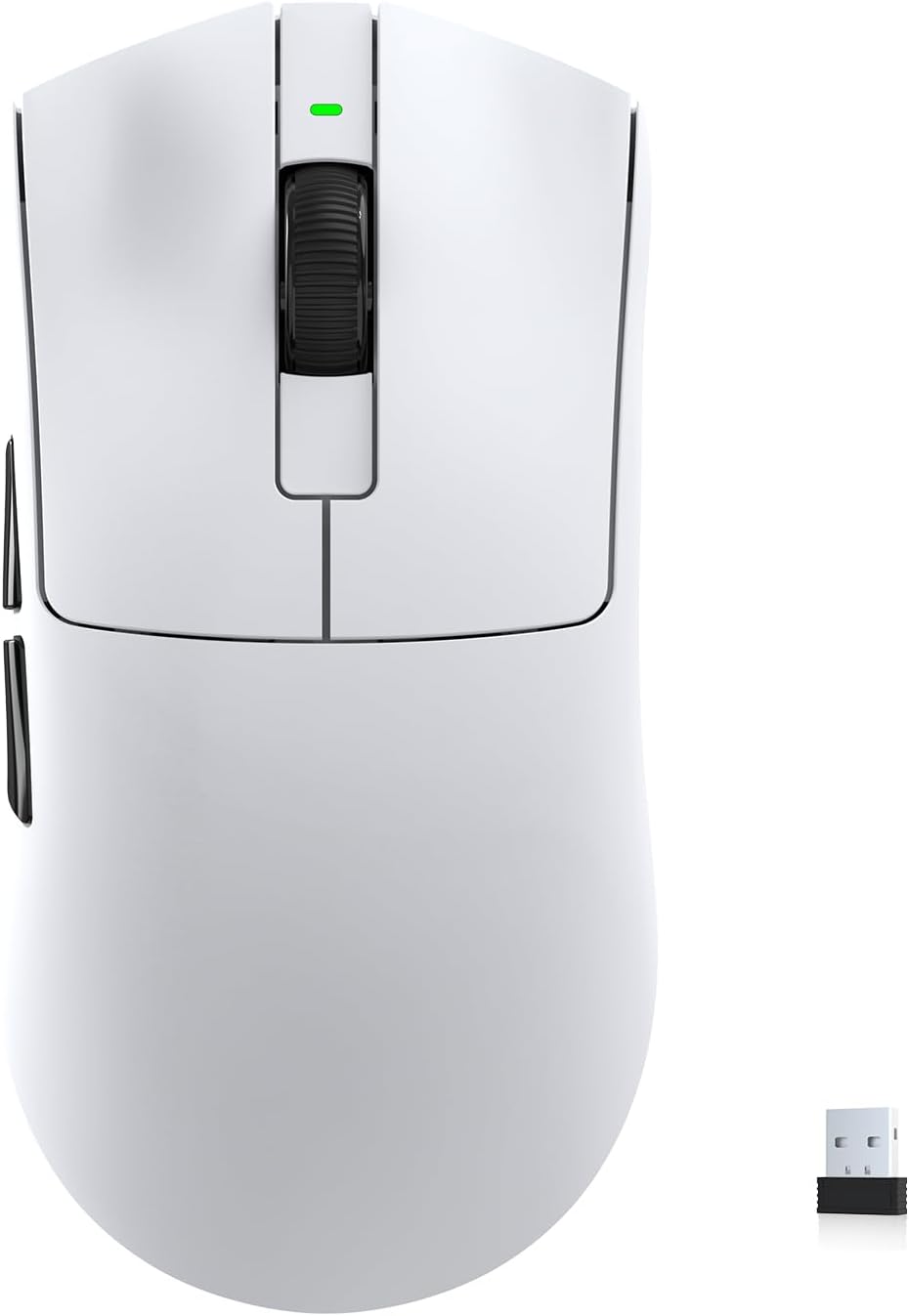
Image 2.1: KYSONA Jupiter SE Wireless Gaming Mouse and USB Receiver.
3. Карактеристике производа
The KYSONA Jupiter SE Wireless Gaming Mouse is designed for high-performance gaming and productivity, featuring:
- PixArt 3311 Optical Sensor: Provides precise tracking with up to 24,000 DPI and a 1000Hz polling rate.
- Ултралаки дизајн: Weighs approximately 49g for enhanced speed and control during extended use.
- Продужено трајање батерије: Up to 300 hours of continuous use on a single charge, with intelligent sleep mode.
- Тромодална повезаност: Supports 2.4G wireless, Bluetooth, and USB-C wired connections for versatile use.
- Програмабилна дугмад: Six customizable buttons for macros, hotkeys, and complex commands.
- Ice-Feeling Coating: A superfine, wear-resistant, and sweat-proof coating for a comfortable and secure grip.
- Широка компатибилност: Compatible with Windows, MacOS, Linux, and Android operating systems.

Image 3.1: Ultralight 49g design with internal structure.

Image 3.2: Ice-feeling coating for enhanced grip and comfort.
4. Подешавање
4.1 Почетно пуњење
Before first use, it is recommended to fully charge the mouse. Connect the USB-C end of the charging cable to the mouse and the USB-A end to a powered USB port on your computer or a wall adapter. The LED indicator on the mouse will show charging status.
4.2 Повезивање миша
The Jupiter SE offers three connectivity options:
- 2.4Г бежични режим:
- Locate the USB 2.4G wireless receiver. It is typically stored in a compartment on the underside of the mouse.
- Укључите рисивер у слободан УСБ порт на рачунару.
- Switch the mode selector on the underside of the mouse to '2.4G' mode.
- The mouse should automatically connect. If not, press the pairing button (if available, refer to the diagram on the mouse's underside) to initiate pairing.
- Блуетоотх режим:
- Switch the mode selector on the underside of the mouse to 'BT' mode.
- On your computer or device, navigate to Bluetooth settings and enable Bluetooth.
- The mouse should appear as 'KYSONA Jupiter SE' in the list of discoverable devices. Select it to pair.
- Жични режим:
- Connect the USB-C to USB-A cable to the mouse and your computer.
- Миш ће функционисати као жични уређај и истовремено се пунити.

Image 4.1: Tri-Mode Connectivity options.

Image 4.2: Underside of the mouse with mode selector.
5. Упутство за употребу
5.1 Основни рад
Once connected, the mouse will function immediately. Move the mouse to control the cursor on your screen. The left and right click buttons perform standard actions, and the scroll wheel allows for vertical scrolling.
5.2 ДПИ подешавање
The Jupiter SE mouse features adjustable DPI settings. Typically, a button on the top or underside of the mouse allows you to cycle through preset DPI levels. Refer to the manufacturer's website for specific software to customize these levels.
5.3 Програмабилна дугмад
The mouse includes six programmable buttons. To customize these buttons, download the official KYSONA software from the manufacturer's website. The software allows you to assign macros, hotkeys, and other functions to each button.
6. Пуњење и управљање батеријом
The KYSONA Jupiter SE mouse is equipped with a high-efficiency power system providing up to 300 hours of battery life. When the battery is low, the LED indicator will typically flash red. Connect the mouse using the USB-C cable to charge. The mouse can be used while charging in wired mode.
To preserve battery life, the mouse features an intelligent sleep mode that activates after a period of inactivity. Move the mouse or click a button to wake it up.
7. Одржавање
7.1 Чишћење
To clean your mouse, use a soft, dry cloth. For stubborn dirt, lightly dampen the cloth with water or a mild electronic cleaner. Avoid using harsh chemicals or abrasive materials, as these can damage the mouse's surface and coating.
7.2 Складиштење
When not in use for extended periods, store the mouse in a cool, dry place away from direct sunlight and extreme temperatures. Ensure the mouse is turned off to conserve battery.
КСНУМКС. Решавање проблема
- Миш не реагује:
- Уверите се да је миш напуњен.
- Check the connectivity mode switch (2.4G, BT, Wired) on the underside of the mouse.
- For 2.4G, ensure the USB receiver is securely plugged in. Try a different USB port.
- За Bluetooth, уверите се да је Bluetooth омогућен на вашем уређају и да је миш упарен. Покушајте поново да упарите.
- Покушајте да повежете миш у жичном режиму да бисте искључили проблеме са бежичном мрежом.
- Cursor movement is erratic or inaccurate:
- Очистите оптички сензор на доњој страни миша.
- Уверите се да користите миш на одговарајућој површини (нпр. подлога за миш).
- Check for any wireless interference if using 2.4G or Bluetooth.
- Дугмад не раде:
- Уверите се да је миш правилно повезан.
- If using custom button assignments, check the KYSONA software settings.
9. Спецификације
| Феатуре | Детаљ |
|---|---|
| Модел | Jupiter SE |
| Сензор | Оптички сензор PixArt PAW3311 |
| ДПИ | До 24,000 ДПИ |
| Поллинг Рате | 1000 Хз |
| Тежина | Approximately 49g (46g stated in some materials) |
| Повезивање | 2.4G бежично, Bluetooth, USB-C жично |
| Трајање батерије | До 300 сати |
| Дугмад | 6 Програмабилна дугмад |
| Цоатинг | Ice-feeling coating |
| Компатибилност | Виндовс, МацОС, Линук, Андроид |
| Димензије | 128 x 64 x 40 mm (approximate, based on Jupiter Series table) |
Image 9.1: Internal structure and weight detail.
10. Гаранција и подршка
For warranty information, technical support, or to download the latest software and drivers, please visit the official KYSONA webсајт. Сачувајте рачун као доказ о куповини за потребе гаранције.
For additional assistance, you may contact KYSONA customer support through their official channels.