
1. Увод
Welcome to your new Acer Nitro 60 N60-640-UR25 Desktop. This manual provides essential information for setting up, operating, maintaining, and troubleshooting your computer. Please read this guide thoroughly to ensure optimal performance and longevity of your device.
2. Безбедносне информације
Observe the following safety precautions to prevent damage to your computer and to ensure your personal safety.
- Напајање: Use only the power adapter provided with your desktop. Ensure the power outlet is properly grounded.
- вентилација: Do not block ventilation openings. Ensure adequate airflow around the desktop to prevent overheating.
- Течност и влага: Keep the desktop away from liquids and excessive moisture. Do not operate with wet hands.
- Пласман: Place the desktop on a stable, flat surface. Avoid placing it near heat sources or in direct sunlight.
- Сервисирање: Do not attempt to service the desktop yourself. Refer all servicing to qualified service personnel.
3. Садржај пакета
Проверите да ли су све ставке присутне у вашем пакету:
- Acer Nitro 60 N60-640-UR25 Desktop Unit
- Повер Цорд
- Документација (Упутство за брзи почетак, Гарантни лист)
4. Подешавање
4.1 Распакивање
Carefully remove the desktop from its packaging. Retain the packaging materials for future transport or servicing needs.
4.2 Повезивање периферних уређаја
Connect your monitor, keyboard, mouse, and other devices to the appropriate ports on the desktop.

Слика: Позади view of the Acer Nitro 60 desktop, highlighting the available ports for connecting peripherals such as monitors, keyboards, mice, and network cables.
- Монитор: Connect your monitor to the NVIDIA GeForce RTX 5070 Ti graphics card's HDMI or DisplayPort outputs.
- Тастатура и миш: Повежите тастатуру и миш са доступним УСБ портовима.
- Мрежа: For a wired connection, connect an Ethernet cable to the LAN port. For wireless, ensure your Wi-Fi antenna is connected (if external) or that the internal Wi-Fi is enabled.
- аудио: Повежите звучнике или слушалице на аудио излазне прикључке.
4.3 Укључивање
After connecting all peripherals, plug the power cord into the desktop and then into a wall outlet. Press the power button located on the front or top of the desktop to turn it on.

Image: A close-up of the top-front panel of the Acer Nitro 60 desktop, illustrating the location of the power button, USB ports, and audio jacks for easy access.
4.4 Почетна инсталација Windows-а
Upon first boot, Windows 11 Home will guide you through the initial setup process. Follow the on-screen instructions to configure your region, language, network, and user account.
5. Управљање радном површином
5.1 Управљање напајањем
- Искључи: Кликните на дугме Старт, затим на Напајање > Искључи.
- Поново покрени: Кликните на дугме Старт, затим на Напајање > Рестартуј.
- спавање: Кликните на дугме Старт, затим на Напајање > Спавање.
5.2 Разумевање портова и повезивања
Your Acer Nitro 60 desktop offers a variety of ports for versatile connectivity:
- УСБ портови: For connecting keyboards, mice, external drives, and other USB devices.
- ДВИ: For connecting to monitors or TVs.
- Етхернет (ЛАН): За жичану интернет везу.
- Блуетоотх: For wireless connection to compatible devices like headphones or game controllers.
- Ви-Фи: За бежични приступ интернету.
5.3 Graphics Performance
Опремљен са НВИДИА ГеФорце РТКС 5070 Ти графичка картица, your desktop delivers high-performance visuals for gaming, content creation, and AI-driven tasks. Ensure your display drivers are up to date for optimal performance.
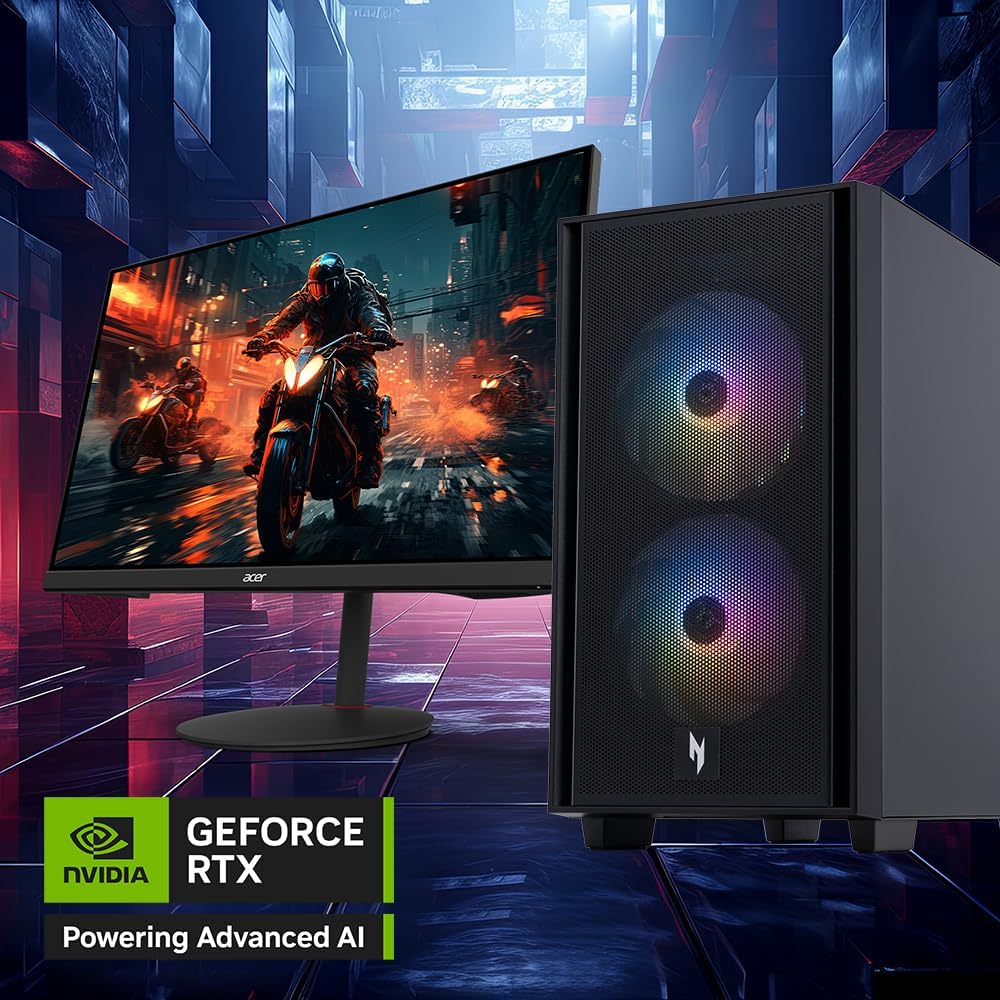
Image: The Acer Nitro 60 desktop positioned beside a monitor, showcasing its capability to render detailed and immersive gaming environments, powered by its advanced graphics card.
5.4 Процесор и меморија
Тхе Intel Core i7-14700F 20-Core Processor и 32ГБ ДДР5 меморије provide robust performance for demanding applications and multitasking. The 2TB PCIe 4.0 NVMe SSD ensures fast boot times and rapid data access.

Слика: Интерна view of the Acer Nitro 60 desktop, revealing the Intel Core i7 processor with its cooling solution and the installed DDR5 memory sticks, emphasizing the powerful internal components.
6. Одржавање
6.1 Чишћење радне површине
Regular cleaning helps maintain performance and extends the lifespan of your desktop.
- Екстеријер: Користите меку, дamp крпу за брисање спољашњих површина. Избегавајте јаке хемикалије.
- вентилација: Periodically use compressed air to clear dust from the ventilation grilles and fans. Ensure the desktop is powered off before cleaning.
6.2 Ажурирања софтвера
Редовно ажурирајте оперативни систем и управљачке програме како бисте осигурали безбедност, стабилност и оптималне перформансе.
- Ажурирања за Windows: Access Windows Update through Settings > Update & Security > Windows Update.
- Ажурирања драјвера: Regularly check the Acer support webсајт и NVIDIA-ин website for the latest graphics drivers.
6.3 Резервна копија података
Редовно правите резервне копије важних података на екстерни диск или складиште у облаку како бисте спречили губитак података.
КСНУМКС. Решавање проблема
Овај одељак се бави уобичајеним проблемима на које можете наићи.
| Иссуе | Могуће решење |
|---|---|
| Десктоп се не укључује | Уверите се да је кабл за напајање безбедно повезан и са рачунаром и са зидном утичницом. Тестирајте утичницу са другим уређајем. |
| Нема приказа на монитору | Check monitor power and cable connections. Ensure the monitor is connected to the graphics card output, not the motherboard's integrated graphics ports. Try a different cable or monitor if possible. |
| Систем је спор или не реагује | Затворите непотребне апликације. Проверите Менаџер задатака да ли постоји велико оптерећење процесора/меморије. Уверите се да је на SSD-у довољно слободног простора. Покрените скенирање на вирусе. |
| Проблеми са мрежном повезивањем | For wired connections, check the Ethernet cable and router. For Wi-Fi, ensure Wi-Fi is enabled and you are connected to the correct network. Restart your router/modem. Update network drivers. |
| Unusual noises from desktop | Loud fan noise may indicate overheating or dust buildup. Clean the fans. If the noise persists or is grinding, contact customer support. |
8. Спецификације
Key technical specifications for your Acer Nitro 60 N60-640-UR25 Desktop:
- процесор: Intel Core i7-14700F 20-Core Processor (Up to 5.4 GHz)
- Графика: NVIDIA GeForce RTX 5070 Ti with 16 GB GDDR7 Video Memory
- Меморија: 32 ГБ ДДР5 РАМ
- Складиштење: 2 TB PCIe 4.0 NVMe SSD
- Оперативни систем: Виндовс 11 Хоме
- аудио: Реалтек Аудио
- Повезивање: Bluetooth, Ethernet, HDMI, USB, Wi-Fi (802.11ac)
- Димензије: 12 к 19 к 21 инча
- Тежина: 25 фунти
- Тип утикача: Type A - 2 pin (North American)
9. Информације о гаранцији
Your Acer Nitro 60 N60-640-UR25 Desktop comes with a 1-годишња ограничена гаранција. Please refer to the included warranty card for detailed terms and conditions. Keep your proof of purchase for warranty claims.
10. Корисничка подршка
For technical assistance, warranty service, or additional information, please visit the official Acer support webсајту или се обратите њиховом одељењу за корисничку подршку.
Ацер подршка Webсајт: www.acer.com/support