
1. Увод
Welcome to the instruction manual for your Jectse WiFi 6 4G/5G CPE LTE Router. This document provides essential information on how to set up, operate, maintain, and troubleshoot your device. Please read this manual carefully before using the product to ensure optimal performance and longevity.
The Jectse WiFi 6 Router is designed to provide high-speed internet connectivity by converting a 4G LTE signal into a Wi-Fi hotspot, supporting multiple devices simultaneously. Its robust design with four antennas ensures stable and wide coverage.
2. Производ је готовview
2.1 Кључне карактеристике
- 4G LTE Support: Compatible with multiple 4G LTE bands, including FDD B1, B3, B5, B7, B8, B20, TDD B38, B40, B41, and WCDMA B1, B5, B8. This ensures versatile connectivity across various networks.
- Брзе брзине: Experience 4G download speeds up to 150 Mbps and upload speeds up to 50 Mbps. Wireless transfer rates reach up to 300 Mbps for smooth streaming, gaming, and browsing.
- Лако подешавање: Simply insert a standard SIM card to transform the 4G LTE signal into a Wi-Fi hotspot. Enjoy immediate internet access with minimal configuration.
- Висок капацитет уређаја: Connect up to 32 devices simultaneously, including smartphones, tablets, and PCs, within a maximum coverage area of 300 square meters.
- 4-Antenna Design: Equipped with four antennas for enhanced signal coverage, faster network speeds, and stable connectivity throughout your space.
2.2 Садржај пакета
Молимо вас да означите поље за следеће ставке:
- 1 x Jectse WiFi 6 4G/5G CPE LTE Router
- 1 к адаптер за напајање
- 1 к Етхернет кабл
- 1 к УСБ кабл
- 1 x Упутство за употребу (овај документ)

Image: Jectse WiFi 6 Router with its power adapter, Ethernet cable, and USB cable.
3. Упутства за подешавање
Follow these steps to set up your Jectse WiFi 6 Router:
- Распакујте рутер: Пажљиво извадите рутер и сву додатну опрему из паковања.
- Уметните СИМ картицу: Locate the SIM card slot on the side of the router. Insert a standard-sized 4G LTE SIM card into the slot until it clicks into place. Ensure the SIM card is correctly oriented as indicated by the diagram near the slot.

Слика: Са стране view of the router highlighting the SIM card slot and USB/WAN/LAN ports.
- Прикључите напајање: Connect the power adapter to the router's power input port and then plug the adapter into a wall outlet. The router will power on automatically.
- Укључено: Wait for the router's indicator lights to stabilize. The Wi-Fi and network status lights should indicate a successful connection.
- Optional: Wired Connection: If you prefer a wired connection, connect one end of the Ethernet cable to the WAN/LAN port on the router and the other end to your computer or another network device.
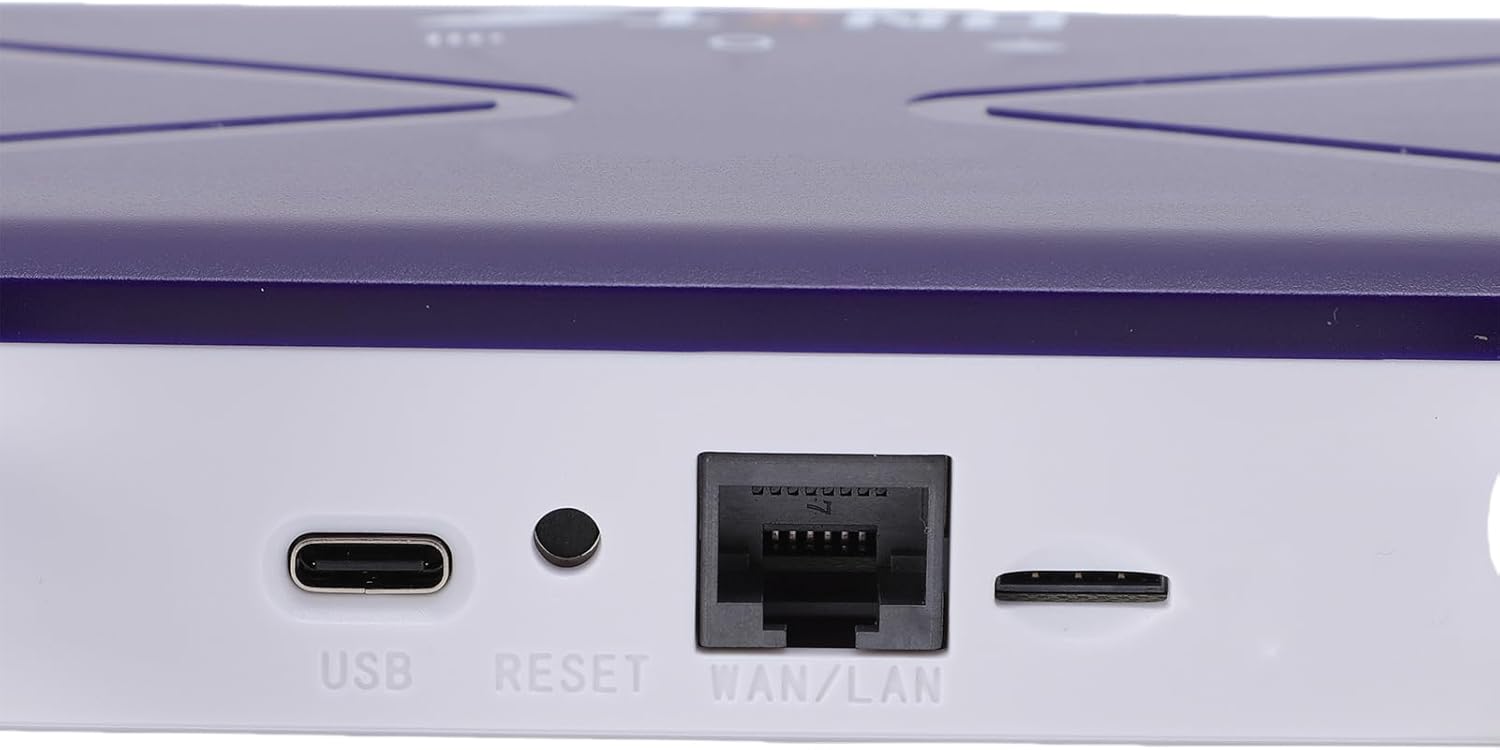
Image: Close-up of the router's rear panel showing the USB port, Reset button, and WAN/LAN port.
4. Упутство за употребу
4.1 Повезивање на Ви-Фи
To connect your devices to the router's Wi-Fi network:
- On your device (smartphone, tablet, laptop), open the Wi-Fi settings.
- Тражи available Wi-Fi networks. The router's default Wi-Fi network name (SSID) and password (Wi-Fi Key) are typically printed on a label on the bottom of the router.
- Select the router's SSID from the list.
- Enter the Wi-Fi Key when prompted. The default Wi-Fi Key is usually 1234567890.
- Once connected, your device should have internet access.

Image: Bottom label of the router displaying default Wi-Fi Key and Web ИП адреса.
4.2 Приступ подешавањима рутера
To manage your router settings, such as changing the Wi-Fi name or password, or configuring advanced network options:
- Connect your device to the router's Wi-Fi network or via an Ethernet cable.
- Отвори а web прегледач (нпр. Chrome, Firefox, Edge).
- In the address bar, type the default Web ИП адреса: 192.168.100.1 и притисните Ентер.
- You will be prompted for a username and password. Refer to the label on the bottom of your router for default login credentials.
- Once logged in, you can customize your network settings.
4.3 Покривеност мрежом
The router provides Wi-Fi wireless coverage and supports network port wired output for various environments.

Image: Diagram showing the router's Wi-Fi coverage and wired output capabilities.
5. Одржавање
To ensure the optimal performance and longevity of your router, consider the following maintenance tips:
- Пласман: Поставите рутер на централну локацију, даље од препрека, великих металних предмета и других електронских уређаја који могу изазвати сметње.
- вентилација: Ensure the router has adequate ventilation. Do not cover the ventilation holes or place it in an enclosed space.
- Чишћење: Gently clean the router's exterior with a soft, dry cloth. Avoid using liquid cleaners or aerosols.
- Ажурирања фирмвера: Периодично проверавајте произвођачеве website for firmware updates. Keeping your router's firmware up-to-date can improve performance, security, and add new features.
- Циклус напајања: If you experience minor network issues, try power cycling the router by unplugging it from the power outlet for 10-15 seconds and then plugging it back in.
КСНУМКС. Решавање проблема
Ако наиђете на проблеме са рутером, погледајте следеће уобичајене проблеме и решења:
- Нема интернет везе:
- Проверите да ли је СИМ картица правилно уметнута и активирана.
- Verify that the router's network indicator lights are stable and show a connection.
- Уверите се да ваша СИМ картица има активан тарифни план.
- Try power cycling the router.
- Споре брзине Wi-Fi-ја:
- Приближите се рутеру да бисте побољшали јачину сигнала.
- Reduce the number of connected devices if many are actively using bandwidth.
- Проверите да ли има сметњи од других електронских уређаја.
- Поново покрените рутер.
- Не могу да се повежем на Ви-Фи:
- Ensure you are entering the correct Wi-Fi password (Wi-Fi Key).
- Check if the Wi-Fi function on the router is enabled (refer to router settings via web интерфејс).
- Поново покрените и рутер и уређај који сте повезали.
- Рутер не одговара:
- Perform a hard reset by pressing and holding the 'RESET' button (located near the WAN/LAN port) with a pin for about 10 seconds until the lights flash. This will restore the router to factory default settings, including the default Wi-Fi name and password.
7. Спецификације
| Феатуре | Спецификација |
|---|---|
| Број модела | Jectseak28xtdzqf |
| Ви-фи стандард | 802.11б/г/н |
| Вирелесс Фрекуенци | 2.4 ГХз |
| 4G LTE опсези (FDD) | Б1, Б3, Б5, Б7, Б8, Б20 |
| 4G LTE опсези (TDD) | Б38, Б40, Б41 |
| ВЦДМА Бандс | Б1, Б5, Б8 |
| Максимална брзина преузимања | 150 Мбпс |
| Мак Уплоад Спеед | 50 Мбпс |
| Wireless Transfer Rate | 300 Мбпс |
| Утор за СИМ картицу | Стандард СИМ |
| Антене | 4 |
| Уграђени заштитни зид | Да |
| Максимални број повезаних уређаја | 32 |
| Област покривености | До 300 м² |
| Произвођач | Јецтсе |
| Земља порекла | Кина |
8. Гаранција и подршка
8.1 Информације о гаранцији
This Jectse WiFi 6 4G/5G CPE LTE Router comes with a Двогодишња гаранција произвођача од датума куповине. Ова гаранција покрива недостатке у материјалу и изради при нормалној употреби. Молимо вас да сачувате доказ о куповини за потребе подношења захтева за гаранцију.
The warranty does not cover damage caused by misuse, accidents, unauthorized modifications, or external factors such as power surges.
8.2 Корисничка подршка
For technical assistance, troubleshooting beyond this manual, or warranty inquiries, please contact your retailer or the Jectse customer support team. Refer to the contact information provided with your purchase or visit the official Jectse webсајт за ресурсе подршке.