
1. Увод
Thank you for choosing the Darmoshark M5PRO Mini Wireless Gaming Mouse. This manual provides detailed instructions for setting up, operating, and maintaining your new gaming mouse. The M5PRO features a tri-mode connection (2.4G wireless, Bluetooth, wired), a high-precision PAW3950 optical sensor, and a lightweight design for optimal performance.
2. Производ је готовview
The Darmoshark M5PRO is designed for competitive gaming, offering versatile connectivity and advanced sensor technology. Its ergonomic shape is ideal for finger grip players, providing responsive control and comfort during extended use.

Image: Darmoshark M5PRO Mini Wireless Gaming Mouse in various colors, highlighting its design.
Кључне карактеристике:
- Тромодална повезаност: Seamlessly switch between 2.4G wireless, Bluetooth 5.0, and wired USB connections.
- PAW3950 Оптички сензор: Provides up to 30000 DPI, 750 IPS tracking speed, and 50G acceleration for precise and responsive tracking.
- 8KHz Polling Rate: Experience ultra-low latency with an 8KHz polling rate in 2.4G wireless mode, ensuring rapid response times.
- Ултра-лаган дизајн: Weighing approximately 38 grams, the mouse reduces hand fatigue during long gaming sessions.
- 5 програмабилних дугмади: Customize button functions via the dedicated software.
- Уграђена литијумска батерија: High-capacity rechargeable battery for extended wireless usage.
- Широка компатибилност: Compatible with Windows and Apple Mac operating systems.
3. Садржај пакета
Молимо вас да проверите пакет за следеће ставке:
- Darmoshark M5PRO Mini Wireless Gaming Mouse
- 2.4G Wireless Receiver (USB Dongle)
- USB-C to USB-A Cable (for charging and wired connection)
- Кориснички приручник (овај документ)
- Grip Tape (optional accessory, if included)
4. Подешавање и повезивање
4.1. Жични режим
- Повежите USB-C крај приложеног кабла са мишем.
- Повежите USB-A крај кабла са доступним USB портом на рачунару.
- Миш ће се аутоматски пребацити у жични режим и почети са пуњењем.
4.2. 2.4G Wireless Mode (with 8KHz Receiver)
- Пронађите 2.4G бежични пријемник (USB адаптер) у паковању.
- Прикључите 2.4G бежични пријемник у слободан USB порт на рачунару.
- On the bottom of the mouse, locate the tri-mode switching key. Switch it to the 2.4G wireless icon (usually indicated by a small antenna or 'G' symbol).
- The mouse should automatically connect. If not, press and hold the pairing button (if available, refer to the diagram) on the mouse until the indicator light flashes, then release.

Image: M5PRO mouse with its 8KHz wireless receiver for 2.4G connectivity.
4.3. Блуетоотх режим
- On the bottom of the mouse, switch the tri-mode switching key to the Bluetooth icon.
- The mouse's indicator light will start flashing, indicating it is in pairing mode.
- На рачунару или уређају отворите подешавања за Bluetooth.
- Тражи new devices and select "Darmoshark M5PRO" from the list.
- Пратите сва упутства на екрану да бисте довршили процес упаривања.
5. Управљање мишем
5.1. Функције дугмета
The M5PRO mouse features 5 programmable buttons and a scroll wheel.
- Леви клик: Стандардни примарни клик.
- Десни клик: Стандардни секундарни клик.
- Track Roller Key (Scroll Wheel): Scrolls up/down, and acts as a middle click button.
- DPI Adjustment Key: Прелази кроз унапред подешаване нивое DPI-ја.
- Дугме за напред: Default function for navigating forward in web претраживачи или file истраживачи.
- Дугме Бацкспаце: Default function for navigating backward in web претраживачи или file истраживачи.

Слика: Експлодирана view of the M5PRO mouse showing internal components and button layout.
5.2. Подешавање DPI-ја
Press the DPI Adjustment Key (located on the underside of the mouse, refer to the product diagram) to cycle through different DPI sensitivity levels. The default DPI settings can be customized using the Darmoshark software.
5.3. Пуњење миша
When the battery is low, the mouse's indicator light will typically flash red. Connect the mouse to your computer using the provided USB-C cable to charge it. The indicator light will show charging status and turn off or change color when fully charged.
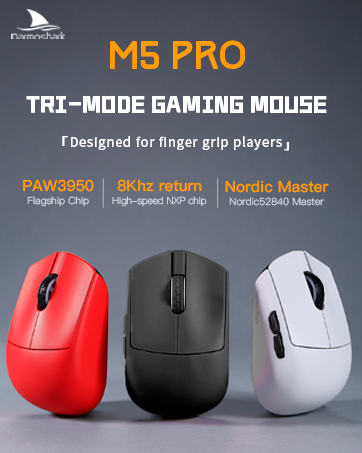
Image: Darmoshark M5PRO mouse charging via USB-C cable, highlighting its built-in lithium battery.
6. Прилагођавање софтвера
To unlock the full potential of your Darmoshark M5PRO mouse, download and install the official Darmoshark driver software from the manufacturer's webсајт. Софтвер вам омогућава да:
- Customize DPI settings and create multiple profiles.
- Program button functions and macros.
- Adjust polling rate.
- Manage power settings and battery life.
- Ажурирајте фирмвер.

Image: Darmoshark proprietary driver software interface for mouse customization.
7. Спецификације
| Модел | М5ПРО |
| Сензор | PAW3950 Оптички сензор |
| ДПИ | До 30000 ДПИ |
| Брзина праћења | КСНУМКС ИПС |
| Убрзање | 50Г |
| Поллинг Рате | 8KHz (2.4G Wireless), 1KHz (Wired/Bluetooth) |
| Повезивање | 2.4G бежично, Bluetooth 5.0, USB-C жично |
| Дугмад | 5 Програмабилна дугмад |
| Тежина | Прибл. 38г |
| Димензије (Д к Ш к В) | 91.7 мм к 57.4 мм к 35.7 мм |
| Батерија | Уграђена литијумска батерија (300мАх) |
| Компатибилност | Windows, Apple Mac |
Image: Product parameter diagram with mouse dimensions.
8. Одржавање
- Чишћење: Користите меку, суву крпу за чишћење миша. Избегавајте употребу јаких хемикалија или абразивних материјала.
- Складиштење: Чувајте миша на хладном и сувом месту, даље од директне сунчеве светлости и екстремних температура.
- Одржавање батерије: Да бисте продужили век трајања батерије, избегавајте често потпуно пражњење миша. Пуните га када се појави индикатор да је батерија празна.
КСНУМКС. Решавање проблема
9.1. Миш не реагује
- Жични режим: Уверите се да је USB кабл безбедно повезан и са мишем и са рачунаром. Покушајте са другим USB портом.
- 2.4Г бежични режим: Ensure the 2.4G receiver is plugged in and the mouse is switched to 2.4G mode. Try re-pairing the mouse with the receiver. Ensure the mouse battery is charged.
- Блуетоотх режим: Ensure Bluetooth is enabled on your device and the mouse is in Bluetooth pairing mode. Try re-pairing the mouse in your device's Bluetooth settings. Ensure the mouse battery is charged.
9.2. Cursor Movement is Erratic or Inaccurate
- Очистите оптички сензор на доњој страни миша меком, сувом крпом.
- Уверите се да користите миш на одговарајућој површини (нпр. подлога за миш). Избегавајте површине са високим рефлектујућим својствима или провидне површине.
- Adjust the DPI settings using the DPI Adjustment Key or the software.
- Check for any software conflicts or outdated drivers. Update mouse drivers if necessary.
9.3. Wireless Connection Issues
- Смањите растојање између миша и пријемника/уређаја.
- Avoid placing the receiver near other wireless devices or sources of interference (e.g., Wi-Fi routers, cordless phones).
- Уверите се да је миш потпуно напуњен.
10. Званични видео производа
Watch the official product video for a visual guide on the Darmoshark M5PRO Mini Wireless Gaming Mouse.
Видео: Оверview of the Darmoshark M5PRO Wireless Gaming Mouse, showcasing its design and features in various colors.
11. Гаранција и подршка
For warranty information and technical support, please refer to the warranty card included with your product or visit the official Darmoshark webсајту.
Произвођач: Дармошарк
Webсајт: Darmoshark Official Store