
1. Безбедносне информације
Read all safety information before using your device to ensure safe and proper use. Keep this manual for future reference.
- Do not use the device in environments with extreme temperatures.
- Избегавајте излагање уређаја води или прекомерној влази.
- Use only OPPO-approved chargers, batteries, and accessories.
- Не покушавајте сами да раставите, поправите или модификујете уређај.
- Maintain a safe distance from medical implants when using the device.
- Одложите уређај и његову батерију одговорно у складу са локалним прописима.
2. Садржај пакета
Проверите да ли пакет вашег производа садржи следеће ставке:
- OPPO Reno 14 F 5G CPH2743 Smartphone
- УСБ Типе-Ц кабл
- Повер Адаптер
- Алат за избацивање СИМ картице
- Водич за брзи почетак
- Safety Guide (this document)
- Заштитна футрола (може да варира у зависности од региона)
3. Девице Оверview
Familiarize yourself with the physical features of your OPPO Reno 14 F 5G CPH2743.
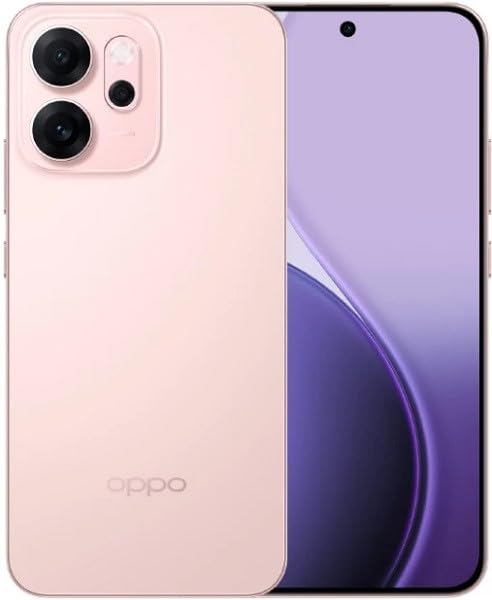
Слика 3.1: Предња и задња страна view of the OPPO Reno 14 F 5G CPH2743 smartphone. This image displays the device in its glossy pink finish, highlighting the screen, camera module, and side buttons.
- Предња камера: Налази се на врху дисплеја.
- Слушалица: За позиве, налази се изнад екрана.
- Дугмад за јачину звука: On the left side, for adjusting media and call volume.
- Дугме за напајање: On the right side, for turning the device on/off and locking/unlocking the screen.
- Лежиште за СИМ картицу: Located on the side, requires the SIM ejector tool to open.
- УСБ Типе-Ц порт: На дну, за пуњење и пренос података.
- говорник: At the bottom, for audio output.
- микрофон: At the bottom, for voice input.
- Модул задње камере: On the back, contains multiple lenses and flash.
4. Подешавање
4.1. Installing SIM Cards
- Пронађите лежиште за СИМ картицу са стране уређаја.
- Уметните алат за избацивање СИМ картице у мали отвор поред лежишта и чврсто притисните док лежиште не искочи.
- Place your Nano-SIM cards into the designated slots on the tray, ensuring the gold contacts face down. This device supports Dual SIM functionality.
- Пажљиво вратите лежиште у уређај док не кликне на своје место.
4.2. Укључивање/искључивање
- За укључивање: Press and hold the Power button on the right side until the OPPO logo appears.
- За искључивање: Press and hold the Power button, then tap "Power off" on the screen. Alternatively, swipe down from the top of the screen to open the notification panel, then tap the power icon and select "Power off".
- Рестартовати: Притисните и држите дугме за напајање, а затим додирните „Рестарт“ на екрану.
4.3. Почетна конфигурација
Upon first power-on, follow the on-screen prompts to set up your device:
- Изаберите свој језик и регион.
- Повежите се на Ви-Фи мрежу.
- Review и прихватите Уговор о лиценци за крајњег корисника.
- Пријавите се помоћу свог Google налога или креирајте нови.
- Подесите закључавање екрана (ПИН, шаблон, лозинка, отисак прста, откључавање лицем).
- Вратите податке са претходног уређаја (опционо).
- Configure other settings as prompted.
5. Управљање вашим уређајем
5.1. Основна навигација
- Додирните: Додирните екран једном да бисте отворили апликацију, изабрали ставку или притиснули дугме.
- Додирните и држите: Притисните и држите ставку да бисте приступили додатним опцијама или је преместили.
- Превуците: Превуците прстом преко екрана да бисте се померали, мењали екране или одбацили обавештења.
- Прстохват: Користите два прста да бисте увећали или умањили приказ фотографија, мапа или web странице.
5.2. Позивање
- Отворите Телефон апп.
- Додирните Тастатура за бирање бројева икона.
- Enter the phone number or select a contact from your Контакти листа.
- Додирните Цалл дугме за покретање позива.
5.3. Слање порука
- Отворите Поруке апп.
- Додирните Започни ћаскање or Нова порука икона.
- Унесите број телефона примаоца или га изаберите из контаката.
- Унесите своју поруку у поље за текст.
- Додирните Пошаљи дугме.
5.4. Интернет повезивање
- Ви-Фи: Иди на Подешавања > Ви-Фи, turn Wi-Fi on, and select a network to connect.
- Мобилни подаци: Иди на Settings > Mobile Network, and ensure "Mobile data" is enabled.
5.5. Функције камере
Отворите Камера app to capture photos and videos.
- Додирните Затварач дугме за снимање фотографије.
- Swipe left or right to switch between camera modes (e.g., Photo, Video, Portrait, Night).
- Додирните Пребаците камеру икона за пребацивање између предње и задње камере.
5.6. Пријаве
- Инсталирајте апликације: Користите Гоогле Плаи продавница to download and install new applications.
- Manage Apps: Иди на Settings > Apps > App management да view, uninstall, or force stop applications.
6. Одржавање
6.1. Чишћење уређаја
- Користите меку крпу која не оставља влакна да нежно обришете екран и кућиште уређаја.
- Избегавајте употребу јаких хемикалија, абразивних средстава за чишћење или компримованог ваздуха.
- Ensure no liquid enters ports or openings.
6.2. Ажурирања софтвера
Regularly check for and install software updates to improve device performance, security, and introduce new features.
- Иди на Подешавања > О уређају > Ажурирано (or similar path depending on ColorOS version).
- Follow the on-screen instructions to download and install any available updates. Ensure your device is sufficiently charged and connected to Wi-Fi before updating.
6.3. Брига о батерији
- Avoid fully discharging the battery frequently. Charge it before it drops too low.
- Do not expose the device to extreme heat or cold, as this can degrade battery life.
- Use the original charger and cable for optimal charging performance and safety.
- Ако уређај неће бити коришћен дуже време, напуните га на око 50% пре складиштења.
КСНУМКС. Решавање проблема
Овај одељак се бави уобичајеним проблемима на које можете наићи са својим уређајем.
| Проблем | Решење |
|---|---|
| Уређај се не укључује. | Ensure the battery is charged. Connect the charger and wait a few minutes before attempting to power on. If unresponsive, perform a force restart by holding the Power button and Volume Up button simultaneously for about 10 seconds. |
| Повезивање на Ви-Фи није могуће. | Check if Wi-Fi is enabled in Settings. Restart your router and the phone. Forget the network and try reconnecting. Ensure you are entering the correct password. |
| Слаб мрежни сигнал или никакав сервис. | Check if SIM cards are properly inserted. Try restarting the device. Ensure "Mobile data" is enabled in Settings. If the issue persists, contact your network provider. |
| Апликације се руше или замрзавају. | Clear the cache and data for the problematic app (Settings > Apps > App management > [App Name] > Storage usage). Update the app to the latest version. If the issue continues, uninstall and reinstall the app. |
| Батерија се брзо празни. | Check battery usage in Settings to identify power-hungry apps. Reduce screen brightness, disable unnecessary features like GPS or Bluetooth when not in use. Close background apps. |
8. Спецификације
Key technical specifications for the OPPO Reno 14 F 5G CPH2743.
| Феатуре | Детаљ |
|---|---|
| Назив модела | Oppo Reno 14 F 5G CPH2743 |
| Бранд | ОППО |
| Капацитет меморије | 256 ГБ |
| Величина инсталиране РАМ меморије | 12 ГБ |
| Целлулар Тецхнологи | 5G |
| Технологија повезивања | 5Г, 4Г, 3Г, 2Г |
| Број слотова за SIM картице | Дуал СИМ |
| Форм Фацтор | Слате |
| Боја | Пинк |
9. Гаранција и подршка
Your OPPO Reno 14 F 5G CPH2743 is covered by a limited warranty. The specific terms and conditions of the warranty may vary by region and retailer.
- Информације о гаранцији: Refer to the warranty card included in your product package or visit the official OPPO webсајт за детаљне услове гаранције.
- техничка подршка: For technical assistance, troubleshooting beyond this manual, or service requests, please contact OPPO customer support. Contact details can typically be found on the official OPPO website or in the "Support" section of your device's settings.
- Онлине ресурси: Visit the official OPPO webсајт (ввв.оппо.цом) for FAQs, software downloads, and additional support resources.