
1. Увод
This manual provides essential information for the installation, operation, and maintenance of your Hikvision IDS-7208HQHI-M1/XT 8-Channel 5MP Turbo HD DVR. Please read this manual thoroughly before using the product to ensure correct and safe operation. Keep this manual for future reference.
The Hikvision IDS-7208HQHI-M1/XT is an advanced 8-channel Digital Video Recorder designed for high-definition surveillance systems. It supports various video input formats, including Turbo HD, AHD, CVI, CVBS, and IP cameras, offering versatile compatibility. Key features include 5MP recording capability, H.265+ video compression for efficient storage, AcuSense technology for intelligent motion detection, and remote access via the Hik-Connect app.
2. Садржај пакета
Verify that all items are present and in good condition upon unpacking. If any items are missing or damaged, contact your supplier immediately.
- DVR main unit
- Повер Адаптер
- УСБ миш
3. Карактеристике производа
The Hikvision IDS-7208HQHI-M1/XT DVR offers a range of features designed for effective surveillance:
- 8-Channel DVR with 5MP HD Support: Supports multiple analog HD camera formats and up to 8 channels of real-time video monitoring and recording.
- Two-Way Audio Support: Enables audio communication through compatible cameras.
- Built-In AcuSense Technology: Smart analysis minimizes false alarms by focusing on human and vehicle-based motion detection.
- Remote Access via Hik-Connect App: View live video, playback recordings, and receive alerts anytime on your smartphone.
- Efficient Storage with H.265+ Compression: Saves bandwidth and hard disk space while maintaining clear video quality.
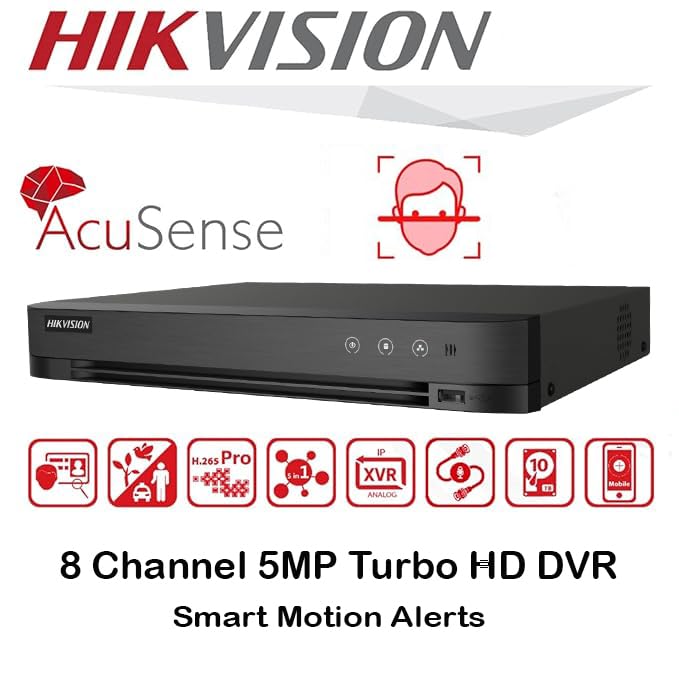
Слика: Прекоview of key features including AcuSense, H.265+ compression, and 5MP resolution support.
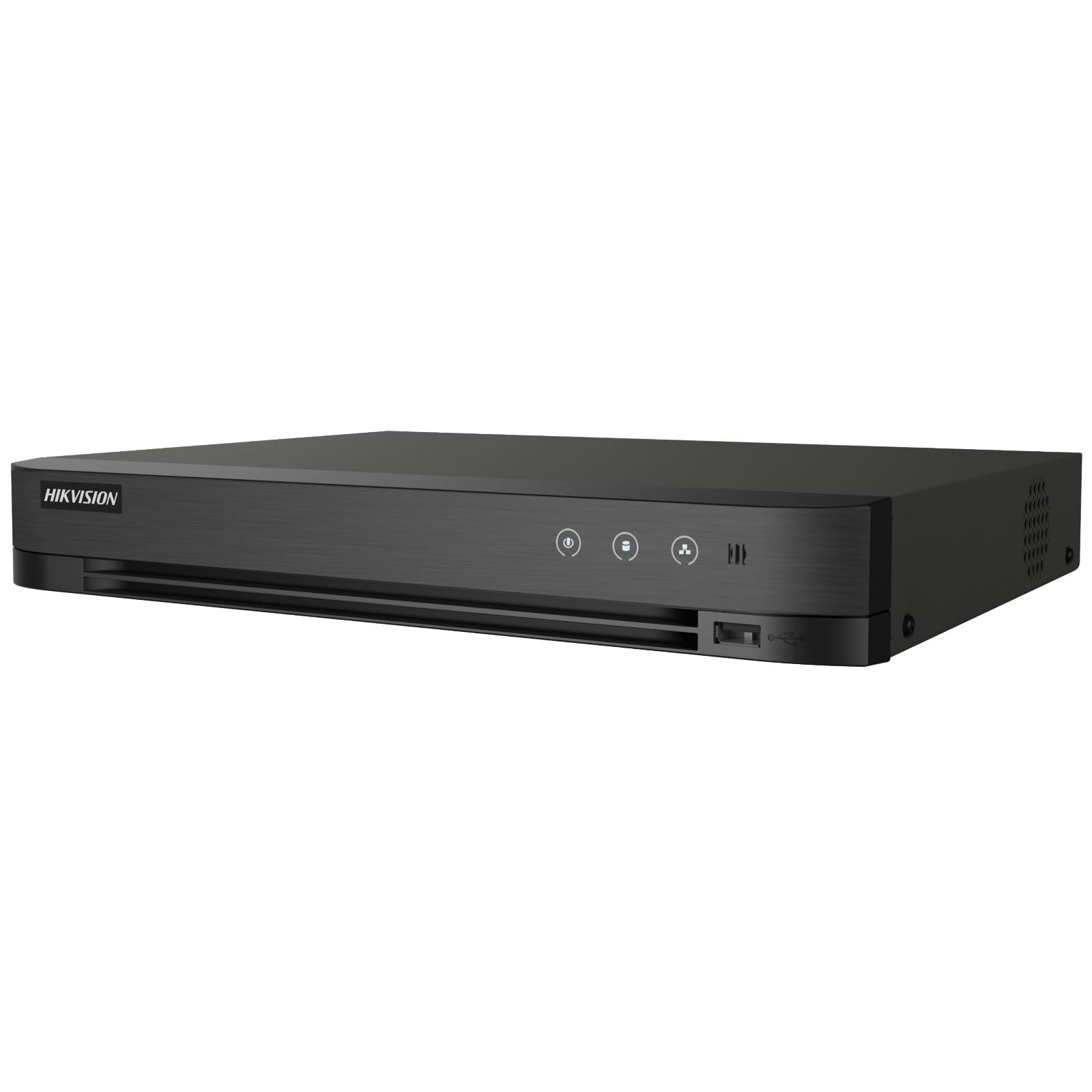
Image: The Hikvision Turbo HD DVR highlighting its support for two-way audio cameras, enabling interactive communication.
4. Пхисицал Интерфаце
Familiarize yourself with the ports and indicators on the DVR unit. The following diagram illustrates the rear panel of the Hikvision IDS-7208HQHI-M1/XT DVR:

Image: Rear panel connections of the DVR, showing video inputs, audio ports, network, and power.
- Video In (BNC): Connect analog HD cameras (Turbo HD, AHD, CVI, CVBS).
- Video Out (BNC): Connect to a monitor for local display.
- Аудио улаз (RCA): Connect external audio input devices.
- ХДМИ излаз: Connect to an HDMI-compatible monitor or TV for high-definition video output.
- ВГА излаз: Connect to a VGA-compatible monitor.
- Аудио излаз (РЦА): Connect to external audio output devices.
- УСБ портови: Connect a USB mouse, USB flash drive for backup, or external storage.
- ЛАН порт (RJ45): Connect to your network for remote access and IP camera integration.
- РС-485: For PTZ camera control (if supported).
- 12В ДЦ улаз за напајање: Повежите испоручени адаптер за напајање.
- Уземљени терминал: For grounding the device.
5. Подешавање
Follow these steps for initial setup of your DVR system:
5.1 Hard Drive Installation (if not pre-installed)
- Одврните и уклоните горњи поклопац DVR-а.
- Повежите САТА кабл за пренос података и кабл за напајање на чврсти диск.
- Причврстите чврсти диск на кућиште DVR-а помоћу приложених вијака.
- Вратите горњи поклопац и причврстите га завртњима.
5.2 Повезивање периферних уређаја
- Connect your cameras to the Видео Ин (BNC) ports.
- Повежите монитор са ХДМИ or ВГА излазни порт.
- Connect the USB mouse to a УСБ порт.
- Connect the DVR to your network router using an Ethernet cable plugged into the ЛАН порт.
- Прикључите адаптер за напајање у 12В ДЦ улаз за напајање and then plug it into a power outlet.
5.3 Почетна конфигурација
- Upon first boot, the DVR will guide you through a setup wizard.
- Set a strong password for the administrator account.
- Configure network settings (DHCP is usually sufficient for most home networks).
- Initialize the hard drive if prompted. This will format the drive for recording.
- Adjust date, time, and other system preferences as needed.
6. Оперативни
Once the DVR is set up, you can begin monitoring and recording.
6.1 Уживо View
Након пријављивања, DVR ће приказивати снимак уживо view from connected cameras on the monitor. You can switch between single-camera view и мрежа са више камера view using the on-screen controls or mouse.
6.2 Снимање
The DVR is typically configured to record continuously or based on motion detection. You can adjust recording schedules and settings through the DVR's menu system (Configuration > Record > Schedule).
6.3 Репродукција
То реview снимљено фооtage, navigate to the Репродукција menu. Select the date, time, and camera channel to view recordings. Use the playback controls (play, pause, fast forward, rewind) to navigate through the footage.
6.4 Remote Access (Hik-Connect App)
The Hik-Connect app allows you to access your DVR remotely from a smartphone or tablet.
- Download the Hik-Connect app from your device's app store.
- Create a Hik-Connect account and log in.
- Add your DVR by scanning the QR code on the DVR's label or by manually entering its serial number.
- Follow the in-app instructions to complete the device addition.
- Када се дода, можете view преносе уживо, репродукују снимке и примају push обавештења за догађаје.

Image: Illustration of the Hik-Connect mobile application interface, demonstrating remote access to live video and recordings.
7. Одржавање
Regular maintenance ensures optimal performance and longevity of your DVR system.
- Clean the DVR: Periodically clean the exterior of the DVR with a soft, dry cloth. Ensure ventilation openings are free from dust to prevent overheating.
- Ажурирања фирмвера: Проверите званични Hikvision webсајт за ажурирања фирмвера. Ажурирање фирмвера може побољшати перформансе, додати функције и поправити грешке. Пажљиво пратите упутства за ажурирање.
- Здравље чврстог диска: Monitor the health of your hard drive through the DVR's system menu (ХДД Манагемент). Replace the hard drive if it shows signs of failure.
- Резервна копија важних ствариtage: Regularly back up critical video footagна екстерни УСБ диск или мрежну меморију.
- Сигурност лозинке: Change your DVR and Hik-Connect passwords periodically to maintain security.
КСНУМКС. Решавање проблема
Овај одељак се бави уобичајеним проблемима на које можете наићи.
8.1 Нема видео излаза на монитору
- Check if the monitor is powered on and correctly connected to the DVR's HDMI or VGA port.
- Уверите се да је на вашем монитору изабран исправан улазни извор.
- Try connecting to a different monitor or using a different cable.
8.2 Камере не приказују
- Verify that cameras are powered on and properly connected to the DVR's BNC inputs.
- Check camera power supplies.
- Ensure the camera type (TVI, AHD, CVI, CVBS) is compatible with the DVR and configured correctly in the DVR settings.
8.3 Remote Access Not Working
- Ensure the DVR is connected to the internet via the LAN port.
- Check network settings on the DVR (Configuration > Network).
- Verify that the Hik-Connect service is enabled on the DVR.
- Уверите се да ваш паметни телефон има активну интернет везу.
- Re-add the device to the Hik-Connect app if necessary.
8.4 Без снимања
- Check if a hard drive is installed and properly initialized (Configuration > HDD).
- Verify recording schedules are set correctly (Configuration > Record > Schedule).
- Уверите се да има довољно слободног простора на чврстом диску.
9. Спецификације
Detailed technical specifications for the Hikvision IDS-7208HQHI-M1/XT DVR:
| Феатуре | Спецификација |
|---|---|
| Број модела | IDS-7208HQHI-M1/XT |
| Видео улаз | 8-Channel (Turbo HD/AHD/CVI/CVBS/IP) |
| Видео Цомпрессион | Х.265+/Х.265/Х.264+/Х.264 |
| Резолуција снимања | До 5МП |
| Видео Оутпут | HDMI, VGA, BNC |
| Аудио улаз/излаз | 2-Way Audio Support |
| нетворк интерфаце | 1 RJ45 10M/100M Ethernet Interface |
| УСБ интерфејс | 2 к УСБ 2.0 |
| Подршка за хард диск | 1 SATA interface (up to 10 TB capacity per HDD) |
| Повер Суппли | 12В ДЦ |
| Димензије (Д к Ш к В) | 19.7 к 19.2 к 4.1 цм |
| Тежина | 1.5 кг |
| Произвођач | HIKVISION, Prama Hikvision India Pvt. Ltd. |
10. Гаранција и подршка
For warranty information and technical support, please refer to the warranty card included with your product or visit the official Hikvision webсајт. Сачувајте рачун као доказ о куповини за потребе гаранције.
For further assistance, contact Hikvision customer support or your authorized dealer.