
1. Увод
This manual provides detailed instructions for the installation, operation, and maintenance of your caramco Wireless CarPlay & Android Auto Module. This retrofit kit is designed to integrate seamlessly with your Lexus GX460 or GX 400 (2014-2020) factory radio screen, enhancing your driving experience with modern smartphone connectivity.
The module is a Linux-based system that adds Wireless CarPlay and Android Auto functionalities while retaining all original factory features of your vehicle. It is not an aftermarket Android radio and does not support app downloads from Google Play. Video applications are not supported through CarPlay or Android Auto.
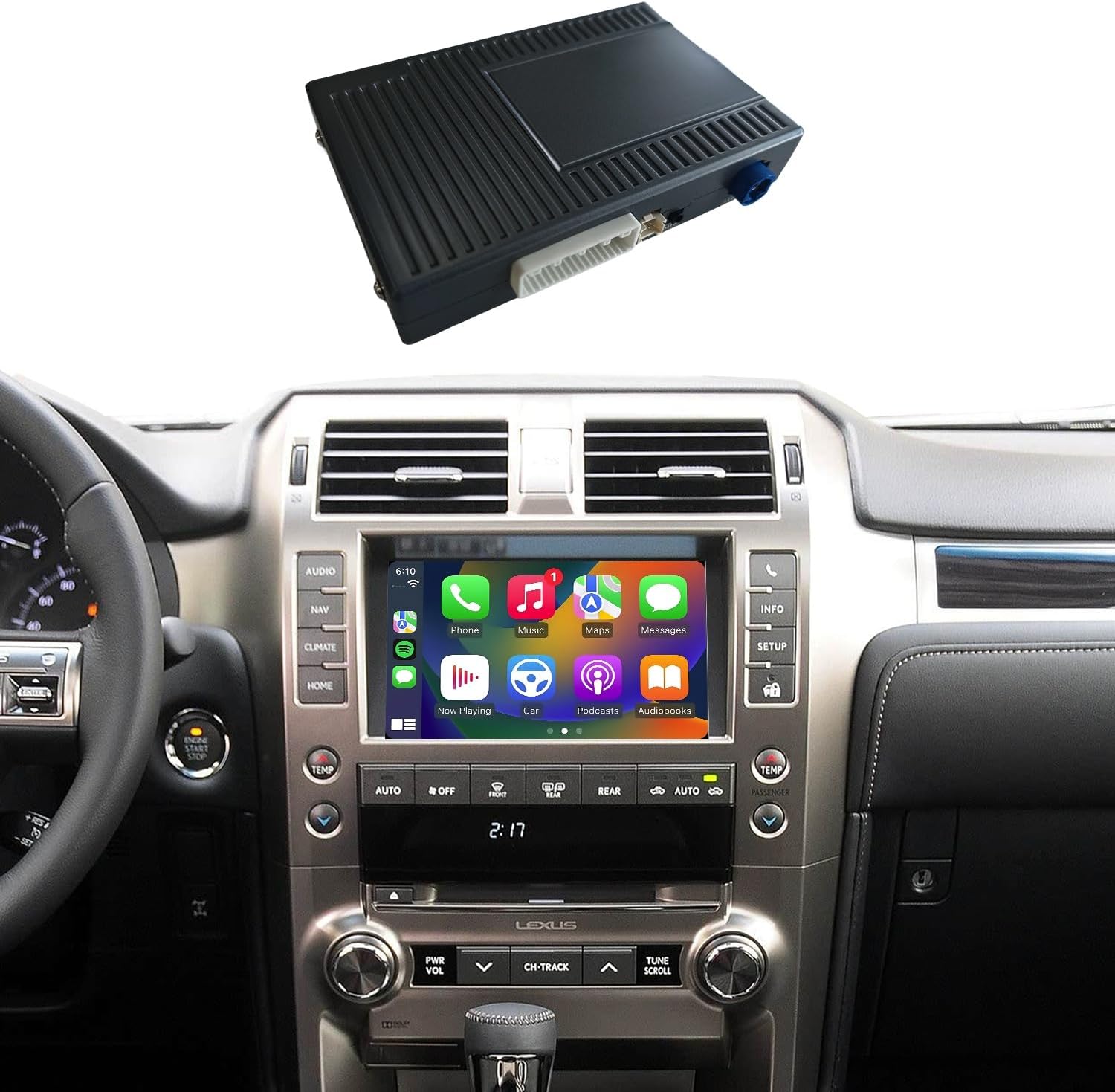
Image 1.1: The caramco Wireless CarPlay & Android Auto Module shown above a Lexus GX460 dashboard displaying the CarPlay interface.
2. Компатибилност
This module is specifically designed for Lexus GX460 and GX 400 models manufactured between 2014 and 2020. It is crucial to verify your vehicle's compatibility before installation.
- Компатибилни модели: Lexus GX460, Lexus GX 400
- Compatible Years: 2014, 2015, 2016, 2017, 2018, 2019, 2020
- Важна напомена: This module is Неусаглашен with Lexus GX models equipped with a factory 360-degree camera system.
If you are uncertain about your vehicle's compatibility, please compare your car's screen and dashboard layout with the images provided below. For definitive confirmation, it is recommended to provide a clear photograph of your vehicle's screen to the support team.

Image 2.1: Compatibility chart indicating Lexus GX models (2014-2020) are compatible, with a prominent warning against models equipped with a factory 360-degree camera.

Image 2.2: Visual comparison highlighting the compatible 2014-2020 Lexus GX screen on the left and an incompatible 2009-2013 screen on the right, emphasizing key differences for identification.
3. Садржај пакета
Please inspect the package contents upon receipt to ensure all components are present and undamaged. The standard kit includes the following items:
- CarPlay/Android Auto Module
- Power Canbus Cable
- Видео Цабле
- ВИФИ антена
- Microphone (spare)
- Упутство за инсталацију

Image 3.1: A visual representation of the module's ports (LVDS IN, MIC, TP, POWER, DIAL SWITCH, WIFI ANTENNA) and individual images of the included accessories: the module itself, power cable, antenna, microphone, and video cable.
4. Водич за инсталацију
The caramco Wireless CarPlay & Android Auto Module is designed for a 100% Plug-and-Play installation. This means no cutting or splicing of wires is required, as the kit utilizes dedicated connectors that integrate with your vehicle's existing wiring harness.
For detailed, step-by-step installation instructions, please refer to the separate "Installation Instruction Manual" included in your package. This document will guide you through the process of accessing your vehicle's head unit, connecting the module, and routing the necessary cables.
Кључне тачке инсталације:
- Ensure the vehicle's power is completely off before beginning installation.
- Carefully follow the wiring diagrams provided in the dedicated installation manual.
- Secure all connections firmly to prevent disconnections due to vehicle vibration.
- Properly route cables to avoid interference with moving parts or pinching.
5. Упутство за употребу
5.1. Initial Setup & Wireless Connection
After installation, power on your vehicle. The module will automatically boot up. To connect your smartphone wirelessly to CarPlay or Android Auto:
- On your smartphone, enable Bluetooth and Wi-Fi.
- On your car's screen, navigate to the CarPlay/Android Auto interface (refer to section 5.2 for switching).
- Тражи the module's Bluetooth name (usually displayed on the car screen or in the module's settings) on your phone and pair with it.
- Once paired via Bluetooth, your phone will automatically establish a Wi-Fi connection for Wireless CarPlay or Android Auto.
The module supports dual-band Wi-Fi (5GHz and 2.4GHz) for stable and fast connectivity, minimizing lag during calls, navigation, and music streaming.
5.2. Пребацивање између система
Your original factory system remains fully accessible. To switch between the CarPlay/Android Auto screen and your original Lexus system:
- Press and hold the "HOME" button on your vehicle's control panel for approximately 2 seconds. This action toggles between the module's interface and the factory system.
5.3. CarPlay and Android Auto Functionality
Once connected, you can access various smartphone features directly on your car's display:
- Навигација: Use your preferred navigation apps (e.g., Apple Maps, Google Maps, Waze).
- Комуникација: Make and receive calls, send and read messages hands-free.
- Медији: Stream music, podcasts, and audiobooks from your favorite apps.
- Контрола гласом: Utilize Siri or Google Assistant for voice commands.

Image 5.1: The left panel displays the Wireless CarPlay interface with various app icons, while the right panel shows the Wireless Android Auto interface with its distinct layout and app icons.
5.4. Native Vehicle Integration
The module maintains full compatibility with your vehicle's OEM protocols, ensuring that existing controls function as expected:
- Контроле на волану: Answer/hang up calls, adjust volume, and navigate tracks using your steering wheel buttons.
- екран осетљив на додир: Interact with the CarPlay/Android Auto interface directly via the factory touchscreen.
- микрофон: Your original vehicle microphone is utilized for calls and voice commands, eliminating the need for an external mic.

Image 5.2: The top left shows a finger interacting with the CarPlay touchscreen. The bottom left highlights steering wheel buttons for answering/hanging up calls. The bottom right highlights steering wheel buttons for volume control.
5.5. Mirroring Function
The system supports a mirroring function, allowing you to cast content from your phone (e.g., videos, photos) to the car screen. To use this feature, enable mirroring on your smartphone.
- Audio Note: Audio from the Mirror Link function can only be transmitted via the AUX input, not Bluetooth.
5.6. Audio Modes
You have two options for audio output from the module:
- Блуетоотх аудио: This is the recommended mode for superior sound quality. Select Bluetooth as the audio source in the module's settings.
- АУКС аудио: An alternative audio output. This mode is primarily used for Mirror Link audio.
You can switch between these modes within the module's settings menu.

Image 5.3: The left panel illustrates using the original vehicle microphone for a call within the CarPlay interface. The right panel shows music playback via original Bluetooth audio, indicating better sound quality than AUX.
5.7. Интеграција камере
The module supports both factory-installed and aftermarket cameras, offering versatile options for your vehicle:
- Factory Cameras: Your existing rear-view camera will continue to function normally when the vehicle is in reverse.
- Aftermarket Cameras: The system allows for the addition of aftermarket AHD front and rear cameras.
Image 5.4: The top right panel displays the vehicle's original rear-view camera feed on the car screen, demonstrating its continued functionality with the module installed.
КСНУМКС. Решавање проблема
This section addresses common issues you might encounter with your caramco module.
- Нема дисплеја / црни екран:
- Ensure all power and video cables are securely connected.
- Verify the module is receiving power.
- Confirm the correct input source is selected on your car's screen (by holding the HOME button).
- Wireless CarPlay/Android Auto is Slow or Laggy:
- Ensure your phone's Wi-Fi is enabled and connected to the module's Wi-Fi network (established automatically after Bluetooth pairing).
- Check for strong Wi-Fi signal strength. The module supports both 5GHz (faster, shorter range) and 2.4GHz (longer range) bands for optimal performance.
- Рестартујте телефон и инфотејнмент систем аутомобила.
- Нема звука:
- Verify the correct audio mode (Bluetooth or AUX) is selected in the module's settings and on your car's head unit.
- Уверите се да је јачина звука на телефону појачана.
- Проверите све везе аудио каблова.
- Контроле на волану не раде:
- Confirm all Canbus connections are correctly installed as per the installation manual.
- Ensure the module is fully integrated with the vehicle's OEM protocols.
- Mirror Link Audio Only via AUX:
- This is expected behavior. Mirror Link audio is designed to transmit through the AUX input.
If you encounter issues not covered here or require further assistance, please contact caramco technical support.
7. Одржавање
The caramco Wireless CarPlay & Android Auto Module is designed for durability and requires minimal maintenance. Follow these guidelines to ensure its longevity:
- Чишћење: Use a soft, dry cloth to clean the module and its connections. Avoid using liquid cleaners or solvents, which can damage electronic components.
- температура: Operate the module within standard automotive temperature ranges. Avoid exposing it to extreme heat or cold for extended periods.
- Везе: Periodically check that all cables and connectors remain securely attached, especially after significant vehicle vibrations or impacts.
- Ажурирања софтвера: Проверите произвођача website or contact support for information on potential firmware updates that may improve performance or add features.
8. Спецификације
| Феатуре | Спецификација |
|---|---|
| Тежина артикла | 2.2 фунти |
| Димензије пакета | 9.84 к 5.12 к 3.94 инча |
| Оперативни систем | Заснован на Линук-у |
| Бежично повезивање | Бежични ЦарПлаи, бежични Андроид Ауто |
| Подршка за Ви-Фи | 5GHz and 2.4GHz Dual-Band |
| Подршка за камеру | Factory Rear/360 Camera, Aftermarket AHD Front/Rear Camera |
| Аудио излаз | Bluetooth (recommended), AUX |
| Интеграција | Steering Wheel Controls, Touchscreen, Original Microphone |
9. Гаранција и подршка
9.1. Информације о гаранцији
The caramco Wireless CarPlay & Android Auto Module comes with a 1-годишња гаранција произвођачаОва гаранција покрива недостатке у материјалу и изради при нормалној употреби. Молимо вас да сачувате доказ о куповини за потребе подношења захтева за гаранцију.
The warranty does not cover damage caused by improper installation, misuse, accidents, unauthorized modifications, or normal wear and tear.
9.2. Техничка подршка
For any technical assistance, installation queries, or troubleshooting support, please contact caramco customer service. Our support team aims to respond to inquiries within 24 hours.
When contacting support, please provide your product model, purchase date, and a detailed description of the issue you are experiencing. Providing photographs or videos can also assist in resolving issues more efficiently.