
1. Увод
Thank you for choosing the SGIN C10 10.1-inch Kids Tablet. This device is designed to provide an engaging and safe digital experience for children, featuring parental controls and educational content. This manual will guide you through the setup, operation, and maintenance of your tablet to ensure optimal performance and user safety.
2. Производ је готовview
2.1 Садржај пакета
Приликом распакивања, молимо вас да се уверите да су присутни сви доле наведени предмети:
- SGIN C10 10.1-inch Tablet
- Протецтиве Цасе
- пуњач
- УСБ кабл
- Упутство за употребу

Image: Diagram showing the tablet's ports and buttons, along with the included accessories: tablet, protective case, charger, USB cable, and instruction manual.
2.2 Компоненте таблета
Familiarize yourself with the physical components of your SGIN C10 tablet:
- Дугме за напајање: Located on the side, used to turn the tablet on/off or put it to sleep.
- Дугмад за јачину звука: Подесите ниво аудио излаза.
- Слушалице: За повезивање жичних слушалица.
- УСБ порт: За пуњење и пренос података.
- Слот за ТФ картицу: For expanding storage with a microSD card.
- Предња камера: За видео позиве и селфије.
- Задња камера: За снимање фотографија и видео записа.
- говорници: За аудио излаз.
- 10.1-инчни ХД ИПС екран осетљив на додир: Main display for interaction.
- Заштитна торбица са постољем: Provides protection and allows for hands-free viewинг.
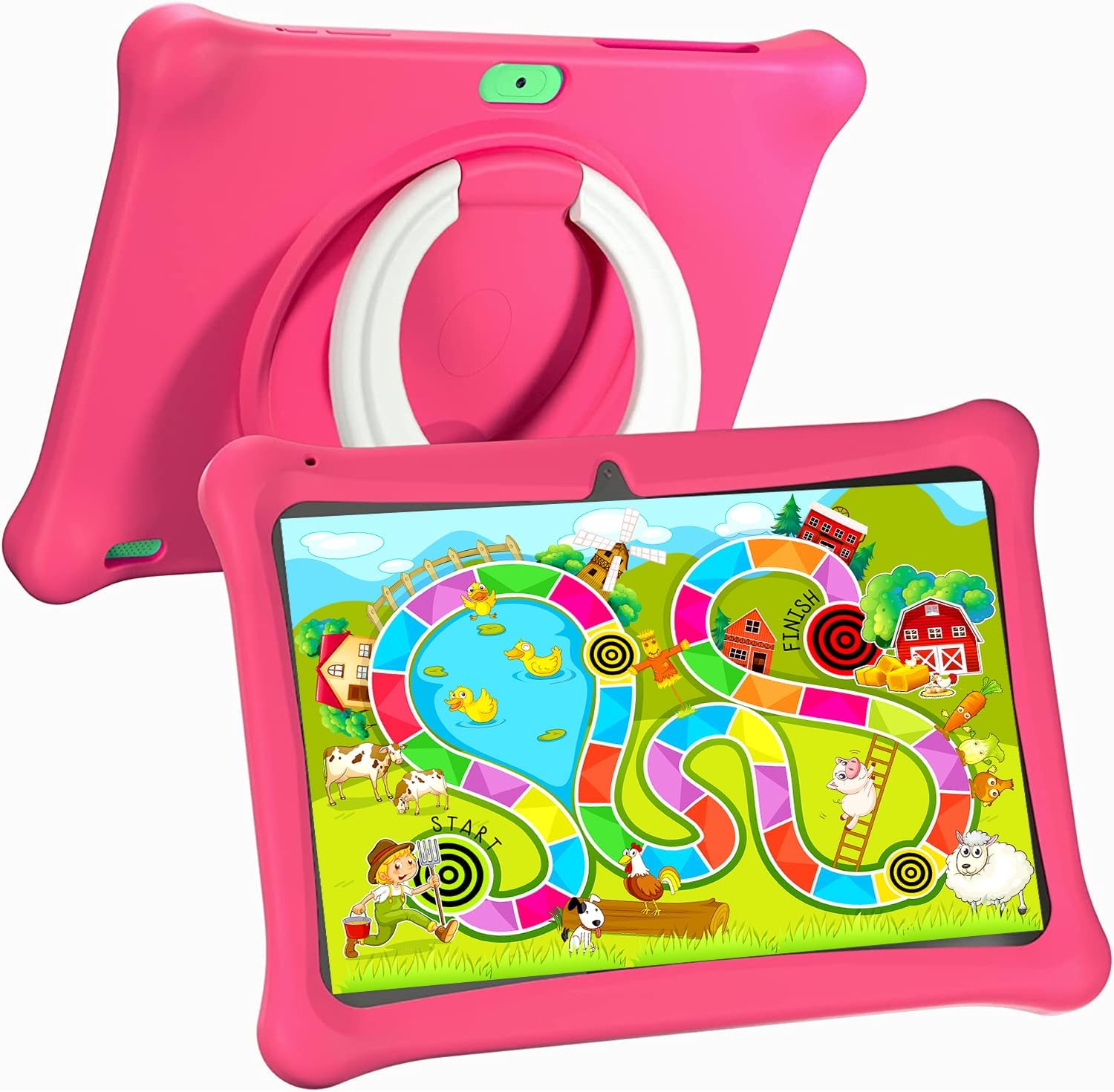
Image: The SGIN C10 tablet in its pink protective case, displaying a colorful educational game on its screen. The rear of the tablet shows the integrated stand.
2.3 Кључне карактеристике
- Високе перформансе: Equipped with a 1.6GHz quad-core processor, 2GB RAM, and 32GB ROM (expandable up to 32GB via TF card).
- Футрола заштићена од деце: Durable pink case designed to protect against dust, bumps, and drops, with heat dissipation features.
- Pre-installed iWawa Kid's Software: Offers a safe and entertaining environment with thousands of free educational games and apps.
- Parental Control System: Allows parents to manage screen time, content, and user accounts.
- Дуг век трајања батерије: 5000mAh lithium battery provides 6-8 hours of usage.
- Eye Protection Screen: 1280*800 HD IPS touch screen for vibrant colors and comfortable viewинг.
- Двострука камера: 2MP front camera and 5MP rear camera for photos and videos.

Image: Icons representing key features of the SGIN C10 tablet: Android 12, Quad-core processor, Dual Camera, 5000mAh battery, WiFi, HD Display, 2GB RAM + 32GB storage, 10 Inch screen, and Parental Control.

Image: Visual representation of the tablet's 2GB RAM and 32GB ROM (expandable via TF card), alongside a diagram of the 1.6 GHz Quad-core Processor.

Image: The 10-inch HD display showing vibrant content, and a close-up of the protective case's rotatable stand.

Image: A child using the tablet, highlighting the 5000mAh Lithium Battery, and a close-up of the tablet's dual camera system.
3. Подешавање
3.1 Почетно пуњење
- Connect the USB cable to the tablet's USB port.
- Connect the other end of the USB cable to the provided charger.
- Укључите пуњач у утичницу.
- Allow the tablet to charge fully before first use. The battery indicator on the screen will show charging status.
3.2 Укључивање/искључивање
- За укључивање: Press and hold the Power Button until the SGIN logo appears on the screen.
- За искључивање: Press and hold the Power Button until a menu appears. Select "Power off" and confirm.
- За спавање/буђење: Briefly press the Power Button to put the tablet to sleep or wake it up.
3.3 Повезивање на Ви-Фи
- На почетном екрану превуците прстом надоле од врха да бисте отворили панел Брза подешавања.
- Додирните и држите икону Wi-Fi мреже да бисте отворили подешавања Wi-Fi мреже.
- Укључите Wi-Fi ако је искључен.
- Изаберите жељену Wi-Fi мрежу са листе.
- Унесите лозинку за мрежу ако се то затражи, а затим додирните „Повежи се“.
3.4 Initial iWawa Setup
The SGIN C10 tablet comes with iWawa Kid's software pre-installed. Follow the on-screen prompts to set up the child-friendly environment and parental controls during the first launch.
4. Упутство за употребу
4.1 Основна навигација
- додирните: Додирните икону или опцију да бисте је изабрали.
- Превуците: Drag your finger across the screen to scroll through pages or lists.
- Прстохват: Користите два прста да бисте увећали или умањили слике или web странице.
- Хоме дугме: Returns you to the home screen.
- Дугме за назад: Враћа вас на претходни екран.
- Дугме за недавне апликације: Приказује недавно коришћене апликације.
4.2 Коришћење камере
- Отворите апликацију Камера са почетног екрана или из фиоке апликација.
- Додирните икону прекидача камере да бисте пребацивали између предње и задње камере.
- Додирните дугме затварача да бисте снимили фотографију.
- Tap the video icon to switch to video recording mode, then tap the record button to start/stop recording.
4.3 Installing/Uninstalling Apps
- Инсталирање апликација: Within the iWawa environment, access the Kids Store to download free games and educational applications. Parents can also approve apps from the Google Play Store via parental controls.
- Деинсталирање апликација: From the parental control interface, select the app management option to uninstall unwanted applications.
4.4 Подешавање подешавања
- Волумен: Use the physical Volume Buttons on the side of the tablet.
- Осветљеност: Swipe down from the top of the screen to access Quick Settings and adjust the brightness slider. More detailed display settings are available in the main Settings app.
- Остала подешавања: Access the main Settings app for Wi-Fi, Bluetooth, display, sound, storage, and other system configurations.
5. Родитељски надзор
The SGIN C10 tablet features a robust parental control system integrated with the iWawa Kid's software, allowing you to create a safe and customized environment for your child.
5.1 Приступ родитељском надзору
To access parental control settings, you will typically need to exit the iWawa Kid's interface and enter a password-protected parent mode. Follow the on-screen instructions within the iWawa app to set up and manage this access.
5.2 Key Parental Control Features
- Подесите лозинке: Establish a secure password to prevent children from exiting the iWawa environment or altering settings.
- Screen Time Limits: Define daily usage limits and specific time periods when the tablet can be used.
- Управљање садржајем: Control access to apps, games, videos, and websites. You can whitelist appropriate websites and block unwanted content.
- App Approval: Manage which applications your child can access, including those downloaded from the Kids Store or Google Play Store.
- Multiple User Accounts: Create separate profiles for each child, allowing personalized settings and content for individual users.
- Ad Elimination: The system helps eliminate unwanted advertisements within the child's environment.
6. Одржавање
6.1 Чишћење уређаја
- Always power off the tablet before cleaning.
- Користите меку крпу која не оставља влакна да обришете екран и кућиште.
- За тврдокорне мрље, благо дampОбришите крпу водом или средством за чишћење екрана. Избегавајте јаке хемикалије.
- Ensure no moisture enters ports or openings.
6.2 Одржавање батерије
- Избегавајте често потпуно пражњење батерије.
- Не излажите таблет екстремним температурама.
- Користите само приложени пуњач и кабл.
6.3 Ажурирања софтвера
Periodically check for system updates in the tablet's Settings menu under "System" or "About tablet." Keeping your software updated ensures optimal performance and security.
6.4 Управљање складиштем
To manage storage, you can:
- Обришите неискоришћене апликације и files.
- Move photos and videos to a computer or cloud storage.
- Insert a TF (microSD) card into the designated slot to expand storage capacity up to 32GB.
КСНУМКС. Решавање проблема
| Проблем | Могуће решење |
|---|---|
| Таблет се не укључује. | Уверите се да је батерија напуњена. Прикључите пуњач и сачекајте неколико минута пре него што поново покушате да је укључите. |
| Екран не реагује. | Restart the tablet by holding the Power Button for about 10 seconds until it powers off, then power it on again. |
| Повезивање на Ви-Фи није могуће. | Check if Wi-Fi is enabled. Ensure the password is correct. Restart your Wi-Fi router. |
| Апликације се руше или раде споро. | Close background apps. Clear app cache (Settings > Apps > [App Name] > Storage > Clear cache). Ensure sufficient storage space. |
| Parental controls are not working as expected. | Re-enter the parental control settings and verify all configurations (time limits, content filters, app approvals). Ensure the correct child profile је активан. |
8. Спецификације
| Феатуре | Спецификација |
|---|---|
| Бранд | СГИН |
| Назив модела | Ц10 |
| Оперативни систем | Андроид |
| Величина екрана | 10 инча |
| Максимална резолуција екрана | 1280 Пикелс |
| Процесор | 1.6GHz Quad-core (Intel Processor Brand) |
| РАМ | 2ГБ |
| Интерна меморија (РОМ) | 32ГБ |
| Екпандабле Стораге | ТФ картица до 32 ГБ |
| Предња камера | 2МП |
| Задња камера | 5МП |
| Капацитет батерије | 5000мАх |
| Повезивање | ВиФи, Блуетоотх |
| Тежина артикла | 2.35 фунти |
| Димензије производа | 1 к 1 к 1 инча |
9. Гаранција и подршка
For warranty information and technical support, please refer to the documentation included with your purchase or visit the official SGIN website. If you encounter issues not covered in this manual, please contact SGIN customer service for assistance.