
1. Увод
This manual provides essential information for the proper setup, operation, and maintenance of your INNOCN GA27M1Q 27-inch QD-OLED 2K QHD 500Hz Gaming Monitor. Please read this manual thoroughly before using the product to ensure optimal performance and safety.
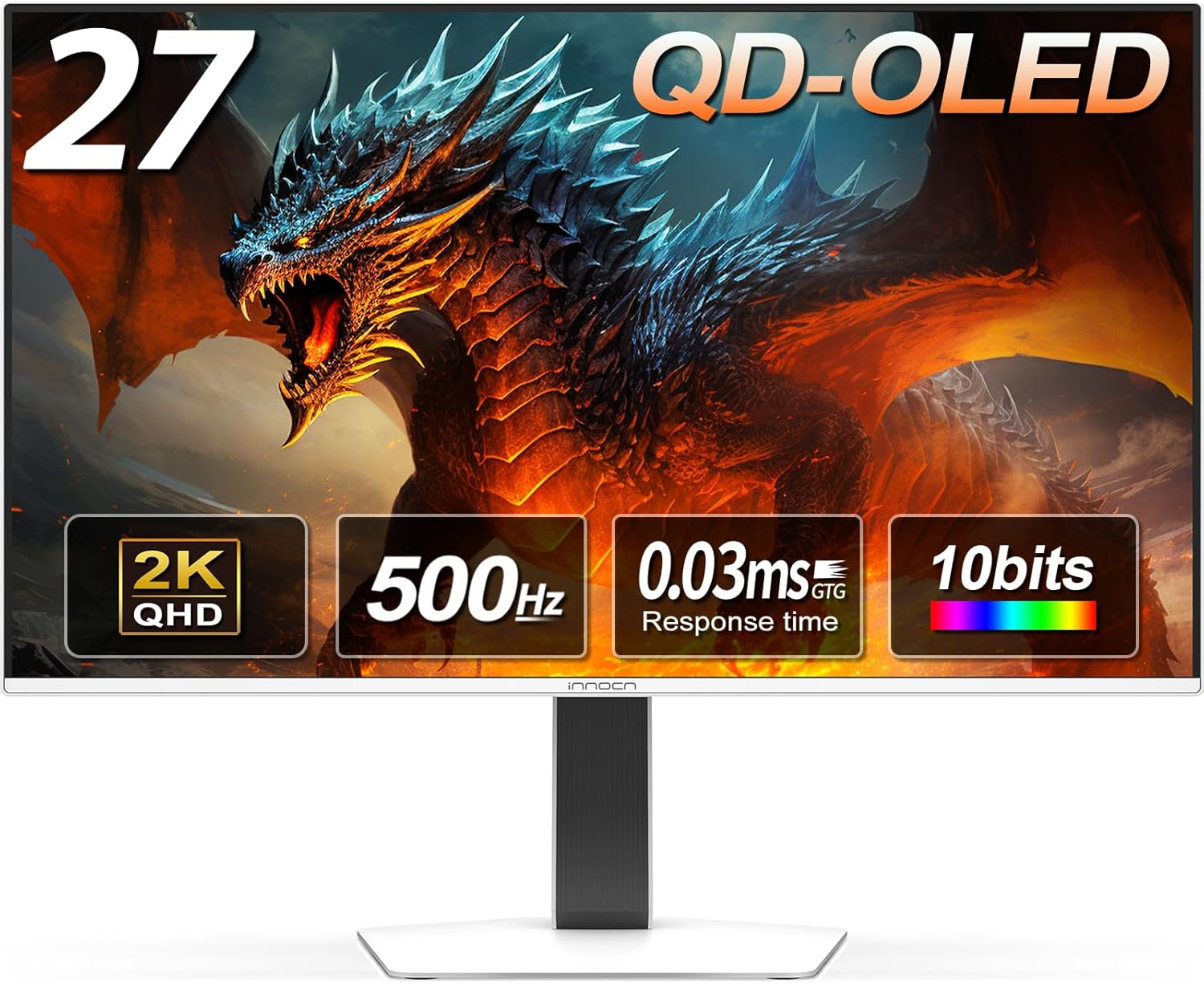
Слика 1: Предња страна view of the INNOCN GA27M1Q 27-inch QD-OLED Gaming Monitor.
The INNOCN GA27M1Q is a high-performance gaming monitor featuring a 27-inch QD-OLED panel with a 2560 x 1440 (2K QHD) resolution, an ultra-fast 500Hz refresh rate, and a 0.03ms response time. It supports HDR 500, G-SYNC compatibility, and various connectivity options for an immersive visual experience.
2. Садржај пакета
Verify that all items listed below are present in your product packaging. If any items are missing or damaged, please contact customer support.
- INNOCN GA27M1Q Monitor
- Повер Цабле
- ХДМИ кабл
- DisplayPort (DP) кабл
- Извештај о калибрацији боја
- Упутство за употребу
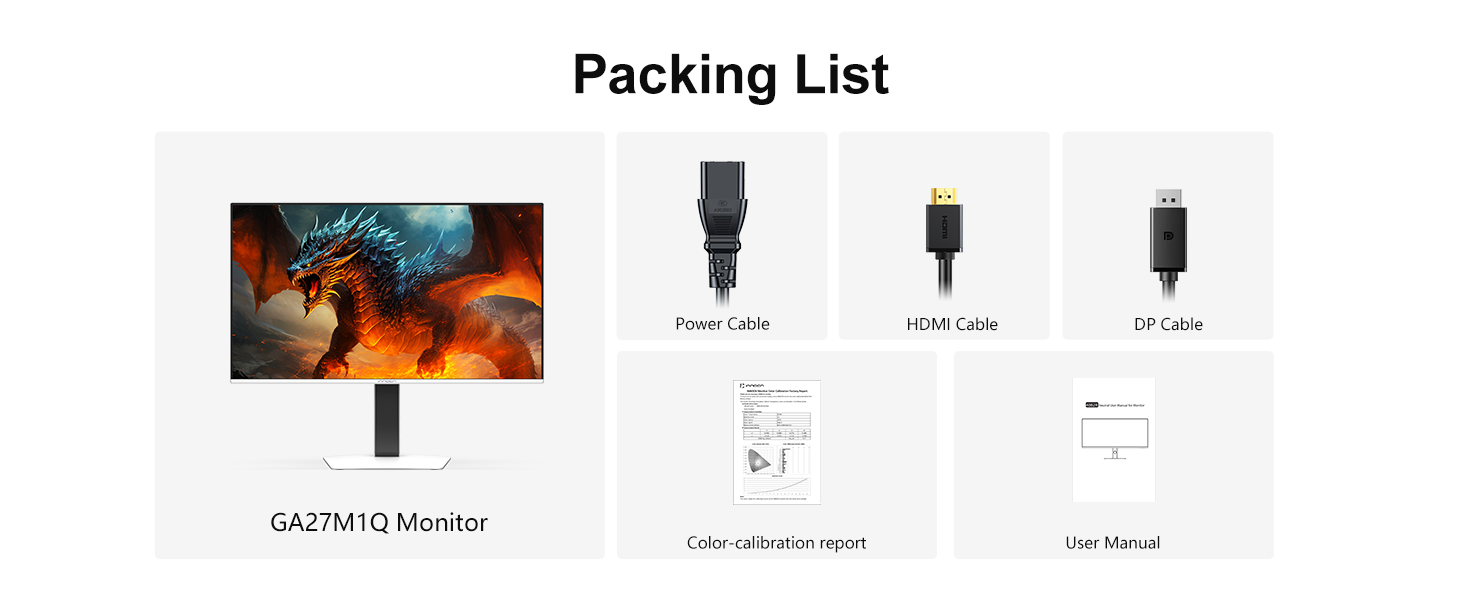
Figure 2: Illustration of the INNOCN GA27M1Q monitor and its included accessories.
3. Подешавање монитора
3.1 Састављање постоља
- Пажљиво извадите компоненте монитора и постоља из паковања.
- Причврстите врат постоља на панел монитора. Уверите се да је сигурно закачио на своје место.
- Причврстите основу постоља на врат постоља и затегните завртањ на дну основе.
- Поставите састављени монитор на стабилну, равну површину.
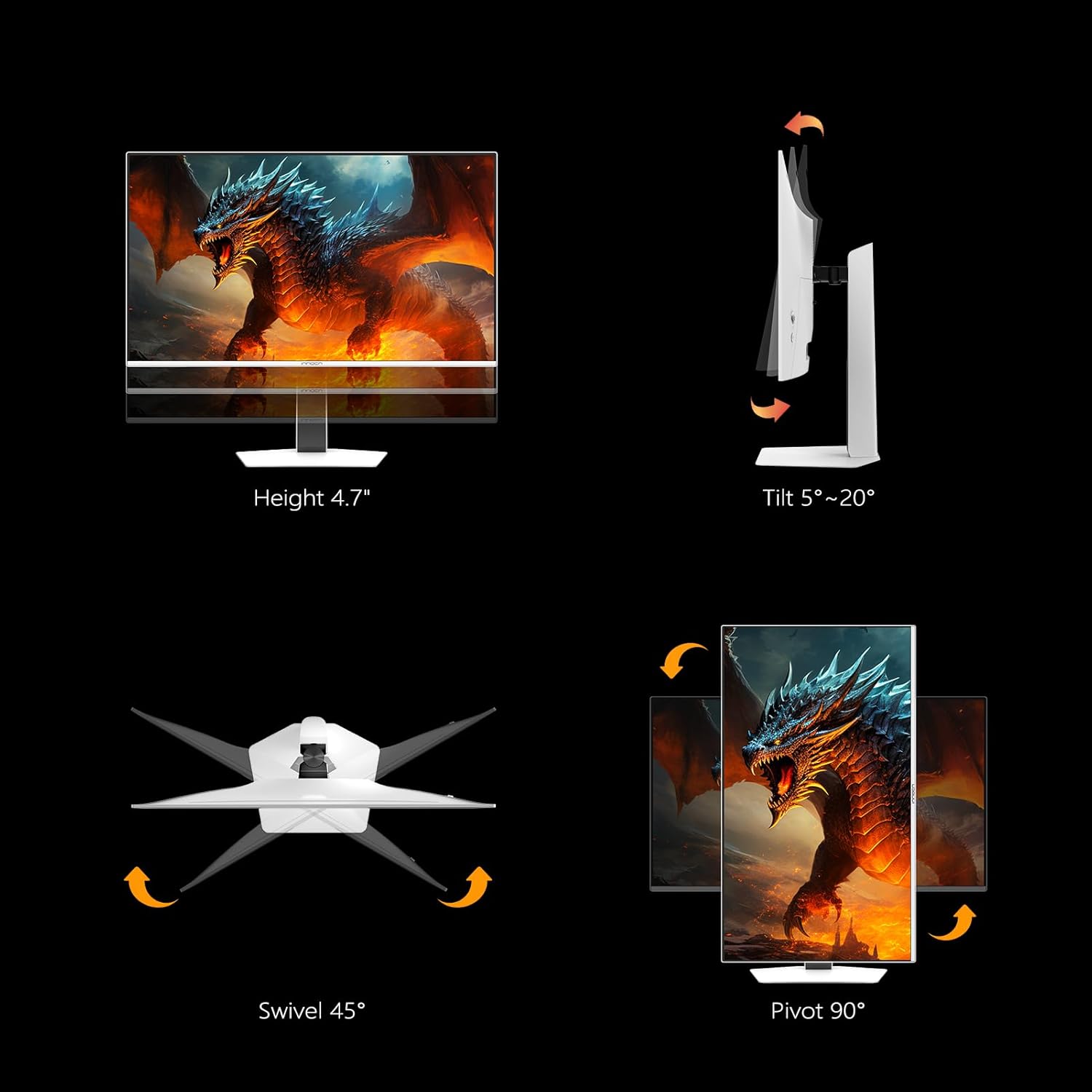
Figure 3: The monitor stand offers height, tilt, swivel, and pivot adjustments for ergonomic viewинг.
3.2 Повезивање са уређајем
Connect your computer or gaming console to the monitor using the appropriate cables. The monitor supports various input types:
- ДисплаиПорт (ДП): For optimal performance, use the included DisplayPort cable to connect to your PC's graphics card.
- ДВИ: Use an HDMI 2.1 cable for connecting gaming consoles (e.g., PS5, Xbox Series X) or other HDMI-compatible devices.
- УСБ-А 3.0: Connect peripherals such as keyboards and mice.
- USB-B 3.0: Connect to your computer to enable the monitor's USB-A ports.
- 3.5 мм аудио прикључак: За екстерни аудио излаз.
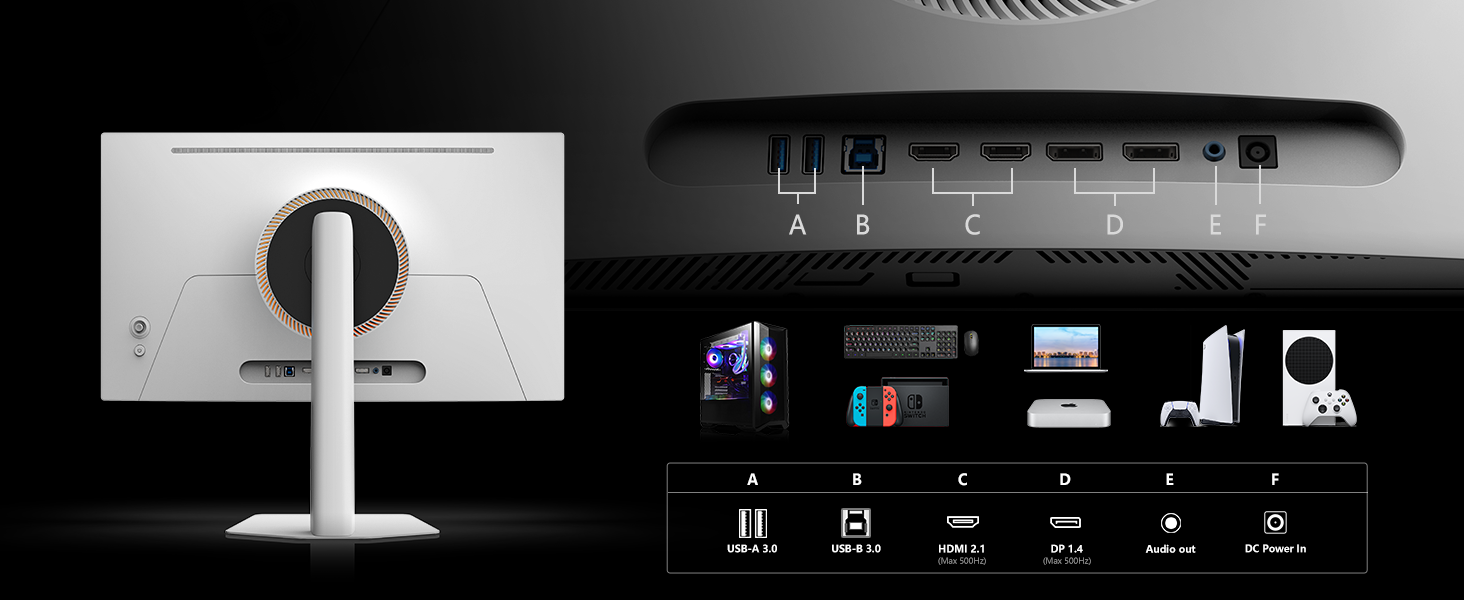
Слика 4: Задња страна view of the monitor showing connectivity options including USB, HDMI, DisplayPort, and audio out.
4. Упутство за употребу
4.1 Укључивање/искључивање
Press the power button located on the back of the monitor to turn it on or off. The power indicator light will illuminate when the monitor is active.
4.2 Навигација кроз мени на екрану (OSD)
The monitor features an intuitive OSD menu for adjusting various settings. Use the joystick control on the back of the monitor to navigate through the menu options.
4.3 Кључне карактеристике и подешавања
- Брзина освежавања од 500Хз: Experience ultra-smooth motion and reduced input lag. This setting can typically be adjusted within your operating system's display settings or graphics card control panel.
- Време одзива од 0.03 мс: Minimizes motion blur and ghosting for crisp visuals, especially in fast-paced gaming.
- ХДР 500: Enables a wider range of colors and contrast for more vibrant and detailed images. Activate HDR in your device's display settings.
- Adaptive-Sync & G-SYNC Compatible: Synchronizes the monitor's refresh rate with your graphics card's frame rate to eliminate screen tearing and stuttering. Ensure this feature is enabled in your graphics card control panel.
- МАЦ-VIEW Режим: Optimizes color matching for Mac devices, reducing color unevenness. This mode can be activated via the OSD menu. A USB-C to HDMI or USB-C to DisplayPort connector may be required.

Figure 5: Visual representation of the difference in motion clarity between a 60Hz LCD and the 500Hz QD-OLED panel.

Figure 6: The monitor's VESA DisplayHDR 500 support provides enhanced detail and contrast.
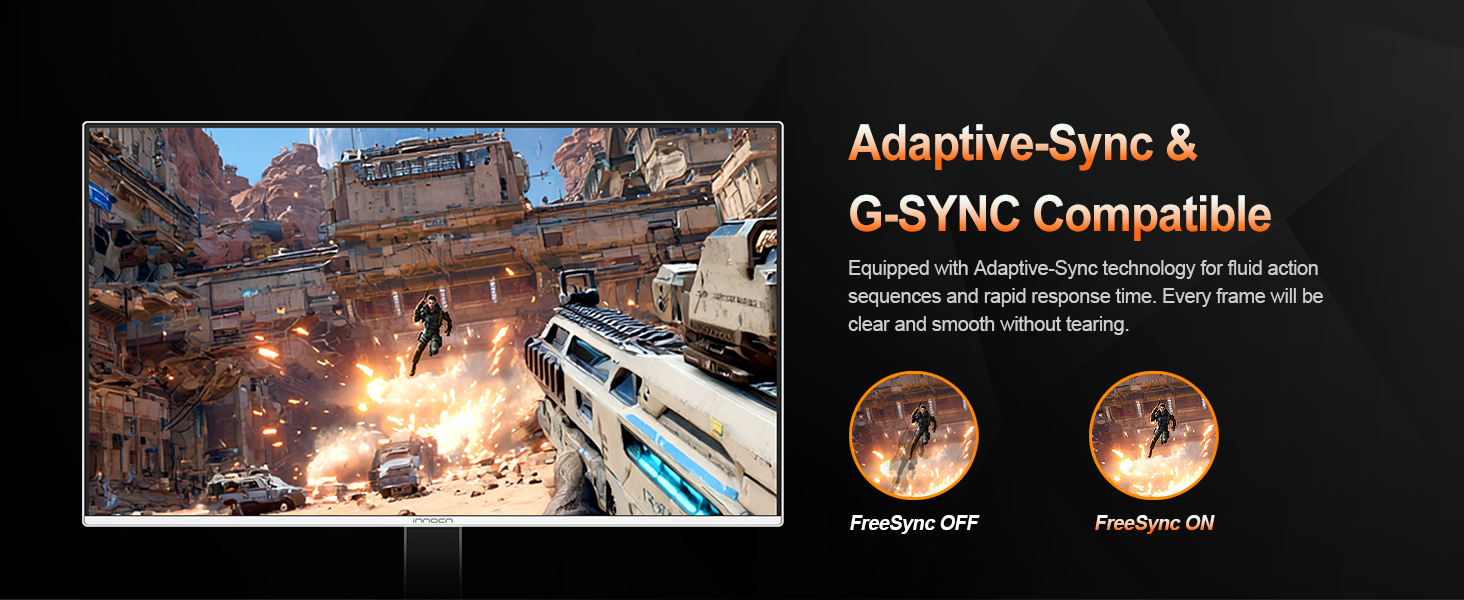
Figure 7: Adaptive-Sync technology ensures fluid action sequences without screen tearing.

Figure 8: MAC-VIEW Mode optimizes visual output for Apple devices.
5. Одржавање и њега
Да бисте осигурали дуготрајност и оптималне перформансе вашег монитора, пратите ова упутства за одржавање:
- Чишћење: Нежно обришите екран меком крпом која не оставља влакна. За тврдокорне мрље користите средство за чишћење посебно за мониторе нането на крпу, а не директно на екран.
- Избегавајте директну сунчеву светлост: Не излажите монитор директној сунчевој светлости током дужег временског периода.
- вентилација: Обезбедите адекватан проток ваздуха око монитора како бисте спречили прегревање.
5.1 OLED Panel Protection Features
The monitor incorporates several features to protect the OLED panel and prevent image retention:
- Pixel Shift (Enabled by default): Periodically shifts the entire screen image by a few pixels to prevent static elements from causing image retention.
- Static Screen Detection (Enabled by default): Automatically reduces brightness when a static image is detected for an extended period, minimizing the risk of image retention.
- Static Icon, Taskbar, and Boundary Detection: Identifies and mitigates potential image retention from persistent on-screen elements like taskbars or logos.
- Low Power Consumption At The Corners (Manually enabled): Reduces power consumption in screen corners, which can contribute to panel longevity.
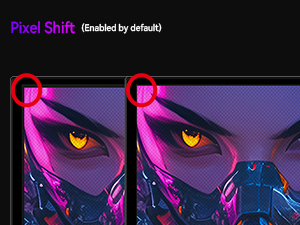
Figure 9: Pixel Shift subtly moves the display content to protect the OLED panel.
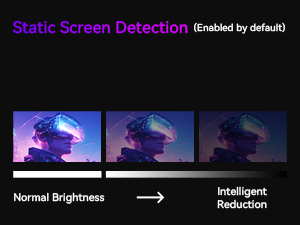
Figure 10: Static Screen Detection intelligently reduces brightness for prolonged static images.
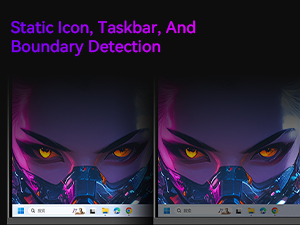
Figure 11: The monitor detects and addresses static elements like taskbars to prevent image retention.
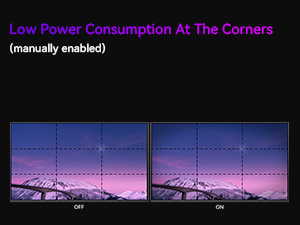
Figure 12: Low Power Consumption at Corners feature, which can be manually enabled.
КСНУМКС. Решавање проблема
Ако наиђете на проблеме са монитором, погледајте следеће уобичајене проблеме и решења:
- Нема напајања:
- Уверите се да је кабл за напајање безбедно прикључен и на монитор и на исправну утичницу.
- Проверите да ли адаптер за напајање исправно функционише.
- Нема сигнала:
- Check that the video cable (DP or HDMI) is firmly connected to both the monitor and your device.
- Уверите се да је на монитору изабран исправан улазни извор преко OSD менија.
- Тестирајте са другим видео каблом или уређајем ако је могуће.
- Треперећи екран:
- Verify the video cable is not damaged and is securely connected.
- Подесите брзину освежавања у подешавањима екрана вашег уређаја.
- Disable or enable Adaptive-Sync/G-SYNC in your graphics card settings to see if it resolves the issue.
- Задржавање/урезаност слике:
- Utilize the monitor's built-in OLED panel protection features (Pixel Shift, Static Screen Detection).
- Avoid displaying static images for prolonged periods.
- Use screen savers or dynamic wallpapers.
- Нема звука:
- Проверите подешавања јачине звука монитора у OSD менију.
- Ensure your device's audio output is set to the monitor.
- If using external speakers, ensure they are properly connected to the 3.5mm audio jack.
7. Техничке спецификације
| Феатуре | Спецификација |
|---|---|
| Број модела | GA27M1Q (2780M) |
| Величина екрана | 27 инча |
| Панел Типе | КД-ОЛЕД |
| Резолуција | 2560 к 1440 (КХД) |
| Рефресх Рате | 500Hz (VRR Supported: 48Hz~500Hz) |
| Време одговора | 0.03 мс (ГТГ) |
| Однос контраста | 1,500,000:1 |
| Гамут боја | 99% DCI-P3, 1.07 Billion Colors (10-bit) |
| ХДР подршка | ХДР 500 |
| Адаптиве Синц | Adaptive-Sync & G-SYNC Compatible |
| Повезивање | 2 x DisplayPort, 2 x HDMI, 1 x 3.5mm Audio Jack, 3 x USB-A 3.0, 1 x USB-B 3.0 |
| ВЕСА Моунт | 100 мм к 100 мм |
| Димензије производа | 2 к 24.05 к 13.9 инча |
| Тежина артикла | 16.28 фунти |
8. Званични видео снимци производа
The following videos provide additional information and demonstrations of the monitor's features:
8.1 Ultra Smooth Motion Control
This video demonstrates the monitor's ultra-smooth motion control, highlighting its fast refresh rate and response time for a fluid visual experience.
8.2 INNOCN 27 OLED 2K QHD 2560 x 1440p 500Hz Gaming Monitor Overview
Овај видео пружа свеобухватан прегледview of the INNOCN 27-inch OLED 2K QHD 500Hz Gaming Monitor, showcasing its features and capabilities for gaming and general use.
9. Гаранција и корисничка подршка
INNOCN products are designed for reliability and performance. For information regarding warranty coverage, please refer to the warranty card included in your product packaging or visit the official INNOCN webсајту.
If you require technical assistance, have questions about your product, or need to report an issue, please contact INNOCN customer support through their official channels. Contact information can typically be found on the INNOCN webсајту или у документацији вашег производа.