
TuTu TF25Q1
TuTu 25-inch F-Series FHD Smart TV (Model TF25Q1) User Manual
Brand: TuTu | Model: TF25Q1
Увод
This user manual provides essential information for the setup, operation, and maintenance of your new TuTu 25-inch F-Series FHD Smart TV. Please read this manual thoroughly before using your television to ensure proper functionality and to maximize your viewинг искуство. Сачувајте ово упутство за будућу употребу.
Важне информације о безбедности
Увек се придржавајте основних мера безбедности када користите овај телевизор како бисте смањили ризик од пожара, струјног удара и повреда.
- Не излажите телевизор киши или влази.
- Не блокирајте отворе за вентилацију.
- Обезбедите правилно уземљење кабла за напајање.
- Искључите телевизор из струје током олуја са грмљавином или када га не користите дуже време.
- Све сервисирање препустите квалификованом сервисном особљу.
Шта је у кутији
Проверите да ли су све компоненте присутне приликом распакивања:
- TuTu 25-inch F-Series FHD Smart TV (x1)
- TV Stand (x2)
- Упутство за употребу (к1)
- Accessories Bag (x1)
- Даљински управљач (к1)
- ААА батерије (к2)
Сетуп
1. Физичко подешавање
Carefully place the TV screen-down on a soft, flat surface. Attach the two stand pieces to the bottom of the TV using the provided screws. Alternatively, the TV can be wall-mounted using a compatible VESA mount (not included).

Слика: Позади view of the TuTu 25-inch Smart TV, highlighting the VESA mounting holes for wall installation and the ventilation grilles.
2. Повезивање периферних уређаја
Connect your external devices such as cable boxes, gaming consoles, or Blu-ray players to the TV's input ports. The TV offers various connectivity options:

Слика: Детаљна view of the TV's connectivity panel, showing ports for HDMI, USB, Optical Audio, Composite Video (L-IN-R), RF antenna, and Ethernet (RJ45).
| Тип порта | Опис |
|---|---|
| ХДМИ (еАРЦ) | Connect high-definition devices (e.g., gaming consoles, Blu-ray players). eARC supports enhanced audio return channel. |
| USB (USB1, USB2) | Повежите УСБ уређаје за складиштење података за репродукцију медија. |
| Оптицал | Digital audio output for soundbars or home theater systems. |
| Video (L-IN-R) | Composite video input for older devices. |
| RF | Connect an antenna or cable TV. |
| РЈ45 (Етернет) | Wired network connection for internet access. |
3. Initial Power On & Samsung Account Activation
After connecting all necessary cables, plug in the TV's power cord. Press the power button on the remote control. During the initial setup, you will be prompted to activate the TV with a Samsung account. A Samsung account is required for TV activation. If you do not have one, please register on the Samsung official website before proceeding. You may be prompted to bind a credit card; this step can be skipped if you only plan to use free services like Samsung TV Plus. Credit card binding is only necessary for paid features or content and can be added later in your account settings.
4. Мрежна веза
To access smart features and streaming services, connect your TV to the internet. You can choose between Wi-Fi or a wired Ethernet connection via the RJ45 port. Navigate to the TV's settings menu, select 'Network', and follow the on-screen instructions to connect to your home network.
Управљање ТВ-ом
1. Даљинско управљањеview
The included remote control provides easy navigation and access to all TV functions. It features dedicated buttons for popular streaming services and essential controls.
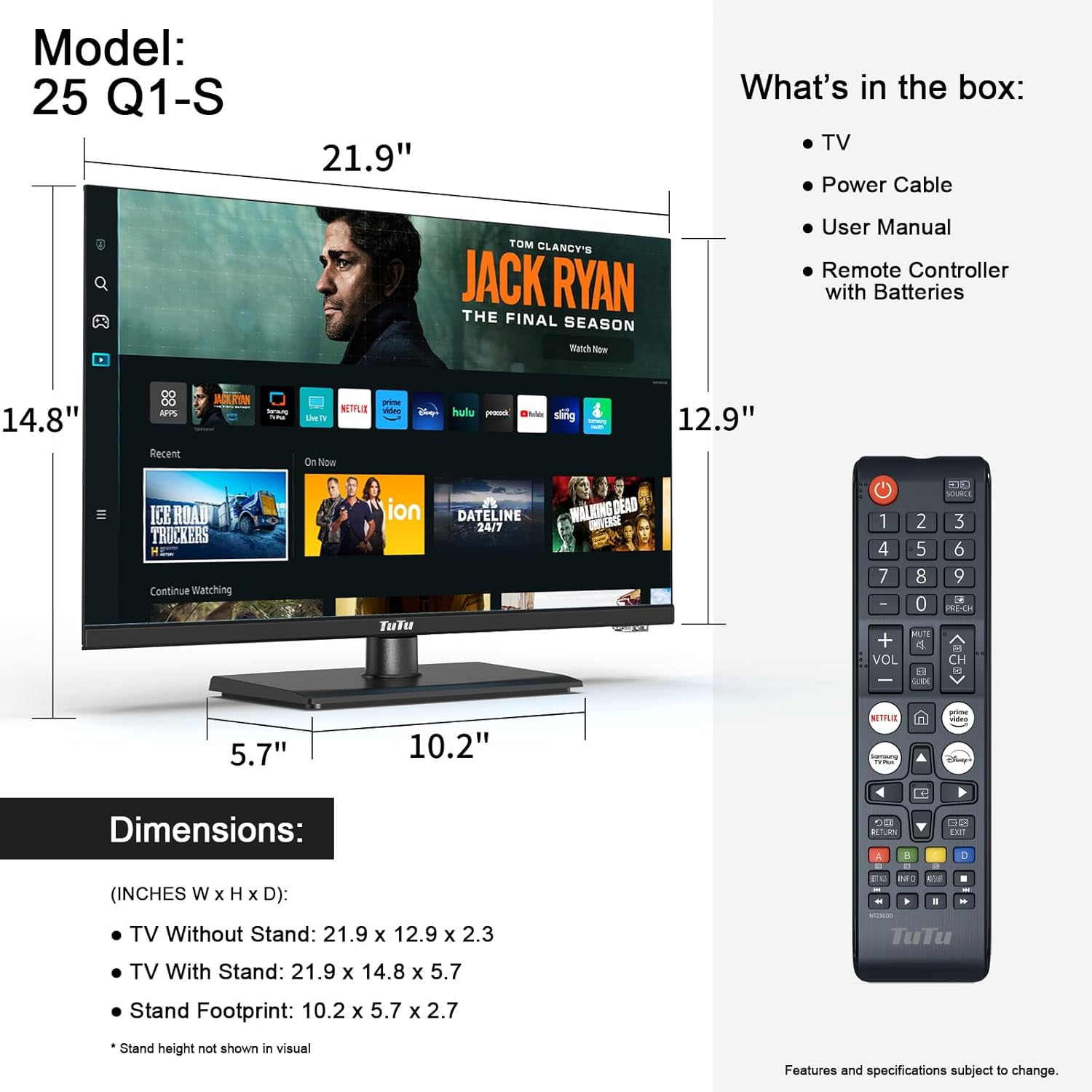
Image: The TuTu Smart TV remote control, showing buttons for power, input, volume, channel, and direct access to streaming apps like Netflix and Disney+.
2. Tizen OS Navigation
Your TuTu Smart TV runs on Tizen OS, offering an intuitive and sleek interface. Use the remote's directional pad and 'OK' button to navigate through menus, apps, and settings. The home screen provides quick access to your favorite content and features.

Image: The Tizen OS interface on the TuTu Smart TV, showcasing the user-friendly layout with app shortcuts and content recommendations.
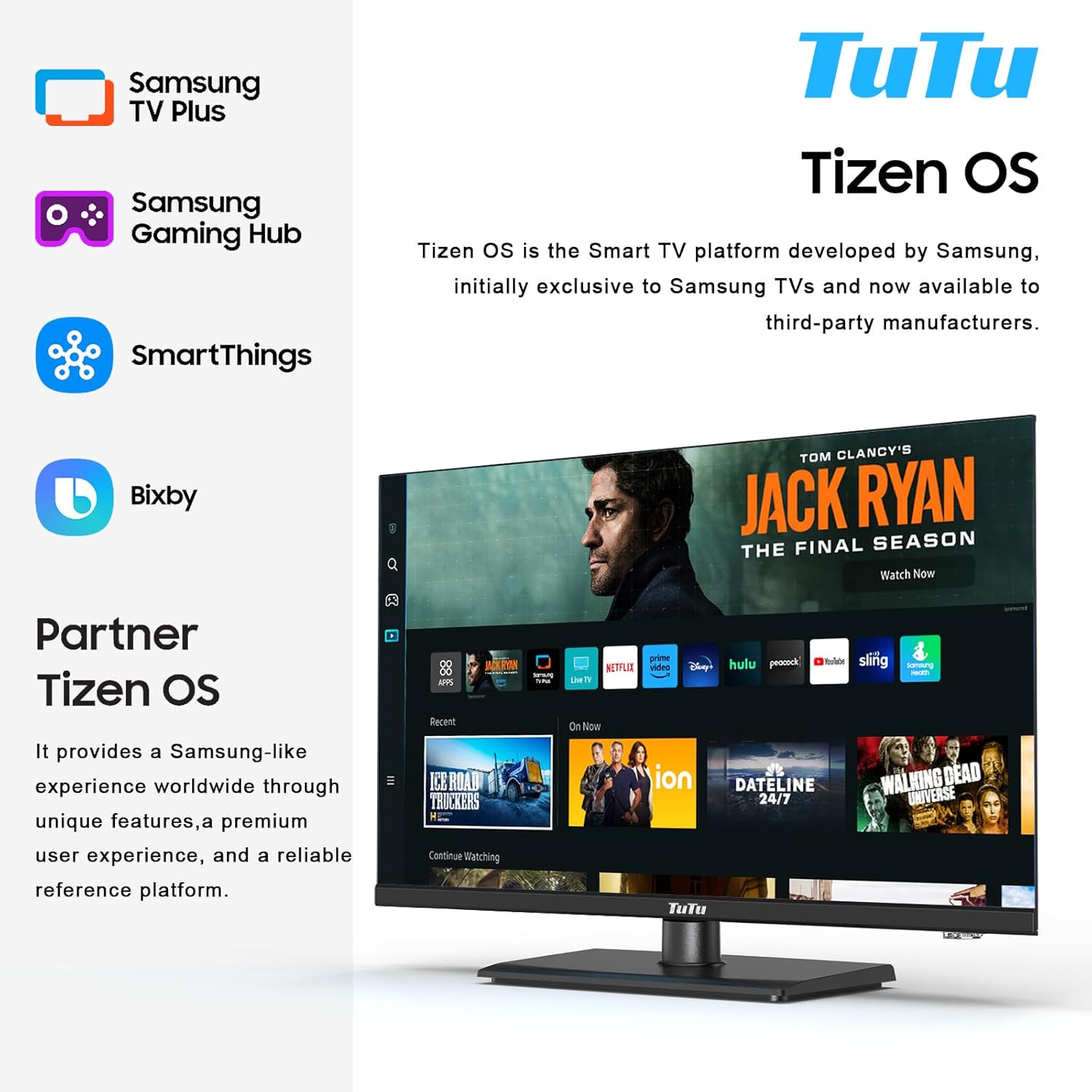
Image: An illustration emphasizing the TuTu TV's integration with Samsung's Tizen OS, including features like Samsung TV Plus, Gaming Hub, SmartThings, and Bixby voice assistant.
3. Стриминг сервиси
Access a wide range of streaming content directly from your TV. Popular apps like YouTube, Netflix, and Disney+ are pre-installed or easily downloadable. Samsung TV Plus offers free live TV channels without subscription fees or credit card requirements.
4. Подешавања звука (Долби Аудио)
Experience enhanced audio quality with Dolby Audio. Adjust sound modes and settings in the TV's audio menu to optimize for movies, music, or dialogue. For an immersive experience, consider connecting external audio systems via the optical port or Bluetooth.

Image: A graphic illustrating the immersive 3D surround sound capabilities of Dolby Audio on the TuTu TV, showing sound movement on screen.
5. Picture Settings (FHD, HDR, Color Enhancement)
Your TV features Full High Definition (1080p) resolution for clear visuals. High Dynamic Range (HDR) provides brighter highlights, deeper blacks, and a wider color range. Adjust picture modes (e.g., Standard, Movie, Dynamic) and fine-tune brightness, contrast, and color settings to suit your preferences.

Image: A visual demonstration of HDR technology on the TuTu TV, comparing a scene with and without HDR to show improved contrast and detail.

Image: A graphic explaining the color enhancement feature of the TuTu TV, showing how a wider color gamut results in more vibrant and accurate colors compared to conventional displays.
6. Гејминг центар
The integrated Gaming Hub provides a centralized location for your gaming needs, offering quick access to cloud gaming services and connected consoles. Optimize your gaming experience through dedicated game modes in the settings.
7. Интеграција са SmartThings-ом
Connect your TuTu Smart TV with other SmartThings-compatible devices for a seamless smart home experience. Control your TV and other smart appliances from a single interface.
8. Блуетоотх повезивање
Pair Bluetooth-enabled devices such as headphones, soundbars, or game controllers directly to your TV for a personalized and wire-free experience. Access Bluetooth settings in the connectivity menu.
Одржавање
Правилно одржавање осигурава дуготрајност и оптималне перформансе вашег телевизора.
- Чишћење екрана: Нежно обришите екран меком крпом која не оставља влакна. За тврдокорне мрље, благо обришитеampОбришите крпу водом или специјализованим средством за чишћење екрана. Избегавајте јаке хемикалије.
- Чишћење тела: Користите меку, суву крпу да обришете оквир и постоље телевизора.
- Ажурирања софтвера: Ensure your TV's software is up-to-date for the best performance and security. The TV may prompt you for updates, or you can check manually in the settings menu.
- вентилација: Уверите се да вентилациони отвори телевизора нису блокирани како бисте спречили прегревање.
Решавање проблема
Ако наиђете на проблеме са телевизором, погледајте следећа уобичајена решења:
| Проблем | Решење |
|---|---|
| Но Повер | Проверите да ли је кабл за напајање добро прикључен и у телевизор и у зидну утичницу. Покушајте са другом утичницом. |
| Нема слике, али је звук присутан | Ensure the correct input source is selected. Check cable connections (HDMI, etc.) for looseness or damage. |
| Нема звука, али је слика присутна | Check the volume level and mute status. Verify external audio device connections if applicable. |
| Проблеми са Ви-Фи везом | Restart your router and modem. Re-enter the Wi-Fi password in the TV's network settings. Ensure the TV is within range of your Wi-Fi signal. |
| Даљински управљач не ради | Замените батерије. Уверите се да нема препрека између даљинског управљача и инфрацрвеног сензора телевизора. |
Спецификације
Key technical specifications for your TuTu 25-inch F-Series FHD Smart TV:
| Феатуре | Детаљ |
|---|---|
| Број модела | TF25Q1 |
| Величина екрана | 25 инча |
| Дисплаи Тецхнологи | LED & LCD |
| Резолуција | FHD (1080p) |
| Рефресх Рате | 60 Хз |
| Оперативни систем | Tizen OS Powered by Samsung |
| Аудио технологија | Долби Аудио |
| Повезивање | Wi-Fi, Bluetooth, Ethernet, HDMI, RCA, RF, Optical, USB |
| Димензије производа (са постољем) | 24 cm Š x 15 cm V x 5.7 cm D |
| Тежина артикла | 7 фунти |
| Посебне карактеристике | Browser, Built-In Speaker, Flat, Game Mode |
Гаранција и подршка
For warranty information and customer support, please refer to the documentation included with your purchase or visit the official TuTu webсајт. Сачувајте доказ о куповини за евентуалне рекламације по гаранцији.
Ask a question about this manual
Ask about setup, troubleshooting, compatibility, parts, safety, or missing instructions. Manuals+ will review the question and use this page’s manual context to help answer it.