
1. Увод
Тхе Блацкview MP60 Mini PC is a compact and powerful computing solution designed for various applications, including office work, multimedia creation, and home server use. Featuring the Intel Twin Lake N150 processor, 16GB RAM, and a 512GB M.2 SSD, it offers efficient performance in a small form factor. This manual provides essential information for setting up, operating, and maintaining your device.

Image: The Blackview MP60 Mini PC, highlighting its compact design and Intel Twin Lake N150 processor.
2. Шта је у кутији
Проверите да ли су све ставке присутне у пакету:
- Црноview Mini PC MP60 N150 (x1)
- ХДМИ кабл (к1)
- Адаптер за напајање (к1)
- VESA Mount with Screws (x1)
- Информације о гаранцији и подршци
3. Производ је готовview
Тхе Блацкview MP60 Mini PC features a compact design with essential ports for connectivity and expansion. Its small footprint makes it suitable for various environments.
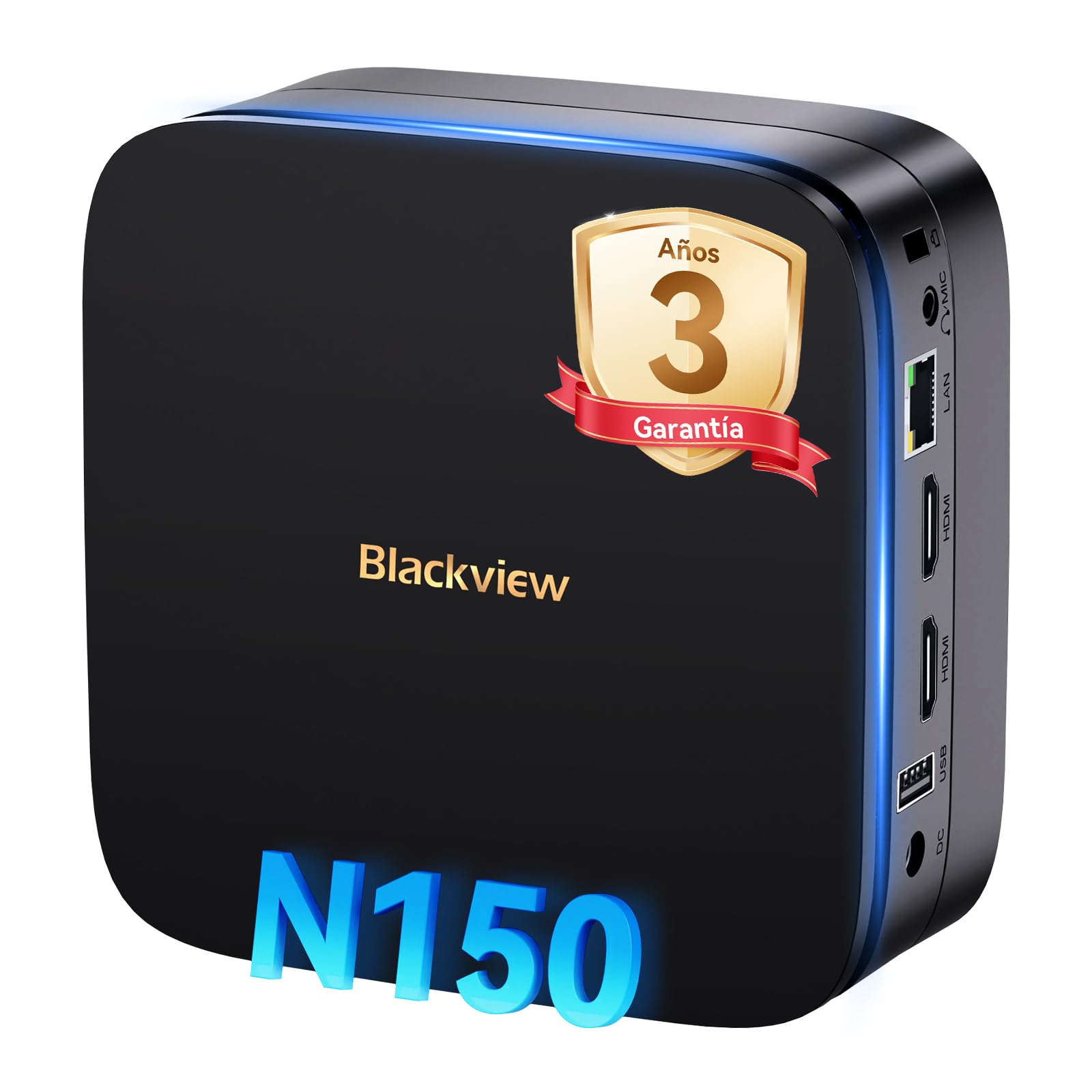
Слика: Предња и задња страна view of the Blackview MP60 Mini PC, illustrating its various ports including USB, HDMI, and Ethernet.
Кључне карактеристике:
- процесор: Intel Twin Lake N150 (up to 3.6 GHz)
- РАМ: 16ГБ ДДР4
- Складиштење: 512GB M.2 SSD (expandable up to 2TB)
- Графика: Интегрисана Интел УХД графика
- Оперативни систем: Виндовс 11 Про
- Повезивање: Dual-band Wi-Fi (2.4Ghz & 5Ghz), Bluetooth 4.2, Gigabit Ethernet (RJ45)
- Видео излаз: 2x HDMI 2.0 (supports dual 4K displays)
- УСБ портови: 4x USB ports (USB 2.0 Type A, USB 3.0 Type A)
4. Упутства за подешавање
Follow these steps to set up your Blackview MP60 Mini PC:
- Повежите се са екраном: Use the provided HDMI cable to connect the Mini PC to your monitor or TV. The device supports dual 4K displays.
- Повежите периферне уређаје: Plug in your USB keyboard and mouse into the available USB ports.
- Повежите се са напајањем: Прикључите адаптер за напајање на DC-in порт на Mini PC-ју, а затим укључите адаптер у утичницу.
- Укључено: Press the power button located on the front of the Mini PC. The device will boot up, and you will see the Windows 11 Pro setup screen.
- Почетна инсталација Windows-а: Пратите упутства на екрану да бисте завршили подешавање система Windows 11 Pro, укључујући језик, регион, мрежну везу и креирање корисничког налога.

Image: The Blackview MP60 Mini PC demonstrating its micro size and portability, fitting easily into a bag.
5. Упутство за употребу
5.1 Основни рад
Once Windows 11 Pro is set up, you can begin using your Mini PC. The Intel Twin Lake N150 processor provides sufficient power for daily tasks, office applications, and multimedia consumption.
- Укључивање/искључивање: Press the power button to turn the device on. To shut down, go to the Start Menu in Windows and select Power > Shut down.
- Поново покрени: From the Start Menu, select Power > Restart.
- Режим спавања: From the Start Menu, select Power > Sleep.
5.2 Проширење складишног простора
Тхе Блацкview MP60 Mini PC allows for easy storage expansion with a 2.5-inch SSD/HDD. This feature is useful for storing large files, videos, or creating a home NAS.
- Locate the removable base of the Mini PC.
- Carefully remove the base to access the 2.5-inch drive bay.
- Install your 2.5-inch SSD or HDD (up to 2TB, not included) into the bay.
- Secure the drive and reattach the base.
- After booting, you may need to initialize and format the new drive in Windows Disk Management.

Image: Step-by-step illustration of how to install a 2.5-inch SSD into the Blackview MP60 Mini PC for storage expansion.
5.3 Dual 4K Display Setup
The Mini PC supports connecting two 4K displays simultaneously via its two HDMI 2.0 ports, enhancing productivity for tasks requiring multiple screens.
- Connect your primary monitor to one HDMI port.
- Connect your secondary monitor to the second HDMI port.
- Once both monitors are connected and the PC is powered on, Windows will automatically detect them.
- To configure display settings (e.g., extend, duplicate, resolution), right-click on the desktop and select "Display settings."

Image: The Blackview MP60 Mini PC powering two 4K monitors, demonstrating its dual display capability for enhanced productivity.
5.4 Мрежна и бежична повезаност
The MP60 offers robust connectivity options:
- Ви-Фи: Supports dual-band 2.4GHz and 5GHz Wi-Fi for fast and stable wireless internet access. Connect via Windows network settings.
- Етхернет: A Gigabit RJ45 port provides a wired connection for maximum stability and speed (up to 1000 MB/s).
- Блуетоотх: Bluetooth 4.2 allows for easy connection of wireless peripherals like keyboards, mice, and audio devices.
6. Одржавање
To ensure optimal performance and longevity of your Blackview MP60 Mini PC, follow these maintenance guidelines:
- Нека буде чисто: Regularly clean the exterior of the Mini PC with a soft, dry cloth. Use compressed air to clear dust from vents to maintain efficient cooling.
- Ажурирања софтвера: Редовно ажурирајте оперативни систем и управљачке програме Windows како бисте осигурали безбедност и перформансе.
- Избегавајте препреке: Уверите се да отвори за вентилацију нису блокирани да бисте спречили прегревање.
- Безбедно искључивање: Always shut down the PC properly through the operating system rather than simply unplugging it.

Слика: Интерна view of the Blackview MP60 Mini PC, illustrating its silent heat dissipation system with a cooling fan and heatpipes.
КСНУМКС. Решавање проблема
If you encounter issues with your Blackview MP60 Mini PC, refer to the following common troubleshooting steps:
- Нема напајања:
- Уверите се да је адаптер за напајање безбедно повезан и са Мини рачунаром и са исправном утичницом.
- Тестирајте утичницу са другим уређајем.
- Без приказа:
- Check HDMI cable connections to both the Mini PC and the monitor.
- Ensure the monitor is powered on and set to the correct input source (HDMI).
- Try a different HDMI cable or monitor if possible.
- Нема интернет везе:
- For Wi-Fi, ensure the Wi-Fi adapter is enabled in Windows settings and you are connected to the correct network with the correct password.
- For Ethernet, ensure the cable is securely plugged into both the Mini PC and your router/modem. Check router status.
- Restart your router/modem and the Mini PC.
- Споре перформансе:
- Затворите непотребне апликације које раде у позадини.
- Проверите и инсталирајте све чекајуће надоградње за Windows.
- Ensure there is sufficient free space on your primary drive.
- Покрените скенирање вируса.
Ако проблеми и даље постоје, погледајте одељак о гаранцији и подршци за додатну помоћ.
8. Спецификације
Detailed technical specifications for the Blackview MP60 Mini PC:
| Феатуре | Спецификација |
|---|---|
| Процесор | Intel Twin Lake N150 (up to 3.6 GHz, 4 Cores, 4 Threads, 6MB Cache) |
| Графика | Интегрисана Интел УХД графика |
| РАМ | 16GB DDR4 (3200 MHz) |
| Складиштење | 512GB M.2 SSD (PCIe x4 interface), expandable with 2.5" SSD/HDD up to 2TB |
| Оперативни систем | Виндовс 11 Про |
| Видео Оутпут | 2x HDMI 2.0 (supports dual 4K @ 60Hz displays) |
| УСБ портови | 4x USB (USB 2.0 Type A, USB 3.0 Type A) |
| Мрежа | Gigabit Ethernet (RJ45), Wi-Fi 5G (802.11ac, dual-band 2.4GHz/5GHz) |
| Блуетоотх | Блуетоотх 4.2 |
| Аудио излаз | КСНУМКСмм Аудио Јацк |
| Метод хлађења | Air Cooling (Silent design with fan and heatpipes) |
| Димензије | 12.8 к 12.8 к 5.2 цм |
| Тежина | 1.01 кг |
| Повер Суппли | External Power Adapter (Type E/F: 2 pins for EU) |
9. Гаранција и подршка
Црноview is committed to providing high-quality products and excellent customer service.
Информације о гаранцији:
Your Blackview MP60 Mini PC comes with a 3-year official warranty covering parts and labor for manufacturing defects. This ensures prompt replacement or repair in case of product failure.

Слика: Црнаview's commitment to customer satisfaction, highlighting a 3-year warranty and lifetime technical support.
техничка подршка:
Црноview понуде доживотна техничка подршка. Our expert team is available via email, live chat, or phone to assist you with software updates, troubleshooting, and optimization tips to keep your device running smoothly for years. Please refer to the contact information provided with your product or visit the official Blackview webсајт за детаље подршке.