
1. Увод
Thank you for choosing the GOHHDL Android 15 Car Stereo. This manual provides detailed instructions for the installation, operation, and maintenance of your new car multimedia system. Please read this manual thoroughly before use to ensure proper functionality and to maximize your user experience. This device is designed to enhance your driving with advanced navigation, entertainment, and connectivity features.
2. Производ је готовview
The GOHHDL Android 15 Car Stereo features a 7-inch touch screen, powered by Android 15 with 4GB RAM and 64GB ROM for smooth performance and ample storage for applications. It offers seamless integration with your smartphone via wireless Carplay and Android Auto, along with GPS navigation, WiFi connectivity, Bluetooth 5.0, and FM/RDS radio.
2.1 Компатибилност возила
This car stereo is specifically designed for the following vehicle models:
- Dacia Logan (2012-2017)
- Dacia Duster (2011-2017)
- Dacia Sandero (2012-2017)
- Dacia Lodgy (2012-2017)
- Renault Captur (2013-2017)
- Renault Symbol (2013-2017)
- Lada Xray

Image 2.1: Vehicle compatibility and a visual comparison of the dashboard before and after installation.
3. Садржај пакета
Молимо вас да проверите да ли су све ставке наведене у наставку укључене у ваш пакет:
- GOHHDL Android 15 Car Stereo Unit
- Повер Цабле
- РЦА кабл
- 3.8-пински CANbus утикач
- 4.6-пински УСБ кабл
- Улазни кабл задње камере
- Радио антена
- GPS Antenna (1.7M)
- Canbus декодер
- Упутство за употребу
- Микрофон
- Позади View Camera (Optional, if included in your package)

Слика 3.1: Детаљно view of the car stereo dimensions and included accessories.
4. Инсталација и подешавање
Professional installation is recommended for this product. Incorrect wiring can damage the device or your vehicle's electrical system. Ensure the vehicle's ignition is off and the battery is disconnected before starting installation.
4.1 Ожичење
Refer to the wiring diagram provided in Image 3.1 and the included user manual for specific connection points. Key connections include:
- Кабл за напајање: Повежите се са напајањем возила (константних 12V, додатних 12V и уземљења).
- RCA каблови: За аудио излаз на екстерни ampлифиери или сабвуфери.
- УСБ каблови: For connecting USB devices, charging, or data transfer.
- ГПС антена: Монтирајте на место са чистим view неба за оптималан пријем сигнала.
- CANbus декодер: Connect to the vehicle's CAN-BUS system for steering wheel controls and other vehicle data integration.
- Улаз за задњу камеру: Повежите задњи део view кабл камере.
- Радио антена: Повежите радио антену возила.
- микрофон: Повежите екстерни микрофон за позивање без употребе руку и гласовне команде.
4.2 Почетно укључивање
After all connections are securely made, reconnect the vehicle's battery and turn on the ignition. The device should power on automatically. Follow any on-screen prompts for initial setup, such as language selection and time zone.
5. Упутство за употребу
5.1 Бежични Carplay и Android Auto
The unit supports wireless Carplay and Android Auto for seamless smartphone integration. This allows you to access navigation, music, calls, and messages directly from your phone via the car stereo's display, using voice control or touch.
- Уверите се да су Блуетоотх и Ви-Фи омогућени на вашем паметном телефону.
- On the car stereo, open the Carplay or Android Auto application.
- Follow the on-screen instructions to pair your phone. For Carplay, search for the car stereo's Bluetooth name on your iPhone and connect. For Android Auto, ensure the Android Auto app is installed on your Android phone and follow the pairing process.
- Once connected, your phone's interface will appear on the car stereo screen.
5.2 Огледалска веза
Mirror Link allows you to mirror your smartphone's screen onto the car stereo display. This feature supports both iOS and Android devices.
- Open the 'Mirror Link' application on the car stereo.
- Follow the specific instructions for iOS or Android devices displayed on the screen to establish the connection, typically involving a USB cable or Wi-Fi connection.
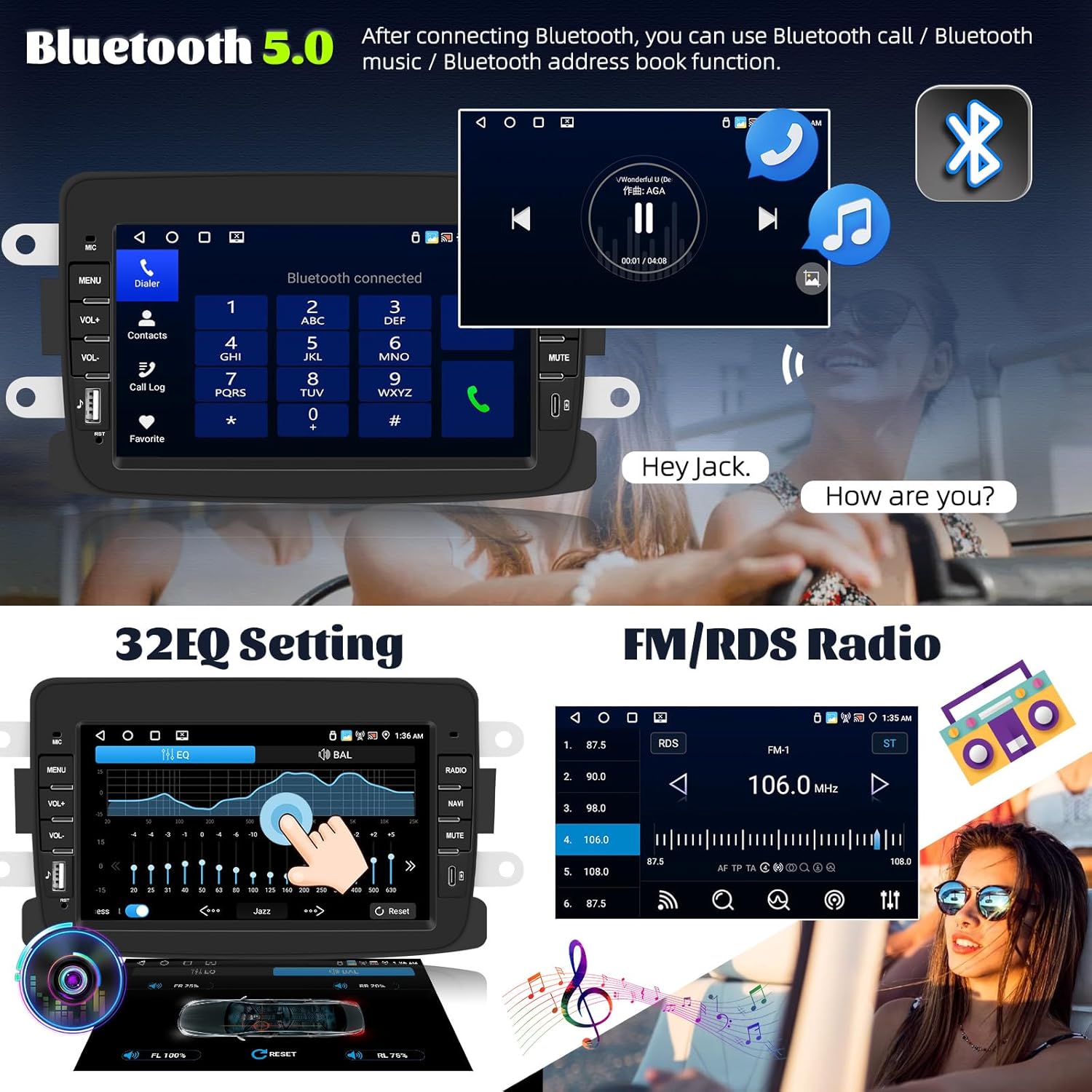
Image 5.1: Wireless Carplay, Android Auto, and Mirror Link features.
5.3 Блуетоотх 5.0
The integrated Bluetooth 5.0 module enables hands-free calling, audio streaming, and phonebook synchronization.
- Идите на подешавања Блутут уређаја на ауто-стерео уређају.
- Enable Bluetooth on your smartphone and search for the car stereo's device name.
- Pair and connect the devices. You may be prompted to enter a PIN (usually '0000').
- Once connected, you can make/receive calls, play music, and access your phone's contacts.
5.4 FM/RDS Radio with 32-Band EQ
Enjoy high-quality radio reception with FM/RDS functionality. The 32-band equalizer allows for precise audio customization.
- Изаберите апликацију „Радио“ из главног менија.
- Користите функцију скенирања да бисте пронашли доступне станице или ручно подесите фреквенцију.
- Save your favorite stations to the presets.
- Access the 'EQ' settings to adjust the 32-band equalizer for optimal sound.

Image 5.2: Bluetooth, 32-band EQ, and FM/RDS Radio functions.
5.5 GPS навигација и WiFi
The built-in GPS module supports both online and offline navigation. Connect to WiFi to download maps, applications, and stream media.
- ГПС: Open the 'Navigation' application. You can use pre-installed maps or download others via WiFi. Ensure the GPS antenna is properly installed.
- ВиФи: Go to 'Settings' > 'Network & Internet' > 'Wi-Fi'. Connect to an available Wi-Fi network (e.g., mobile hotspot). Once connected, you can browse the internet, download apps from the Play Store, or stream content.

Image 5.3: GPS Navigation, WiFi Connectivity, Android 15, and System Specifications.
5.6 Реар View Камера (опционо)
If equipped with a rear view camera, the system automatically displays the camera feed when the vehicle is in reverse gear. The camera features AHD resolution, a wide viewing angle, waterproof design, and HD night vision.
5.7 Управљање воланом (SWC)
The unit supports learning functions for your vehicle's steering wheel controls, allowing you to operate the stereo without taking your hands off the wheel.
- Идите на „Подешавања“ > „Контрола на волану“.
- Follow the on-screen instructions to program each button on your steering wheel to the corresponding function on the car stereo.

Слика 5.4: Позади View Подешавање камере и управљања на волану.
5.8 Split Screen and Shortcut Function
The split-screen feature allows you to run two applications simultaneously, such as navigation and music. The shortcut function provides quick access to frequently used apps.

Image 5.5: Split Screen and Shortcut Functionality.
5.9 AI DSP and Voice Control (Optional)
Some models may include an optional AI DSP (Digital Signal Processor) for advanced audio optimization and optional voice control for hands-free operation.
6. Спецификације
| Феатуре | Опис |
|---|---|
| Бранд | GOHHDL |
| Оперативни систем | Андроид 15 |
| РАМ + РОМ | 4ГБ РАМ + 64ГБ РОМ |
| Дисплаи | 7-инчни екран осетљив на додир |
| Технологија повезивања | Блуетоотх, Ви-Фи, УСБ |
| Блуетоотх верзија | 5.0 |
| Посебне карактеристике | Wireless Carplay, Android Auto, Mirror Link, GPS Navigation, FM/RDS Radio, 32-band EQ, Steering Wheel Control, Rear View Подршка за камеру |
| Компатибилни уређаји | Смартпхоне |
| Режим аудио излаза | Стерео |
| Конфигурација канала сурроунд звука | 2.1 |
| Видео Енцодинг | H.264, H.265/HEVC |
КСНУМКС. Решавање проблема
Ако наиђете на проблеме са стерео уређајем у аутомобилу, погледајте следеће уобичајене кораке за решавање проблема:
- Нема напајања: Check all power cable connections. Ensure the vehicle's ignition is on. Verify fuses are intact.
- Нема звука: Check speaker connections. Ensure volume is not muted or set to zero. Verify audio output settings.
- Губитак GPS сигнала: Уверите се да је GPS антена безбедно повезана и монтирана на месту са јасним view неба.
- Проблеми са Блуетоотх везом: Ensure Bluetooth is enabled on both devices. Try unpairing and re-pairing the devices. Clear Bluetooth cache on your phone if necessary.
- Carplay/Android Auto се не повезује: Ensure Wi-Fi and Bluetooth are enabled on your phone. Try restarting both the phone and the car stereo. Check for app updates on your phone.
- Екран на додир не реагује: Покушајте да поново покренете уређај. Ако проблем и даље постоји, можда ће бити потребно вратити уређај на фабричка подешавања (напомена: ово ће обрисати све корисничке податке).
- Систем спор/кашњење: Close unnecessary background applications. Clear cache from apps. Consider a factory reset if performance does not improve.
For persistent issues, please contact GOHHDL customer support.
8. Одржавање
To ensure the longevity and optimal performance of your GOHHDL car stereo, follow these maintenance guidelines:
- Чишћење: Користите меку, суву крпу за чишћење екрана и спољашњости. За тврдокорне мрље, лагано обришитеampОбришите крпу водом или средством за чишћење екрана. Избегавајте абразивне материјале или јаке хемикалије.
- Ажурирања софтвера: Periodically check for system software updates via the 'Settings' menu and a Wi-Fi connection. Updates can improve performance, add features, and fix bugs.
- Избегавајте екстремне температуре: Do not expose the device to extreme heat or cold for extended periods, as this can affect its electronic components.
- Заштитите од влаге: Keep the device dry. Moisture can cause internal damage.
9. Гаранција и подршка
GOHHDL products are designed for reliability and performance. For information regarding warranty coverage, please refer to the warranty card included with your product or contact your point of purchase. For technical support, troubleshooting assistance beyond this manual, or service inquiries, please contact GOHHDL customer support through the official website or the seller from whom you purchased the product.