
Производ је завршенview
The Trueque 2.4GHz Ergonomic Wireless Mouse is designed for comfort and efficiency, offering a stable wireless connection and adjustable sensitivity. Its contoured shape and silent click buttons enhance user experience for extended periods of work or leisure.
Водич за подешавање
1. Инсталација батерије
Locate the battery compartment on the underside of the mouse. Gently slide open the cover. Insert one AA battery, ensuring correct polarity (+/-). Close the battery cover securely.

Image: Underside of the mouse showing battery compartment and USB receiver storage.
2. Повезивање USB пријемника
The USB receiver is stored within the battery compartment of the mouse. Remove the receiver and plug it into an available USB-A port on your computer. For devices with only USB-C ports, use the included USB-A to USB-C adapter. The mouse will automatically connect, requiring no additional drivers.

Image: USB receiver and Type-C adapter for seamless connection.
Управљање мишем
Основне функције
The mouse features standard left and right-click buttons, along with a scroll wheel for navigation. The silent click design ensures a quiet working environment.

Image: Silent click feature of the Trueque Wireless Mouse.
Подешавање осетљивости DPI-ја
The mouse offers three adjustable DPI levels (800, 1200, 1600) to customize tracking speed and precision. Press the DPI button, located below the scroll wheel, to cycle through the settings. Each press changes the sensitivity, allowing you to find your preferred speed for different tasks.

Image: Three adjustable DPI levels for customized tracking speed.
Using Side Buttons
The mouse is equipped with two side buttons for enhanced productivity: a 'Forward' button and a 'Back' button. These buttons allow for quick navigation in web прегледачи и друге апликације. Напомена: Side buttons may not be functional on Mac OS.
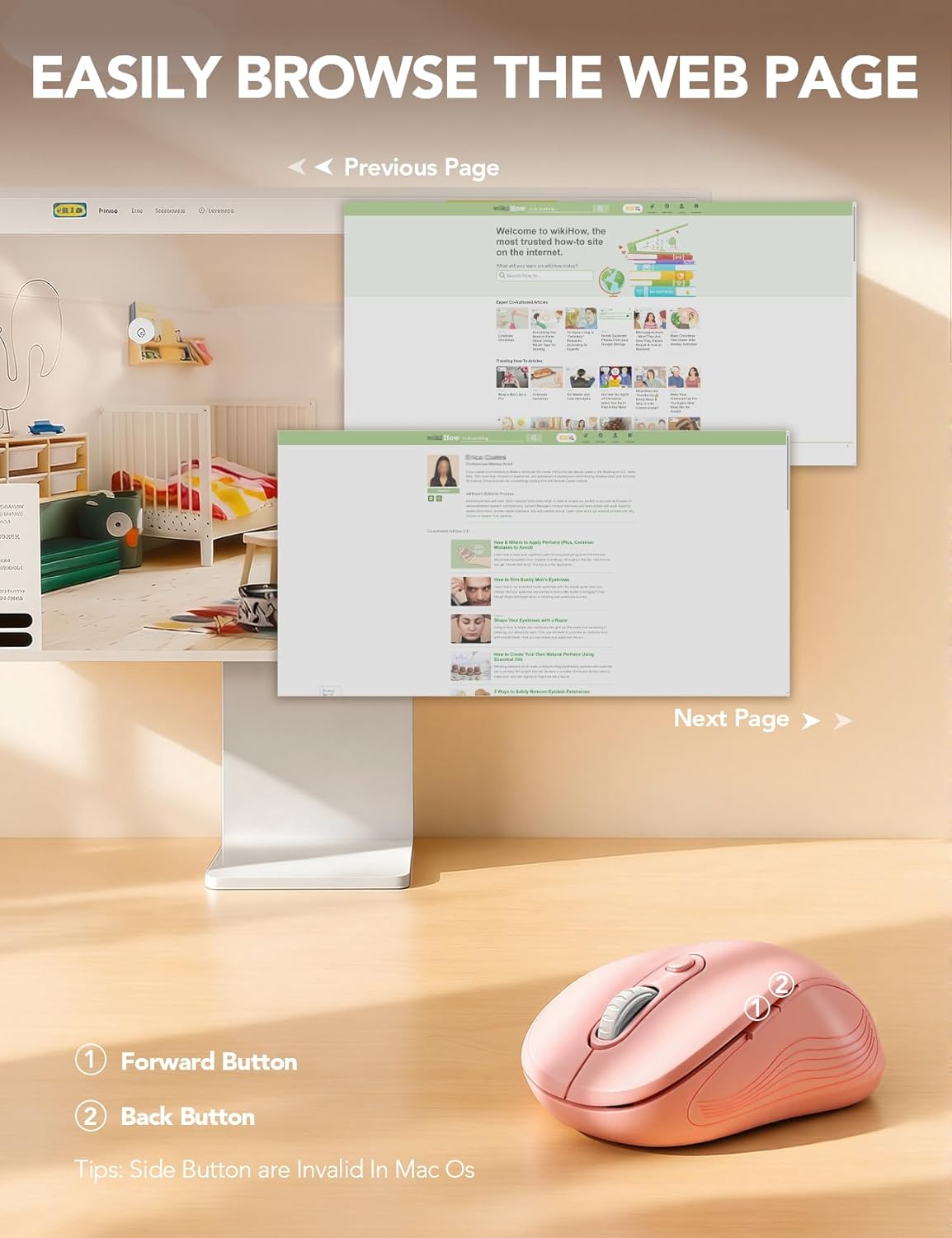
Image: Forward and Back buttons for easy web навигација по страници.
Smart Power-Saving Features
To conserve battery life, the Trueque Wireless Mouse features an automatic sleep mode. After 1 minute of inactivity, the mouse enters a power-saving mode. After 8 minutes of inactivity, it enters a deeper sleep mode. To wake the mouse, simply double-click any button.
Image: Smart power-saving details and components.
Компатибилност система
The Trueque Wireless Mouse is universally compatible with a wide range of operating systems, including Windows, Mac OS, Linux, and Chrome OS. It works seamlessly with laptops, desktops, and other compatible devices.
Image: Operating system compatibility icons.
Техничке спецификације
| Феатуре | Детаљ |
|---|---|
| Димензије производа | 4.1 к 2.4 к 0.1 инча |
| Тежина артикла | 0.63 унци |
| Технологија повезивања | 2.4 GHz бежични (USB пријемник) |
| Технологија детекције покрета | Оптицал |
| ДПИ Левелс | 800 / 1200 / 1600 |
| Дугмад | 6 (лево, десно, точкић за скроловање, DPI, напред, назад) |
| Тип батерије | 1 АА батерија (није укључена) |
| Посебна карактеристика | Portable, Ergonomic Design, Silent Click |
Нега и одржавање
To ensure the longevity and optimal performance of your Trueque Wireless Mouse, follow these care guidelines:
- Чишћење: Use a soft, dry cloth to wipe the exterior of the mouse. Avoid using harsh chemicals or abrasive cleaners.
- Складиштење: When not in use for extended periods, store the mouse in a cool, dry place. Consider removing the AA battery if storing for several months to prevent potential leakage.
- Руковање: Avoid dropping the mouse or exposing it to extreme temperatures or moisture.
Решавање проблема
If you encounter any issues with your Trueque Wireless Mouse, please refer to the following common solutions:
- Миш не реагује:
- Ensure the mouse is switched ON using the power switch on the underside.
- Check if the AA battery is correctly installed and has sufficient charge. Replace if necessary.
- Verify that the USB receiver is securely plugged into a working USB port on your computer. Try a different USB port if available.
- If using a USB-C adapter, ensure it is functioning correctly.
- Курсор миша је неправилан или се не креће глатко:
- Очистите оптички сензор на доњој страни миша меком, сувом крпом.
- Уверите се да користите миш на одговарајућој површини. Површине са високом рефлектујућом или провидном површином могу утицати на праћење.
- Подесите DPI подешавање помоћу дугмета DPI да бисте видели да ли другачија осетљивост побољшава перформансе.
- Scroll wheel issues (e.g., scrolling in wrong direction):
- This can sometimes be a software-related issue. Ensure your operating system and any mouse-related drivers are up to date.
- Покушајте да поново покренете рачунар.
- Connectivity issues after sleep mode:
- Double-click any mouse button to wake it from sleep mode.
- If the mouse does not wake, try turning the mouse OFF and then ON again using the power switch.
- If issues persist, unplug and re-plug the USB receiver.
Гаранција и корисничка подршка
Trueque provides a 12-месечна гаранција for this product, covering manufacturing defects from the date of purchase. We are committed to providing excellent customer service.
- 24-Hour Reply: Our support team aims to respond to all inquiries within 24 hours.
- Замена након 90 дана: Eligible for replacement within 90 days of purchase for covered issues.
- 360-Day Manufacturer Warranty: Comprehensive coverage for manufacturing defects for one year.
- Dedicated Brand Care: We value your experience and are here to assist with any questions or concerns.
За помоћ, контактирајте нас:
- Телефон (САД): 1-866-608-6766
- Сати: Monday-Friday, 9 AM-1 PM PST and 2 PM-6 PM PST

Image: Trueque Customer Support Information.