
1. Увод
This manual provides essential information for setting up, operating, and maintaining your Zwide i3 CPU N305 2-in-1 Tablet Laptop. Please read this guide thoroughly before using the device to ensure optimal performance and longevity. Keep this manual for future reference.
2. Производ је готовview
2.1 Кључне карактеристике
- Разноврсни 2-у-1 дизајн: Operates as a laptop or tablet with a 360-degree rotatable 8-inch touchscreen.
- Оперативни систем: Pre-installed with Windows 11 Pro for a comprehensive computing experience.
- High-Performance CPU: Equipped with an upgraded Intel N305 CPU (8 cores, 8 threads, up to 3.8GHz) for enhanced multi-tasking and performance.
- Ample Memory & Storage: Features 16GB LPDDR5 RAM and a 1TB SSD for efficient operation and storage. Storage is expandable up to 1TB via TF card.
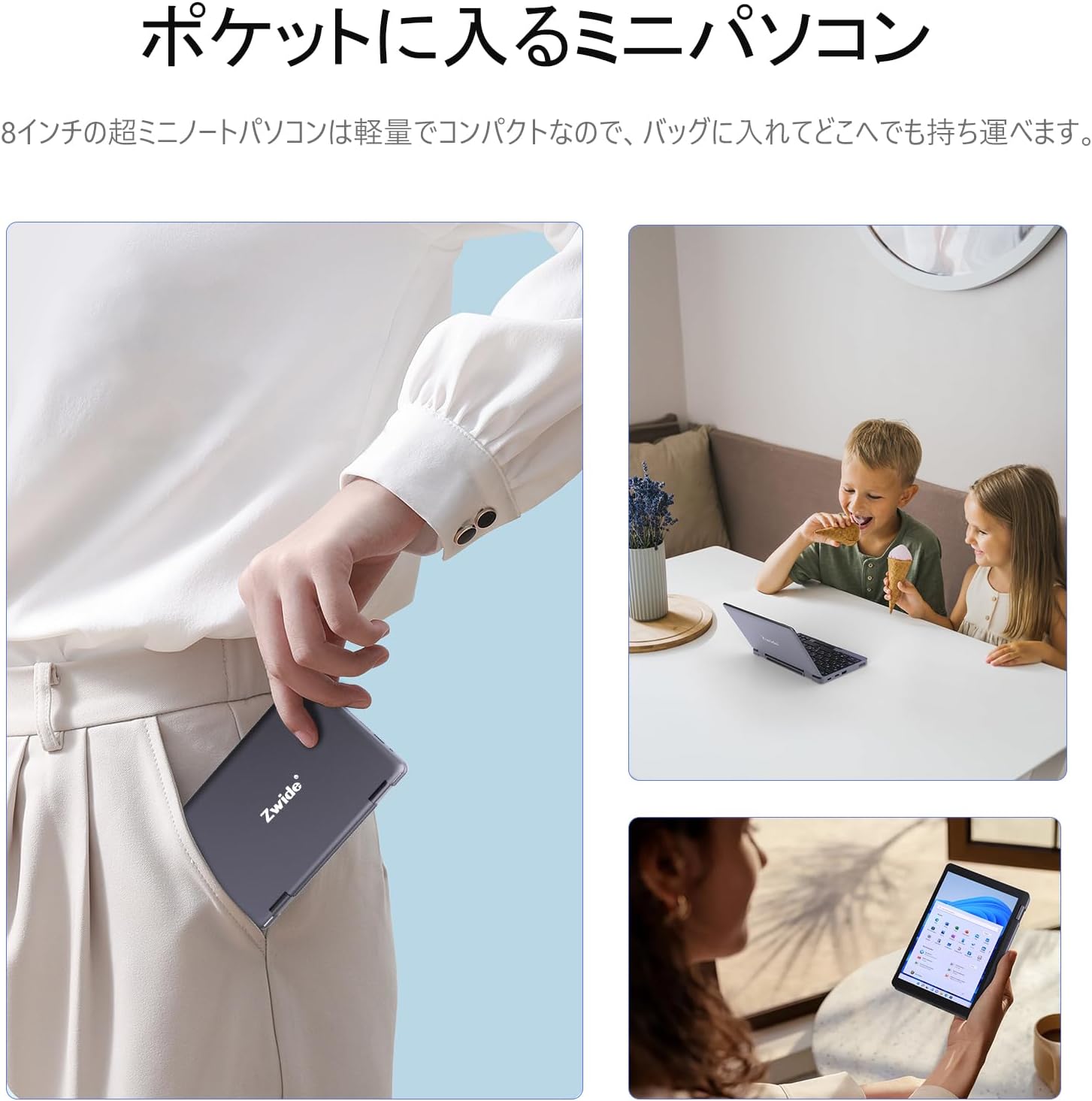
- Компактан и преносив: Ultra-compact size (20 x 13 x 1.8 cm) and lightweight design for easy portability.
- Secure Login: Integrated fingerprint authentication on the power button for quick and secure access.
- Екран високе резолуције: 8.4-inch HD display with 1920x1200 FHD resolution for clear visuals.
- Повезивање: Supports Bluetooth 5.2 for efficient wireless connections and Wi-Fi.
- Japanese Keyboard: Features a Japanese keyboard layout for localized input.
2.2 Распоред уређаја и портови
Familiarize yourself with the physical components and connection ports of your Zwide 2-in-1 Tablet Laptop.
Слика: Са стране view of the Zwide 2-in-1 Tablet Laptop highlighting its various ports.
- УСБ 3.0 портови: For connecting USB devices such as external storage, mice, or keyboards.
- Mini HD Port: За повезивање са екстерним екранима или пројекторима.
- Слот за ТФ картицу: За проширење меморије помоћу TF (microSD) картице.
- Слушалице: За повезивање слушалица или екстерних звучника.
- Порт за пуњење: За повезивање адаптера за напајање ради пуњења уређаја.
- ЛАН порт: За жичану мрежну везу.
- Thunderbolt Port (Type-C): За брзи пренос података, видео излаз и испоруку напајања.
3. Подешавање
3.1 Почетно пуњење
Before first use, fully charge your Zwide 2-in-1 Tablet Laptop. Connect the provided power adapter to the charging port and plug it into a power outlet. The charging indicator light will show the charging status.
3.2 Укључивање/искључивање
- За укључивање: Press and hold the power button for a few seconds until the screen lights up.
- За искључивање: Go to the Start Menu in Windows, select Power, and then choose Shut down. Alternatively, press and hold the power button for approximately 10 seconds to force a shutdown (use only when necessary).
3.3 Почетна инсталација Windows-а
Upon first power-on, you will be guided through the Windows 11 Pro setup process. Follow the on-screen instructions to configure language, region, network settings, and user accounts.
3.4 Повезивање периферних уређаја
You can connect various peripherals to your device:
- УСБ уређаји: Plug USB mice, external keyboards, or storage devices into the USB 3.0 ports.
- Спољашњи екран: Use a Mini HD cable to connect to an external monitor or TV.
- ТФ картица: Insert a TF card into the designated slot for additional storage.
4. Упутство за употребу
4.1 2-у-1 режими
Your device supports multiple modes thanks to its 360-degree hinge:
- Режим лаптопа: Стандардна конфигурација преносног рачунара за куцање и продуктивност.
- Режим таблета: Fold the keyboard back completely for a full tablet experience with touchscreen interaction.
- Режим шатора: Stand the device in an inverted 'V' shape for media consumption or presentations.
- Режим стајања: Position the keyboard face down to use the screen as a display stand.

Image: Zwide 2-in-1 Tablet Laptop in traditional laptop mode.

Image: Zwide 2-in-1 Tablet Laptop converted to tablet mode.
4.2 Touchscreen and Keyboard Usage
- екран осетљив на додир: Use multi-touch gestures for navigation, zooming, and interaction in tablet mode or when the screen is accessible.
- тастатура: The integrated Japanese keyboard features a backlight for use in low-light conditions. A trackpoint is also available for precise cursor control.
4.3 Fingerprint Login
To set up fingerprint authentication, navigate to Windows Settings > Accounts > Sign-in options. Follow the instructions to register your fingerprint. Once set up, you can securely log in by touching the power button with your registered finger.
4.4 Бежично повезивање
- Ви-Фи: To connect to a Wi-Fi network, click the Wi-Fi icon in the taskbar, select your desired network, and enter the password if prompted.
- Блуетоотх: To pair Bluetooth devices, go to Windows Settings > Devices > Bluetooth & other devices. Ensure Bluetooth is enabled on both your laptop and the device you wish to pair.
4.5 External Display Output
Connect an external display to the Mini HD port or Thunderbolt (Type-C) port. Once connected, press the Windows key + P to open the project menu and select your preferred display mode (e.g., Duplicate, Extend, Second screen only).
5. Одржавање
5.1 Чишћење уређаја
- Користите меку крпу која не оставља влакна за чишћење екрана и спољашњих површина.
- За тврдокорне трагове, благо дampобришите крпу водом или средством за чишћење екрана.
- Избегавајте употребу јаких хемикалија, абразива или растварача.
5.2 Одржавање батерије
- Да бисте продужили век трајања батерије, избегавајте често потпуно пражњење батерије.
- Чувајте уређај на хладном и сувом месту када се не користи дуже време.
- Не излажите уређај екстремним температурама.
5.3 Ажурирања софтвера
Редовно проверавајте и инсталирајте ажурирања за Windows како бисте били сигурни да ваш систем има најновије безбедносне закрпе и побољшања перформанси. Идите на Подешавања > Windows Update.
5.4 Управљање складиштем
Периодично чистите непотребно files and applications to maintain optimal performance. Utilize cloud storage or external drives for large files to free up internal SSD space.
КСНУМКС. Решавање проблема
If you encounter issues with your Zwide 2-in-1 Tablet Laptop, refer to the following common solutions:
| Проблем | Могуће решење |
|---|---|
| Уређај се не укључује | Уверите се да је уређај напуњен. Прикључите адаптер за напајање и покушајте поново. Ако уређај не реагује, извршите хардверско ресетовање тако што ћете држати дугме за напајање 10-15 секунди. |
| Екран је празан или трепери | Restart the device. Check external display connections if applicable. Adjust display settings in Windows. |
| Wi-Fi or Bluetooth not connecting | Ensure Wi-Fi/Bluetooth is enabled in Windows settings. Restart the device and your router/Bluetooth device. Update network drivers. |
| Споро перформансе | Затворите непотребне апликације. Проверите позадинске процесе. Обезбедите довољно слободног простора за складиштење. Покрените скенирање система у потрази за злонамерним софтвером. |
| Сензор отиска прста не ради | Ensure your finger is clean and dry. Re-register your fingerprint in Windows settings. |
If the problem persists, please contact Zwide customer support for further assistance.
7. Спецификације
| Феатуре | Детаљ |
|---|---|
| Бранд | Звиде |
| Назив модела | НА08Х |
| Величина екрана | 8 инча |
| Боја | Греи |
| Хард диск капацитета | 1 TB (SSD) |
| ЦПУ модел | Интел Н305 |
| Брзина процесора | До 3.8 ГХз |
| Величина инсталиране РАМ меморије | 16 GB (LPDDR5) |
| Оперативни систем | Виндовс 11 Про |
| графичка картица | Integrated (Intel UHD Graphics) |
| Блуетоотх верзија | 5.2 |
| Резолуција екрана | 1920x1200 пиксела (FHD) |
| Дисплаи Типе | ЛЦД |
| Max Display Brightness | 350 цд/м² |
| Вирелесс Типе | Ви-Фи |
| Димензије артикла (ДкШкВ) | 20 к 13 к 2 цм |
| Форм Фацтор | Кабриолет |
| Webцам | Фронт |
| Опис тастатуре | Backlit, Japanese Layout |
| Контролни метод | Touch, Trackpoint |
| Модел Иеар | 2025 |
| Укључене компоненте | Тастатура |
8. Званични видео снимци производа
8.1 Zwide 8-inch Mini Notebook PC Overview
Video: This video demonstrates the compact size, 360-degree rotation, and various usage modes of the Zwide 8-inch mini notebook PC, including tablet and laptop configurations, touch screen interaction, and port usage.
8.2 Zwide Pocket Handheld Mini Laptop Portability
Video: This video showcases the Zwide mini laptop's portability, demonstrating how it fits into a pocket and its use in various on-the-go scenarios.
8.3 Zwide 2-in-1 Tablet 8-inch Mini PC Functionality
Video: This video illustrates the 2-in-1 tablet functionality of an 8-inch mini PC, demonstrating its versatility and touch screen capabilities. Note: This video features an N100 CPU model, while the product is N305.
9. Гаранција и подршка
9.1 Информације о гаранцији
Your Zwide 2-in-1 Tablet Laptop comes with a 1-year domestic warranty in JapanОва гаранција покрива производне недостатке и кварове хардвера при нормалној употреби. Молимо вас да сачувате доказ о куповини за потребе подношења захтева за гаранцију.
9.2 Корисничка подршка
For technical assistance, warranty claims, or any other inquiries, please contact Zwide customer support through the official website or your retailer. Provide your model number (NA08H) and a detailed description of the issue for faster service.