
1. Увод
This manual provides detailed instructions for the setup, operation, and maintenance of your POLONO PM220S Label Maker Machine. Please read this manual thoroughly before using the device to ensure proper function and longevity.
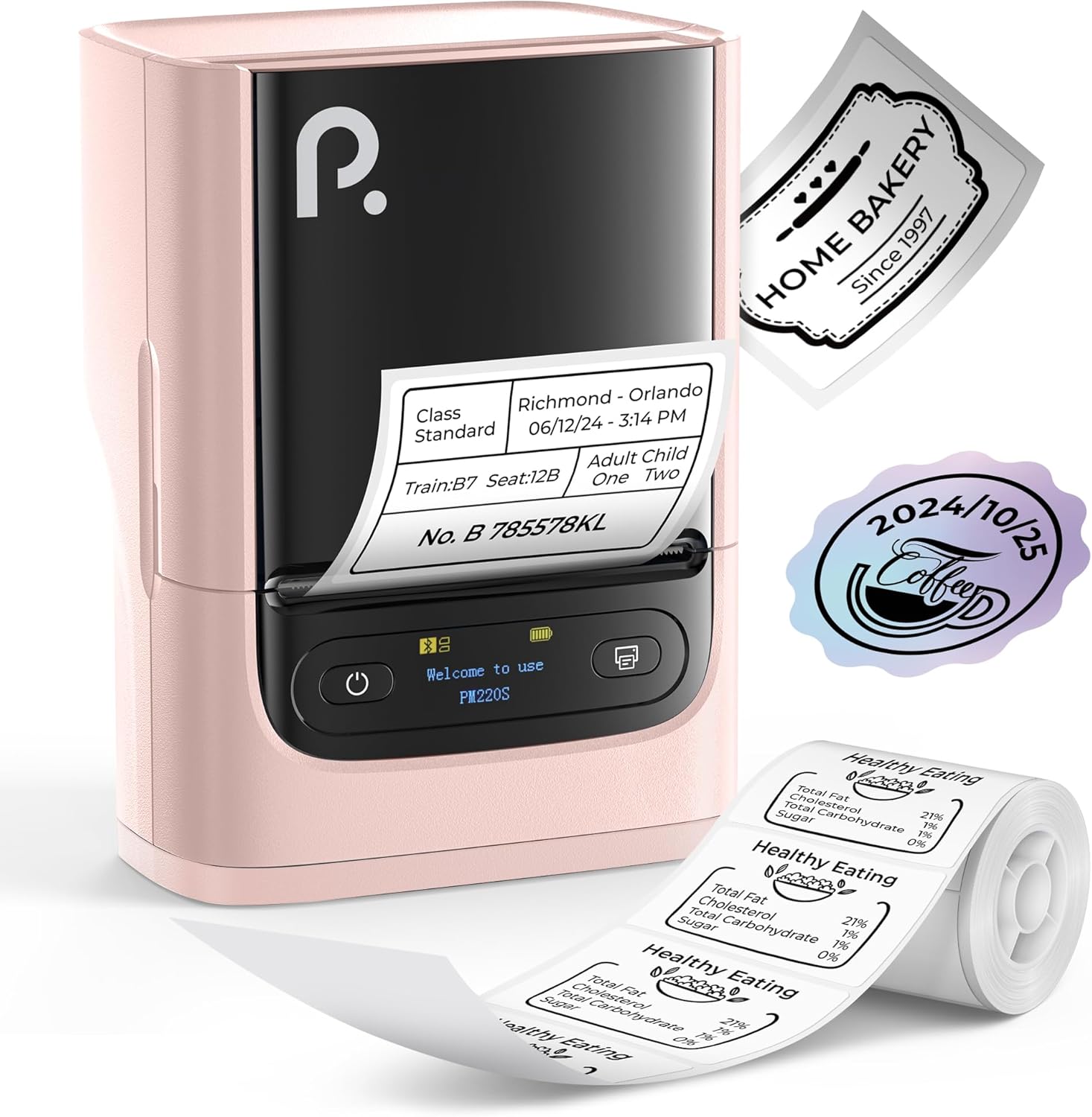
Figure 1: POLONO PM220S Label Maker Machine with sampетикете.
2. Производ је готовview
2.1 Укључене компоненте
- POLONO PM220S Label Maker Machine
- Label Tape (50x30mm, pre-installed or included)
- УСБ кабл за пуњење
- Кориснички приручник (овај документ)
2.2 Кључне карактеристике
- Блуетоотх повезивање: Seamless connection with iOS, Android, and PC devices.
- Intuitive LED Screen: Displays battery level, Bluetooth connection status, and alerts for paper shortages or timed shutdowns.
- Feature-Rich "Labelnize" App: Offers label templates, supports QR codes, barcodes, tables, text, icons, 90+ fonts, 14+ languages, and 450+ material presets.
- Premium Thermal Printing: BPA-Free Direct Thermal Technology with 203 DPI for high-definition, inkless printing.
- Компатибилност широке етикете: Supports label widths from 23-54mm (0.91"-2.12").
- Преносиви дизајн: Compact and lightweight for easy transport and use in various environments.
3. Упутства за подешавање
3.1 Пуњење уређаја
Before first use, fully charge the label maker using the provided USB cable. The LED screen will indicate charging status.
3.2 App Installation and Driver Download
For mobile devices (iOS/Android), download the "Labelnize" app from your respective app store. For PC users, visit полоно.цом да бисте преузели потребан драјвер и апликацију.

Figure 2: Universal compatibility with smartphones and laptops for app and driver installation.
3.3 Повезивање преко Блуетоотх-а
- Ensure the PM220S is powered on.
- On your mobile device, open the "Labelnize" app.
- Within the app, search for and connect to the PM220S via Bluetooth. Do not connect directly via your device's Bluetooth settings for mobile devices.
- For PC, ensure the driver is installed, then connect through the downloaded application.
3.4 Уметање траке са етикетама
- Open the label compartment cover.
- Insert the label roll with the printing surface facing upwards.
- Adjust the paper slot guides to secure the tape according to its width (23-54mm) for precise alignment.
- Затворите поклопац.

Figure 3: Proper loading of label tape into the PM220S.
4. Упутство за употребу
4.1 Using the "Labelnize" App
- Open the "Labelnize" app on your connected device.
- Select from various pre-designed templates or create your own custom labels.
- The app allows you to add text, barcodes, QR codes, tables, icons, and more.
- Customize labels using a selection of over 90 fonts and 14 languages.
- Utilize the 450+ material presets for different label applications.
- Важно: For optimal results, use specialized POLONO labels. Avoid tearing the green back sticker to prevent printing issues.
4.2 Understanding the LED Screen Display
The integrated LED screen provides real-time feedback on the printer's status:
- Ниво батерије: Показује тренутно пуњење уређаја.
- Блуетоотх веза: Shows if the device is successfully connected via Bluetooth.
- Папир Шорtagе Упозорење: Notifies when the label roll is low or empty.
- Искључивање на време: Displays countdown for automatic power-off to conserve battery.

Figure 4: LED screen display functions for real-time status monitoring.
4.3 Штампање етикете
- Design your label within the "Labelnize" app.
- Review the label preview to ensure accuracy.
- Додирните дугме „Штампај“ у апликацији.
- The label maker will print the label using thermal technology.
- Carefully tear off the printed label.
5. Одржавање
5.1 Општа нега
- Одржавајте уређај чистим и без прашине и остатака.
- Избегавајте излагање уређаја екстремним температурама или директној сунчевој светлости.
- Store the device in a dry place when not in use.
5.2 Чишћење главе за штампање
If print quality degrades, the thermal print head may need cleaning:
- Turn off the label maker and disconnect it from any power source.
- Отворите одељак за етикете.
- Пажљиво обришите термалну главу за штампање памучним штапићемampнапуњен изопропил алкохолом.
- Оставите главу за штампање да се потпуно осуши пре него што затворите поклопац и наставите са употребом.
КСНУМКС. Решавање проблема
| Проблем | Могући узрок | Решење |
|---|---|---|
| Уређај се не укључује | Проблем са слабом батеријом или напајањем. | Charge the device fully. Ensure the power button is pressed correctly. |
| Повезивање преко Блуетоотх-а није могуће | Incorrect connection method or app issue. | Ensure you are connecting through the "Labelnize" app, not directly via phone settings. Restart both the device and the app. For PC, verify driver installation. |
| Poor print quality / Faint printing | Dirty print head, incorrect label type, or low battery. | Clean the print head (see Section 5.2). Ensure you are using thermal labels. Charge the device. |
| Labels are misaligned or jammed | Improper label loading or paper slot adjustment. | Open the cover, remove any jammed labels, and reload the tape ensuring the paper slot guides are adjusted correctly for the label width. Avoid tearing the green back sticker. |
| "Paper Shortage" alert | Label roll is empty or incorrectly loaded. | Replace the label roll or re-seat it correctly. |
7. Спецификације
| Бранд | ПОЛОНО |
| Назив модела | ПМ220С |
| Технологија повезивања | Блуетоотх |
| Технологија штампе | Тхермал |
| Максимална резолуција штампања | 203 ДПИ |
| Максимална брзина штампања (монохроматско) | 45.0 мм/с |
| Подржане величине медија | 23-54mm (0.91"-2.12") width, 50x30mm included |
| Димензије производа | 3.3" Д x 4.4" Ш x 2.5" В (8.4 x 11.2 x 6.4 цм) |
| Тежина артикла | 13.4 унце (380 г) |
| Посебна карактеристика | Portable, Inkless Printing, LED Display |
8. Гаранција и подршка
For warranty information, technical support, or to purchase accessories and replacement labels, please visit the official POLONO webсајт на полоно.цом or contact POLONO customer service directly.
Сачувајте доказ о куповини за гаранцијске захтеве.