
1. Увод
Welcome to the user manual for your NIMO N152S 15.6-inch Laptop. This guide provides essential information on setting up, operating, maintaining, and troubleshooting your new device. Please read this manual thoroughly to ensure optimal performance and longevity of your laptop.
2. Производ је готовview
2.1 Кључне карактеристике
- Моћне перформансе: Equipped with an AMD Ryzen 5 3500U processor and integrated Radeon graphics for smooth multitasking and efficient performance.
- Имерзивни Фулл ХД екран: A 15.6-inch Full HD (1920x1080) IPS display with a 180° wide hinge for vibrant visuals and wide viewинг углова.
- Танак и лаган дизајн: Crafted with a sleek metal top cover, weighing under 3.7 lbs and measuring just 19.2 mm thin.
- Побољшана повезаност: Features 2 USB-A, 2 USB-C (full function PD/DP/Data), HDMI, MicroSD, and a 3.5mm audio jack.
- Expandable Memory & Storage: Supports up to 32GB DDR4 RAM and M.2 PCIe 3.0 x4 SSD for future-proof upgrades.
- Smart Security & Comfort: Includes a fingerprint reader on the touchpad, a backlit keyboard for low-light use, and dual microphones.
2.2 Идентификација компоненте
Familiarize yourself with the various components of your NIMO N152S laptop as illustrated below.

Слика 2.1: Предња страна view of the NIMO N152S laptop, showcasing its sleek design and key features like Windows 11, 32GB RAM, 1TB SSD, Full HD display, AMD Ryzen 5, Type-C PD Charger, Backlit Keyboard, and Fingerprint Reader.

Figure 2.2: Illustration of the AMD Ryzen 5 processor, detailing its specifications including 4 Cores, 8 Threads, 15W Power Consumption, and 3.7 GHz Turbo Boost, indicating its capability for daily tasks and light gaming.

Figure 2.3: The NIMO laptop screen showcasing a vivid Full HD (1920x1080) IPS display, highlighting features like bright view and eye protection, with an 85% screen-to-body ratio.

Слика 2.4: Детаљно view of the NIMO laptop's expanded connectivity options, labeling ports such as Type-C (Charge Only), USB 3.0, HDMI, Type-C (Full Function), Charge LED, Micro SD Reader, USB 2.0, USB 3.0, Headphone Combo, and Kensington Lock.
3. Почетно подешавање
3.1 Пуњење лаптопа
Before first use, fully charge your NIMO laptop. Connect the provided 65W Type-C PD charger to the USB-C charging port on the laptop and then to a power outlet. The charge LED indicator will illuminate to confirm charging.

Figure 3.1: The 65W Type-C PD Charger, designed for universal compatibility with laptops, tablets, and smartphones, simplifying your charging needs compared to multiple chargers.
3.2 Прво укључивање
- Отворите поклопац лаптопа.
- Притисните дугме за напајање које се налази на тастатури.
- Пратите упутства на екрану да бисте завршили почетно подешавање система Windows 11, укључујући избор језика, мрежну везу и креирање корисничког налога.
4. Operating Your NIMO Laptop
4.1 Укључивање/искључивање и режим спавања
- Укључено: Притисните дугме за напајање.
- Искључи: Кликните на дугме Старт, затим на Напајање > Искључи.
- Режим спавања: Затворите поклопац или кликните на дугме Старт, затим на Напајање > Спавање.
4.2 Коришћење тастатуре и тачпеда
Your NIMO laptop features a full-sized keyboard with a numeric keypad and a responsive touchpad.
- Тастатура са позадинским осветљењем: Притисните Фн + Ф10 (или тастер са иконом позадинског осветљења) да бисте укључили/искључили позадинско осветљење тастатуре или подесили нивое осветљености.
- Тоуцхпад: Подржава вишеструки додир за навигацију. Погледајте подешавања система Windows за прилагођавање.
- Нумеричка тастатура: Use the dedicated numeric keypad for efficient data entry.

Figure 4.1: The NIMO laptop keyboard, emphasizing its backlit keys, integrated touchpad, fingerprint reader, and numeric keypad, designed for comfortable typing in various lighting conditions.
4.3 Читач отисака прстију
The integrated fingerprint reader on the touchpad provides quick and secure access to your laptop.
- Идите на Подешавања система Windows > Налози > Опције пријављивања.
- Подесите отисак прста у Windows Hello-у.
- Пратите упутства на екрану да бисте регистровали отиске прстију.
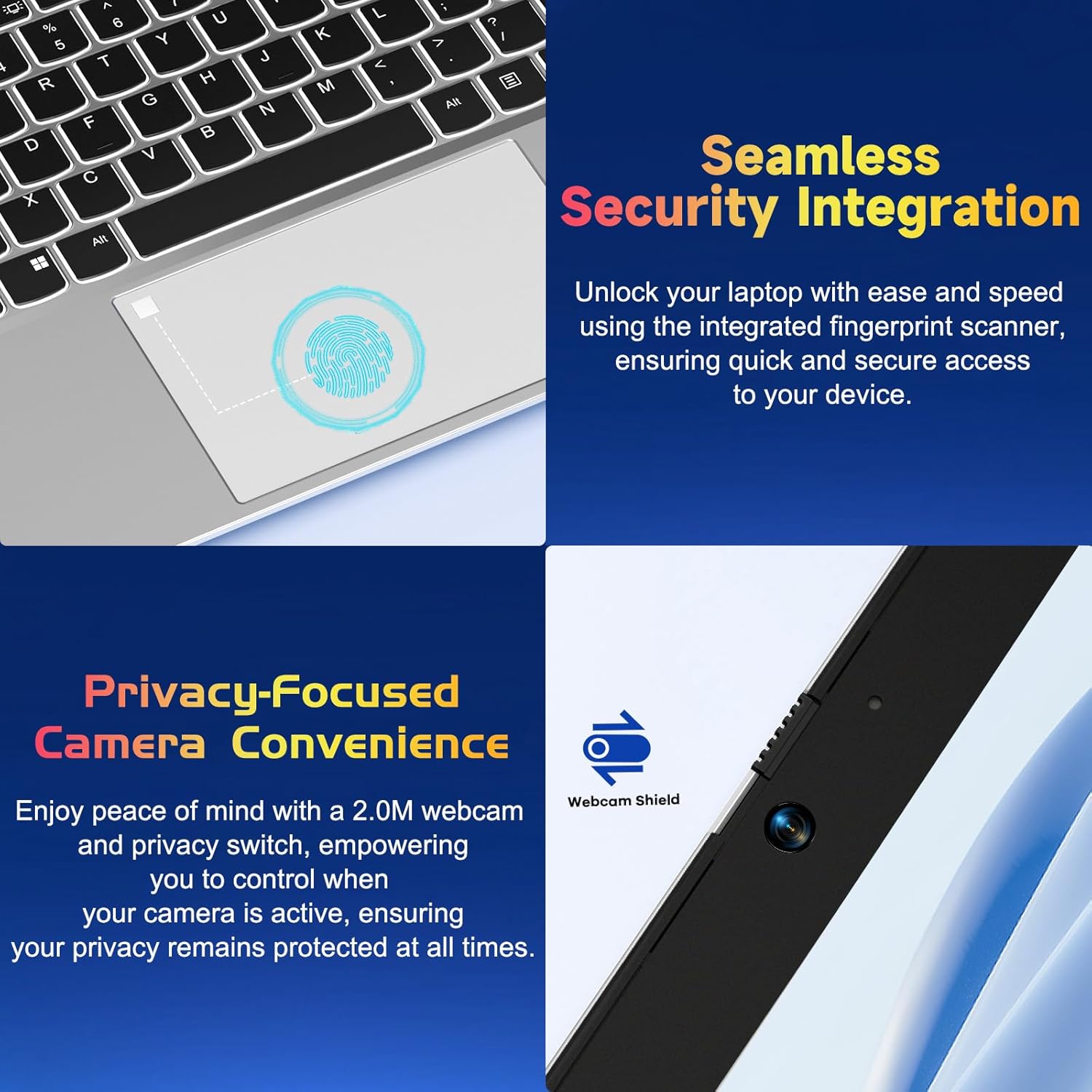
Слика 4.2: Крупни план view of the NIMO laptop's touchpad, highlighting the integrated fingerprint scanner for seamless security integration, alongside the privacy-focused webcam with a physical shield.
4.4 Повезивање периферних уређаја
Ваш лаптоп нуди разне портове за повезивање екстерних уређаја:
- УСБ-А портови: За повезивање стандардних УСБ уређаја попут мишева, тастатура или екстерних дискова.
- УСБ-Ц портови: Two full-function USB-C ports support Power Delivery (PD), DisplayPort (DP), and data transfer. One is dedicated for charging.
- ХДМИ порт: Повежите се са екстерним мониторима или пројекторима.
- Читач микроСД картица: Insert a MicroSD card for additional storage or data transfer.
- 3.5 мм аудио прикључак: За слушалице или екстерне звучнике.
4.5 Webcam Privacy
The laptop includes a 2.0MP webcam with a physical privacy shield. Slide the shield to cover the camera lens when not in use to ensure your privacy.
5. Одржавање и њега
- Чишћење: Користите меку крпу која не оставља длачицеampОчистите екран и спољашњост водом или средством за чишћење екрана. Избегавајте јаке хемикалије.
- Ажурирања софтвера: Редовно ажурирајте оперативни систем Windows и управљачке програме како бисте осигурали оптималне перформансе и безбедност.
- Одржавање батерије: Да бисте продужили век трајања батерије, избегавајте екстремне температуре и покушајте да је одржите напуњеном између 20% и 80% кад год је то могуће.
- Складиштење: Чувајте лаптоп на хладном и сувом месту, даље од директне сунчеве светлости и екстремних температура.
КСНУМКС. Решавање проблема
This section addresses common issues you might encounter with your NIMO laptop.
| Иссуе | Могуће решење |
|---|---|
| Лаптоп се не укључује. | Ensure the laptop is charged. Connect the charger and wait a few minutes before attempting to power on again. If unresponsive, perform a hard reset by holding the power button for 15 seconds. |
| Екран је празан или трепери. | Try adjusting the screen brightness (Fn + F5/F6). If connected to an external monitor, ensure the cable is secure. Restart the laptop. |
| Позадинско осветљење тастатуре не ради. | Press Fn + F10 (or the key with the backlight icon) to cycle through backlight settings. Ensure the function keys are enabled. |
| Читач отиска прста није препознат. | Ensure your finger is clean and dry. Re-register your fingerprint in Windows Hello settings if the issue persists. |
| Проблеми са Wi-Fi везом. | Check if Wi-Fi is enabled (Fn + F12 or Windows settings). Restart your router and laptop. Update Wi-Fi drivers if necessary. |
| Лаптоп ради споро. | Close unnecessary applications. Check Task Manager for resource-intensive processes. Ensure Windows and drivers are up to date. Consider running a disk cleanup. |
7. Техничке спецификације
| Феатуре | Спецификација |
|---|---|
| Бранд | NIMO |
| Назив модела | NIMO N152S |
| Број модела ставке | NIMO N152 |
| Величина екрана | 15.6 инча |
| Максимална резолуција екрана | 1920 к 1080 пиксела (Фулл ХД) |
| Процесор | AMD Ryzen 5 3500U (3.7 GHz) |
| РАМ | 32 GB DDR4 (3200 MHz) |
| Хард Дриве | 1024 GB SSD (Solid State) |
| Грапхицс Цопроцессор | AMD Integrated graphics |
| Оперативни систем | Виндовс 11 |
| Вирелесс Типе | 802.11abg |
| Број УСБ 2.0 портова | 1 |
| Просечно трајање батерије | 5 сата |
| Тежина артикла | 3.8 фунти |
| Димензије производа | 14.07 к 8.98 к 0.76 инча |
| Боја | Цлассиц Силвер |
| Позади Webцам Ресолутион | 2 МП |
| Извор напајања | Баттери Поверед |
| Батерије | Потребна је 1 литијум-полимерска батерија (укључена) |
8. Гаранција и корисничка подршка
8.1 Информације о гаранцији
Your NIMO N152S laptop comes with a comprehensive warranty:
- 90-Day Free Return Policy: You may return your NIMO laptop for any reason within 90 days of purchase.
- 2-годишња гаранција: All NIMO products are covered by a 2-year warranty for after-sales support.

Figure 8.1: NIMO's commitment to customer satisfaction, featuring a 90-day free return policy and a 2-year warranty for reliable support.
8.2 Корисничка подршка
For any product-related questions, technical assistance, or warranty claims, please contact our U.S.-based support team:
- Visit the official NIMO webсајт за ресурсе подршке и опције контакта.
- За конкретне контакт податке погледајте документацију о куповини.
Our team is dedicated to providing professional and high-quality customer service to resolve any issues you may encounter.