
1. Увод
This manual provides detailed instructions for the YYSWIE D20 10.1 Inch Android 14 Tablet. Please read this guide thoroughly before using your device to ensure proper operation and to maximize its features. Keep this manual for future reference.

Figure 1: YYSWIE D20 10.1 Inch Android 14 Tablet with Stylus Pen
2. Садржај пакета
Проверите да ли су све ставке присутне у вашем пакету:
- YYSWIE D20 10.1 Inch Android 14 Tablet
- Стилус Пен
- пуњач
- УСБ-Ц кабл
- Pre-applied Screen Protector
- Кориснички приручник (овај документ)

Figure 2: Tablet and Included Accessories
3. Производ је готовview
3.1 Кључне карактеристике
- Приказ: 10.1-inch IPS HD (1280x800) with eye-care mode
- процесор: Quad-Core (1.6 GHz Allwinner)
- РАМ: 6 ГБ (3 ГБ физичке + 3 ГБ виртуелне)
- Складиштење: 32GB internal, expandable up to 128GB via microSD card (not included)
- Оперативни систем: Андроид 14
- батерија: 5000mAh, up to 10 hours usage
- камере: 2МП напред, 5МП позади
- Повезивање: Wi-Fi (802.11b), Bluetooth 4.0
- Додатно: Includes stylus pen, pre-installed screen protector, parental controls

Figure 3: High-Performance Quad-Core CPU

Figure 4: Storage Capacity Overview
3.2 Физичке компоненте
Familiarize yourself with the tablet's buttons, ports, and cameras.
- Дугме за напајање: Located on the side/top edge. Used to turn the tablet on/off or put it to sleep.
- Дугмад за јачину звука: Подесите нивое звука.
- УСБ-Ц порт: За пуњење и пренос података.
- Утор за мицроСД картицу: За проширење складишног простора.
- Предња камера: За видео позиве и селфије.
- Задња камера: За снимање фотографија и видео записа.
- Ресетујте Пинхоле: A small hole for factory reset (use a thin pin).

Figure 5: Front and Rear Camera Locations
4. Подешавање
4.1 Пуњење таблета
- Connect the USB-C cable to the tablet's USB-C port.
- Plug the other end of the USB-C cable into the provided charger.
- Укључите пуњач у утичницу.
- Allow the tablet to charge fully before first use. The battery indicator on the screen will show charging status.

Слика 6: Пуњење таблета
4.2 Укључивање/искључивање
- За укључивање: Press and hold the Power button until the YYSWIE logo appears.
- За искључивање: Притисните и држите дугме за напајање док се не појави мени. Изаберите „Искључи“ и потврдите.
- За спавање/буђење: Кратко притисните дугме за напајање.
4.3 Почетна конфигурација
При првом укључивању, пратите упутства на екрану да бисте подесили таблет:
- Изаберите жељени језик.
- Повежите се на Ви-Фи мрежу.
- Пријавите се помоћу свог Google налога или креирајте нови. Ово је неопходно за преузимање апликација из Google Play продавнице.
- Review и прихватите услове и одредбе.
- Подесите закључавање екрана (ПИН, шаблон или лозинка) ради безбедности.
4.4 Уметање MicroSD картице
To expand your tablet's storage:
- Пронађите слот за microSD картицу са стране таблета.
- Gently insert the microSD card into the slot with the gold contacts facing down until it clicks into place.
- The tablet will detect the card and prompt you to format it for use. Follow the on-screen instructions.
4.5 Коришћење оловке
The included stylus pen is non-charging and does not require Bluetooth pairing. Simply use it directly on the screen for navigation, drawing, or note-taking.

Figure 7: Using the Stylus Pen
5. Управљање таблетом
5.1 Основна навигација (Android 14)
Your tablet runs on Android 14, offering an intuitive user experience. Common gestures include:
- Додирните: Изаберите ставку.
- Превуците: Померајте се кроз екране или листе.
- Зумирање штипкањем прстију: Enlarge or reduce content.
- Дуго притисните: Приступите контекстуалним менијима или померите иконе.
- Трака за навигацију: Use the on-screen buttons (Back, Home, Recent Apps) at the bottom of the screen.
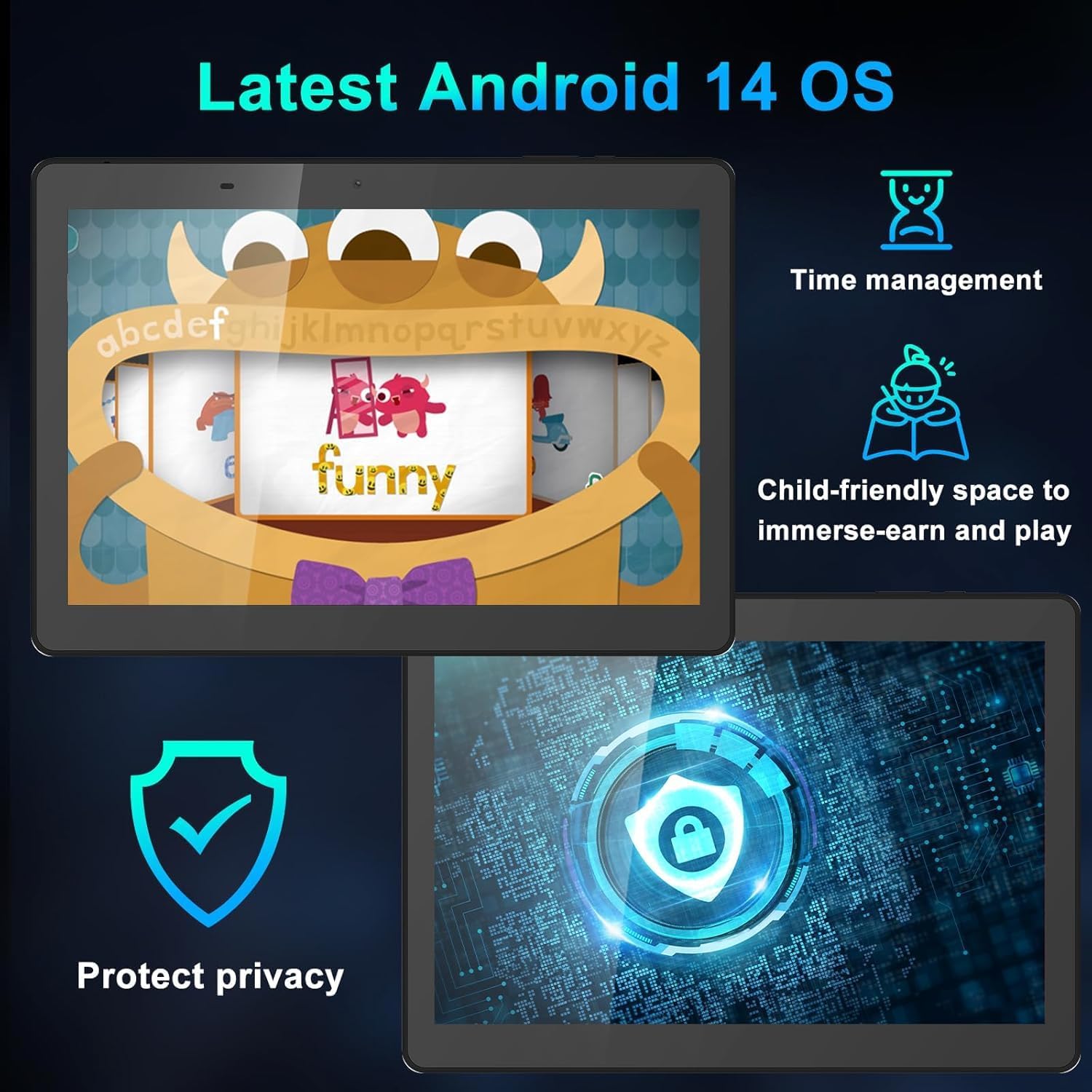
Figure 8: Android 14 Interface Highlights
5.2 Повезивање са Wi-Fi и Bluetooth мрежом
Access these settings from the Quick Settings panel (swipe down from the top of the screen) or through the main Settings app.
- Ви-Фи: Turn Wi-Fi on, select your network, and enter the password if required.
- Блуетоотх: Turn Bluetooth on, scan for devices, and select the device you wish to pair with.
5.3 Коришћење камере
Отворите апликацију Камера са почетног екрана или из фиоке апликација.
- Додирните дугме затварача да бисте снимили фотографију.
- Пребацујте се између предње и задње камере помоћу иконе камере.
- Изаберите видео режим за снимање видео записа.
5.4 Родитељски надзор
Android 14 includes enhanced parental controls. Navigate to Подешавања > Дигитално благостање и родитељски надзор to manage screen time, app access, and content filtering for child profiles.

Figure 9: Tablet Use for Young Users
5.5 Eye-Care Mode
To reduce blue light emission and eye strain, activate Eye-Care Mode. This can usually be found in Подешавања > Екран or through the Quick Settings panel.

Figure 10: 10.1 Inch IPS HD Display
6. Одржавање и њега
6.1 Чишћење
Користите меку крпу која не оставља влакна да бисте очистили екран и кућиште таблета. Избегавајте употребу јаких хемикалија или абразивних материјала.
6.2 Управљање батеријом
- Избегавајте екстремне температуре, које могу смањити век трајања батерије.
- За оптимално здравље батерије, избегавајте често потпуно пражњење батерије или њено дуже држање на 100% напуњености.
- Користите само приложени пуњач и кабл.
6.3 Ажурирања софтвера
Редовно проверавајте и инсталирајте ажурирања софтвера како бисте били сигурни да ваш таблет има најновије функције, безбедносне закрпе и побољшања перформанси. Идите на Подешавања > Систем > Ажурирање система.
КСНУМКС. Решавање проблема
Ако наиђете на проблеме са таблетом, погледајте следећа уобичајена решења:
| Проблем | Решење |
|---|---|
| Таблет се не укључује | Ensure the battery is charged. Connect the charger and wait a few minutes before attempting to power on again. If unresponsive, try a soft reset by pressing and holding the power button for 10-15 seconds. |
| Tablet freezes or is unresponsive | Press and hold the Power button for about 10 seconds to force a restart. If the issue persists, try clearing the cache of problematic apps or performing a factory reset (see below). |
| Проблеми са Ви-Фи везом | Restart your tablet and your Wi-Fi router. Forget the network in Wi-Fi settings and reconnect. Ensure you are within range of the Wi-Fi signal. |
| Батерија се брзо празни | Reduce screen brightness, close unused apps, disable Wi-Fi/Bluetooth when not in use, and check for apps consuming excessive power in battery settings. |
| Stylus pen not working | Ensure the screen is clean. The stylus is passive and does not require charging or pairing. If the issue persists, test with finger input to determine if it's a screen or stylus issue. |
7.1 Ресетовање на фабричка подешавања
Фабричко враћање ће обрисати све податке на таблету и вратити га на оригинална фабричка подешавања. Направите резервну копију важних података пре него што наставите.
- Иди на Подешавања > Систем > Опције ресетовања.
- Изаберите Обриши све податке (ресетовање на фабричка подешавања).
- Потврдите своју одлуку и унесите свој ПИН/шаблон/лозинку ако се то од вас затражи.
- Таблет ће се поново покренути и започети процес ресетовања.
8. Спецификације
| Феатуре | Детаљ |
|---|---|
| Бранд | ИИСВИЕ |
| Број модела | Д20 |
| Оперативни систем | Андроид 14 |
| Величина екрана | 10.1 инча |
| Резолуција екрана | 1280 x 800 пиксела (IPS HD) |
| Процесор | 1.6 GHz четворојезгарни (Allwinner) |
| РАМ | 6 ГБ (3 ГБ физичке + 3 ГБ виртуелне) |
| Интерна меморија | 32 ГБ |
| Екпандабле Стораге | Up to 128GB via MicroSD card |
| Капацитет батерије | 5000мАх |
| Просечно трајање батерије | До 10 сати |
| Позади Webцам Ресолутион | 5 МП |
| Фронт Webцам Ресолутион | 2 МП |
| Вирелесс Типе | 802.11b (Wi-Fi) |
| Блуетоотх | Блуетоотх 4.0 |
| Тежина артикла | 1.57 фунти |
| Димензије производа | 12.2 к 7.48 к 1.34 инча |

Figure 11: Tablet Dimensions and Key Specifications
9. Гаранција и подршка
9.1 Информације о гаранцији
YYSWIE offers a 12-месечна гаранција for its products. If you experience any issues within this period, please contact our customer support for assistance.
9.2 Корисничка подршка
For any questions, technical assistance, or warranty claims, please contact YYSWIE customer support. We aim to reply to customer messages within 24 hours.
- Подршка на мрежи: Refer to the YYSWIE store on Amazon for contact options.
- Подршка путем е-поште: Available 24/7 for dedicated technical assistance.