
1. Увод
The CORBOBO Aula F3099 is a versatile wireless keyboard designed for various computing needs, offering triple-mode connectivity, customizable RGB backlighting, and a multi-function media knob. This manual provides detailed instructions for setup, operation, maintenance, and troubleshooting to ensure optimal performance.
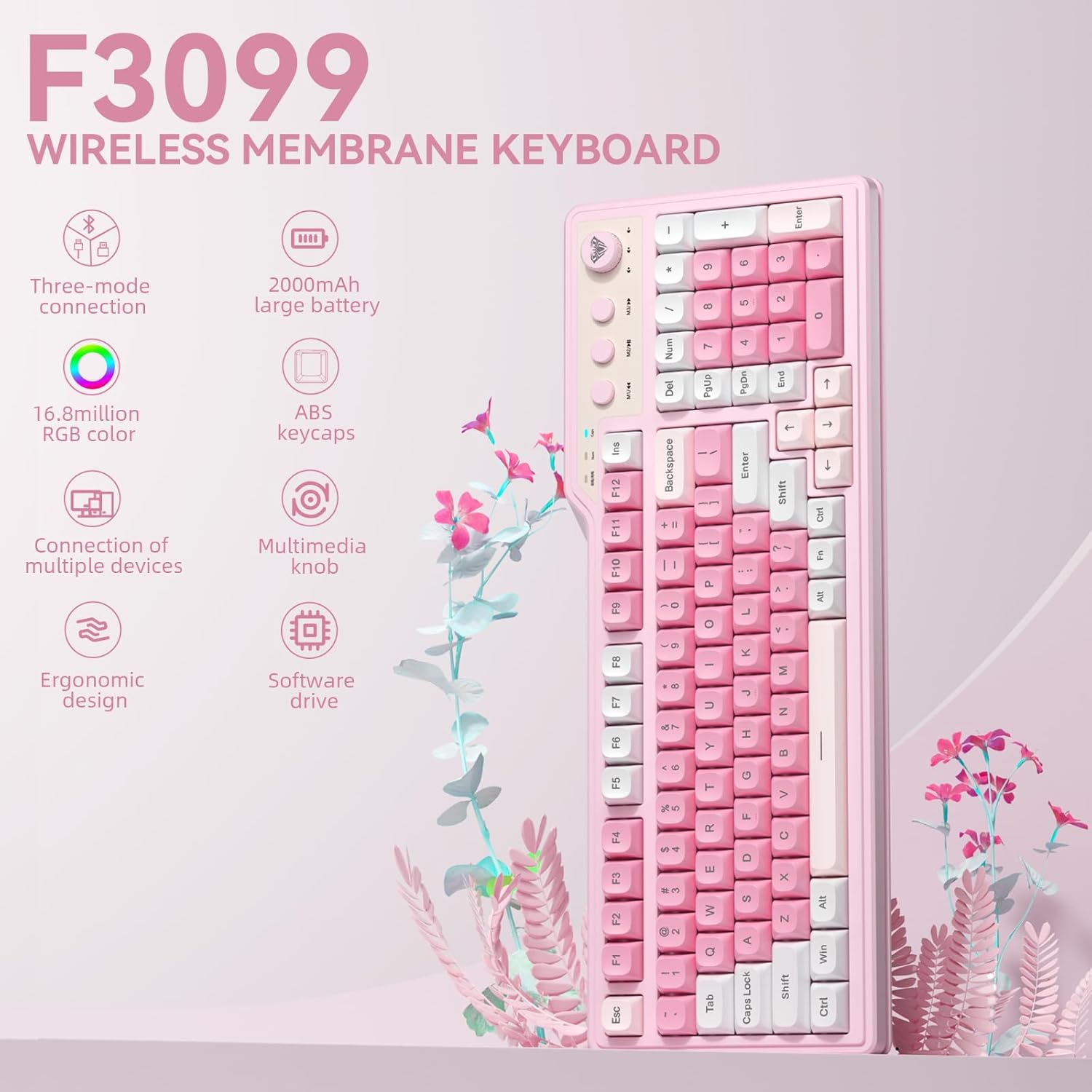
Image: The Aula F3099 Wireless Keyboard, showcasinг његов комплетан распоред и дизајн.
2. Шта је у кутији
Молимо вас да проверите да ли су све ставке присутне у пакету:
- Тастатура к 1
- Извлакач за кључеве к 1
- УСБ-Ц кабл к 1
- Упутство за употребу к 1
Video: An unboxing demonstration of the AULA F3099 Wireless Keyboard, showing the contents of the package.
3. Подешавање
3.1 Режими повезивања
The Aula F3099 keyboard supports three connectivity modes:
- 2.4Г бежични режим: Connects via a USB receiver.
- Bluetooth (BT5.0) Mode: Connects wirelessly to up to three devices.
- Жични режим: Connects directly via the included USB-C cable.

Image: Diagram illustrating the three connection modes (2.4G, Bluetooth, Wired) and how to switch between them using Fn key combinations.
3.2 Почетно повезивање
- Жични режим: Connect the USB-C cable from the keyboard to your computer's USB port. The keyboard will automatically switch to wired mode.
- 2.4Г бежични режим: Притисните Фн + ~ to activate 2.4G mode. Insert the USB receiver into your computer. The keyboard should connect automatically.
- Блуетоотх режим:
- Притисните Фн + КСНУМКС, Фн + КСНУМКС, или Фн + КСНУМКС да бисте изабрали Bluetooth канал.
- Long-press the selected Fn + (1/2/3) combination for 3 seconds to enter pairing mode. The indicator light will flash.
- On your device (PC, laptop, smartphone, tablet), search for Bluetooth devices and select "AULA F3099" to pair.
- Once paired, the indicator light will stop flashing. You can save up to three different devices.
3.3 Инсталација драјвера (само за Windows)
For macro customization and advanced RGB settings, download the official driver from bit.ly/m/corbobo. The driver only supports wired mode operation on Windows systems.
4. Упутство за употребу
4.1 Switching Connectivity Modes
Да бисте пребацивали између повезаних уређаја или режима:
- Жични режим: Connect the USB-C cable.
- 2.4Г бежични режим: Притисните Фн + ~.
- Блуетоотх режим: Притисните Фн + КСНУМКС, Фн + КСНУМКС, или Фн + КСНУМКС to switch to a previously paired device.
4.2 Dual-Mode Multimedia Knob
The knob offers two operational modes: Gaming Mode and Office Mode.
- Long-press the knob for 3 seconds to switch between Gaming Mode and Office Mode.
Режим игре
- Rotate Knob: Increase/decrease RGB brightness.
- Press Knob: Cycle through backlight effects.
Оффице Моде
- Rotate Knob: Increase/decrease computer volume.
- Press Knob: Искључи/укључи звук.

Image: Visual guide to the dual-mode functionality of the multimedia knob, detailing actions for both gaming and office modes.
Video: Demonstration of the F3099 Wireless Keyboard's media knob functionality.
4.3 Multimedia Hot Keys (M1, M2, M3)
The three multimedia buttons next to the knob have different functions depending on the active mode:
- In Office Mode:
- М1: Претходна песма
- М2: Пусти/Паузирај
- М3: Следећа песма
- In Gaming Mode: These buttons enable macro shortcut recording. By default, M1/M2/M3 have no function in gaming mode.

Image: Explanation of the multimedia hot keys (M1, M2, M3) and their functions in both office and gaming modes.
4.4 RGB контрола позадинског осветљења
The keyboard features 16.8 million colors of RGB lighting. Adjustments can be made using shortcut keys or the software driver.
- Fn + END: Adjust light colors (in constant light mode).
- Fn + PGUP: Adjust the next light effect.
- Fn + PGDN: Adjust the last light effect.
- Fn + =: Increase light brightness.
- Фн + -: Decrease light brightness.
- Фн + [: Decrease light speed.
- Фн + ]: Increase light speed.
For advanced customization, use the software driver (Windows only).

Image: Visual guide to controlling RGB backlighting effects, brightness, and speed using Fn key combinations.
4.5 Макро програмирање
Every key on the F3099 keyboard supports macro customization via the programmable driver (Windows only, wired mode required).
- Преузмите и инсталирајте драјвер са bit.ly/m/corbobo.
- Connect the keyboard in wired mode.
- Open the driver software to access macro settings and assign complex actions to individual keys.

Image: Screenshot of the AULA F3099 software driver interface for macro programming and RGB settings.
5. Одржавање
Правилно одржавање осигурава дуготрајност и перформансе ваше тастатуре.
- Чишћење: Користите меку, суву крпу да обришете површину тастатуре. За темељније чишћење, користите алат за уклањање капица тастера и очистите доњу страну компримованим ваздухом или малом четком.
- Складиштење: Чувајте тастатуру на хладном и сувом месту, даље од директне сунчеве светлости и екстремних температура.
- батерија: If using wireless modes, ensure the keyboard is charged regularly to maintain battery health.
Video: A short video demonstrating the method for installing accidentally detached keycaps, useful for maintenance.
КСНУМКС. Решавање проблема
If you encounter issues with your Aula F3099 keyboard, refer to the following common problems and solutions:
| Проблем | Могући узрок | Решење |
|---|---|---|
| Keyboard not connecting in 2.4G mode | USB receiver not properly inserted or keyboard not in 2.4G mode. | Ensure the USB receiver is fully inserted. Press Фн + ~ to switch to 2.4G mode. Try a different USB port. |
| Keyboard not connecting in Bluetooth mode | Not in pairing mode, device not discoverable, or already connected to another channel. | Дуги притисак Fn + (1/2/3) to enter pairing mode. Ensure Bluetooth is enabled on your device. Forget and re-pair the device if necessary. |
| RGB позадинско осветљење не ради или се заглавило | Incorrect settings or software glitch. | Користите Fn key combinations to adjust lighting. If using the driver, restart the software or reinstall it. Ensure the keyboard is charged. |
| Тастери не реагују | Low battery, connectivity issue, or software problem. | Charge the keyboard. Re-establish connection (wired, 2.4G, or Bluetooth). Restart your computer. If the issue persists, contact support. |
| Multimedia knob not functioning | Incorrect mode or temporary software issue. | Long-press the knob to switch between Gaming and Office modes. Restart the keyboard by turning it off and on. |
7. Спецификације
| Феатуре | Детаљ |
|---|---|
| Бранд | ЦОРБОБО |
| Број модела | Ф3099 |
| Технологија повезивања | 2.4GHz, BT 5.0, USB-C |
| Опис тастатуре | Мембране |
| Број кључева | 104 |
| Распоред тастатуре | КВЕРТИ |
| Позадинско осветљење тастатуре | RGB (16.8 милиона боја) |
| Извор напајања | Баттери Поверед |
| Димензије производа | 17.51 cm D x 8.07 cm Š x 1.96 cm V |
| Компатибилни уређаји | Играчка конзола, лаптоп, рачунар, паметни телефон, таблет |
| Материјал кућишта | Пластика |
8. Гаранција и подршка
The CORBOBO Aula F3099 Wireless Keyboard comes with a 6-месечна гаранција од датума куповине. Ова гаранција покрива производне недостатке и кварове при нормалној употреби.
For warranty claims, technical support, or any inquiries, please contact CORBOBO Direct through the platform where you purchased the product or refer to the contact information provided in your purchase documentation.
Политика враћања: This product is eligible for a refund or replacement within 30 days of purchase, subject to the retailer's return policy.