
1. Готовоview
The CORBOBO AULA F3099 is a versatile wireless keyboard designed for various computing needs, offering multiple connectivity options, customizable RGB backlighting, and a comfortable typing experience. This manual provides detailed instructions for setup, operation, and maintenance.
Кључне карактеристике:
- Троструко повезивање: Seamlessly switch between 2.4GHz wireless, Bluetooth 5.0, and USB-C wired connections.
- 2-in-1 Multifunction Knob: Control media volume/mute or cycle RGB backlight effects and brightness.
- Програмабилни драјвер: Customize macros and assign functions to individual keys (Windows systems, wired mode only).
- Durable & Quiet Typing: Membrane silicone keys provide a smooth, quiet keystroke feel.
- RGB позадинско осветљење: Multiple lighting effects with 16.8 million colors, adjustable brightness and speed.
- Ергономски дизајн: Foldable dual-stage stand for adjustable tilt angles to reduce wrist strain.
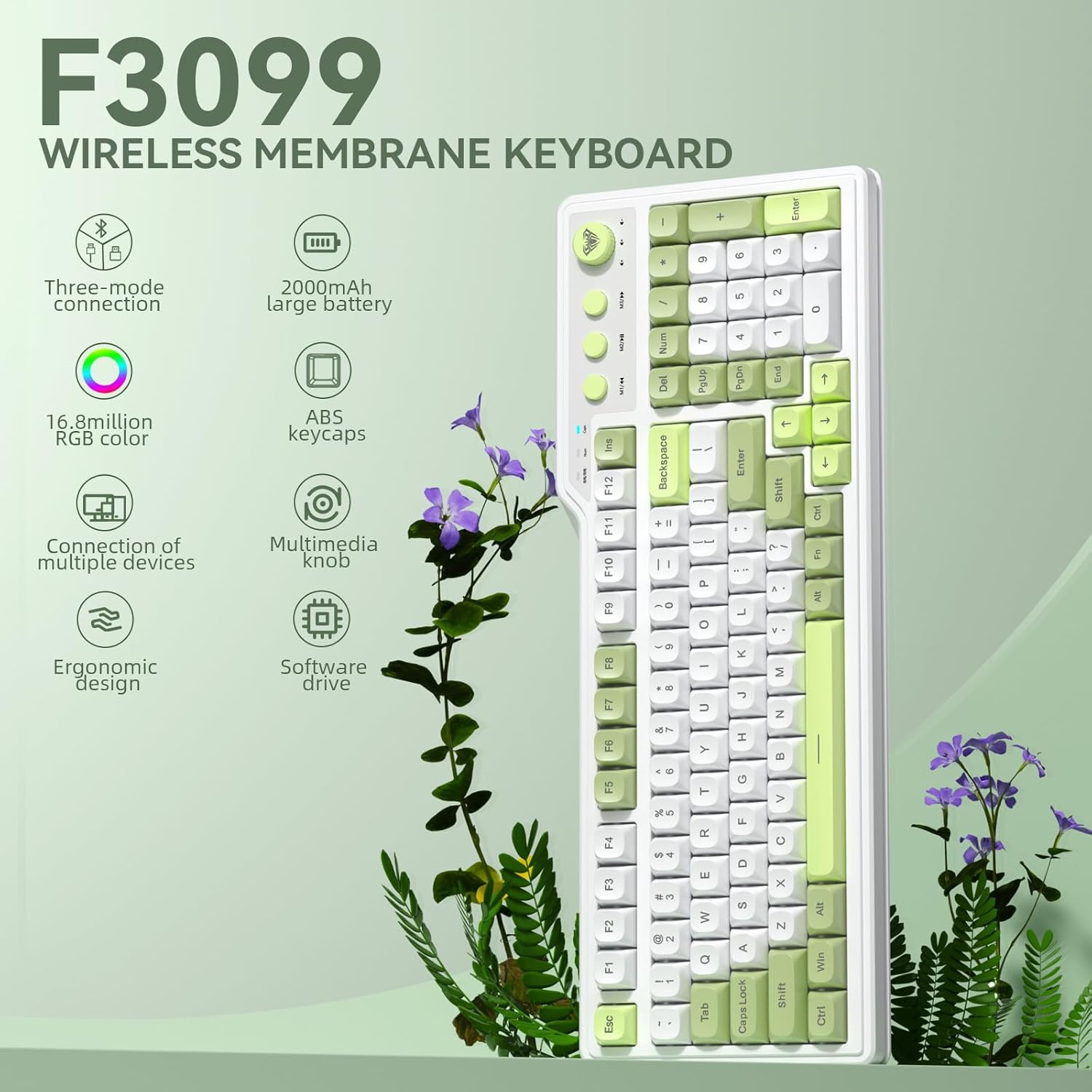
Слика 1.1: Готовоview of the AULA F3099 Wireless Membrane Keyboard, illustrating its triple-mode connection, 2000mAh battery, RGB color, multi-device support, multimedia knob, ergonomic design, and software driver capabilities.
2. Садржај пакета
Проверите да ли су све ставке присутне у паковању вашег производа:
- AULA F3099 Wireless Keyboard x 1
- Упутство за употребу к 1
- УСБ-Ц кабл к 1
- Извлакач за кључеве к 1
Video 2.1: An unboxing video demonstrating the contents of the AULA F3099 Wireless Keyboard package, including the keyboard, USB-C cable, and keycap puller.
3. Подешавање
The AULA F3099 keyboard supports three connection modes: 2.4GHz wireless, Bluetooth 5.0, and USB-C wired. Choose the mode that best suits your device and needs.
3.1. Укључивање/искључивање
Locate the power switch on the back of the keyboard. Slide it to "ON" to power on the keyboard or "OFF" to power it down.
3.2. Бежични режим од 2.4 GHz
- Locate the 2.4GHz USB receiver stored in the compartment on the back of the keyboard.
- Укључите УСБ пријемник у слободан УСБ порт на рачунару.
- На тастатури притисните Фн + ~ to switch to 2.4GHz wireless mode. The keyboard will automatically connect.

Image 3.1: Illustration of the keyboard's tri-mode connection capabilities, showing 2.4GHz wireless, Bluetooth 5.0, and USB-C wired connections to various devices.
3.3. Режим Bluetooth 5.0
- Притисните Фн + КСНУМКС, Фн + КСНУМКС, или Фн + КСНУМКС да бисте изабрали Bluetooth канал. Индикаторска лампица ће трептати, што указује на режим упаривања.
- On your device (PC, laptop, smartphone, tablet), go to Bluetooth settings and search for "AULA F3099".
- Изаберите тастатуру за упаривање. Када се повежете, индикаторска лампица ће престати да трепери.
- The keyboard can save up to three different Bluetooth devices. Repeat the process for additional devices on different channels.
Note: Windows 7 and earlier systems do not support Bluetooth connections.
3.4. Жични режим USB-C
- Connect the provided USB-C cable to the keyboard's USB-C port and the other end to your computer's USB port.
- Притисните Фн + КСНУМКС да бисте прешли на жични режим. Тастатура ће бити спремна за употребу.
4. Упутство за употребу
4.1. Multifunction Knob & Media Keys
The keyboard features a dual-mode knob and dedicated media keys for enhanced control.
- Промена режима: Long-press the knob for 3 seconds to toggle between Gaming Mode and Office Mode.
- Гаминг Моде:
- Press the knob to cycle through RGB backlight effects.
- Rotate the knob to adjust backlight brightness.
- M1/M2/M3 keys can be programmed for macros (see section 4.3).
- Канцеларијски режим:
- Rotate the knob to increase/decrease computer volume.
- Press the knob briefly to mute/unmute audio.
- M1 (Previous Song), M2 (Play/Pause), M3 (Next Song) keys function as standard multimedia controls.

Слика 4.1: Детаљно view of the dual-mode multimedia knob and adjacent media keys, explaining their functionalities for both gaming and office environments.
Video 4.2: A demonstration of the F3099 Wireless Keyboard's media knob functionality, showcasing its use for volume control and backlight adjustments.
4.2. Контрола RGB позадинског осветљења
The keyboard features multiple RGB lighting effects. Adjust them using the knob or shortcut keys:
- Фн + Крај: Adjust lighting colors (in constant light mode).
- Фн + ПгУп: Adjust to the next light effect.
- Фн + ПгДн: Adjust to the last light effect.
- Фн + [: Adjust lighting brightness up.
- Фн + ]: Adjust lighting brightness down.
- Фн + -: Adjust lighting speed up.
- Fn + =: Adjust lighting speed down.
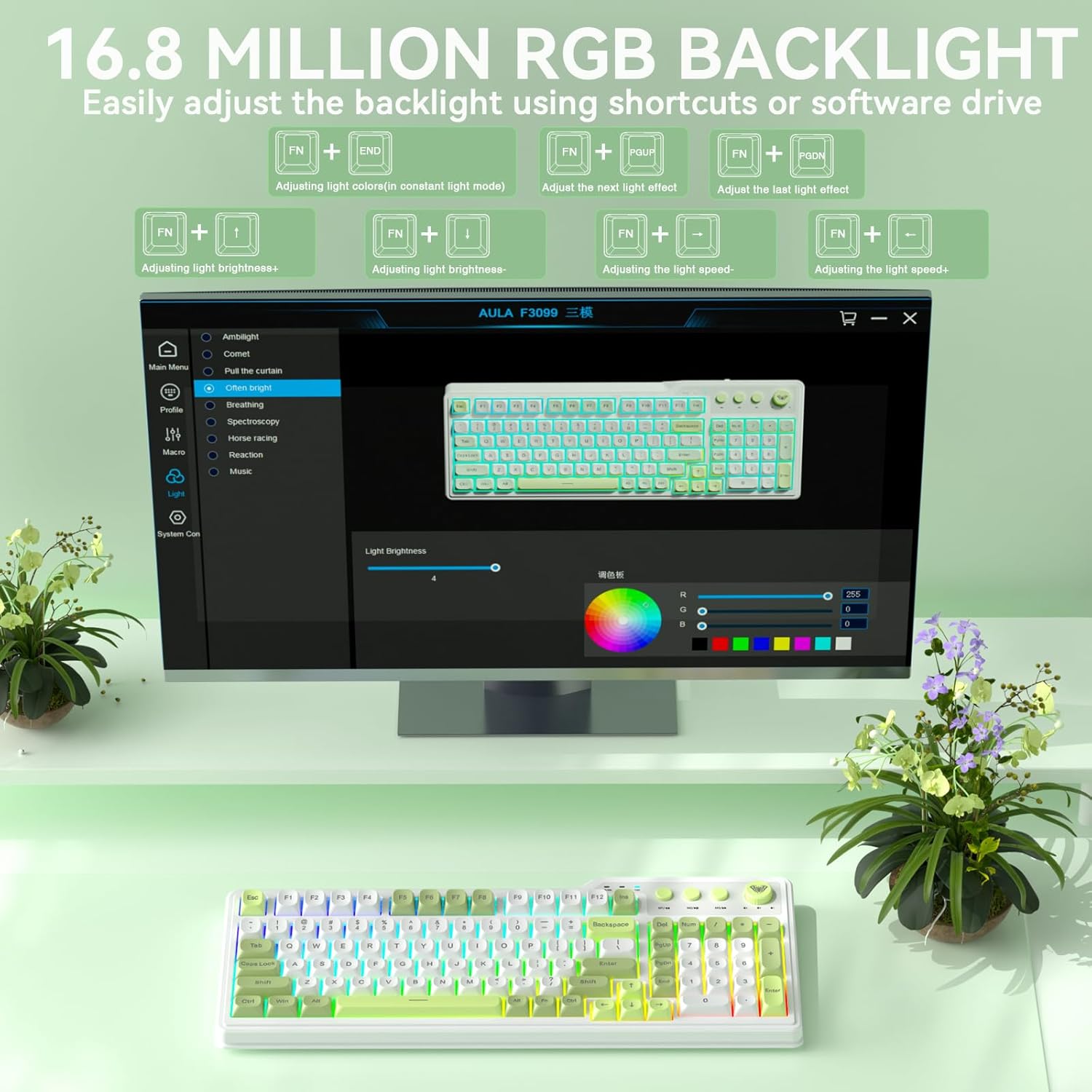
Image 4.3: Visual representation of the 16.8 million RGB backlighting, showing different lighting effects and the shortcut keys for adjustment.
4.3. Programmable Driver & Macro Customization
The F3099 keyboard supports full-key macro programming via its dedicated driver. This feature is available only when the keyboard is connected in wired mode on Windows systems.
- Преузмите драјвер са: bit.ly/m/corbobo
- Install the driver on your Windows system.
- Connect the keyboard via USB-C cable.
- Open the driver software to access macro customization, key remapping, and advanced RGB settings.

Image 4.4: The software driver interface for the AULA F3099, demonstrating options for macro recording, all-key programmability, and RGB settings.
5. Одржавање
5.1. Чишћење
- Искључите тастатуру из свих извора напајања пре чишћења.
- Користите меку крпу која не оставља длачицеampводом или благим раствором за чишћење да бисте обрисали површину.
- For dust and debris between keys, use compressed air or the provided keycap puller to remove keycaps for deeper cleaning.
5.2. Пуњење батерије
The keyboard is equipped with a rechargeable battery. Connect the USB-C cable to the keyboard and a power source (computer USB port or USB wall adapter) to charge. The charging indicator light will show the charging status.
5.3. Keycap Removal and Installation
Use the included keycap puller to safely remove and install keycaps for cleaning or customization.
Video 5.1: A short video demonstrating the method for installing accidentally detached keycaps, useful for maintenance and customization.
КСНУМКС. Решавање проблема
| Проблем | Решење |
|---|---|
| Keyboard not connecting via 2.4GHz wireless. | Ensure the USB receiver is securely plugged in and the keyboard is in 2.4GHz mode (Фн + ~). Try a different USB port. |
| Тастатура се не повезује преко Блутут-а. | Уверите се да је тастатура у режиму упаривања путем Bluetooth-а (Фн + 1/2/3) and your device's Bluetooth is enabled. Forget the device on your computer and re-pair. Ensure your operating system supports Bluetooth 5.0. |
| Тастери не реагују или се куца погрешно. | Check the connection mode (wired/wireless). Ensure the keyboard is charged. If using the programmable driver, verify macro settings. Restart the keyboard and computer. |
| RGB backlighting is not working or stuck. | Ensure the keyboard is powered on. Try cycling through lighting effects using Фн + ПгУп. Adjust brightness with Фн + [ or Фн + ]. If using the driver, check lighting settings. |
| Programmable driver not working. | The driver only supports wired mode operation on Windows systems. Ensure the keyboard is connected via USB-C and your system is Windows. Reinstall the driver if necessary. |
7. Спецификације
| Феатуре | Детаљ |
|---|---|
| Димензије производа | 17.51 cm D x 8.07 cm Š x 1.96 cm V |
| Тежина артикла | 2.57 фунти |
| Произвођач | ЦОРБОБО |
| Број модела ставке | Ф3099 |
| Батерије | 1 нестандардна батерија (укључена) |
| Технологија повезивања | 2.4GHz, BT 5.0, USB-C |
| Опис тастатуре | Мембране |
| Посебна карактеристика | Backlit, Ergonomic, Rechargeable, Volume Roller |
| Подршка бојама позадинског осветљења тастатуре | RGB (16.8 милиона боја) |
| Компатибилни уређаји | Играчка конзола, лаптоп, рачунар, паметни телефон, таблет |
8. Гаранција и подршка
For warranty information and technical support, please refer to the documentation included with your purchase or visit the official CORBOBO webсајт. Сачувајте доказ о куповини за евентуалне рекламације по гаранцији.