
1. Производ је готовview
The PORLEI Wireless Trackball Mouse TM246G is designed for ergonomic comfort and precise control. It features multi-device connectivity via Bluetooth and a USB receiver, adjustable DPI settings, and a long-lasting rechargeable battery. This manual provides instructions for setup, operation, maintenance, and troubleshooting.
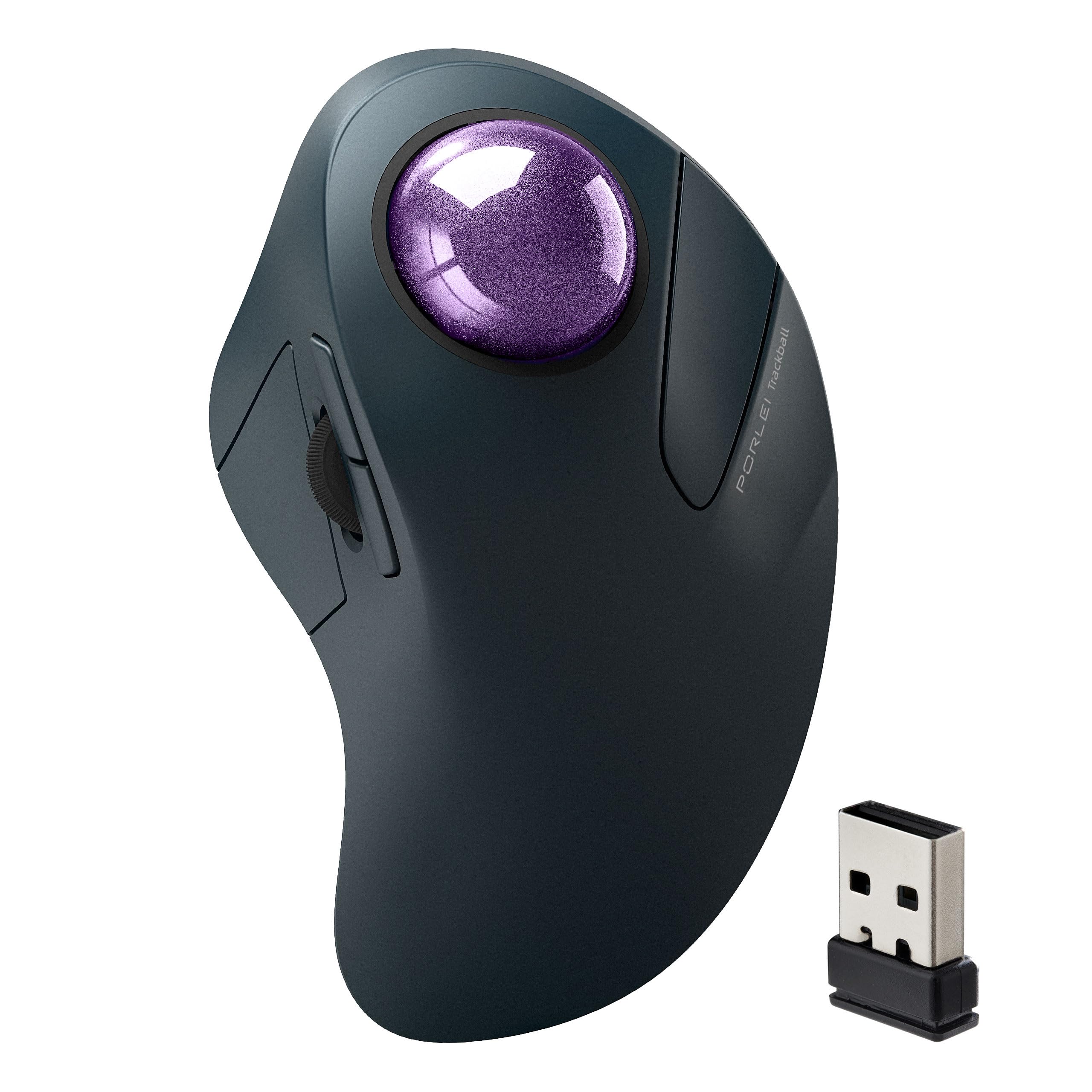
Image 1.1: PORLEI Wireless Trackball Mouse TM246G. This image displays the purple trackball mouse from a top-down perspective, highlighting its ergonomic shape and the prominent trackball.
Кључне карактеристике:
- Ергономски дизајн: Shaped for comfortable use, reducing wrist strain during extended periods.
- Precise Index Finger Control: The trackball allows for accurate cursor movement with minimal hand motion.
- Подесиви ДПИ: 5 levels (200, 400, 800, 1200, 1600) for customized cursor sensitivity.
- Повезивање са више уређаја: Seamlessly switch between up to three devices using Bluetooth or the 2.4GHz USB receiver.
- Пуњива батерија: Provides up to 120 days of use on a single charge.
- Широка компатибилност: Supports Windows, Mac, Android, PC, and laptop systems.
2. Водич за подешавање
2.1 Садржај пакета
Пре него што почнете, уверите се да су сви елементи присутни:
- PORLEI Wireless Trackball Mouse TM246G
- USB Receiver (stored in the mouse's bottom compartment)
- УСБ кабл за пуњење
- Кориснички приручник (овај документ)
2.2 Пуњење миша
The mouse comes with a built-in rechargeable battery. For optimal performance, fully charge the mouse before first use.
- Connect the small end of the USB charging cable to the charging port on the front of the mouse.
- Connect the larger end of the USB charging cable to a USB power source (e.g., computer USB port, USB wall adapter).
- Индикаторска лампица пуњења ће се упалити. Када се потпуно напуни, светло ће се променити или искључити (погледајте одељак о ЛЕД индикаторима за детаље).

Image 2.1: Charging the PORLEI Trackball Mouse. The image shows the trackball mouse connected via its USB-C charging cable to a laptop, illustrating the charging process.
2.3 Повезивање миша
The PORLEI Trackball Mouse offers two connection methods: 2.4GHz USB receiver and Bluetooth.
2.3.1 2.4GHz USB Receiver Connection
- Locate the USB receiver in the compartment on the bottom of the mouse.
- Укључите УСБ пријемник у слободан УСБ порт на рачунару.
- Укључите миш помоћу прекидача за напајање на дну.
- Press the "Mode Switch" button on the bottom of the mouse until the indicator light for the 2.4G mode (usually green) is active.
- Ваш рачунар би требало аутоматски да детектује и инсталира потребне драјвере. Миш је спреман за употребу.
2.3.2 Bluetooth Connection (Up to 2 Devices)
Миш подржава две одвојене Bluetooth везе (BT1 и BT2).
- Укључите миш помоћу прекидача за напајање на дну.
- Press the "Mode Switch" button on the bottom of the mouse to select either BT1 or BT2 mode. The corresponding indicator light will blink slowly.
- To enter pairing mode, press and hold the "Mode Switch" button for 3-5 seconds until the BT1 or BT2 indicator light blinks rapidly.
- On your device (PC, laptop, tablet, Mac, Android):
- Идите на подешавања Блуетоотх-а.
- Тражи нових уређаја.
- Select "PORLEI Trackball Mouse" (or similar name) from the list of available devices.
- Confirm pairing. The indicator light on the mouse will stop blinking and remain solid for a few seconds, then turn off.
- Repeat steps 2-4 to connect a second device using the other Bluetooth channel (BT2).

Image 2.2: Multi-Device Wireless Freedom. This image illustrates the trackball mouse wirelessly connected to both a laptop and a tablet, demonstrating its multi-device capability.
3. Операција
3.1 Функције дугмета
The PORLEI Trackball Mouse features 6 buttons and a scroll wheel. Refer to the diagram below for button identification.

Image 3.1: Mouse Button Diagram. This diagram labels the Left Mouse Button, Right Mouse Button, Forward/Backward Buttons, Precision Scroll Wheel, DPI Button, and Triple Connection (Mode Switch) on the PORLEI Trackball Mouse. Note: All mouse buttons are not programmable. Forward/Backward buttons are not compatible with MAC OS.
- Леви тастер миша: Стандардна функција клика.
- Десни тастер миша: Standard right-click function (context menu).
- Дугмад за напред/назад: Navigate forward/backward in web претраживачи или file истраживачи. (Note: These buttons are not compatible with Mac OS.)
- Прецизни точак за скроловање: Scroll up and down. Can also be clicked for middle-click functionality.
- DPI Button (on bottom): Cycles through 5 DPI settings (200, 400, 800, 1200, 1600) to adjust cursor speed.
- Mode Switch Button (on bottom): Switches between 2.4G, BT1, and BT2 connection modes. Press and hold to enter Bluetooth pairing mode.
Note: All mouse buttons are not programmable.
3.2 Подешавање DPI (брзине курсора)
The mouse offers 5 adjustable DPI levels to suit your preference and task requirements.
- Locate the DPI button on the underside of the mouse.
- Press the DPI button to cycle through the available settings: 200 DPI, 400 DPI, 800 DPI, 1200 DPI, and 1600 DPI.
- Observe the cursor speed on your screen and select the setting that feels most comfortable and precise for your current activity.

Image 3.2: Precise Tracking with Adjustable DPI. This image highlights the mouse's ability to adjust cursor speed with DPI settings ranging from 200 to 1600, indicated by an overlay.
3.3 Пребацивање између повезаних уређаја
To switch between devices connected via 2.4GHz USB receiver, Bluetooth 1, and Bluetooth 2:
- Simply press the "Mode Switch" button on the bottom of the mouse.
- Each press will cycle through the modes: 2.4G (USB), BT1, BT2.
- Одговарајућа индикаторска лампица ће се накратко упалити да би потврдила изабрани режим.
4. Одржавање
4.1 Чишћење трекбола
Over time, dust and debris can accumulate inside the trackball mechanism, affecting its smoothness. Regular cleaning is recommended.
- Искључите миш помоћу прекидача за напајање.
- Gently push the trackball from the underside opening to remove it from its socket.
- Користите меку крпу без влакана да бисте обрисали куглу за мерење.
- Use a cotton swab or compressed air to clean the inside of the trackball socket, paying attention to the small sensor points.
- Reinsert the trackball into its socket, ensuring it moves freely.
- Поново укључите миш.

Image 4.1: Removable Trackball for Cleaning. This image shows the trackball mouse with its purple trackball removed, illustrating how to access the interior for cleaning.
4.2 Одржавање батерије
- Избегавајте често потпуно пражњење батерије.
- Напуните миш када се појави индикатор ниске батерије.
- Use the provided USB charging cable or a compatible 5V charger.
- If storing the mouse for an extended period, charge it to about 50% and store in a cool, dry place.
КСНУМКС. Решавање проблема
5.1 Миш не реагује
- Проверите снагу: Ensure the mouse is turned on and has sufficient battery charge. Recharge if necessary.
- Проверите режим повезивања: Verify that the mouse is in the correct connection mode (2.4G, BT1, or BT2) for your device. Use the "Mode Switch" button.
- УСБ пријемник: If using 2.4G, try plugging the USB receiver into a different USB port on your computer.
- Bluetooth Re-pairing: If using Bluetooth, try unpairing and re-pairing the mouse with your device.
- Поново покрените уређај: Поново покрените рачунар или уређај.
5.2 Trackball Movement is Jerky or Inaccurate
- Clean Trackball: Follow the instructions in Section 4.1 to clean the trackball and its socket. Dust and debris are common causes.
- Подесите DPI: Experiment with different DPI settings using the DPI button on the bottom of the mouse.
5.3 Проблеми са Bluetooth везом
- Обезбедите режим упаривања: Make sure the mouse is in Bluetooth pairing mode (BT1 or BT2 indicator blinking rapidly).
- Укључен Bluetooth уређаја: Confirm that Bluetooth is enabled on your computer or device.
- Заборави уређај: On your computer/device, "forget" or "remove" the mouse from your Bluetooth device list, then attempt to pair again.
- сметње: Move closer to your device and away from potential sources of interference (e.g., Wi-Fi routers, other wireless devices).
5.4 Forward/Backward Buttons Not Working on Mac
- This is expected behavior. The forward/backward buttons are not compatible with Mac OS.
6. Спецификације
| Феатуре | Детаљ |
|---|---|
| Број модела | ТМ246Г |
| Бранд | ПОРЛЕИ |
| Технологија повезивања | Bluetooth, 2.4GHz USB |
| Откривање покрета | Трацкбалл |
| Број дугмади | 6 |
| ДПИ подешавања | 200, 400, 800, 1200, 1600 |
| Трајање батерије | Up to 120 days (single charge) |
| Тежина артикла | 10.5 унце (297.67 грама) |
| Димензије (пакет) | 6.97 к 4.41 к 2.56 инча |
| Боја | Purple (C-Purple) |
| Компатибилност | Windows, Mac, Android, PC, Laptop |
7. Гаранција и подршка
7.1 Информације о гаранцији
PORLEI products are designed for reliability and performance. This product is covered by a standard manufacturer's warranty against defects in materials and workmanship. Please refer to the product packaging or the official PORLEI webсајт за конкретне услове и трајање гаранције.
The product also includes a 30-day return policy from the date of purchase, as per Amazon's standard policy.
7.2 Корисничка подршка
If you encounter any issues or have questions regarding your PORLEI Wireless Trackball Mouse, please contact our customer support team:
- Подршка на мрежи: Visit the official PORLEI website for FAQs, driver downloads, and support contact forms.
- Подршка путем е-поште: Refer to the contact information provided on the product packaging or the "thank you card" included with your purchase.
- Страница продавца на Амазону: You can also reach out to "Porlei Direct" via their seller page on Amazon for assistance. Visit PORLEI Store on Amazon
When contacting support, please have your product model number (TM246G) and purchase details ready.