
1. Увод
Thank you for choosing the MELOGAGA 3-Mode Wireless Gaming Mouse. This manual provides detailed instructions for setting up, operating, and maintaining your new mouse. Please read this manual thoroughly before use to ensure optimal performance and longevity of your device.
2. Садржај пакета
- MELOGAGA 3-Mode Wireless Gaming Mouse
- УСБ-Ц кабл за пуњење
- 2.4ГХз УСБ пријемник
- Упутство за употребу
3. Производ је готовview
Familiarize yourself with the components of your MELOGAGA 3-Mode Wireless Gaming Mouse.
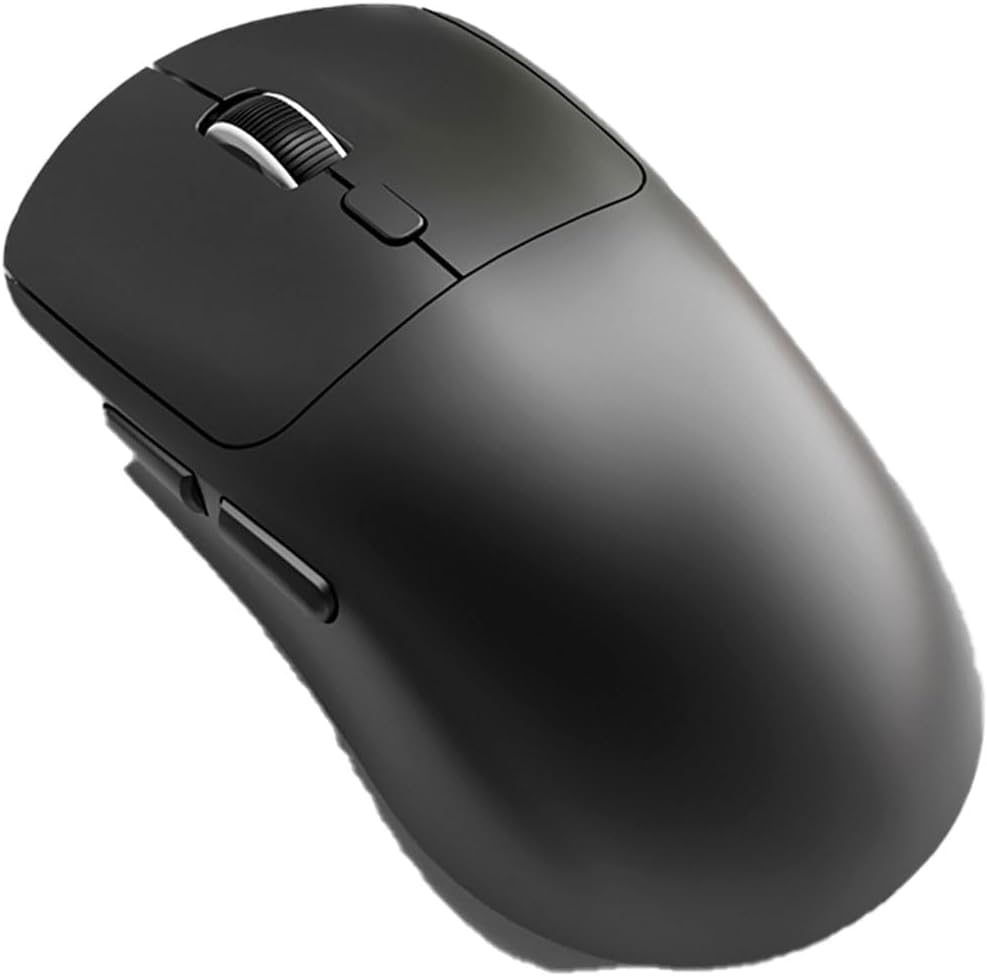
Слика 1: Одозго надоле view of the MELOGAGA 3-Mode Wireless Gaming Mouse. The image shows the ergonomic black mouse with its left and right click buttons, a scroll wheel in the center, and two side buttons on the left flank. The mouse has a smooth, matte finish.
- Леви клик: Стандардна примарна функција миша.
- Десни клик: Стандардна секундарна функција миша.
- Точак за померање: За скроловање и функцију клика средњим тастером миша.
- Дугме за подешавање DPI-ја: Located behind the scroll wheel, used to cycle through DPI settings.
- Дугмад за напред/назад: Side buttons for navigation (default function).
- Прекидач режима: Located on the underside of the mouse, used to select connectivity mode (2.4G, Bluetooth, Off).
- УСБ-Ц порт: За пуњење и жичану везу.
4. Подешавање и повезивање
4.1 Почетно пуњење
Before first use, it is recommended to fully charge the mouse. Connect the supplied USB-C cable to the mouse's USB-C port and the other end to a USB power source (e.g., computer USB port, USB wall adapter). The charging indicator light will show charging status and turn off when fully charged.
4.2 Повезивање путем бежичног режима од 2.4 GHz
- Пронађите УСБ пријемник од 2.4 GHz, који се обично налази у одељку на доњој страни миша.
- Прикључите УСБ пријемник у слободан УСБ порт на рачунару или уређају.
- Slide the mode switch on the underside of the mouse to the "2.4G" position.
- The mouse should automatically connect. If not, press any button to wake it up.
4.3 Повезивање путем Bluetooth 5.4 режима
- Slide the mode switch on the underside of the mouse to the "Bluetooth" position.
- The mouse will enter pairing mode, indicated by a blinking LED light (refer to mouse LED behavior for specific indication).
- On your device (PC, Mac, Tablet, PS5), go to Bluetooth settings and search for new devices.
- Select "MELOGAGA Mouse" (or similar name) from the list of available devices to pair.
- Once paired, the LED indicator will become solid or turn off, depending on the mouse model.
4.4 Повезивање путем USB-C кабла у жичаном режиму
- Повежите приложени USB-C кабл са USB-C портом миша.
- Повежите други крај USB-C кабла са доступним USB портом на рачунару или уређају.
- The mouse will automatically switch to wired mode and function as a standard wired mouse. This mode also charges the mouse.
5. Упутство за употребу
5.1 Switching Between Connectivity Modes
To switch between 2.4GHz wireless, Bluetooth, and wired modes, use the mode switch located on the underside of the mouse. Ensure the correct mode is selected for your desired connection type.
5.2 Подешавање DPI (тачака по инчу)
The mouse features 8 adjustable DPI levels (800-6400 DPI). To change the DPI sensitivity, press the DPI adjustment button located behind the scroll wheel. Each press will cycle through the available DPI settings, allowing you to find the optimal sensitivity for your tasks or games. The mouse operates with a 1000Hz polling rate for responsive tracking.
5.3 Ергономски дизајн
The mouse is designed for comfort during extended use, weighing approximately 2.5oz (71g). Its ergonomic shape supports various grip styles, including claw, palm, and fingertip, to minimize hand fatigue.
6. Батерија и пуњење
The MELOGAGA mouse is equipped with a long-lasting rechargeable Lithium Polymer battery, providing up to 120 hours of wireless use on a single charge. When the battery is low, the cursor may slow down or become unresponsive. Simply connect the USB-C cable to recharge. The mouse can be used in wired mode while charging, ensuring continuous operation without downtime.
7. Одржавање
- Чишћење: Користите меку, суву крпу за чишћење миша. Избегавајте употребу јаких хемикалија или абразивних материјала.
- Складиштење: Чувајте миш на хладном и сувом месту када га не користите.
- Избегавајте течности: Do not expose the mouse to liquids.
КСНУМКС. Решавање проблема
- Mouse not responding or cursor slow:
This often indicates a low battery. Connect the mouse to a power source using the USB-C cable to recharge. The mouse can be used in wired mode while charging.
- Connectivity issues (2.4GHz):
Ensure the USB receiver is securely plugged into a working USB port. Verify the mode switch on the mouse is set to "2.4G". Try a different USB port or restart your device.
- Проблеми са повезивањем (Bluetooth):
Ensure the mode switch on the mouse is set to "Bluetooth" and the mouse is in pairing mode (blinking LED). Check your device's Bluetooth settings to ensure Bluetooth is enabled and try re-pairing the mouse. Ensure the mouse is within range of your device.
- DPI button not changing sensitivity:
Ensure the mouse is powered on and connected. Press the DPI button firmly. If the issue persists, try restarting the mouse and your device.
9. Спецификације
| Бранд | МЕЛОГАГА |
| Модел | Бежични миш за игре са 3 режима |
| Повезивање | 2.4 GHz бежична веза, Bluetooth 5.4, USB-C жична веза |
| ДПИ Левелс | 800 / 1200 / 1600 / 2400 / 3200 / 4000 / 4800 / 6400 (Adjustable) |
| Поллинг Рате | 1000Хз |
| Трајање батерије | Up to 120 hours (wireless use) |
| Животни век клика | Rated for 5 million clicks |
| Тежина | Прибл. 2.5 оз (71 г) |
| Компатибилност | PC, Mac, PS5, Tablet (Windows, macOS, iPadOS, Android) |
| Откривање покрета | Оптицал |
10. Гаранција и подршка
MELOGAGA products are designed for reliability and performance. For warranty information, technical support, or customer service inquiries, please refer to the contact information provided on the product packaging or visit the official MELOGAGA webсајт. Молимо вас да сачувате доказ о куповини за потребе гаранције.