
Qubo T-106
Qubo T-106 Tablet User Manual
Модел: Т-106
1. Увод
Thank you for choosing the Qubo T-106 Tablet. This manual provides essential information for setting up, operating, maintaining, and troubleshooting your device. Please read it carefully before using your tablet to ensure optimal performance and safety.
The Qubo T-106 is a versatile 10.1-inch tablet featuring an Octacore processor, Android 12 operating system, 6GB RAM, and 128GB internal storage. It supports 4G connectivity, Wi-Fi, and Bluetooth 5, making it suitable for various tasks from entertainment to productivity.
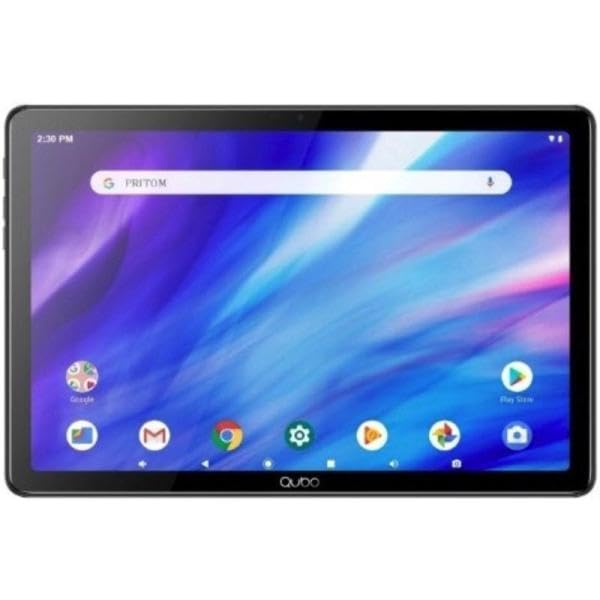
Слика 1.1: Предња страна view of the Qubo T-106 Tablet, showcasinњегов екран од 10.1 инча.
2. Безбедносне информације
To prevent damage to your device or injury to yourself and others, please observe the following safety precautions:
- Не излажите таблет екстремним температурама, директној сунчевој светлости или високој влажности.
- Избегавајте испуштање или излагање таблета јаким ударцима.
- Use only Qubo-approved chargers and accessories.
- Не покушавајте сами да растављате или поправљате таблет. Обратите се квалификованом сервисеру.
- Држите таблету даље од воде и других течности.
- Одложите таблет и његову батерију одговорно у складу са локалним прописима.
3. Шта је у кутији
Upon unpacking your Qubo T-106 Tablet, please ensure all items are present:
- Qubo T-106 Tablet
- Упутство за употребу (овај документ)
- USB-C Cable or Connector
If any items are missing or damaged, please contact your retailer or Qubo customer support.
4. Подешавање
4.1 Пуњење таблета
Before first use, fully charge your tablet. Connect the provided USB-C cable to the tablet's USB-C port and the other end to a compatible power adapter (not always included) or a computer's USB port.
- Индикатор пуњења ће засветлети.
- Пуно пуњење обично траје 3-4 сата.
4.2 Укључивање/искључивање
- За укључивање: Press and hold the Power button (usually located on the side or top edge) until the Qubo logo appears on the screen.
- За искључивање: Притисните и држите дугме за напајање док се не појави мени са опцијама напајања. Изаберите „Искључи“ и потврдите.
- Рестартовати: У менију опција напајања изаберите „Поново покрени“ и потврдите.
4.3 Чаробњак за почетно подешавање
The first time you power on your tablet, an on-screen setup wizard will guide you through:
- Избор језика
- Ви-Фи мрежна веза
- Пријављивање на Google налог или креирање налога
- Подешавања датума и времена
- Безбедносна подешавања (ПИН, шаблон, лозинка)
4.4 Inserting SIM/MicroSD Card (Optional)
If your model supports 4G connectivity or expandable storage, locate the SIM/MicroSD card tray on the side of the tablet. Use the provided ejector tool to open the tray. Insert the Nano-SIM card and/or MicroSD card (up to 128GB, check specifications for exact maximum) into the designated slots with the gold contacts facing down. Gently push the tray back into the tablet.
5. Управљање таблетом
5.1 Основна навигација
- додирните: Додирните икону да бисте отворили апликацију или изабрали ставку.
- Додирните и држите: Press and hold an item to access contextual menus or move icons.
- Превуците: Drag your finger across the screen to scroll through pages or lists.
- Прстохват: Користите два прста да бисте увећали или умањили слике и web странице.
5.2 Повезивање на Ви-Фи
- Иди на Подешавања > Мрежа и интернет > Ви-Фи.
- Укључи/искључи Wi-Fi On.
- Изаберите жељену мрежу са листе.
- Унесите лозинку ако се то од вас затражи и додирните Повежите се.
5.3 Using 4G Data (if applicable)
Уверите се да је уметнута важећа СИМ картица. Идите на Подешавања > Мрежа и интернет > Мобилна мрежа. Омогући Мобилни подаци. You may need to configure APN settings provided by your mobile carrier.
5.4 Рад камере
Отворите апликацију Камера са почетног екрана или из фиоке апликација.
- Додирните дугме затварача да бисте снимили фотографију.
- Tap the video icon to switch to video recording.
- Use the switch icon to toggle between the front (5MP) and rear (8MP) cameras.
6. Одржавање
6.1 Чишћење таблета
Use a soft, lint-free cloth to clean the screen and body of the tablet. Do not use liquid cleaners, aerosols, or abrasive materials, as these can damage the screen or finish.
6.2 Ажурирања софтвера
Periodically check for software updates to ensure your tablet has the latest features and security patches. Go to Подешавања > Систем > Ажурирање система.
6.3 Одржавање батерије
- Избегавајте често потпуно пражњење батерије.
- Не остављајте таблет да се пуни дуже време након што је потпуно напуњен.
- Таблет чувајте на хладном и сувом месту ако га не користите дуже време, са батеријом напуњеном на око 50%.
КСНУМКС. Решавање проблема
| Проблем | Могуће решење |
|---|---|
| Таблет се не укључује. | Ensure the battery is charged. Connect the charger and wait a few minutes before attempting to power on again. If unresponsive, perform a force restart by holding the power button for 10-15 seconds. |
| Повезивање на Ви-Фи није могуће. | Check if Wi-Fi is enabled in settings. Ensure you have the correct password. Restart your Wi-Fi router and the tablet. Try connecting to a different Wi-Fi network to isolate the issue. |
| Апликације се руше или замрзавају. | Close and reopen the app. Clear the app's cache and data in Подешавања > Аппс. Update the app to the latest version. If the problem persists, uninstall and reinstall the app. |
| Споре перформансе. | Затворите некоришћене апликације. Обришите кеш и привремене files. Free up storage space by deleting unnecessary files or apps. Restart the tablet. Consider a factory reset as a last resort (back up your data first). |
| Батерија се брзо празни. | Reduce screen brightness. Disable Wi-Fi, Bluetooth, GPS, and 4G when not in use. Close background apps. Check battery usage in Подешавања > Батерија да идентификује апликације које троше много енергије. |
8. Спецификације
| Феатуре | Детаљ |
|---|---|
| Модел | Qubo T-106 (T106 128GB) |
| Дисплаи | 10.1 inches IPS, 1280x800 resolution |
| Процесор | MT8788 Octacore, 3.4 GHz (max speed) |
| Оперативни систем | Андроид 12 |
| РАМ | 6ГБ |
| Интерна меморија | 128ГБ |
| Екпандабле Стораге | MicroSD (capacity not specified, typically up to 128GB or 256GB) |
| Задња камера | 8 Megapixels (Autofocus) |
| Предња камера | 5 Megapixels (Fixed Focus) |
| Повезивање | 4G (B1/B3/B7/B8/B20), Wi-Fi 802.11n (2.4G/5G), Bluetooth 5, FM, GPS, GLONASS, A-GPS |
| Батерија | 6000 mAh Lithium-ion, 12 hours average battery life |
| Порт за пуњење | УСБ-Ц |
| Димензије | 15 к 15 к 20 цм |
| Тежина | 1.1 кг |
9. Гаранција и подршка
9.1 Информације о гаранцији
The Qubo T-106 Tablet comes with a трогодишња гаранција против производних грешака од датума куповине. Ова гаранција покрива недостатке у материјалу и изради при нормалној употреби. Не покрива штету насталу услед злоупотребе, незгода, неовлашћених модификација или нормалног хабања.
Сачувајте доказ о куповини за гаранцијске захтеве.
9.2 Корисничка подршка
For technical assistance, warranty claims, or further inquiries, please contact Qubo customer support through your retailer or visit the official Qubo webсајт за контакт детаље.
Note: Contact information may vary by region. Please refer to your product packaging or the Qubo official webсајт за најновије информације о подршци.