
1. Производ је готовview
The TP-Link Archer GE400 is a high-performance Dual-Band BE6500 WiFi 7 Gaming Router designed to provide a stable and fast network experience, especially for gaming. It features advanced WiFi 7 technology, multi-gigabit ports, and dedicated gaming optimizations to reduce latency and enhance connectivity.
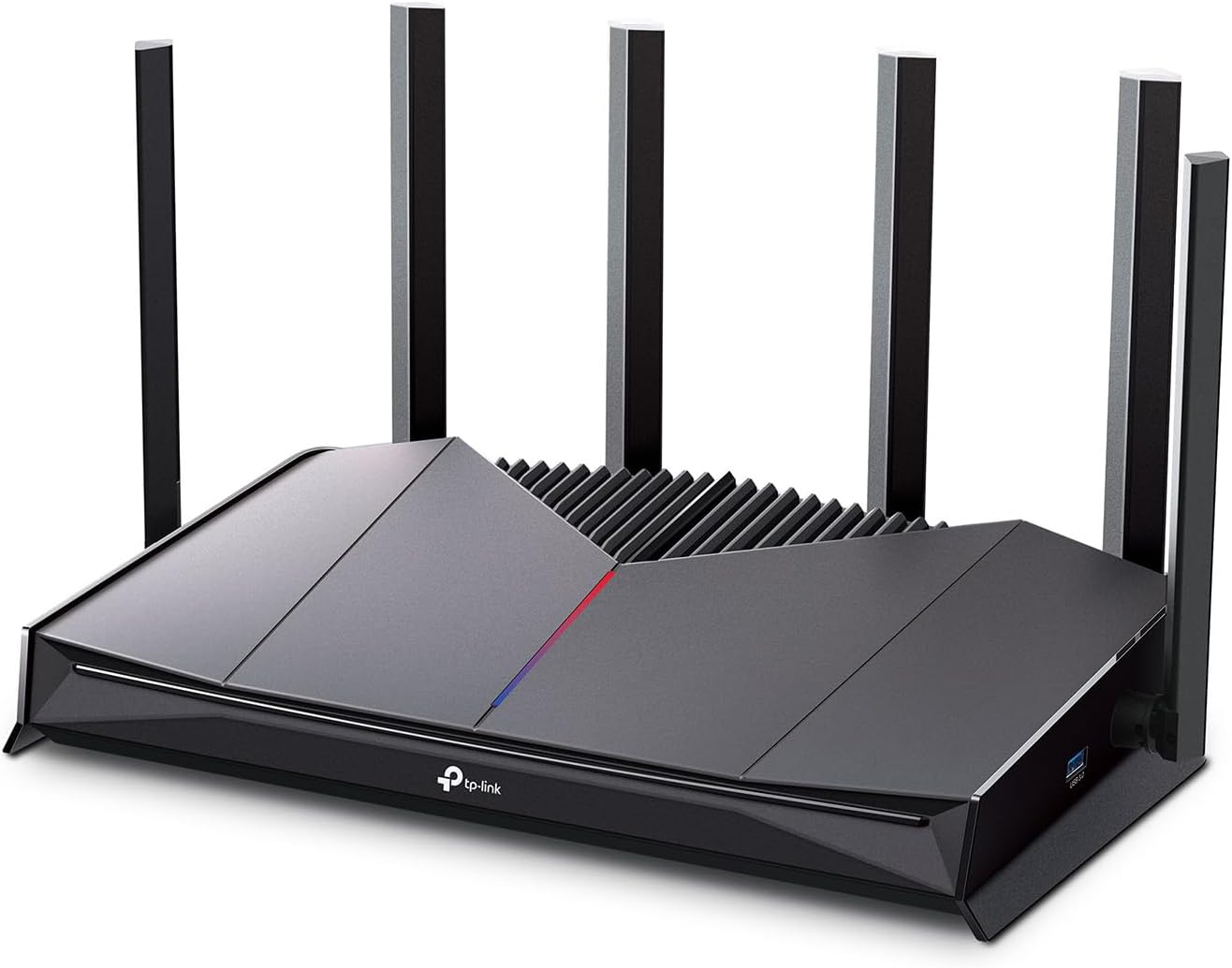
Слика: Фронт view of the TP-Link Archer GE400 Dual-Band BE6500 WiFi 7 Gaming Router, showcasinг његов елегантан дизајн и шест спољних антена.
Кључне карактеристике:
- Dual-Band WiFi 7: Offers combined speeds of up to 6.5 Gbps (5765 Mbps on 5 GHz and 688 Mbps on 2.4 GHz) for high-speed data transfer.
- Убрзање игре: Includes a dedicated multi-gig gaming port, Quality of Service (QoS) for prioritizing game traffic, and game server acceleration via WTFast.
- Вишегигабитни портови: Equipped with 1x 2.5 Gbps WAN/LAN port, 1x 2.5 Gbps LAN port (dedicated gaming port), and 3x 1 Gbps LAN ports for versatile wired connections.
- Опсежна покривеност: Provides up to 2,600 sq. ft. of coverage for up to 90 devices, enhanced by 6 antennas and Beamforming technology.
- Компатибилност са EasyMesh-ом: Allows for seamless expansion of WiFi coverage by adding compatible EasyMesh devices.
- ТП-Линк ХомеСхиелд: Integrated security service offering network protection, parental controls, and IoT device security.
- Intuitive Management: Easy setup and management via the TP-Link Tether app or web интерфејс.
2. Шта је у кутији
Пре него што почнете, уверите се да су сви предмети присутни у вашем пакету:
- 1 x Wi-Fi 7 Router Archer GE400
- 1 к Упутство за брзу инсталацију
- 1 к адаптер за напајање
- 1 x RJ45 Ethernet kabl
3. Водич за подешавање
3.1 Повезивање хардвера
- Искључивање модема: Искључите модем из напајања да бисте га искључили.
- Повежите рутер: Connect the provided Ethernet cable from your modem's Ethernet port to the 2.5 Gbps WAN/LAN port (blue) on your Archer GE400 router.
- Укључивање модема: Plug in and power on your modem. Wait for about 2 minutes for it to restart.
- Укључивање рутера: Connect the power adapter to the router and plug it into a power outlet. Wait for the router to fully start up.
- Повежите уређаје: For wired connections, connect your gaming PC or console to the dedicated 2.5 Gbps Gaming Port (red) for prioritized traffic, or use any of the 1 Gbps LAN ports for other devices.

Слика: Крупни план view of the rear ports of the Archer GE400 router, highlighting the 2.5 Gbps WAN/LAN port, 2.5 Gbps Gaming Port, and 1 Gbps LAN ports.
3.2 Конфигурација мреже
- Connect to Router's WiFi: On your computer or mobile device, connect to the default WiFi network name (SSID) printed on the label at the bottom of the router.
- Покрени Web Прегледач: Отвори а web претраживач и унесите
http://tplinkwifi.netили подразумевану IP адресу рутера (обично192.168.0.1or192.168.1.1) у траци за адресу. - Креирај лозинку за пријаву: Follow the on-screen instructions to create a new login password for the router.
- Пратите брзо подешавање: The Quick Setup wizard will guide you through basic internet settings and WiFi network configuration.
- Преузмите апликацију Tether: For easier management, download the TP-Link Tether app from the App Store or Google Play.
Video: An introductory video for the Archer GE400, demonstrating its features and setup process.
4. Упутство за употребу
4.1 Game Acceleration
Archer GE400 је оптимизован за перформансе у играма:
- Наменски порт за игре: Connect your primary gaming device (PC, console) to the 2.5 Gbps Gaming Port for automatic traffic prioritization.
- Game QoS: Configure Quality of Service settings via the Tether app or web interface to prioritize gaming applications over other network traffic.
- Game Server Acceleration (WTFast): Utilize the integrated WTFast service to optimize connections to game servers, reducing ping and latency.

Image: Diagram illustrating the Archer GE400's gaming features, including Game Applications Boost with QoS, Prioritize Game Devices with the Gaming Port, and Game Server Acceleration by GPN.
4.2 WiFi 7 Connectivity
Leverage the advanced capabilities of WiFi 7 for a superior wireless experience:
- Двопојасни рад: The router operates on both 2.4 GHz and 5 GHz bands. The 5 GHz band offers higher speeds for demanding tasks like gaming and 4K/8K streaming, while the 2.4 GHz band provides wider coverage for general use.
- Вишеструки рад (MLO): WiFi 7's MLO feature allows devices to use multiple frequency bands simultaneously, improving throughput and reducing latency.
- 4K-QAM: This modulation scheme packs more data into each signal, leading to higher speeds and efficiency.
4.3 EasyMesh Integration
Expand your network coverage with TP-Link EasyMesh:
- Беспрекорни роминг: Add EasyMesh-compatible routers or range extenders to create a unified whole-home mesh network. Your devices will automatically switch to the strongest signal as you move around your home.
- Single WiFi Name: Enjoy a single network name (SSID) across your entire home, eliminating the need to manually switch between different networks.

Image: Illustration of an EasyMesh network setup with the Archer GE400, showing how it extends WiFi coverage throughout a home.
4.4 Безбедност HomeShield-а
Protect your network and devices with TP-Link HomeShield:
- Безбедност мреже: Scans for network threats and vulnerabilities.
- Родитељски надзор: Manage internet access for children, including content filtering and time limits.
- IoT Device Protection: Provides security for smart home devices, preventing unauthorized access.

Image: Visual representation of TP-Link HomeShield features, including network threat scanning, WPA3 encryption, device blocking, and IoT device protection.
4.5 Dedicated Game Panel
Monitor and manage your gaming network with the intuitive Game Panel:
- Real-Time Stats: View network status, router performance, and accelerated game data.
- РГБ контрола: Customize the router's RGB lighting settings.
- Одређивање приоритета уређаја: Easily see and manage which devices are prioritized for gaming performance.

Image: Screenshot of the Archer GE400's dedicated game panel, showing network overview, device distribution, and gaming record features accessible via the Tether app.
5. Одржавање
To ensure optimal performance and longevity of your Archer GE400 router, follow these maintenance guidelines:
- Ажурирања фирмвера: Редовно проверавајте и инсталирајте ажурирања фирмвера путем апликације Tether или web интерфејс. Ажурирања често укључују побољшања перформанси и безбедносне закрпе.
- Редовно поновно покретање: Reboot your router periodically (e.g., once a month) to clear its memory and refresh network connections.
- Физичко чишћење: Keep the router in a well-ventilated area. Gently clean dust from the vents and surfaces using a soft, dry cloth. Avoid blocking ventilation openings.
- Network Security Scans: Utilize the HomeShield feature to perform regular network security scans to identify and address potential vulnerabilities.
КСНУМКС. Решавање проблема
If you encounter issues with your Archer GE400 router, try the following troubleshooting steps:
6.1 Нема приступа интернету
- Проверите каблове: Уверите се да су сви Етернет каблови безбедно повезани са рутером и модемом.
- Рестартујте уређаје: Искључите модем и рутер. Сачекајте 30 секунди, а затим прво укључите модем. Када се модем потпуно повеже са интернетом, укључите рутер.
- Verify Modem Status: Проверите индикаторска светла на вашем модему да бисте били сигурни да има активну интернет везу.
- ISP Contact: Ако светла модема указују да нема интернета, обратите се свом провајдеру интернет услуга (ISP).
6.2 Споре брзине WiFi-ја
- Положај уређаја: Ensure the router is centrally located and free from obstructions. Avoid placing it near large metal objects or other electronics that may cause interference.
- Избор опсега: For high-bandwidth activities, connect your devices to the 5 GHz WiFi band.
- сметње: Check for potential sources of wireless interference (e.g., microwaves, cordless phones).
- Подешавања квалитета услуге (QoS): Review your QoS settings in the Tether app or web interface to ensure critical applications are prioritized correctly.
6.3 Прекинуте везе
- Ажурирање фирмвера: Уверите се да је фирмвер вашег рутера ажуриран.
- Јачина сигнала: If connections drop frequently, your device might be too far from the router or experiencing signal interference. Consider using EasyMesh to extend coverage.
- Ресетујте рутер: As a last resort, perform a factory reset. Use a pin to press and hold the Reset button on the back of the router for about 10 seconds until the LEDs flash. Note: This will erase all your custom settings.
7. Спецификације
Detailed technical specifications for the TP-Link Archer GE400 router:
| Бранд | ТП-Линк |
| Назив модела | Dual-Band GE6500 WiFi 7 Gaming Router |
| Број модела | Арцхер ГЕ400 |
| Класа фреквенцијског опсега | Дуал-Банд |
| Стандард бежичне комуникације | 802.11.be, 802.11ac, 802.11ax, 802.11g, 802.11n |
| Брзина преноса података | 6500 мегабита у секунди |
| Пропусни опсег LAN порта | 1 x 2.5 Gbps WAN/LAN, 1 x 2.5 Gbps LAN (Gaming Port), 3 x 1 Gbps LAN |
| Број антена | 6 |
| Покривеност | До 2,600 квадратних стопа |
| Компатибилни уређаји | Играчка конзола, лични рачунар, паметни телевизор, паметни телефон, таблет |
| Сигурносни протокол | WPA-PSK, WPA2-PSK, WPA3 |
| Контролни метод | App (TP-Link Tether) |
| Оперативни систем | Линук |
| Димензије артикла (Д к Ш к В) | 10.57 cm D x 6.02 cm Š x 2.31 cm V |
| Тежина артикла | 1.43 фунти |
8. Гаранција и подршка
8.1 Информације о гаранцији
The TP-Link Archer GE400 Dual-Band BE6500 WiFi 7 Gaming Router comes with a 2 године гаранције произвођачаМолимо вас да сачувате доказ о куповини за потребе гаранције.
8.2 Техничка подршка
For further assistance, technical support, or to access the latest drivers and firmware, please visit the official TP-Link webсајт:
You can also find FAQs and community forums on the TP-Link support pages.