
Увод
This manual provides essential information for setting up, operating, and maintaining your Roku 32-Inch Select Series 1080p Full HD Smart TV. Designed for a delightful streaming experience, this TV offers excellent picture quality, clear sound, and automatic updates. Please read this manual thoroughly before using your television.
Шта је у кутији
Проверите да ли су све компоненте присутне у паковању:
- Roku 32-Inch Select Series 1080p Full HD Smart TV
- Ремоте Цонтрол
- Сталак (2 комада)
- Шрафови за постоље (4 комада)
- Повер Цабле
- Кориснички приручник (овај документ)

Image: Contents of the Roku TV box, showing the television, remote control, two stand pieces, and four screws.
Упутства за подешавање
1. Причвршћивање постоља за телевизор
- Carefully place your TV face-down on a soft, clean surface to prevent damage to the screen.
- Поравнајте делове постоља са отворима за вијке на дну телевизора.
- Secure each stand piece with two screws using a Phillips head screwdriver. Do not overtighten.
2. Повезивање напајања и уређаја
- Прикључите кабл за напајање на улаз за напајање телевизора, а затим на зидну утичницу.
- Connect your external devices (e.g., cable box, gaming console, Blu-ray player) to the available HDMI ports on the back of the TV. This model features 3 HDMI ports.
- For older devices, use the AV input ports (yellow, white, red).
- An optical audio output is available for connecting to soundbars or home theater systems.
- A USB port is provided for media playback.

Слика: Позади view of the Roku TV displaying HDMI, AV, Antenna, USB, Optical, and Headphone ports.
3. Прво укључивање и мрежна веза
- Притисните дугме за напајање на даљинском управљачу или на телевизору.
- Follow the on-screen instructions to select your language and connect to your Wi-Fi network.
- Activate your Roku account or create a new one. This is required to access streaming channels and features.
Упутство за употребу
1. Roku OS Interface
The Roku OS provides a simple and intuitive home screen for accessing all your entertainment. Easily navigate between streaming apps, live TV, and connected devices.

Image: The Roku TV home screen with a menu on the left and app icons on the right, including Netflix, Disney+, Apple TV, and Roku Channel.
2. Voice Remote
Your Roku TV comes with a voice remote for convenient control. Use your voice to search for content, launch apps, and control playback.
- Гласовна претрага: Press the voice button and speak your command (e.g., "Find comedies," "Open Netflix").
- Пречице за апликације: Dedicated buttons provide quick access to popular streaming services.
- Контрола јачине звука: Adjust volume using the side buttons.
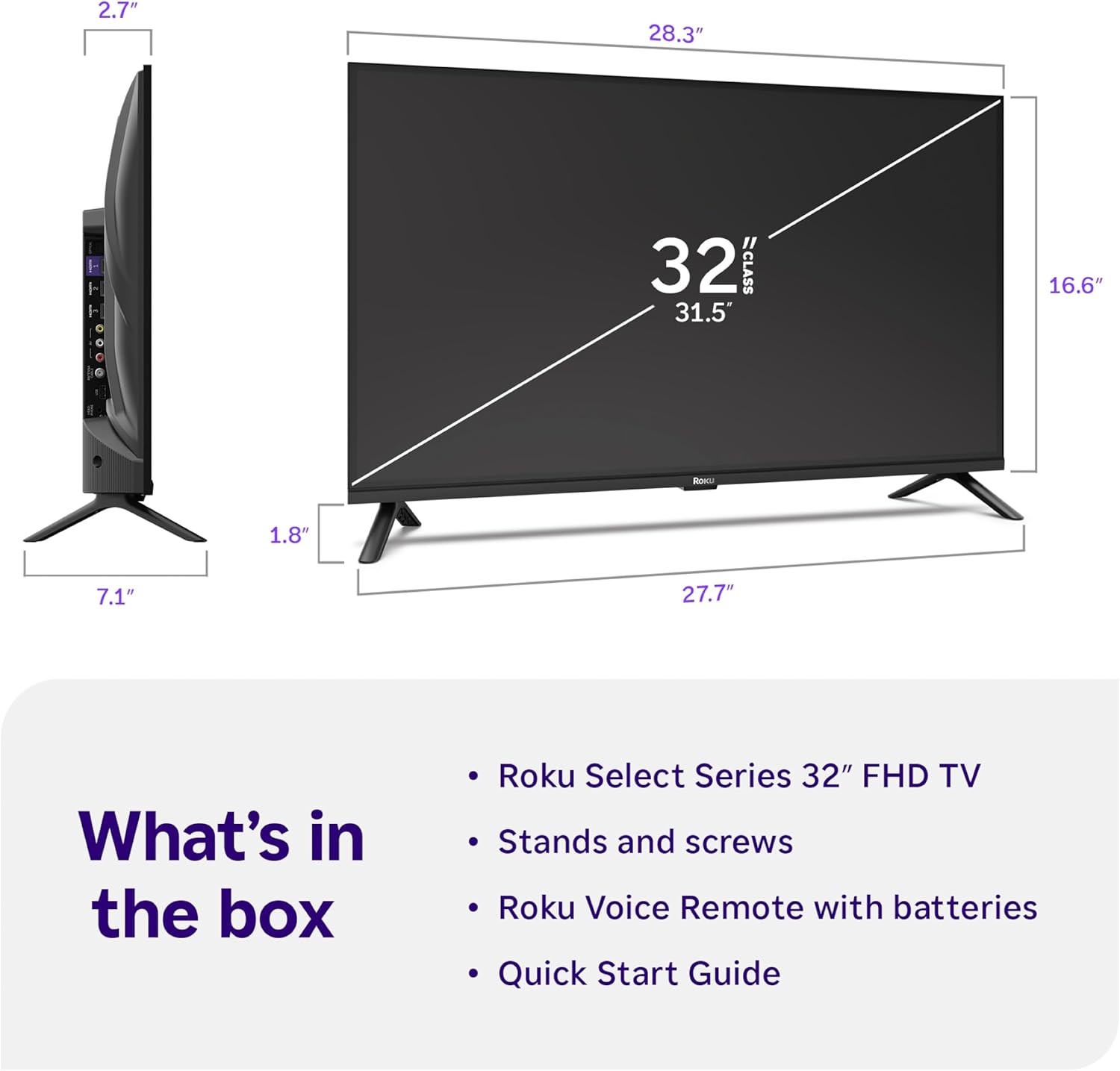
Image: Close-up of the Roku Voice Remote, highlighting buttons for TV power, volume, mute, voice search, instant replay, options, and dedicated app shortcuts.
3. Streaming Apps and Live TV
Access thousands of streaming channels, including Netflix, Disney+, Hulu, Prime Video, and Apple TV+. The Roku Channel also offers free live TV and on-demand content.

Image: A vibrant Roku TV home screen displaying a selection of popular streaming applications and recommended shows.
4. Подешавања слике
Оптимизујте своје viewискуство са различитим подешавањима слике:
- Roku Smart Picture: Automatically adjusts picture mode for optimal viewинг.
- Режими слике: Choose from presets like Movie, Sports, Vivid, Standard, or Low Power.
- Прилагођавање: Adjust brightness, contrast, sharpness, color, and tint for a personalized picture.
5. Подешавања звука
Enhance your audio experience:
- Долби Аудио: Enjoy clear speech and louder sound.
- Режими звука: Select from Standard, Dialogue, Movie, Music, or Night mode.
- Bluetooth Headphone Mode: Connect your wireless headphones to listen without disturbing others.

Image: A child wearing wireless headphones while watching the Roku TV, demonstrating the Bluetooth Headphone Mode.
6. Интеграција паметног дома
Your Roku TV is compatible with various smart home ecosystems:
- Контрола гласом: Use Roku Voice, Siri, Alexa, or Google Assistant for hands-free control.
- Епл ЕрПлеј: Effortlessly share videos, photos, and music from your Apple devices.
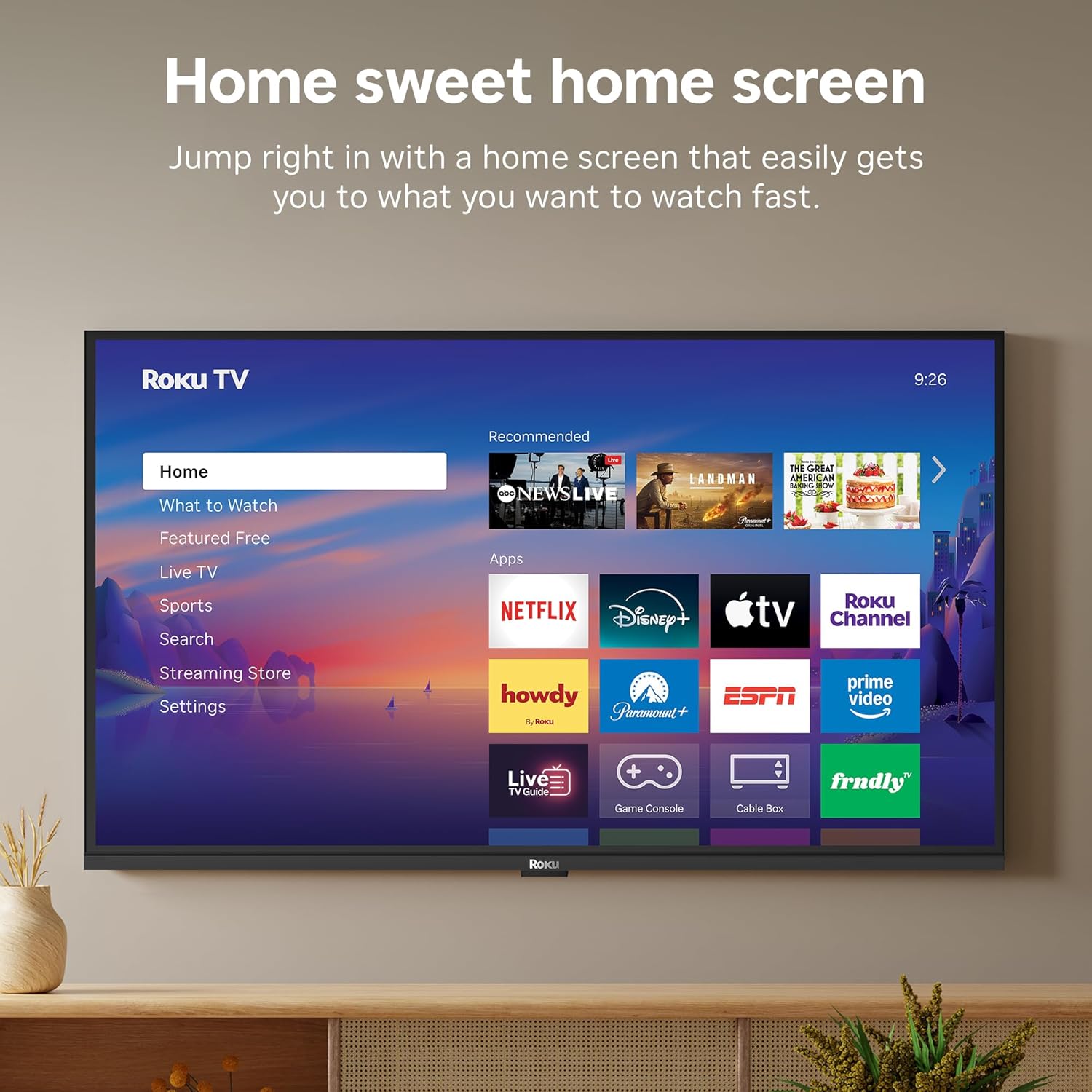
Image: The Roku TV screen displaying smart home compatibility logos for Roku Smart Home, Apple AirPlay, Apple Home, Alexa, and Google Home, with a smart speaker nearby.
7. Родитељски надзор
Manage content access with built-in parental controls, including V-Chip technology, to ensure a safe viewокружење за децу.
Званични видео производа
Видео: Оверview of the Roku TV OS, demonstrating its user-friendly interface, app selection, and smart features. This video is provided by Roku, Inc.
Спецификације
- Величина екрана:
- 32 инча
- Резолуција:
- 1080п Фулл ХД
- Технологија приказа:
- ЛЕД
- Брзина освежавања:
- 60 Хз
- Посебне карактеристике:
- Bluetooth Headphone Mode, Dolby Audio, Voice Remote, Roku Smart Picture
- Технологија повезивања:
- Блуетоотх, Ви-Фи
- Хардверски интерфејс:
- 3 HDMI Ports, 1 USB Port, S/PDIF (Optical Audio Out)
- Оперативни систем:
- Року ОС
- Димензије производа (Д x Ш x В):
- 7.1"Д к 28.3"Ш к 18.4"В
- Тежина артикла:
- 7.7 фунте (са постољем)
- Стандард ВЕСА носача:
- 200 к 200 мм
- Број модела:
- 32Р3Е5
- УПЦ:
- 829610009469
Решавање проблема
If you encounter issues with your Roku TV, please refer to the following common solutions:
- Нема напајања: Уверите се да је кабл за напајање безбедно повезан и са телевизором и са исправном електричном утичницом. Покушајте са другом утичницом.
- Нема слике/звука: Verify that the correct input source is selected on your TV. Check all cable connections (HDMI, AV, etc.) for looseness.
- Даљински не реагује: Replace the batteries in your remote control. Ensure there are no obstructions between the remote and the TV.
- Проблеми са мрежном везом: Restart your Wi-Fi router and modem. Go to the TV's Settings > Network > Check connection to diagnose and reconnect.
- App Not Loading: Restart the app. If the issue persists, try removing and reinstalling the app from the Roku Channel Store.
For more detailed troubleshooting, visit the official Roku support webсајту.
Одржавање
To ensure the longevity and optimal performance of your Roku TV, follow these maintenance guidelines:
- Чишћење екрана: Нежно обришите екран меком, сувом крпом од микрофибера. За тврдокорне мрље, лагано обришитеampОперите крпу водом или раствором за чишћење екрана посебно дизајнираним за електронику. Не прскајте течност директно на екран.
- Чишћење кућишта телевизора: Use a soft, dry cloth to wipe the exterior of the TV. Avoid abrasive cleaners or solvents.
- вентилација: Уверите се да вентилациони отвори телевизора нису блокирани како бисте спречили прегревање. Оставите довољно простора око телевизора за циркулацију ваздуха.
- Ажурирања софтвера: Your Roku TV automatically receives software updates. Ensure your TV is connected to the internet to receive the latest features and performance improvements.
- Управљање струјом: Искључите телевизор из утичнице током олуја са грмљавином или када ће бити остављен без надзора дуже време.
Гаранција и подршка
Информације о гаранцији
Roku warrants the hardware of this device against defects in materials and workmanship under normal use for a period of one (1) year from the date of purchase ("Warranty Period"). If Roku determines that the device’s hardware is defective during the Warranty Period, Roku’s sole obligation, and your exclusive remedy, will be to either repair or replace the unit with either a new or rebuilt device, at its option. This warranty applies if the device is used in accordance with the provided documentation.
Important information about warranty returns and replacements is available on the Roku support site. You may also return a device for any reason, subject to the terms of the applicable return policy: 1) Within thirty (30) days from the date of purchase from Roku; or 2) within the applicable return period if purchased from an authorized reseller or distributor. Additional details regarding product returns can be found on the Roku support site.
Корисничка подршка
For further assistance, technical support, or to access the full range of support resources, please visit the official Roku support webсајт. Тамо можете пронаћи често постављана питања, водиче за решавање проблема и контакт информације за корисничку подршку.