
Увод
The NGTeco AS10 is a standalone biometric time clock designed for efficient employee attendance tracking. This device eliminates the need for complex software or internet connectivity, offering a straightforward solution for small to medium-sized businesses. It supports fingerprint and password authentication, automatically calculates work hours, and provides data backup for reliability.
This manual provides detailed instructions for setting up, operating, and maintaining your AS10 time clock, ensuring optimal performance and accurate record-keeping.
Кључне карактеристике
- Самостална операција: No internet or complex software required. Data is managed via USB flash drive.
- Велики капацитет: Supports up to 1000 fingerprints and 50,000 attendance records, suitable for up to 1000 employees.
- Biometric and Password Authentication: Employees can clock in/out using their fingerprint or a password.
- Automatic Work Hour Calculation: Simplifies payroll processing by automatically calculating employee work hours.
- УСБ пренос података: Easily upload and download attendance data and reports in Excel format using a USB drive.
- Power-off Data Protection: Built-in backup system protects all time data and employee details during power outagес.
- Флексибилна инсталација: Can be mounted on a wall or placed on a countertop.

Слика: Прекоview of how the NGTeco AS10 Time Clock addresses common timekeeping challenges.
Упутства за подешавање
- Распакивање и постављање:
Carefully unpack the NGTeco AS10 time clock and all accessories. Choose a suitable location for installation, either on a wall or a countertop, ensuring it is easily accessible for employees.
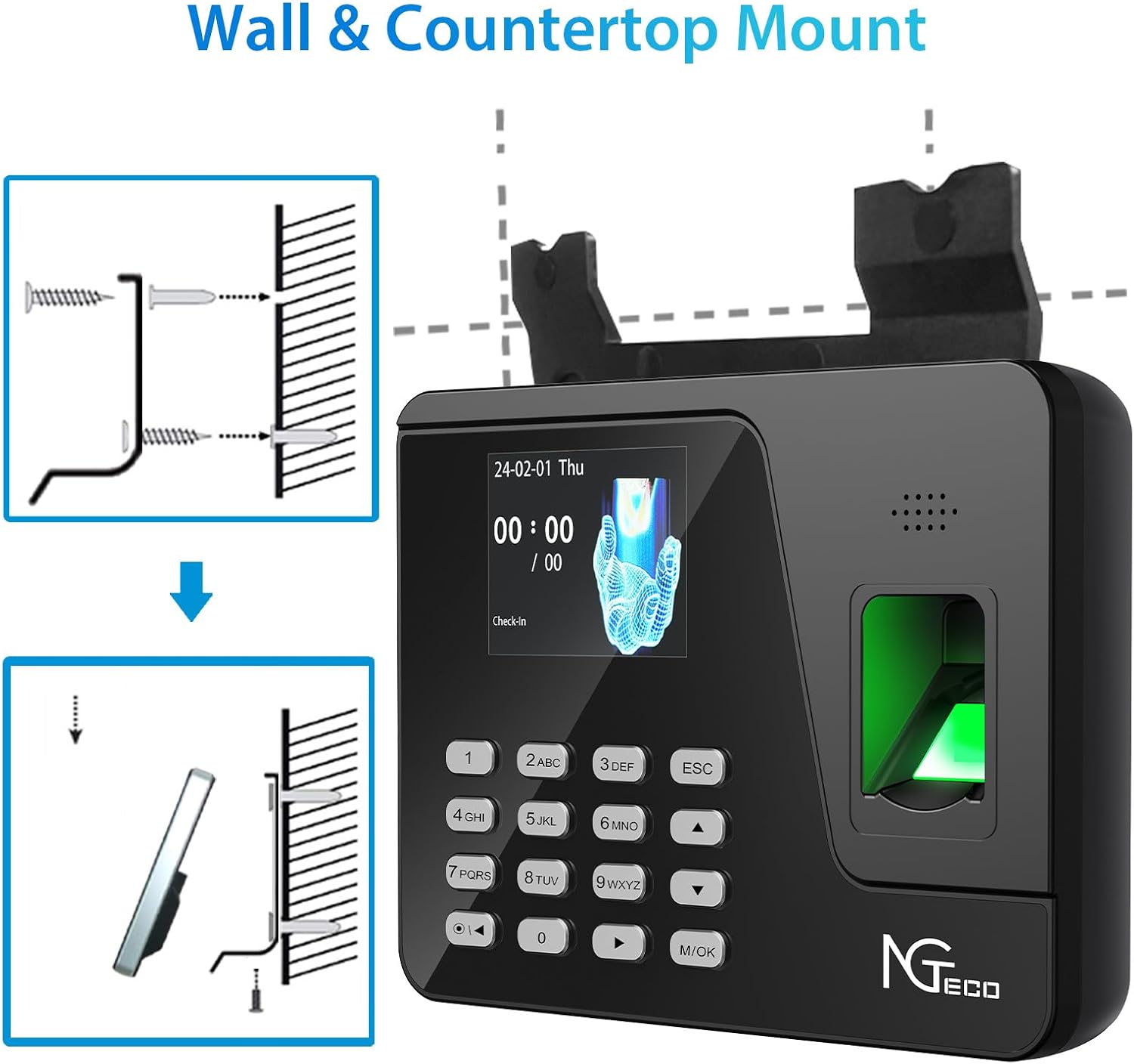
Image: Installation options for the AS10, including wall mounting and countertop use.
- Прикључак за напајање:
Connect the provided power adapter to the time clock and plug it into a standard electrical outlet. The device will power on automatically.
- Initial Configuration (Admin Setup):
Upon first power-on, you will need to set up an administrator. Follow the on-screen prompts to register the first administrator's fingerprint and/or password. The administrator has full access to system settings.
- Подешавање датума и времена:
Ensure the date and time are correctly set on the device. This is crucial for accurate attendance records.
- Регистрација запослених:
As an administrator, navigate to the user management section. You can add employees individually by registering their fingerprints and/or passwords directly on the device. Alternatively, you can use a USB flash drive to upload employee data from an Excel file. Refer to the "USB Data Transfer" section for details.
- Shift Configuration:
The NGTeco AS10 supports fixed shift times. Configure the daily work shifts, including start and end times, through the administrator menu. This allows the device to accurately calculate work hours.
Упутство за употребу
Clocking In/Out
Employees can clock in or out using one of two methods:
- Препознавање отиска прста:
Place a registered finger firmly on the fingerprint scanner. The device will confirm the successful scan with a visual and audible prompt.
- Унос лозинке:
Enter the registered employee ID followed by their password using the keypad. Press the 'M/OK' button to confirm.

Image: Demonstrates the two attendance modes: fingerprint and password entry.
УСБ пренос података
The AS10 allows for easy data management using a standard USB flash drive.
- Преузимање извештаја о присуству:
Insert a USB flash drive into the device's USB port. As an administrator, navigate to the "Report" or "Data Download" section in the menu. Select the desired date range and report type (e.g., attendance records, work hour summary). The device will generate an Excel file на УСБ диску.
- Uploading Employee Data:
Prepare an Excel file with employee details (e.g., ID, name, department) in the specified format (refer to the device's manual or a downloaded sample report for the correct format). Save this file to a USB flash drive. Insert the USB drive into the device and navigate to the "Data Upload" or "User Management" section to import the data.

Image: Demonstrates the USB download feature for generating Excel attendance reports.
Одржавање
- Чишћење:
Regularly clean the fingerprint scanner surface and the device screen with a soft, dry, lint-free cloth. Avoid using abrasive cleaners or solvents that could damage the surface.
- Резервна копија података:
Although the device has built-in power-off data protection, it is recommended to regularly download attendance data to a computer via USB for additional backup and record-keeping.

Image: Illustrates the power-off data protection feature, ensuring attendance records are retained.
- Ажурирања фирмвера:
Check the NGTeco official website for any available firmware updates. Updates can improve performance and add new features. Follow the instructions provided with the firmware update carefully.
Решавање проблема
- Уређај се не укључује:
Ensure the power adapter is securely connected to both the device and a working electrical outlet. Test the outlet with another device to confirm it has power.
- Отисак прста није препознат:
Ensure the finger is clean and dry. Place the entire pad of the finger firmly on the scanner. If issues persist, try re-registering the fingerprint. Ensure the scanner surface is clean.
- Unable to Download Data to USB:
Verify that the USB flash drive is formatted correctly (FAT32 is usually recommended). Ensure the USB drive is not full or corrupted. Try using a different USB drive. Confirm you are logged in as an administrator.
- Incorrect Work Hour Calculation:
Check the configured shift times in the administrator settings. Ensure employees are clocking in and out consistently. Verify the device's date and time settings are accurate.
- Заборављена администраторска лозинка:
If the administrator password is forgotten and no other administrator access is available, you may need to perform a factory reset. Упозорење: A factory reset will erase all data. Contact NGTeco support for guidance before proceeding with a factory reset.
Спецификације
| Феатуре | Детаљ |
|---|---|
| Бранд | НГТецо |
| Број модела | АС10 |
| Боја | Црно |
| Капацитет отиска прста | 1000 |
| Рецорд Цапацити | 50,000 |
| Методе аутентификације | Отисак прста, лозинка |
| Пренос података | УСБ флеш диск |
| Формат извештаја | Екцел |
| Заштита од искључивања | Built-in backup system |
| Димензије (пакет) | 29.6 к 21.7 к 7.4 цм |
| Тежина производа | 680 г |

Image: Highlights the large capacity of the AS10, supporting 1000 users, 1000 fingerprints, and 50,000 attendance records.

Image: Illustrates diverse application scenarios for the NGTeco AS10 Time Clock.
Гаранција и подршка
NGTeco provides a one-year limited manufacturer's warranty for the AS10 time clock. Additionally, lifetime technical support is available to assist with any questions or issues you may encounter.
For technical assistance or warranty claims, please contact NGTeco support:
- Телефон: +44 8088126646
- Радно време: Monday to Friday, 6:00 AM - 6:00 PM (UTC)
- Webсајт: Посетите званични NGTeco website for support resources, FAQs, and firmware updates.


