
1. Увод
This manual provides essential information for setting up, operating, maintaining, and troubleshooting your Auusda 16-inch FHD Laptop T161N. Please read this manual thoroughly before using your device to ensure proper function and longevity.
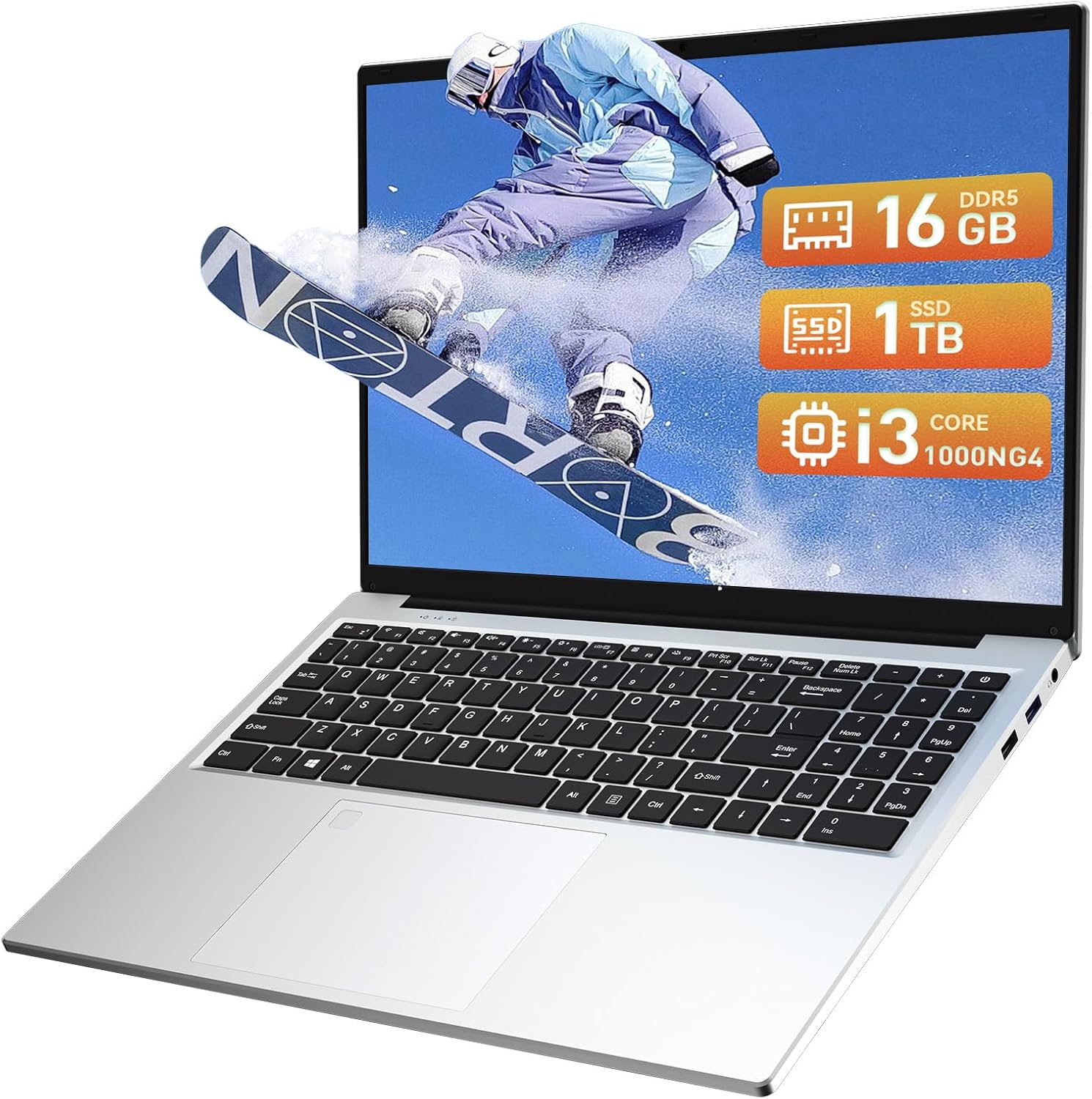
Image: The Auusda 16-inch FHD Laptop T161N, showcasing its sleek design and screen.
2. Шта је у кутији
Upon opening your Auusda T161N laptop package, verify that all the following items are included:
- Auusda 16-inch FHD Laptop T161N
- Адаптер/пуњач
- Упутство за употребу (овај документ)
- Поклопац тастатуре

Image: A visual representation of the items included in the Auusda T161N laptop packaging.
3. Производ је готовview
3.1 Кључне карактеристике
- Приказ: 16-inch Full HD (1920x1080) IPS screen with 180° viewугао уласка.
- процесор: Intel Core i3-1000NG4 (up to 3.2GHz).
- Меморија: 16GB DDR4 RAM меморије.
- Складиштење: 1TB PCIe SSD.
- Повезивање: Wi-Fi 6, Bluetooth 5.3.
- безбедност: Читач отисака прстију.
- Улаз: Позадинско осветљење тастатуре.
- Оперативни систем: Виндоус 11 Про.
3.2 Портови и конектори
The Auusda T161N laptop is equipped with various ports for versatile connectivity:
- УСБ 3.0 портови (к2)
- Full-Function Type-C Port (x1) - Supports data transfer, screen mirroring, and charging.
- УСБ 2.0 порт (к1)
- Mini HDMI Port (x1)
- 3.5mm Standard Headphone Jack (x1)
- Microphone Input (shared with headphone jack)
- Порт за пуњење

Image: A detailed diagram illustrating the location and type of ports on the Auusda T161N laptop.
3.3 Визуелни прелазview
Видео: Оверview of the Auusda 16-inch FHD Laptop T161N, demonstrating its design and key features.
4. Подешавање
4.1 Почетно пуњење
- Connect the power adapter to the charging port on the laptop.
- Укључите адаптер за напајање у зидну утичницу.
- Оставите лаптоп да се пуни најмање 30 минута пре прве употребе или док индикатор батерије не покаже довољно напуњености.
4.2 Powering On and Initial Windows Setup
- Притисните дугме за напајање које се налази на тастатури да бисте укључили лаптоп.
- Пратите упутства на екрану да бисте завршили процес подешавања система Windows 11 Pro. То укључује избор региона, језика, повезивање са Wi-Fi мрежом и креирање корисничког налога.
- Ensure you have an active internet connection for Windows updates and driver installations during the setup.
5. Упутство за употребу
5.1 Keyboard Functions (Fn + Function Keys)
The laptop features a full-size keyboard with dedicated function keys that can be accessed by pressing the Fn тастер у комбинацији са одговарајућим функцијским тастером (F1-F12).
- Тастатура са позадинским осветљењем: Притисните Фн + Ф9 to cycle through 2 brightness levels. Pressing it a third time turns the backlight off.
- Нум Лоцк: Притисните Fn + Num Lk to toggle the numeric keypad on or off.
- Контрола јачине звука: Користите Fn + Speaker keys (F1-F3) to mute, decrease, or increase volume.
- Контрола осветљења: Користите Fn + Sun keys (F4-F5) to decrease or increase screen brightness.

Image: A visual guide to using the Fn (Function) keys on the Auusda T161N keyboard for various controls.
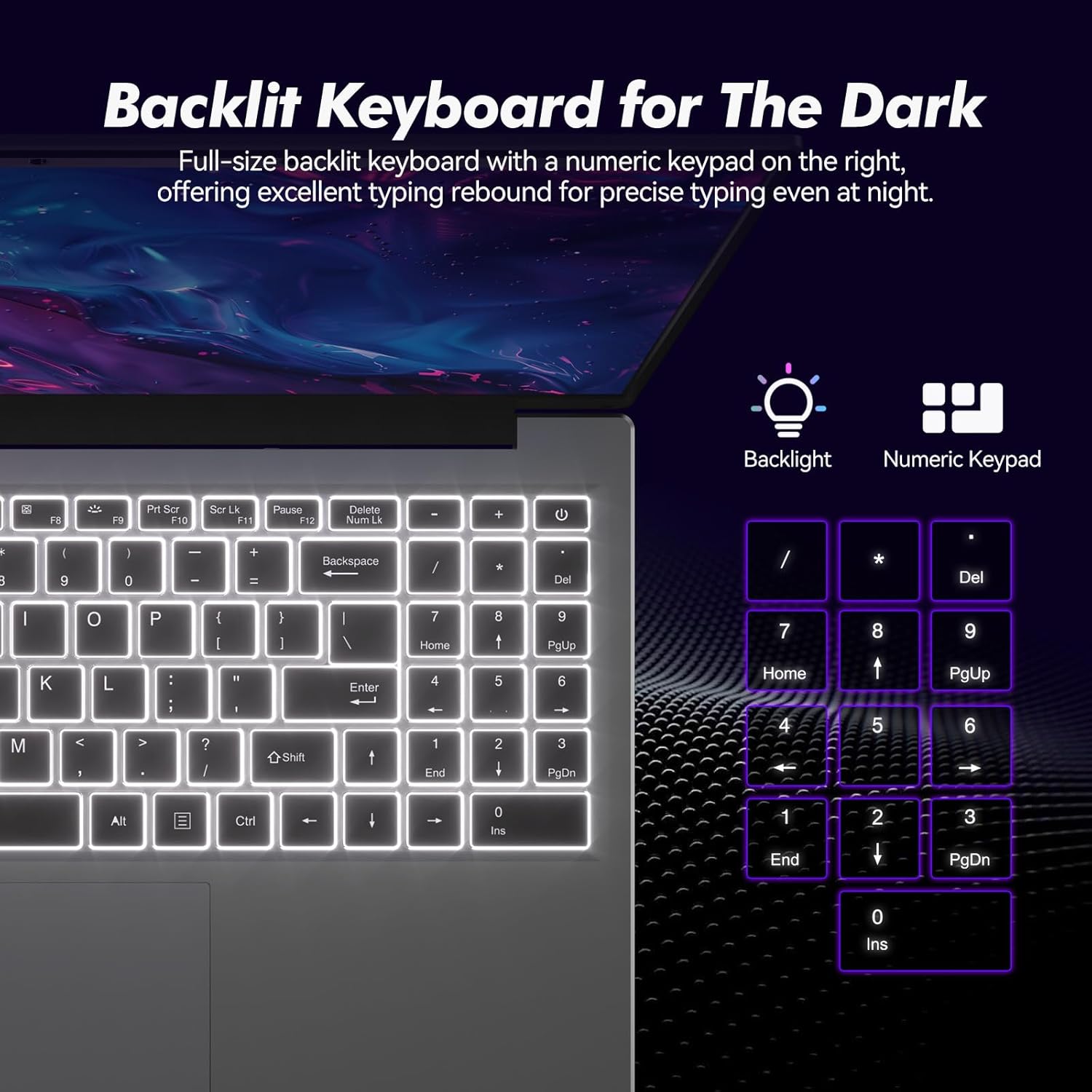
Слика: Крупни план view of the backlit keyboard and numeric keypad, highlighting their functionality.
5.2 Читач отисака прстију
The integrated fingerprint reader provides a secure and fast way to unlock your laptop. To set up fingerprint recognition:
- Идите на Подешавања система Windows > Налози > Опције пријављивања.
- У одељку „Windows Hello Fingerprint“ кликните на „Подеси“.
- Follow the on-screen prompts to register your fingerprint.
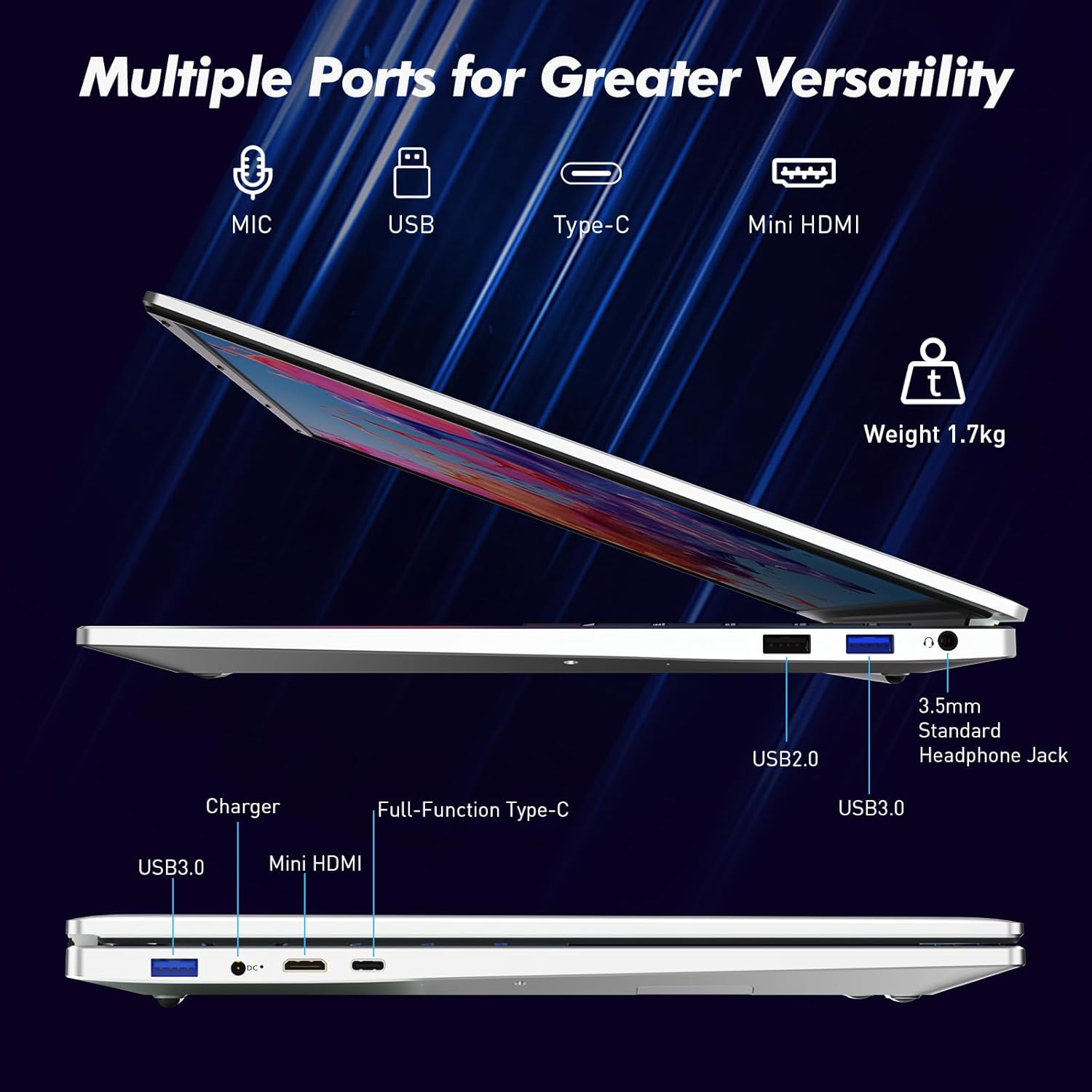
Image: A visual representation of the fingerprint reader location and its quick unlock capability.
5.3 Type-C Connectivity
The full-function Type-C port offers versatile connectivity options:
- Пренос података: Connect compatible devices for high-speed data exchange.
- Пресликавање екрана: Output video to an external display using a compatible Type-C to HDMI/DisplayPort adapter (sold separately).
- Пуњење: Charge the laptop using a compatible Type-C power delivery charger.
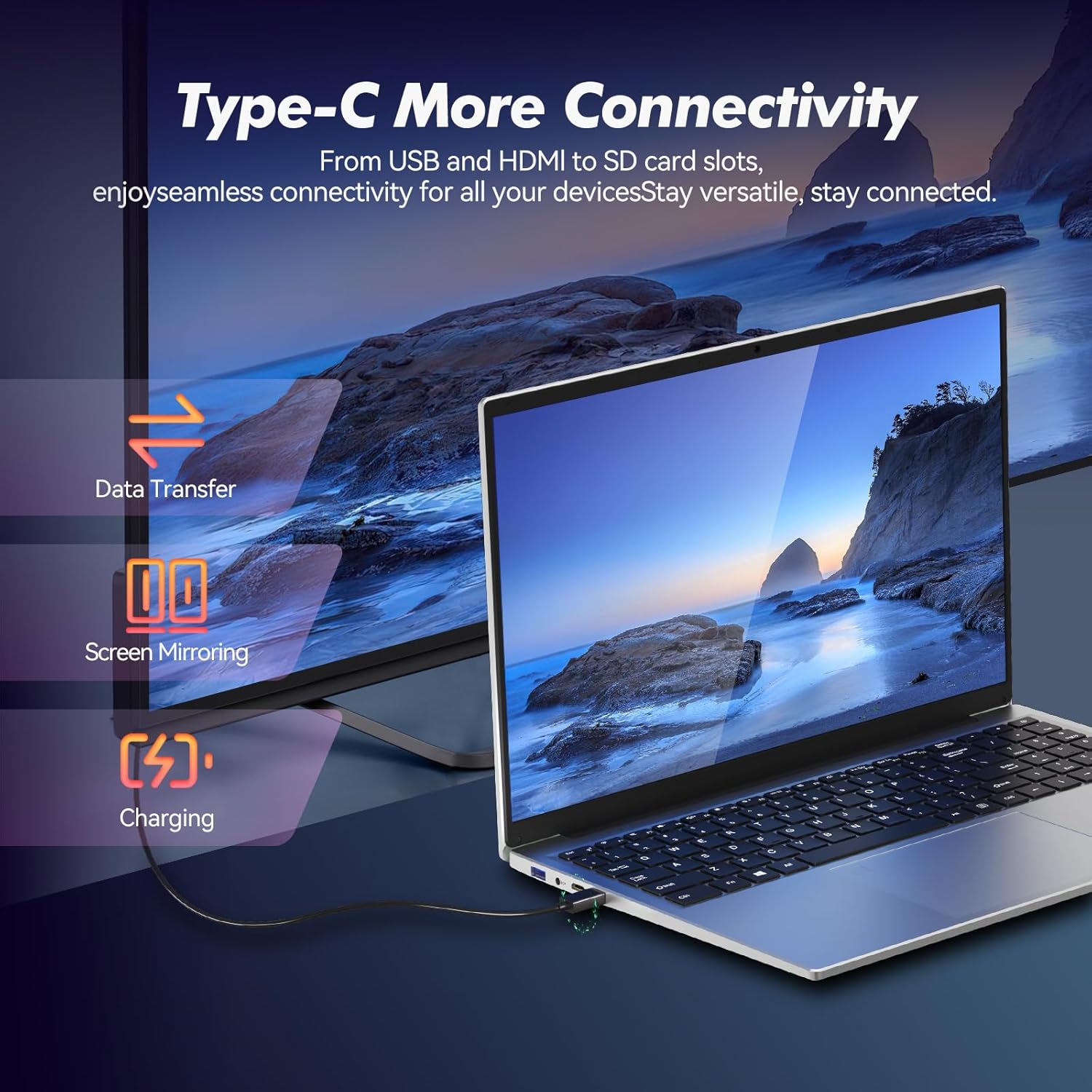
Image: Illustrates the multi-functional capabilities of the Type-C port, including data transfer, screen mirroring, and charging.
5.4 Wi-Fi 6 and Bluetooth 5.3
The laptop supports Wi-Fi 6 for faster and more stable wireless internet connections and Bluetooth 5.3 for connecting wireless peripherals.
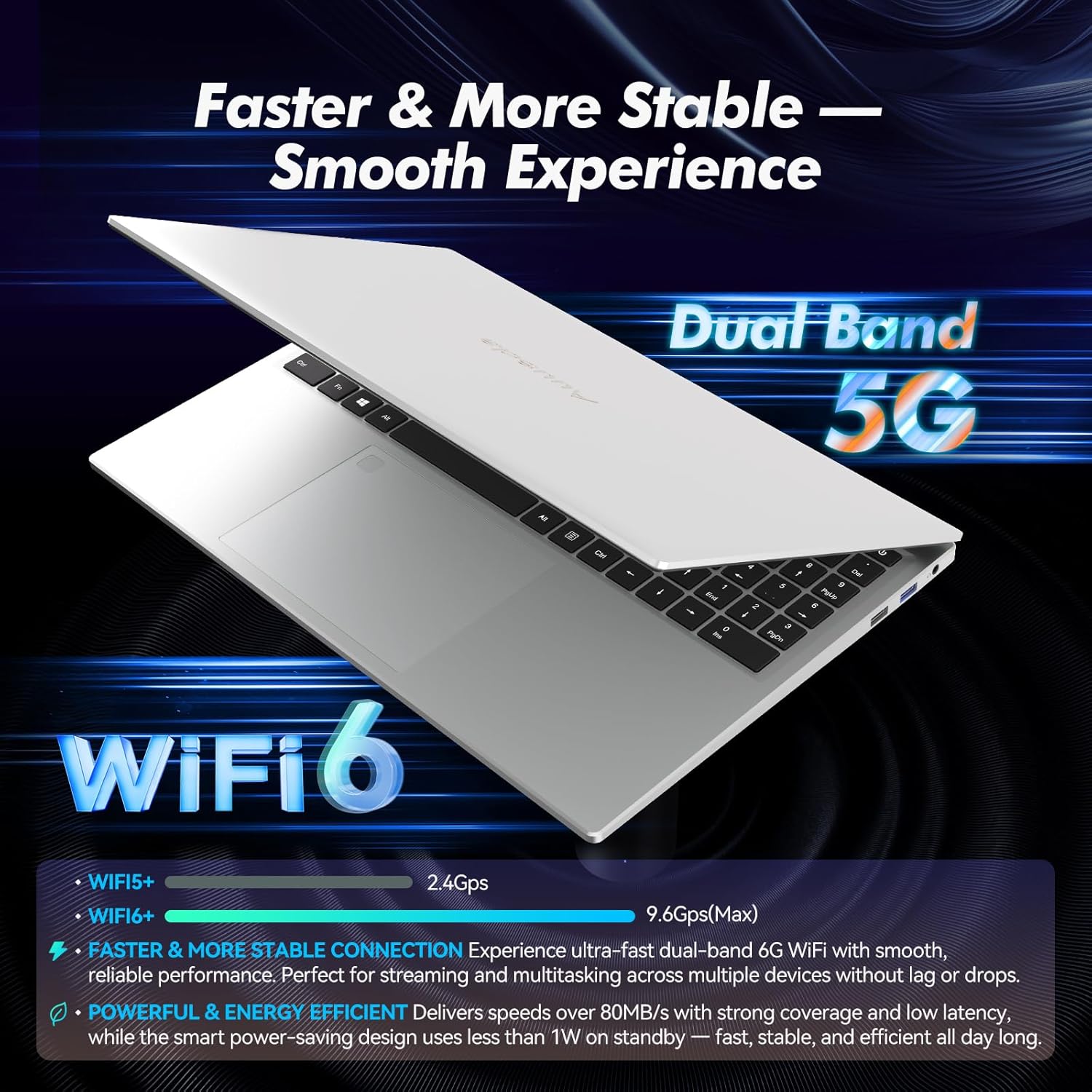
Image: Highlights the advanced wireless connectivity of the laptop, including Wi-Fi 6 and Dual Band 5G support.
6. Спецификације
Below are the detailed technical specifications for the Auusda 16-inch FHD Laptop T161N:
| Феатуре | Спецификација |
|---|---|
| Број модела | Т161Н |
| Величина екрана | 16 инча |
| Резолуција екрана | 1920 x 1080 пиксела (FHD) |
| Процесор | Intel Core i3-1000NG4 (1.09 GHz, up to 3.2 GHz) |
| РАМ | 16 ГБ ДДР4 СДРАМ |
| Хард Дриве | 1 TB SSD (PCIe) |
| Грапхицс Цопроцессор | Iris Plus Graphics G4 48EUs (Integrated) |
| Оперативни систем | Виндовс 11 Про |
| Вирелесс Типе | 802.11ax (Wi-Fi 6), Bluetooth 5.3 |
| УСБ 3.0 портови | 2 |
| УСБ 2.0 портови | 1 |
| Тежина артикла | 5.21 фунти |
| Димензије производа | 14.17 к 10.83 к 0.71 инча |
| Боја | Сребро |
| Батерије | 1 батерија од 12V (укључена) |
7. Одржавање
Regular maintenance helps ensure the optimal performance and longevity of your laptop.
7.1 Чишћење
- Користите меку крпу која не оставља влакна за чишћење екрана и спољашњих површина. За тврдокорне мрље, благо обришитеampобришите крпу водом или средством за чишћење екрана.
- Избегавајте прскање течности директно на лаптоп.
- Користите компримовани ваздух да бисте очистили прашину са тастера на тастатури и вентилационих решетки.
7.2 Ажурирања софтвера
- Редовно проверавајте и инсталирајте ажурирања за Windows како бисте осигурали стабилност и безбедност система. Идите на Подешавања > Windows Update.
- Keep your drivers updated. Windows Update typically handles this, but you may occasionally need to check the Auusda support webсајт за ажурирања одређених драјвера.
7.3 Одржавање батерије
- Избегавајте често потпуно пражњење батерије.
- Чувајте лаптоп на хладном и сувом месту ако га не користите дуже време.
КСНУМКС. Решавање проблема
Овај одељак се бави уобичајеним проблемима са којима се можете сусрести са лаптопом.
8.1 Лаптоп се не укључује
- Уверите се да је адаптер за напајање безбедно повезан и са лаптопом и са исправном утичницом.
- Проверите да ли је утичница функционална тако што ћете укључити други уређај.
- Ако је батерија потпуно испражњена, оставите је да се пуни најмање 15-30 минута пре него што је поново покушате да је укључите.
8.2 Проблеми са Wi-Fi повезивањем
- Check if Wi-Fi is enabled in Windows settings (Settings > Network & internet > Wi-Fi).
- Рестартујте рутер и модем.
- Уверите се да сте у домету ваше Wi-Fi мреже.
- Update your Wi-Fi drivers if necessary.
8.3 Keyboard or Touchpad Not Responding
- Поново покрените лаптоп.
- Check for any physical obstructions or debris under the keys or on the touchpad.
- Ensure the touchpad has not been accidentally disabled (some laptops have a function key or a setting to toggle the touchpad).
За додатну помоћ, погледајте одељак за подршку испод.
9. Гаранција и подршка
Auusda provides customer support and warranty services for its products.
9.1 Информације о гаранцији
Auusda laptops typically come with a two-year after-sales service period. Please retain your proof of purchase for warranty claims.
9.2 Корисничка подршка
If you encounter issues or require technical assistance, please contact Auusda customer support:
- Подршка путем е-поште: Send your order number and a video demonstrating the problem to Auusda.ltd@gmail.com.
- Amazon Buyer Account: Log in to your Amazon buyer account, find your order, and click "Get Help" or "Ask questions" for direct support.