
1. Увод
Thank you for choosing the Pisichen 27-inch 4K UHD Touchscreen Monitor with Webcam. This manual provides essential information for the safe and efficient operation of your new monitor. Please read it thoroughly before use and retain it for future reference.
2. Безбедносне информације
- Извор напајања: Use only the power adapter supplied with the monitor. Ensure the power outlet meets the voltagе захтеве.
- вентилација: Не блокирајте вентилационе отворе. Оставите довољно простора око монитора за правилан проток ваздуха.
- Изложеност течности: Држите монитор даље од течности. Не излажите га киши или влази.
- Чишћење: Disconnect the power cable before cleaning. Use a soft, dry cloth. Avoid abrasive cleaners.
- Пласман: Поставите монитор на стабилну, равну површину како бисте спречили његов пад.
- Сервисирање: Не покушавајте сами да сервисирате монитор. Сво сервисирање препустите квалификованом особљу.
3. Садржај пакета
Молимо вас да проверите садржај пакета приликом распакивања. Ако неке ставке недостају или су оштећене, обратите се продавцу.
- Pisichen 27-inch 4K UHD Touchscreen Monitor
- Постоље за монитор (постоље и крак)
- Повер Адаптер
- ХДМИ кабл
- USB-B to USB-A Cable (for Touch Function)
- Упутство за употребу
4. Производ је готовview
4.1 Кључне карактеристике
- Ultra HD 4K Touchscreen Display: 27-inch 4K Ultra HD screen with vibrant colors, sharp details, and wide viewing angles. Features a responsive 10-point touchscreen for intuitive control.
- Built-in High-Definition Webкамера: Интегрисано webcam for video calls, online meetings, and streaming, reducing desk clutter.
- Свестрано повезивање: Multiple ports including HDMI, DisplayPort, and USB-C for easy connections to various devices. Supports both touch and traditional input.
- Optimized for Productivity and Creativity: Large 4K touch display for precise control and streamlined workflows, ideal for graphic designers, content creators, and multitasking.
- Sleek and Functional Design: Modern design with an adjustable stand for optimal viewing angles and comfort during extended use.
4.2 Портови за монитор
The monitor features various ports for connecting to your devices. Refer to the image below for port identification.
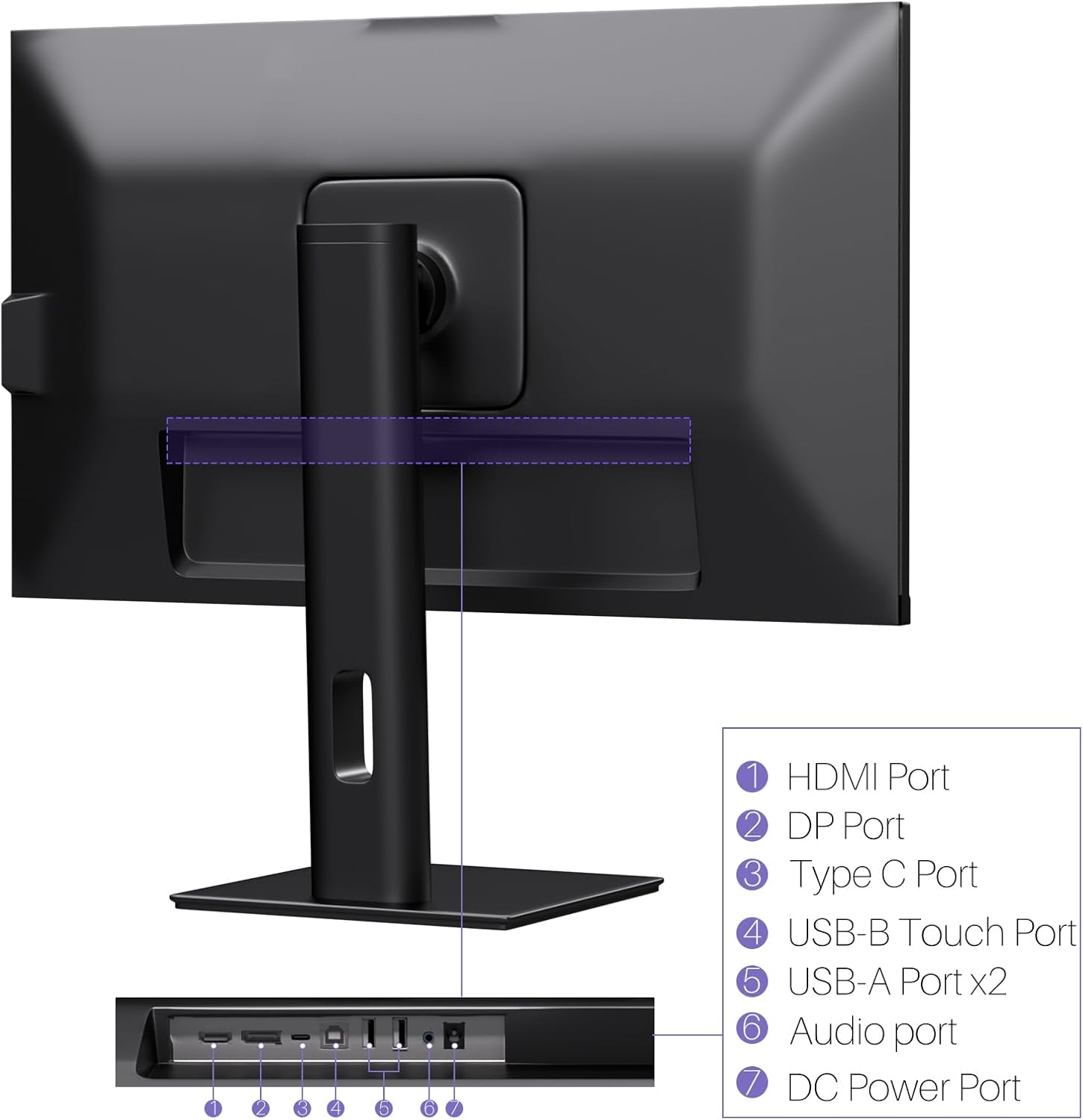
Слика: Позади view of the monitor displaying the HDMI, DP, Type-C, USB-B Touch, USB-A, Audio, and DC Power ports.
- ХДМИ порт: Connects to devices via HDMI cable for video and audio input.
- ДП порт: Connects to devices via DisplayPort cable for video and audio input.
- Порт типа Ц: Connects to devices via USB-C cable for video, audio, and power delivery. (Requires USB-C port on signal device to support DisplayPort Alternate Mode for touch functionality).
- USB-B Touch Port: Connects to your computer via USB-B to USB-A cable to enable touchscreen functionality.
- USB-A порт (x2): For connecting USB peripherals.
- Аудио порт: За повезивање спољних аудио уређаја.
- ДЦ порт за напајање: Повезује се на адаптер за напајање.
5. Упутства за подешавање
5.1 Састављање постоља
- Пажљиво извадите компоненте монитора и постоља из паковања.
- Attach the stand arm to the monitor's VESA mounting points.
- Secure the stand base to the arm using the provided screws.
- Ensure all connections are tight and the monitor is stable.
5.2 Повезивање са уређајем
The monitor supports various connection types. Choose the appropriate cable for your device.

Image: Connection diagrams illustrating how to connect the monitor as a secondary display (HDMI/DP + DC), a touchscreen monitor (HDMI/DP + USB-B + DC), or via USB-C (USB-C + DC).
- For Video and Audio (Non-Touch): Повежите HDMI или DisplayPort кабл са рачунара на одговарајући порт на монитору.
- For Video, Audio, and Touch (Windows PC): Connect an HDMI or DisplayPort cable for video/audio. Additionally, connect the USB-B to USB-A cable from the monitor's USB-B Touch Port to a USB-A port on your computer.
- For Video, Audio, and Touch (USB-C Compatible Device): Connect a USB-C cable from your device to the monitor's Type-C port. Ensure your device's USB-C port supports DisplayPort Alternate Mode for touch functionality.
5.3 Прикључак за напајање
- Connect the power adapter to the monitor's DC Power Port.
- Укључите адаптер за напајање у зидну утичницу.
6. Упутство за употребу
6.1 Укључивање/искључивање
Притисните дугме за напајање које се налази на монитору да бисте га укључили или искључили.
6.2 Приказ на екрану (ОСД) мени
Use the control buttons (typically located on the back or bottom of the monitor) to navigate the OSD menu. This menu allows you to adjust settings such as brightness, contrast, color temperature, input source, and other display parameters.
6.3 Функционалност екрана осетљивог на додир
The monitor features a 10-point multi-touch screen. Ensure the USB-B to USB-A cable (or USB-C cable for compatible devices) is connected to enable touch functionality.

Image: A user's hand interacting with the monitor screen, highlighting the responsive 10-point touch experience.
- Basic Touch: Tap to click, swipe to scroll.
- Multi-Touch Gestures: Use two fingers to zoom in/out, rotate, or pan, depending on the application.
- Touch Calibration (Windows Only): If the cursor does not align with your touch, calibration may be required. Go to Control Panel > Hardware and Sound > Tablet PC Settings > Calibrate. Follow the on-screen prompts.
6.4 Using the Built-in Webцам
Интегрисани webcam is automatically detected by most operating systems and video conferencing applications. No additional drivers are typically required.

Image: The monitor displaying a video conference call, showcasing its integrated webcam for seamless communication.
- Open your preferred video conferencing software (e.g., Zoom, Microsoft Teams, Skype).
- Изаберите интегрисано webcam as your video input device in the application's settings.
6.5 Adjusting Display Resolution
To set the resolution of the monitor (Windows):
- Right-click on your desktop and select "Display Settings."
- Find your monitor (if multiple displays are connected).
- Under "Display resolution," select the recommended resolution of 3840 x 2160.
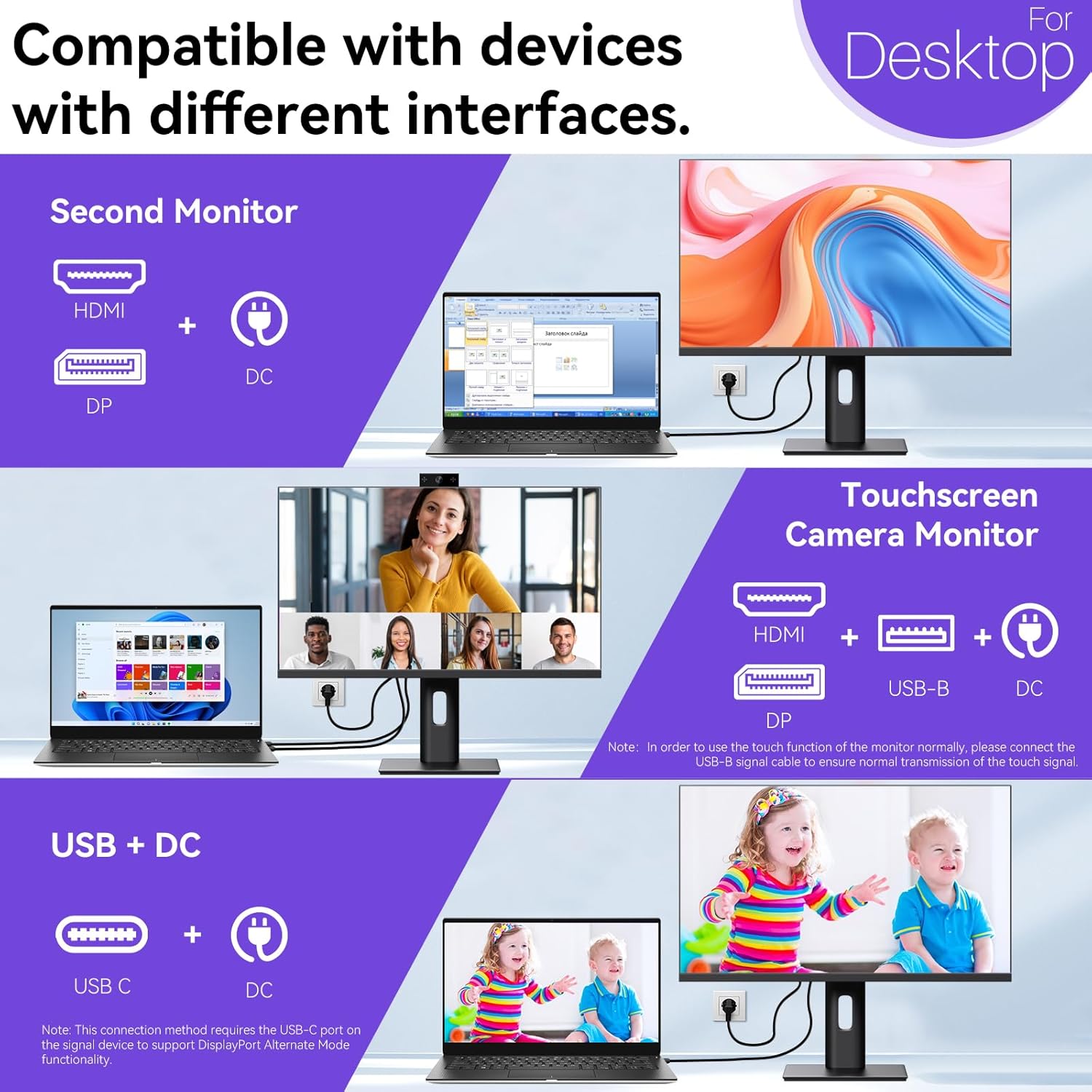
Image: A visual comparison demonstrating the superior clarity of 4K UHD (3840x2160) compared to FHD (1920x1080) and QHD (2560x1440) resolutions.
7. Одржавање
- Чишћење екрана: Нежно обришите екран меком крпом која не оставља влакна. За тврдокорне мрље, лагано дampОчистите крпу водом или средством за чишћење екрана. Не прскајте течност директно на екран.
- Чишћење Цasing: Користите меку, суву крпу за чишћење монитора casing.
- Складиштење: If storing the monitor for an extended period, disconnect it from power, pack it in its original packaging, and store it in a cool, dry place.
КСНУМКС. Решавање проблема
If you encounter issues with your monitor, refer to the following troubleshooting guide. For problems not listed, please contact customer support.
| Проблем | Могући узрок | Решење |
|---|---|---|
| Нема слике на екрану | Кабл за напајање је искључен; видео кабл је искључен; изабран је погрешан улазни извор. | Ensure power cable is securely connected. Check video cable (HDMI/DP/USB-C) connections. Select correct input source via OSD menu. |
| Екран осетљив на додир не реагује | USB-B cable not connected; USB-C port not supporting DisplayPort Alternate Mode; Device incompatibility (e.g., iPhone). | Ensure the USB-B to USB-A cable is connected from the monitor to your computer. If using USB-C, verify your device's USB-C port supports DisplayPort Alternate Mode. Note: Touch function is not supported when connected to an iPhone due to iOS system restrictions. |
| Cursor moves incorrectly (Windows) | Touchscreen calibration required. | Perform touchscreen calibration: Go to Control Panel > Hardware and Sound > Tablet PC Settings > Calibrate. |
| Webкамера није откривена | USB connection issue; Software settings. | Ensure all necessary USB cables are connected. Check your application's settings to select the correct webцам. |
9. Спецификације
| Феатуре | Детаљ |
|---|---|
| Бранд | Писицхен |
| Број модела | 27INTSCMR-4K |
| Величина екрана | 27 инча |
| Резолуција | 3840 x 2160 пиксела (4K UHD 2160p) |
| Аспецт Ратио | 16:9 |
| Осветљеност слике | 400 Цандела |
| Опис површине екрана | Глосси |
| Димензије производа | 14.37 к 24.21 к 16.54 инча |
| Тежина артикла | 16.59 фунти |
| Произвођач | Shenzhen Konowa Electronics Co., LTD |
| Повезивање | HDMI, DisplayPort, USB-C, USB-B (for touch), USB-A (x2), Audio Port |
10. Гаранција и подршка
This product comes with a manufacturer's warranty. Please refer to the warranty card included in your package for specific terms and conditions. For technical support or inquiries, please contact Pisichen customer service at суппорт_2308@163.цом. When contacting support, please provide your model number and a detailed description of the issue, including any relevant pictures or videos.