
Моман Xview М4 Про
Моман Xview M4 Pro Selfie Monitor User Manual
Модел: Ксview М4 Про
1. Увод
This manual provides comprehensive instructions for the safe and efficient use of your Moman Xview M4 Pro Selfie Monitor. Please read this manual thoroughly before operating the device and retain it for future reference.
2. Безбедносне информације
Да бисте осигурали безбедан рад и спречили оштећења, придржавајте се следећих мера предострожности:
- Do not expose the monitor to water or excessive humidity.
- Избегавајте испуштање или излагање уређаја јаким ударима.
- Do not attempt to disassemble or repair the monitor yourself. Contact qualified service personnel.
- Држите монитор даље од директне сунчеве светлости и извора топлоте.
- Користите само наведени адаптер за напајање и додатну опрему.
3. Садржај пакета
Проверите да ли су све ставке присутне у пакету:
- Моман Xview M4 Pro Selfie Monitor (main unit)
- УСБ-Ц кабл за пуњење
- Кориснички приручник (овај документ)
Note: The package contents may vary slightly depending on the region or specific bundle purchased.
4. Подешавање
4.1 Пуњење монитора
Before first use, fully charge the Moman Xview M4 Pro monitor. Connect the provided USB-C cable to the monitor's charging port and the other end to a compatible USB power adapter (not included) or a computer's USB port.
The charging indicator light will typically show red while charging and turn green or off when fully charged.
4.2 Монтирање монитора
The Moman Xview M4 Pro is designed to be mounted on various camera rigs or smartphone cages. It features a standard 1/4"-20 screw hole for attachment.
- Attach the monitor to a cold shoe mount or a compatible bracket (sold separately) using the 1/4"-20 screw.
- Securely fasten the monitor to your smartphone cage or camera setup.
- Подесите viewугао по потреби.
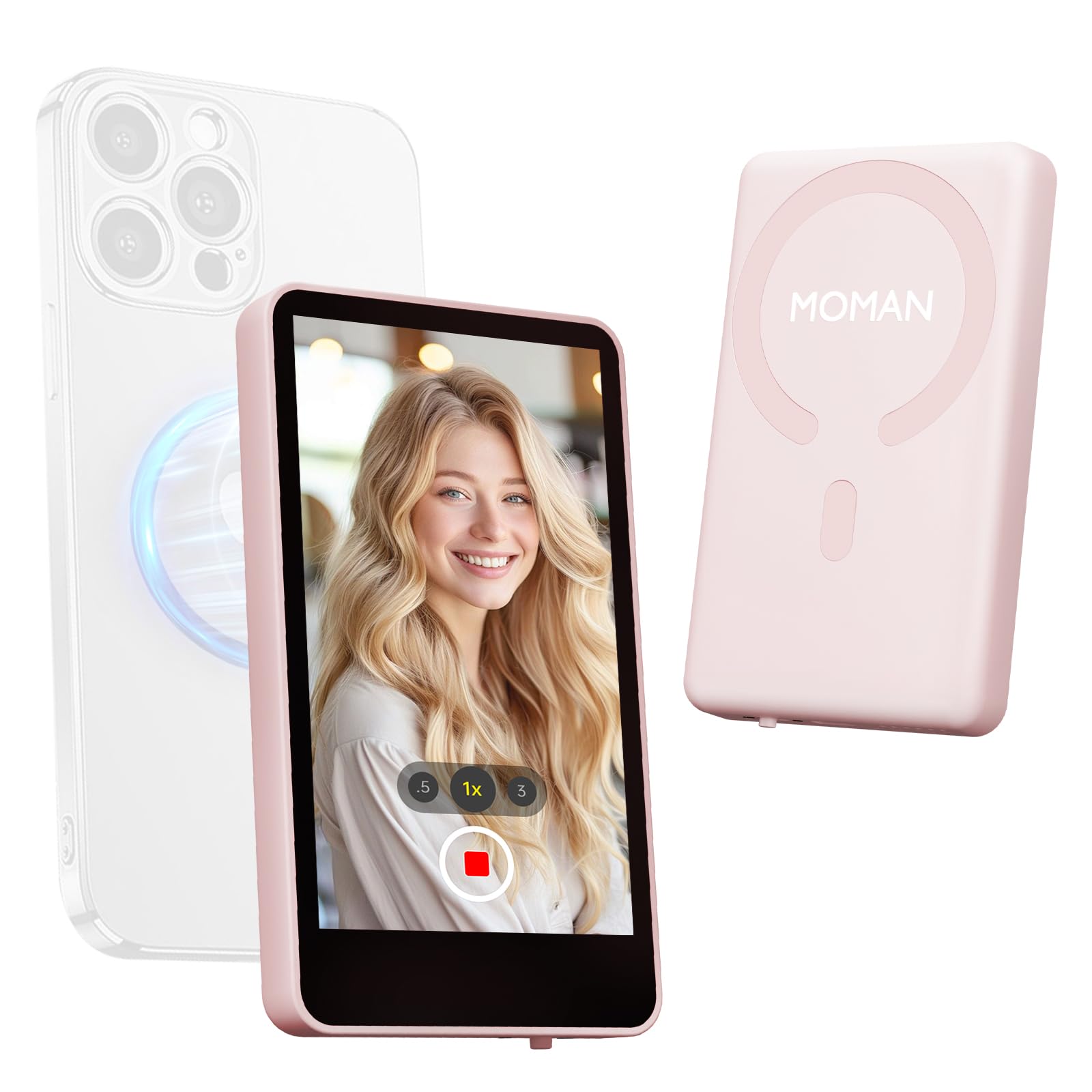
Image: The Moman Xview M4 Pro Selfie Monitor shown attached to a smartphone rig, demonstrating its compact size and mounting flexibility.
5. Упутство за употребу
5.1 Укључивање/искључивање
To power on the monitor, press and hold the power button located on the side/back of the device for approximately 3 seconds. The screen will illuminate. To power off, press and hold the power button again until the screen turns off.
5.2 Connecting to a Smartphone
The Moman Xview M4 Pro connects wirelessly to your smartphone (iPhone 7-17 Series & Android). Follow these steps:
- Уверите се да су Bluetooth и Wi-Fi на вашем паметном телефону омогућени.
- Download and install the dedicated Moman Xview апликацију из продавнице апликација на вашем паметном телефону.
- Open the Moman Xview app and follow the on-screen instructions to pair with the M4 Pro monitor. The app will guide you through the connection process, typically involving selecting the monitor from a list of available devices.
- Once connected, your smartphone's camera feed will be mirrored on the M4 Pro monitor.
For optimal performance, ensure your smartphone and the monitor are within close proximity and free from wireless interference.
5.3 Функције монитора
The M4 Pro monitor provides various functions to enhance your selfie and video recording experience:
- Праћење у реалном времену: View your smartphone's camera feed in real-time.
- Подешавање осветљености: Use the dedicated buttons or app controls to adjust screen brightness.
- Mirror/Flip Function: Some models or app versions may offer options to mirror or flip the display for specific shooting scenarios. Refer to the app for available features.
- Индикатор батерије: The monitor displays its current battery level.
6. Одржавање
6.1 Чишћење
To clean the monitor, use a soft, dry, lint-free cloth. For stubborn smudges, lightly dampen the cloth with water or a screen-cleaning solution. Do not use harsh chemicals or abrasive materials.
6.2 Складиштење
When not in use, store the monitor in a cool, dry place, away from direct sunlight and extreme temperatures. It is recommended to use the original packaging or a protective case to prevent scratches and damage.
КСНУМКС. Решавање проблема
| Проблем | Могући узрок | Решење |
|---|---|---|
| Монитор се не укључује. | Ниска батерија. | Charge the monitor using the provided USB-C cable. |
| Cannot connect to smartphone. | Bluetooth/Wi-Fi off; App not installed; Monitor not in pairing mode; Interference. | Ensure Bluetooth/Wi-Fi are on. Install Moman Xview app. Restart monitor and app. Move closer to the monitor. |
| Екран је празан или трепери. | Loose connection; Software glitch. | Ensure secure connection. Restart monitor and smartphone. Check for app updates. |
If the problem persists after trying these solutions, please contact Moman customer support.
8. Спецификације
| Феатуре | Детаљ |
|---|---|
| Модел | Xview М4 Про |
| Повезивање | Wireless (Bluetooth/Wi-Fi) |
| Компатибилност | iPhone 7-17 Series & Android smartphones |
| Димензије | 12.19 x 9.91 x 1.9 цм (приближно) |
| Тежина | 168 грама (приближно) |
| Извор напајања | USB-C (internal rechargeable battery) |
Спецификације су подложне променама без претходне најаве.
9. Гаранција и подршка
Moman products are covered by a limited warranty. For detailed warranty terms and conditions, please refer to the warranty card included with your product or visit the official Moman webсајту.
For technical support, troubleshooting assistance, or service inquiries, please contact Moman customer support through their official webсајт или контакт информације које су наведене у паковању вашег производа.
Moman Official Webсајт: ввв.моман.цо
Ask a question about this manual
Ask about setup, troubleshooting, compatibility, parts, safety, or missing instructions. Manuals+ will review the question and use this page’s manual context to help answer it.