
1. Увод
This manual provides instructions for the SABLUTE Wireless Trackball Mouse. This ergonomic device is designed to enhance comfort and efficiency during computer use by reducing wrist and arm movement.
The mouse features an adjustable ergonomic angle, multi-device connectivity, and customizable DPI settings. It is suitable for various operating systems including PC, Mac, and Windows.
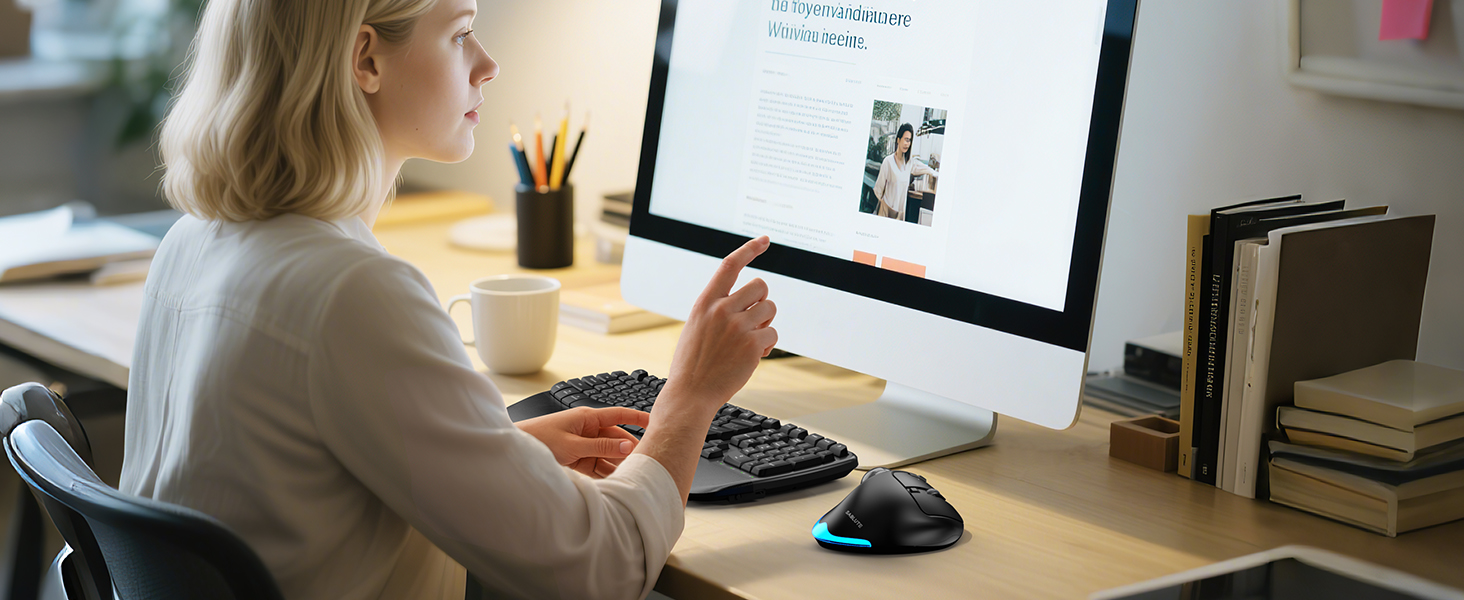
Image: A woman using the SABLUTE Wireless Trackball Mouse at a computer desk, demonstrating its use in a typical work environment.
Важна напомена: If you are new to using a trackball mouse, an adaptation period of 1-2 weeks is recommended to become accustomed to its operation and fully benefit from its ergonomic design.
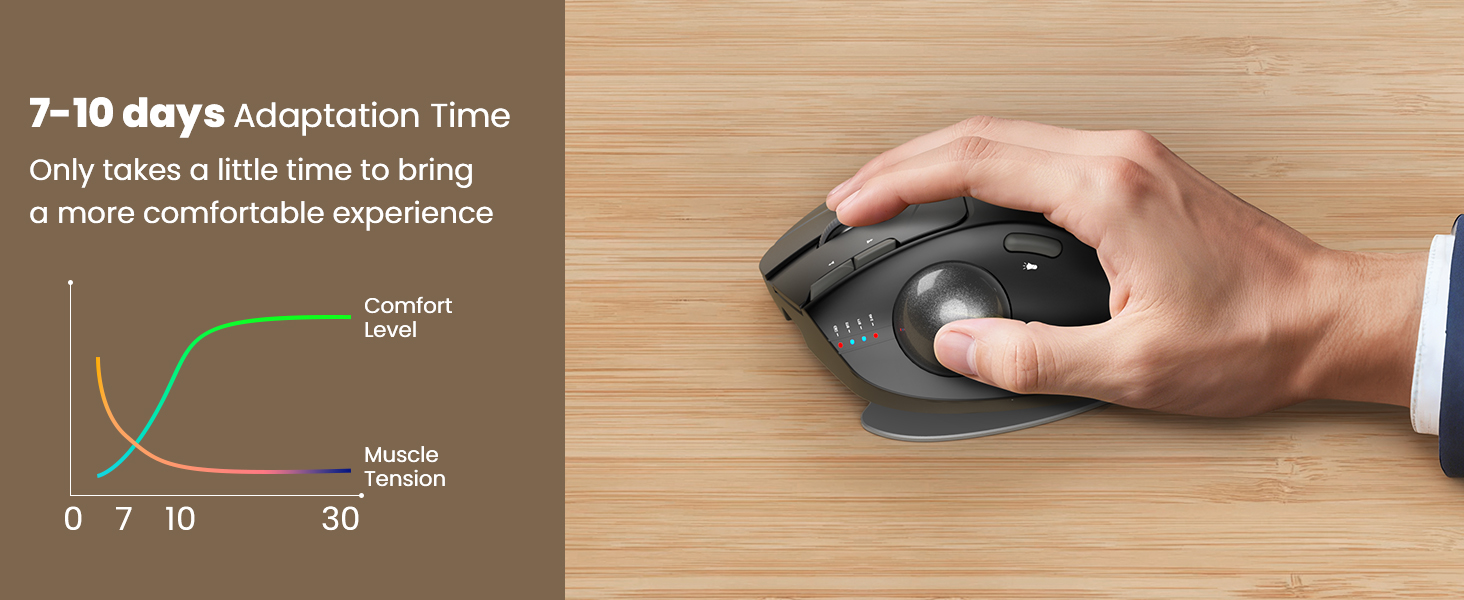
Image: A graph illustrating the adaptation period for a trackball mouse, showing increasing comfort and decreasing muscle tension over 7-10 days.
2. Шта је у кутији
Проверите да ли су све ставке присутне у пакету:
- SABLUTE Wireless Trackball Mouse
- Хард Травел Цасе
- УСБ пријемник
- УСБ-Ц кабл за пуњење
- Кориснички приручник (овај документ)

Image: The SABLUTE Wireless Trackball Mouse securely stored within its hard travel case, positioned next to a laptop bag.

Image: A diagram illustrating the protective features of the hard travel case, including a nylon outer layer, EVA hard shell middle layer, and soft velvet lining, offering fall protection, scratch resistance, and water resistance.
3. Производ је готовview
Familiarize yourself with the components and controls of your SABLUTE Wireless Trackball Mouse:

Image: A detailed diagram of the SABLUTE Wireless Trackball Mouse, highlighting its various buttons and features with numbered labels for easy identification.
- Лево дугме: Стандардна функција левог клика.
- Десно дугме: Стандардна функција десног клика.
- Точак за померање: For vertical scrolling. Can also be clicked for middle-click functionality.
- Low Battery/Bluetooth/2.4G Indicator: Приказује статус везе и ниво батерије.
- Дугме ДПИ: Промењује нивое осетљивости на DPI.
- Дугме за напред: Навигација напред у web претраживачи или file истраживачи.
- Дугме за назад: Навигација уназад web претраживачи или file истраживачи.
- Дугме за напајање: Укључује или искључује миш.
- УСБ пријемник: Чува УСБ адаптер од 2.4 GHz.
- Пребаците светлосни режим: Changes or turns off the ambient backlight.
- лоптица: For cursor movement.
- Light Area: Emits ambient backlight.
- Промени режим: Button on the bottom to switch between connected devices (BT1, BT2, 2.4G).
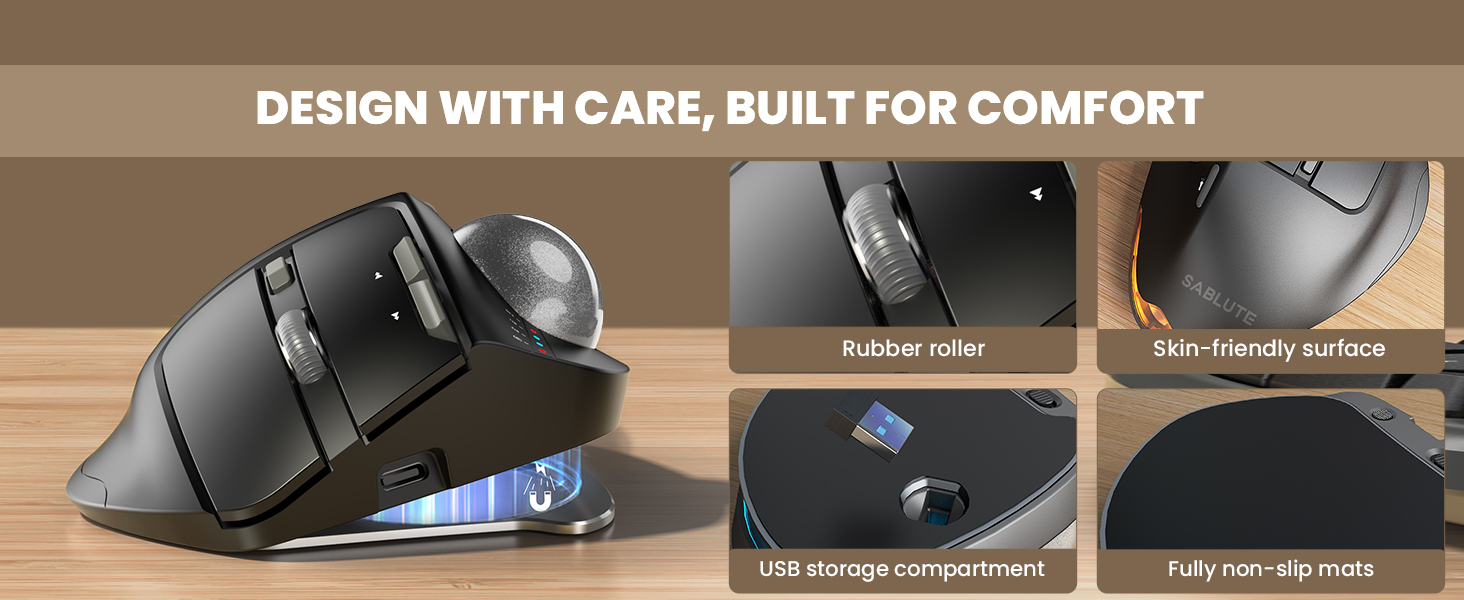
Слика: Крупни план views highlighting key design elements of the mouse, including the rubber scroll wheel, skin-friendly surface, USB receiver storage, and fully non-slip mats.
4. Подешавање
4.1 Пуњење миша
Before first use, fully charge the mouse using the provided USB-C cable.
- Connect the USB-C cable to the charging port on the front of the mouse.
- Повежите други крај кабла са УСБ извором напајања (нпр. УСБ портом рачунара, УСБ адаптером за зид).
- The indicator light will show charging status. A full charge typically takes 3-4 hours.
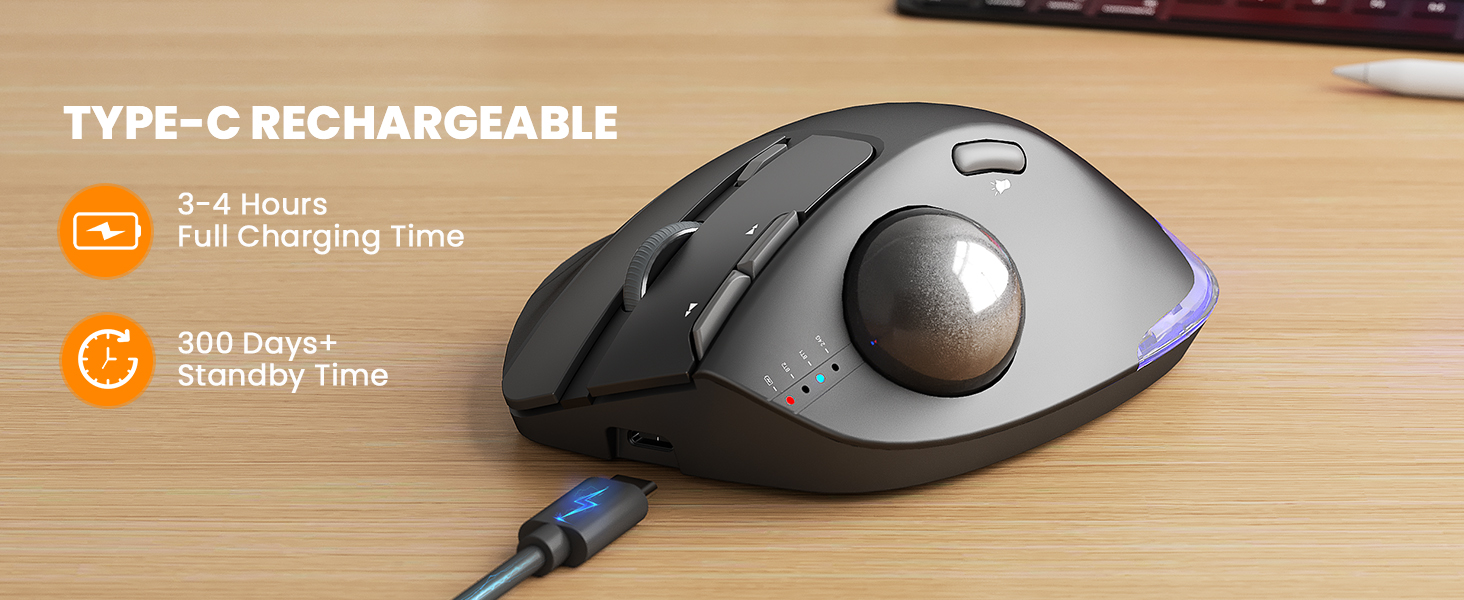
Image: The SABLUTE Wireless Trackball Mouse being charged via its USB-C port, with an indication of 3-4 hours for full charging and over 300 days of standby time.
4.2 Повезивање са уређајима
The mouse supports connection to up to three devices via Bluetooth (BT1, BT2) and a 2.4GHz USB receiver.

Image: The SABLUTE Wireless Trackball Mouse demonstrating multi-device connectivity, showing connections to a laptop (Bluetooth 1), an iPad (Bluetooth 2), and a desktop computer (2.4GHz USB receiver).
2.4GHz USB Receiver Connection:
- Remove the USB receiver from its storage slot on the bottom of the mouse.
- Укључите УСБ пријемник у слободан УСБ порт на рачунару.
- Turn on the mouse using the Power Button (8).
- Press the Mode Switch button (13) on the bottom of the mouse until the 2.4G indicator light (4) illuminates. The mouse should connect automatically.
Блутут веза (BT1/BT2):
- Turn on the mouse using the Power Button (8).
- Press the Mode Switch button (13) on the bottom of the mouse to select either BT1 or BT2. The corresponding indicator light (4) will flash.
- On your device (PC, Mac, iPad), go to Bluetooth settings and search for new devices.
- Select "SABLUTE Trackball Mouse" from the list of available devices to pair. The indicator light will become solid once connected.
4.3 Adjusting Ergonomic Angle
The mouse features an adjustable base for 0° or 18° tilt to optimize wrist comfort.
- The base can be adjusted to provide a flat (0°) or tilted (18°) position.
- Choose the angle that feels most natural and reduces strain on your wrist and forearm. The 18° tilt is designed to match the natural drop of the wrist when seated.
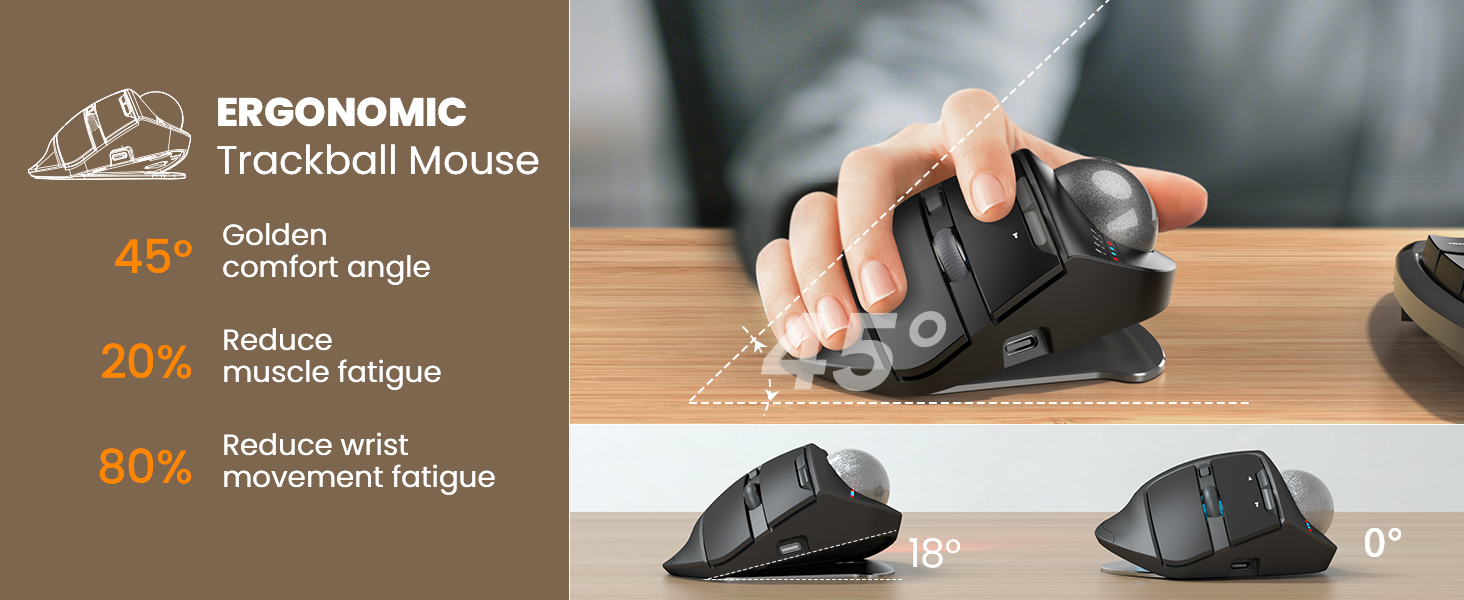
Image: The SABLUTE Wireless Trackball Mouse demonstrating its adjustable ergonomic angles, showing both the 0-degree flat position and the 18-degree tilted position for improved wrist comfort.
5. Управљање мишем
5.1 Cursor Control with Trackball
Move the cursor by rolling the trackball with your thumb. This eliminates the need to move your entire arm, reducing fatigue and saving desk space.
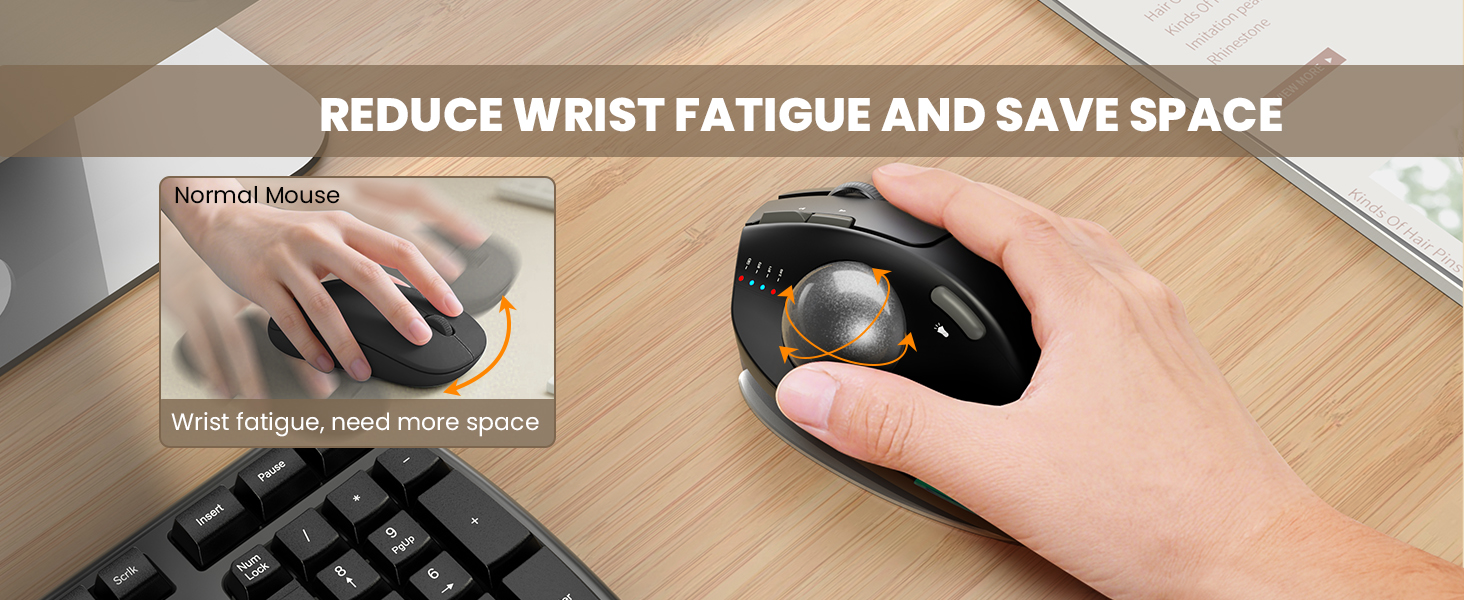
Image: A visual comparison showing how a traditional mouse requires arm movement and desk space, while the trackball mouse allows for stationary use, reducing wrist fatigue and saving space.
5.2 Пребацивање између уређаја
To switch between connected devices (BT1, BT2, 2.4G), press the Mode Switch button (13) on the bottom of the mouse. The corresponding indicator light (4) will illuminate to show the active connection.
5.3 Подешавање осетљивости DPI
The mouse offers 5 adjustable DPI levels (800-1200-1600-2400-4800) for precise control.
- Press the DPI Button (5) to cycle through the available sensitivity settings.
- Choose a DPI level that suits your task and screen size for optimal cursor speed and precision.
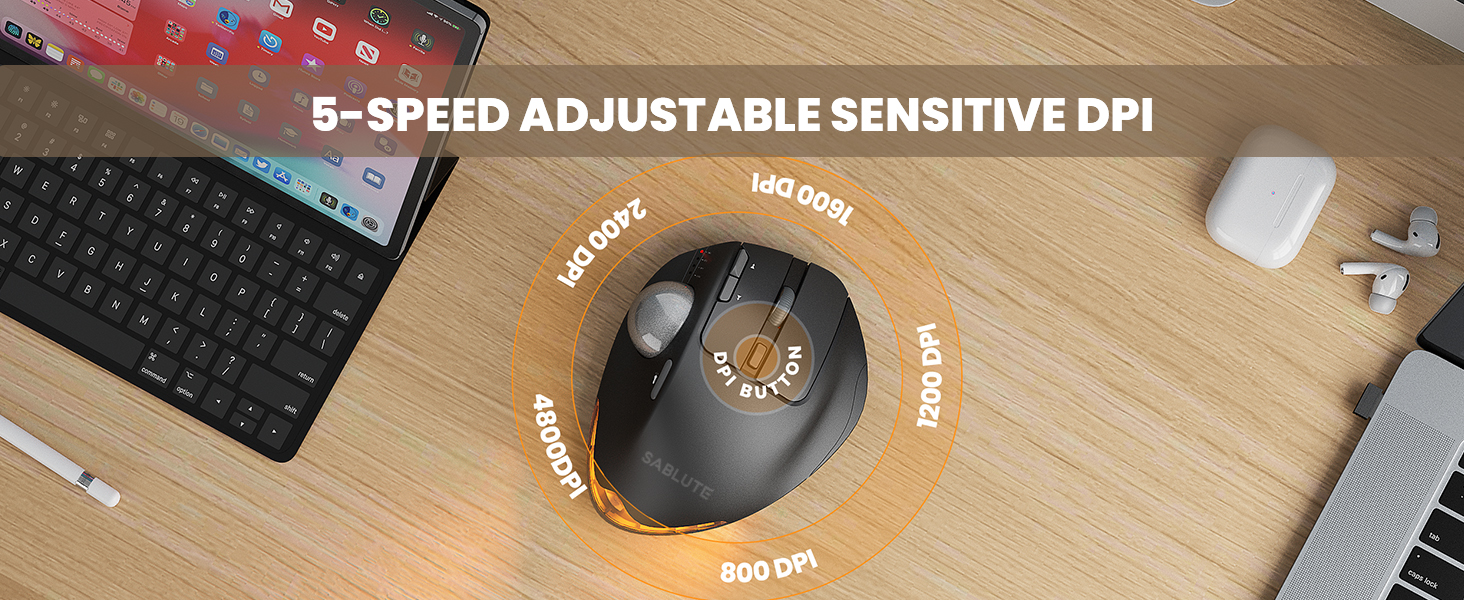
Image: A visual representation of the 5 adjustable DPI levels (800, 1200, 1600, 2400, 4800) available on the SABLUTE Wireless Trackball Mouse, indicating how to change sensitivity.
5.4 Контрола позадинског осветљења
The mouse features an ambient backlight with multiple breathing light modes.
- Press the Switch Light Mode button (10) to cycle through different light modes or to turn the backlight off.
- The backlight can be turned off to avoid distraction during focused work.

Image: The SABLUTE Wireless Trackball Mouse showcasing its quiet click and breathing light features, with various light colors displayed. A sleeping cat nearby emphasizes the quiet operation.
5.5 Driver Customization (Windows Only)
A driver is available for Windows users to customize mouse settings and fine-tune preferences. This driver is not compatible with Mac OS.
- Refer to the official SABLUTE website or contact customer support for driver download instructions.
- Install the driver and follow the on-screen prompts to customize button functions, DPI settings, and other features.
6. Одржавање
6.1 Чишћење трекбола
Regular cleaning of the trackball and its socket ensures smooth and accurate cursor movement.
- Turn off the mouse using the Power Button (8).
- Gently push the trackball from the underside opening to remove it from its socket.
- Use a clean, soft, lint-free cloth to wipe the trackball and the inside of the trackball socket, removing any dust or debris.
- Пажљиво вратите куглу у њено лежиште док не кликне на своје место.
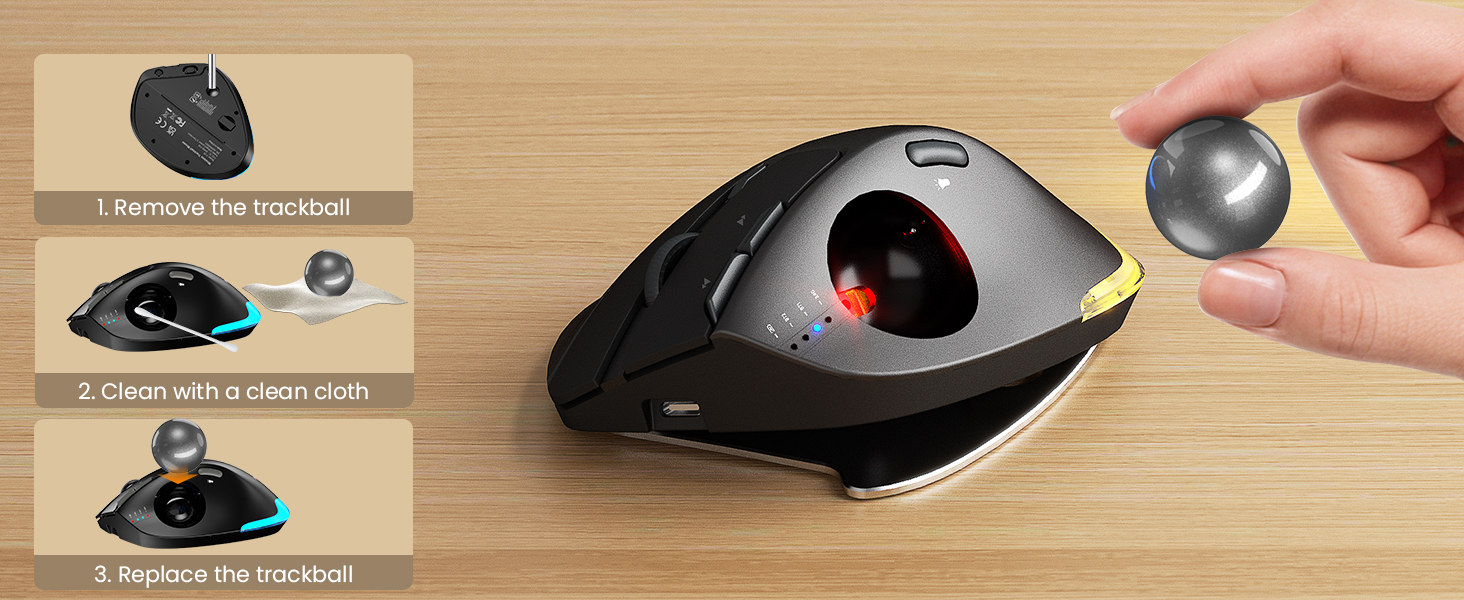
Image: A step-by-step visual guide on how to clean the trackball: 1. Remove the trackball, 2. Clean with a clean cloth, 3. Replace the trackball.
6.2 Општа нега
- Избегавајте излагање миша екстремним температурама, директној сунчевој светлости или течностима.
- Use the provided hard travel case for protection when transporting the mouse.
- Clean the exterior of the mouse with a soft, damp тканина по потреби.
КСНУМКС. Решавање проблема
If you encounter issues with your SABLUTE Wireless Trackball Mouse, refer to the following common solutions:
| Проблем | Могући узрок | Решење |
|---|---|---|
| Миш не реагује | Слаба батерија; Миш је искључен; Неисправан режим повезивања; УСБ пријемник није повезан; Блутут није упарен. | Charge the mouse; Turn on the mouse; Select the correct connection mode (BT1/BT2/2.4G); Ensure USB receiver is securely plugged in; Re-pair Bluetooth. |
| Cursor movement is erratic or sticky | Trackball or socket is dirty. | Очистите куглу и њено утичницу као што је описано у одељку Одржавање. |
| Повезивање преко Блуетоотх-а није могуће | Миш није у режиму упаривања; Блутут уређаја је искључен; Сметње. | Ensure mouse is in BT1/BT2 mode and indicator is flashing; Turn on Bluetooth on your device; Move closer to the device; Try re-pairing. |
| Подешавање DPI-ја се не мења | Дугме DPI није правилно притиснуто. | Press the DPI button firmly to cycle through settings. Observe the indicator lights for changes. |
| Позадинско осветљење не ради | Backlight is off; Low battery. | Press the Switch Light Mode button (10) to turn on or change modes; Charge the mouse. |
8. Спецификације
| Феатуре | Детаљ |
|---|---|
| Модел | Бежични миш за праћење |
| Технологија повезивања | Bluetooth (BT1, BT2), 2.4GHz USB Receiver |
| Откривање покрета | Трацкбалл |
| ДПИ Левелс | 800 / 1200 / 1600 / 2400 / 4800 |
| Ергономски угао | 0° / 18° Adjustable |
| Тип батерије | Уграђени пуњиви |
| Порт за пуњење | УСБ-Ц |
| Пуно време пуњења | 3-4 сати |
| Време приправности | 300+ дана |
| Тежина артикла | 1 фунта (приближно) |
| Димензије пакета | 6.73 к 5.24 к 2.8 инча |
| Компатибилност | PC, Mac, Windows (Driver for Windows only) |
| Посебне карактеристике | Ergonomic Design, Portable, Soundless Clicks, Water Resistant (case), Wireless, Ambient Backlight |
9. Гаранција и подршка
9.1 Информације о гаранцији
SABLUTE products are designed and manufactured to the highest quality standards. For specific warranty details regarding your Wireless Trackball Mouse, please refer to the warranty card included in your product packaging or visit the official SABLUTE webсајту.
9.2 Корисничка подршка
If you require further assistance, have questions, or encounter issues not covered in this manual, please contact SABLUTE customer support:
- Подршка на мрежи: Visit the official SABLUTE website for FAQs, driver downloads, and contact forms.
- Подршка путем е-поште: Refer to your product packaging or the SABLUTE webсајт за адресу е-поште корисничке службе.
Када контактирате подршку, припремите број модела производа и датум куповине.