
Увод
Welcome to the Thunderobot Zero 16 Pro user manual. This document provides essential information for setting up, operating, maintaining, and troubleshooting your new gaming laptop. The Thunderobot Zero 16 Pro is engineered for high-performance gaming and demanding applications, featuring an Intel Core Ultra 9 275HX processor, NVIDIA GeForce RTX 5080 graphics, a 16-inch QHD+ 360Hz display, 32GB DDR5 RAM, and a 1TB PCIe M.2 SSD.
For optimal performance and longevity, please read this manual thoroughly before using your device.
Садржај пакета
Проверите да ли су све ставке присутне у вашем пакету:
- Thunderobot Zero 16 Pro Gaming Laptop
- Адаптер за напајање и кабл
- Кориснички приручник (овај документ)
- Гарантни лист
Сетуп
1. Прво укључивање
- Прикључите напајање: Прикључите адаптер за напајање у прикључак за напајање лаптопа, а затим у зидну утичницу.
- Отворите лаптоп: Пажљиво отворите поклопац лаптопа.
- Укључено: Притисните дугме за напајање, које се обично налази изнад тастатуре или са стране.
- Почетно подешавање: Пратите упутства на екрану да бисте завршили подешавање система Windows 11 Home, укључујући језик, регион, мрежну везу и креирање корисничког налога.
2. Повезивање периферних уређаја
The Thunderobot Zero 16 Pro offers various ports for connecting external devices:
- УСБ-А портови: Connect mice, keyboards, external hard drives, and other USB accessories.
- USB-C Port (Thunderbolt 5): За брзи пренос података, екстерне екране и напајање.
- ХДМИ 2.1 порт: Повежите се са екстерним мониторима или телевизорима за проширени приказ.
- РЈ-45 Етхернет порт: За стабилну жичану мрежну везу.
- 3.5 мм аудио прикључак: Повежите слушалице или спољне звучнике.
Слика: Са стране view of the Thunderobot Zero 16 Pro, highlighting the RJ-45, USB3.2 Gen2 Type-A, HDMI 2.1, Thunderbolt 5 Type-C, Power, USB3.2 Gen1 Type-A, and 3.5mm audio jack ports.

Image: Detailed diagram illustrating the location and type of ports available on the Thunderobot Zero 16 Pro, including USB, HDMI, Ethernet, and audio connections.
Упутство за употребу
1. Keyboard and Lighting
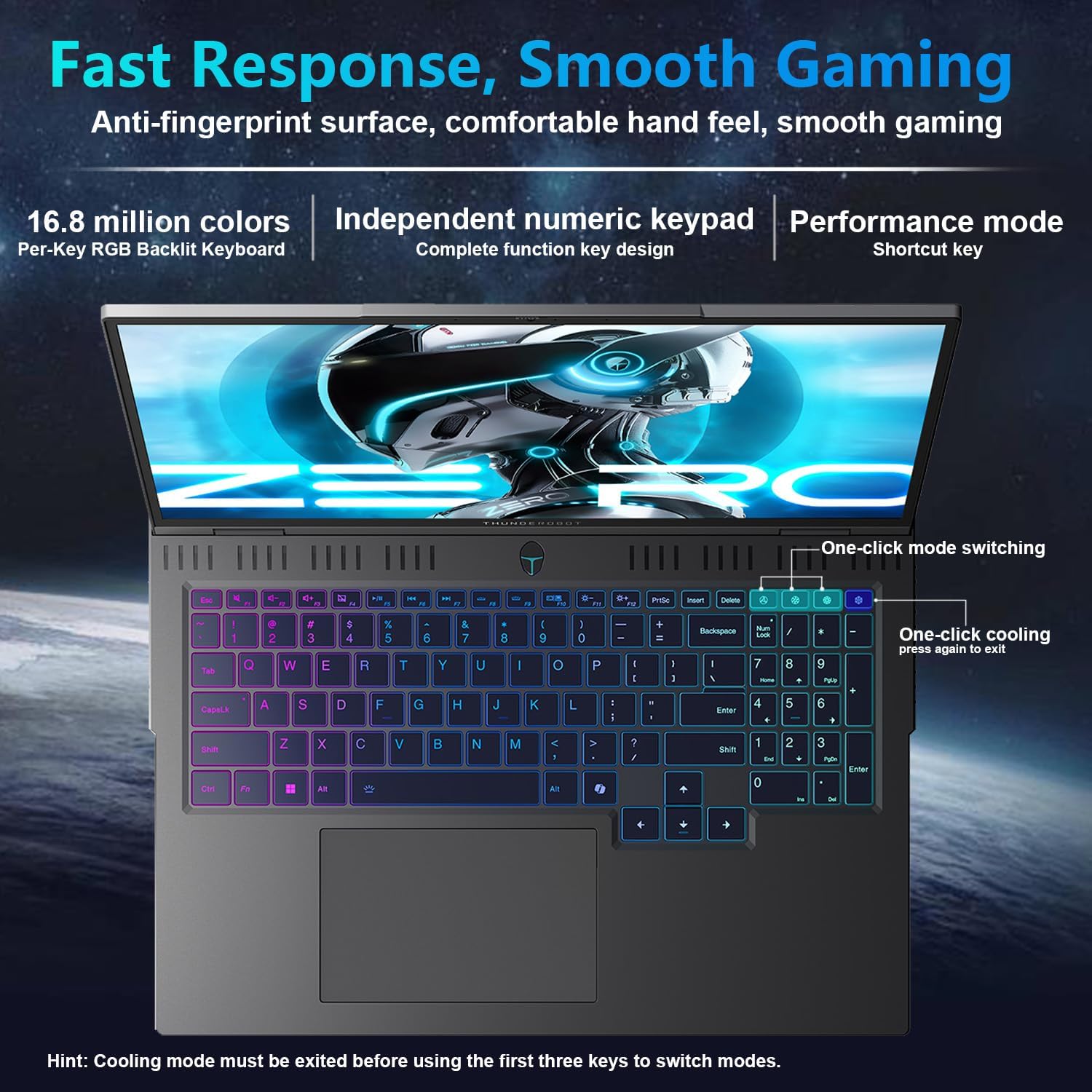
The laptop features a full-size, per-key RGB backlit keyboard with a numeric keypad. You can customize the RGB lighting effects through the Thunderobot Control Center software.
- Performance Mode Switching: Use dedicated shortcut keys to switch between performance profiles (e.g., Quiet, Balance, Turbo).
- One-Click Cooling: A dedicated key allows for instant activation of maximum cooling.
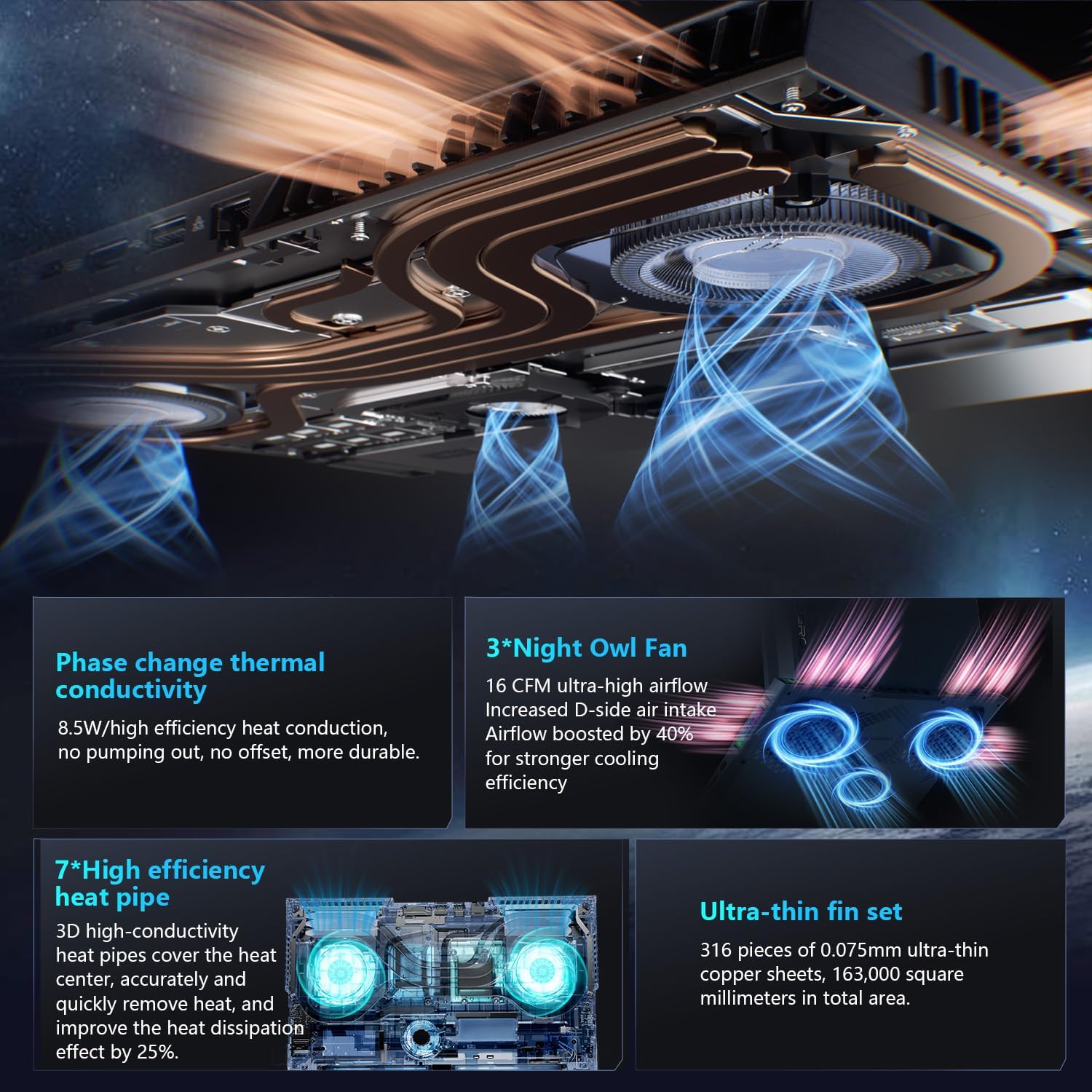
Image: The RGB backlit keyboard of the Thunderobot Zero 16 Pro, showing the full layout and numeric keypad.

Image: Visual guide to the keyboard's one-click mode switching and cooling activation keys.
Video: This video demonstrates the RGB lighting system and keyboard features of the Thunderobot Zero 16 Pro, including performance mode switching and one-click cooling.
2. Карактеристике екрана
The 16-inch QHD+ (2560x1600) display offers a 360Hz refresh rate and eye-care technology. To utilize the highest refresh rate, ensure the dedicated graphics direct connection mode is enabled in the Control Center.
- Anti-Glare & Anti-Reflection: Reduces distractions from ambient light.
- Anti-Blue Light: Helps reduce eye strain during prolonged use.
- Једносмерно затамњивање: Provides flicker-free eye protection.
- Professional Color Calibration: Обезбеђује тачну репродукцију боја.

Image: The 16-inch QHD+ display of the Thunderobot Zero 16 Pro, showcasing its high refresh rate and eye-care features.

Image: Infographic detailing the display's features such as 2.5K resolution, 360Hz refresh rate, 500 nits brightness, and various eye protection technologies.
3. Thunderobot Control Center
The AI Intelligent Control Center software allows for comprehensive management of your laptop's performance, lighting, and system settings. It is recommended to connect the device to a power source for full functionality of system mode switching.
- Performance Tuning: Adjust CPU and GPU settings for optimal performance or power saving.
- Intelligent Light Adjustment: Customize keyboard, strip, and logo RGB lighting.
- Comprehensive Adjustment: Monitor system status, fan speeds, and manage other personalized settings.
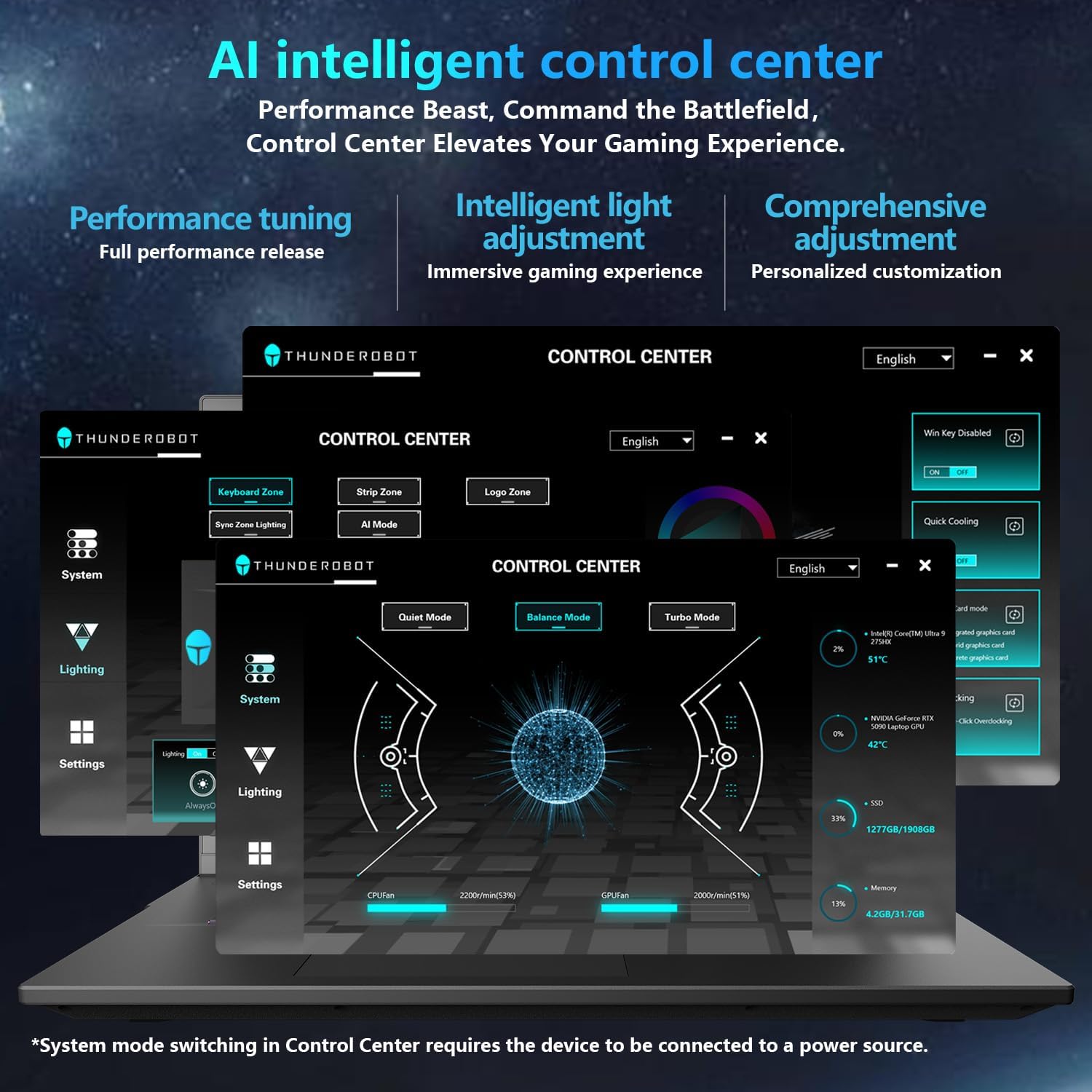
Image: A visual representation of the Thunderobot Control Center interface, showing options for system monitoring, lighting control, and performance settings.
Image: Infographic explaining the capabilities of the AI Intelligent Control Center, including performance tuning, intelligent light adjustment, and comprehensive system management.
4. Аудио систем
The laptop is equipped with a Soundstage Full audio system, featuring 4 speakers and Nahimic high-quality sound effects for an immersive audio experience.

Image: A graphic illustrating the Soundstage Full audio system with sound waves, emphasizing the immersive experience.
Video: This video showcases the display quality and overall design of the Thunderobot Zero series, including the Zero 16 Pro.
Одржавање
1. Систем за хлађење
The Thunderobot Zero 16 Pro features a robust cooling system designed to maintain performance under heavy loads. This includes dual Night Owl fans, 7 enlarged heat pipes, and 316 ultra-thin copper fins.
- Држите отворе за вентилацију чистима: Ensure that the air intake and exhaust vents are not obstructed to allow for proper airflow.
- Редовно чишћење: Периодично чистите прашину из вентилационих отвора помоћу компримованог ваздуха.

Слика: Експлодирана view of the laptop's internal cooling components, showing the dual fans, heat pipes, and fin set.

Image: Infographic explaining the Night Hawk fans, high-efficiency heat pipes, phase-change thermal conduction, and ultra-thin fin array.
2. Општа нега
- Чишћење: Користите меку крпу која не оставља влакна за чишћење екрана и кућишта. Избегавајте јаке хемикалије.
- Услови животне средине: Operate the laptop within recommended temperature ranges (-20°C to 60°C) and humidity (up to 90%).
- Трајање батерије: To prolong battery life, avoid frequently discharging the battery completely and store the laptop with a partial charge if not used for extended periods.
Video: This video highlights the robust build quality and testing of Thunderobot gaming products, demonstrating their durability.
Решавање проблема
Уобичајени проблеми и решења
| Иссуе | Могући узрок | Решење |
|---|---|---|
| Display not reaching 360Hz refresh rate. | Dedicated graphics direct connection mode is not enabled. | Enable the dedicated graphics direct connection mode in the Thunderobot Control Center. |
| Laptop performance is lower than expected. | Laptop is not connected to power, or is in a power-saving mode. | Connect the laptop to its power adapter. Adjust performance settings to "Turbo Mode" or "Performance Mode" in the Thunderobot Control Center. Ensure cooling vents are clear. |
| Keyboard RGB lighting is not working or customizable. | Lighting settings are disabled or not configured in the Control Center. | Open the Thunderobot Control Center and navigate to the "Lighting" section to enable and customize RGB effects. |
| Нема звука из звучника или слушалица. | Audio drivers are outdated, volume is muted, or incorrect output device selected. | Check volume levels and audio output settings in Windows. Update audio drivers if necessary. Ensure headphones are fully plugged into the 3.5mm jack. |
Спецификације
| Феатуре | Детаљ |
|---|---|
| Бранд | Thunderobot |
| Назив модела | ZERO 16 Pro |
| Величина екрана | 16 инча |
| Резолуција | 2560x1600 pixels (QHD+) |
| Рефресх Рате | 360Хз |
| ЦПУ модел | Intel Core Ultra 9 275HX (24 Cores, up to 5.4 GHz) |
| Грапхицс Цопроцессор | NVIDIA GeForce RTX 5080 (12 GB GDDR7) |
| Величина инсталиране РАМ меморије | 32 GB DDR5 (4800 MHz) |
| Величина чврстог диска | 1 TB SSD (PCIe x4) |
| Оперативни систем | Виндовс 11 Хоме |
| Технологија повезивања | Wi-Fi 6E, Bluetooth, USB-A, USB-C (Thunderbolt 5), HDMI, Ethernet, Audio Jack |
| Укупно УСБ портова | 4 |
| ХДМИ портови | 1 |
| Тастатура | Backlit, Full-size with Numeric Keypad |
| Webcam Capability | Да |
| Димензије артикла (Д к Ш к дебљина) | 14.09 cm D x 10.52 cm Š x 1.03 cm Deb |
| Специфичне употребе за производ | Гаминг |
Гаранција и подршка
Информације о гаранцији
Every Thunderobot laptop includes a 12-месечна гаранција, offering expert support, thorough diagnostics, and genuine parts if a repair is needed. Additionally, a 90-дневна гаранција is provided on all warranty replacement parts, ensuring hassle-free repairs. Your complete satisfaction is our commitment.
Корисничка подршка
For technical assistance, warranty claims, or product inquiries, please visit the official Thunderobot website or contact their customer support. Refer to the warranty card included in your package for specific contact details and terms.
Такође можете посетити Thunderobot Store on Amazon за додатне информације о производу и ресурсе за подршку.