
1. Производ је готовview
The Skylight Calendar 2 is a 15-inch Full HD touchscreen digital calendar designed to help families organize schedules, tasks, and routines. It features a vibrant display, Wi-Fi connectivity, and integration with various calendar services.
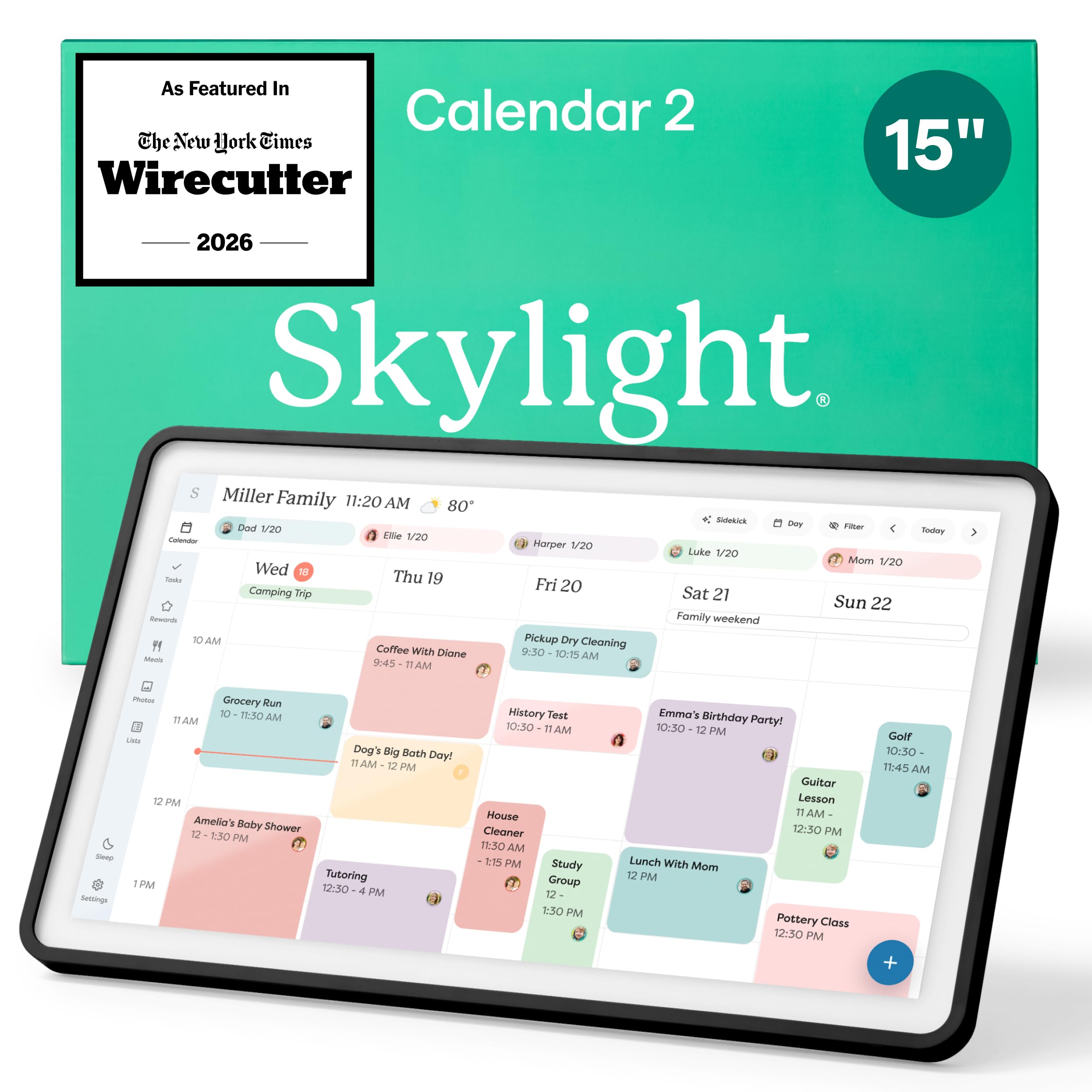
Image: The Skylight Calendar 2 displaying a detailed family schedule with color-coded events.
2. Садржај пакета
Проверите да ли су све ставке присутне у пакету:
- Skylight Calendar 2 (15-inch device)
- Повер Адаптер
- Removable Magnetic Snap Frame
- Подесиво постоље
- Wall Mount Kit (with built-in level)
- Водич за брзи почетак
3. Водич за подешавање
- Распакујте уређај: Carefully remove the Skylight Calendar 2 and all accessories from its packaging.
- Укључено: Connect the power adapter to the device and plug it into a wall outlet. The device will automatically power on.
- Повежите се на Ви-Фи: Follow the on-screen prompts to connect your Skylight Calendar 2 to your home Wi-Fi network. A stable internet connection is required for full functionality.
- Sync Calendars: Download the Skylight Calendar app on your smartphone or visit the Skylight website to create an account and sync your existing digital calendars (e.g., Google Calendar, Outlook, Apple Calendar).
- Опције пласмана:
- Tabletop/Countertop: Attach the adjustable stand to position the calendar on a flat surface. The stand allows for a 180° adjustment.
- Zidni nosač: Use the included wall mount kit to secure the calendar to a wall. The built-in level assists with proper alignment.

Image: The Skylight Calendar 2 shown with its adjustable stand, demonstrating flexible placement options.
4. Упутство за употребу
4.1. Кретање кроз интерфејс
The Skylight Calendar 2 features a responsive Full HD touchscreen. Swipe left or right to navigate through days or weeks, and tap on events or tasks for more details. The left-hand menu provides quick access to different features.
4.2. Calendar Syncing
The device seamlessly syncs with popular digital calendars. Once connected via the app, all your events will appear on the 15-inch display. Events can be color-coded for different family members or categories for easy identification.

Image: The Skylight Calendar 2 displaying a week's schedule with events synced from multiple sources like Google Calendar, Outlook, and Apple Calendar.
4.3. Task and Chore Management
Create and assign tasks or chores to family members. The interactive chore chart allows users to mark tasks as complete directly on the screen. With the optional Plus Plan, you can assign rewards for completed tasks.
4.4. Lists and Meal Planning
Utilize the Lists feature for groceries, packing, or any custom lists. The optional Plus Plan includes meal planning features, allowing you to plan meals for the week and add recipes.

Image: The Skylight Calendar 2 showing various lists, including a grocery list and a packing list, alongside a calendar view.
4.5. Photo Screensaver
When not actively in use, the Skylight Calendar 2 can function as a digital photo frame, displaying a rotating selection of your uploaded photos. This feature is available with the optional Plus Plan.

Image: The Skylight Calendar 2 showcasing family photos in screensaver mode.
4.6. Free Skylight App
Manage your calendar, tasks, and lists from anywhere using the free Skylight app on your smartphone. All changes sync in real-time to your Calendar 2 device.

Image: A smartphone displaying the Skylight Calendar app interface, showing synced events.
5. Одржавање
- Чишћење: Use a soft, dry, lint-free cloth to clean the screen and frame. Do not use liquid cleaners or sprays directly on the device.
- Ажурирања софтвера: The Skylight Calendar 2 receives automatic software updates to introduce new features and improvements. Ensure your device is connected to Wi-Fi for these updates.
- Прилагођавање оквира: The magnetic Snap Frame can be easily swapped to change the aesthetic of your calendar. Ensure the new frame is securely attached.

Image: A close-up of the Skylight Calendar 2 demonstrating the swappable magnetic frames.
КСНУМКС. Решавање проблема
- Уређај се не укључује: Уверите се да је адаптер за напајање безбедно повезан и са уређајем и са исправном електричном утичницом.
- Нема Wi-Fi везе: Check your router and ensure your Wi-Fi network is active. Re-enter your Wi-Fi password on the device if necessary. Move the device closer to your Wi-Fi router if signal is weak.
- Calendar Not Syncing: Verify that your external calendars are correctly linked through the Skylight app or website. Ensure the device has a stable internet connection.
- Екран осетљив на додир не реагује: Restart the device by unplugging it for 10 seconds and plugging it back in. If the issue persists, contact customer support.
- Проблеми са приказом: If the screen is dim or colors appear incorrect, check the display settings on the device. The auto-brightness feature adjusts to ambient light.
7. Спецификације
| Феатуре | Детаљ |
|---|---|
| Број модела | 152ЕА |
| Величина екрана | 15-инчни |
| Дисплаи Типе | Фулл ХД екран осетљив на додир |
| Складиштење | 16ГБ |
| РАМ | 4ГБ |
| Повезивање | Ви-Фи |
| Опције монтаже | Tabletop (adjustable stand), Wall Mount |
| УПЦ | 850067427438 |
8. Информације о гаранцији
For detailed warranty information, please refer to the warranty card included in your product packaging or visit the official Skylight webсајт. Сачувајте доказ о куповини за потребе гаранције.
9. Корисничка подршка
If you encounter any issues or have questions not covered in this manual, please contact Skylight customer support:
- Webсајт: ввв.скилигхтфраме.цом/суппорт
- Емаил: support@skylightframe.com