
1. Увод
Thank you for choosing the BitFenix AL118 ATX Mid Tower PC Case. This manual provides essential information for the proper installation, operation, and maintenance of your new PC case. Please read this manual thoroughly before beginning installation to ensure correct setup and to prevent any damage to the product or its components. Keep this manual for future reference.
Безбедносне информације
- Увек искључите напајање из зидне утичнице пре инсталирања или уклањања било којих компоненти.
- Handle components with care to avoid electrostatic discharge (ESD) damage. Consider using an anti-static wrist strap.
- Уверите се да су сви каблови правилно постављени и осигурани како би се спречило ометање вентилатора или других покретних делова.
- Do not open the power supply unit (PSU) as it contains high voltagе компоненте.
- Keep the case away from direct sunlight, high temperatures, and moisture.
2. Производ је готовview и карактеристике
The BitFenix AL118 is a high-performance ATX Mid Tower PC case designed for enthusiasts. It features a tempered glass side panel, integrated ARGB lighting, and comes equipped with a 1000W 80+ Gold Gen5 ATX 3.0 power supply unit. The case offers extensive compatibility for various motherboard sizes, GPUs, and cooling solutions.
Кључне карактеристике:
- Фактор форме: АТКС Мид Товер
- Напајање: Integrated 1000W 80+ Gold Gen5 ATX 3.0 PSU
- Бочна плоча: Каљено стакло
- Осветљење: Addressable RGB (ARGB) elements
- Подршка за матичну плочу: MicroATX, Mini-ITX (ATX implied by case type)
- Предњи И / О: 1 x USB 3.2 Type-C, 2 x USB 3.0
- Storage Bays: 2 x 2.5" internal, 1 x 3.5" internal
- Размак ГПУ-а: До 400 мм
- Подршка за хлађење:
- Top Radiator: 240mm, 280mm, 360mm
- Rear Radiator: 1 x 120mm
- Rear Fan: 1 x 120mm (pre-installed ARGB)
- Top Fan: 3 x 120mm or 3 x 140mm (support)
- Side Fan: 3 x 120mm (pre-installed ARGB)
3. Водич за подешавање
Follow these steps to properly set up your BitFenix AL118 PC case and install your components.
3.1 Распакивање и почетни преглед
- Пажљиво извадите кућиште из његовог паковања.
- Inspect the case for any signs of damage during transit. If damaged, contact your retailer immediately.
- Remove the tempered glass side panel by unscrewing the thumb screws (if present) or releasing the latch mechanism. Place it on a soft, flat surface to prevent scratches.
- Locate the accessory box inside the case, which contains screws, cable ties, and other mounting hardware.
3.2 Инсталација матичне плоче
- Ensure the correct standoffs are installed for your motherboard form factor (MicroATX, Mini-ITX). Additional standoffs may be in the accessory box.
- Инсталирајте И/О штит у задњи отвор кућишта.
- Пажљиво поставите матичну плочу на одстојнике, поравнавајући рупе за вијке.
- Причврстите матичну плочу приложеним завртњима. Немојте превише затезати.

Слика 3.2.1: Унутрашњи view of the case, highlighting the motherboard tray and various mounting points for fans and components.
3.3 Инсталација графичке картице (GPU)
- Remove the necessary expansion slot covers from the rear of the case, corresponding to your GPU's size.
- Insert your GPU into the appropriate PCIe slot on the motherboard until it clicks into place.
- Secure the GPU to the case with screws.
- Connect the required PCIe power cables from the PSU to the GPU.
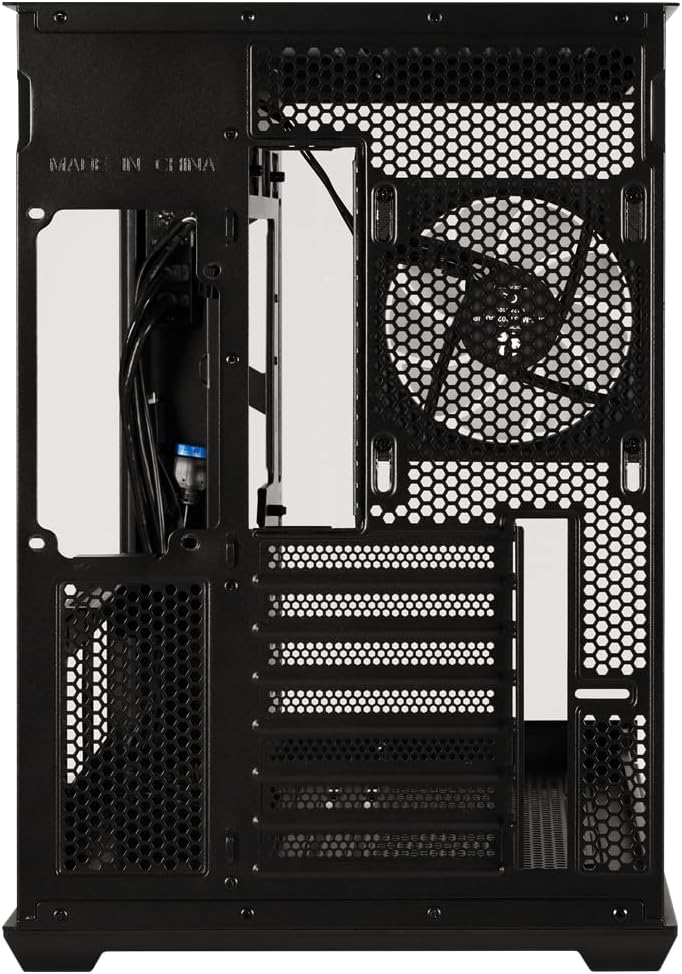
Слика 3.3.1: Задња страна view of the case, showing the expansion slots where graphics cards are mounted and the pre-installed rear fan.
3.4 Storage Drive Installation (2.5" SSD/HDD, 3.5" HDD)
- Locate the 2.5" drive mounts (2 available) and 3.5" drive bay (1 available). These are typically found behind the motherboard tray or in a dedicated drive cage.
- For 2.5" drives, secure them to the mounting brackets with screws.
- For 3.5" drives, slide them into the drive cage and secure with screws or tool-less clips if available.
- Connect SATA data cables to the motherboard and SATA power cables from the PSU to each drive.
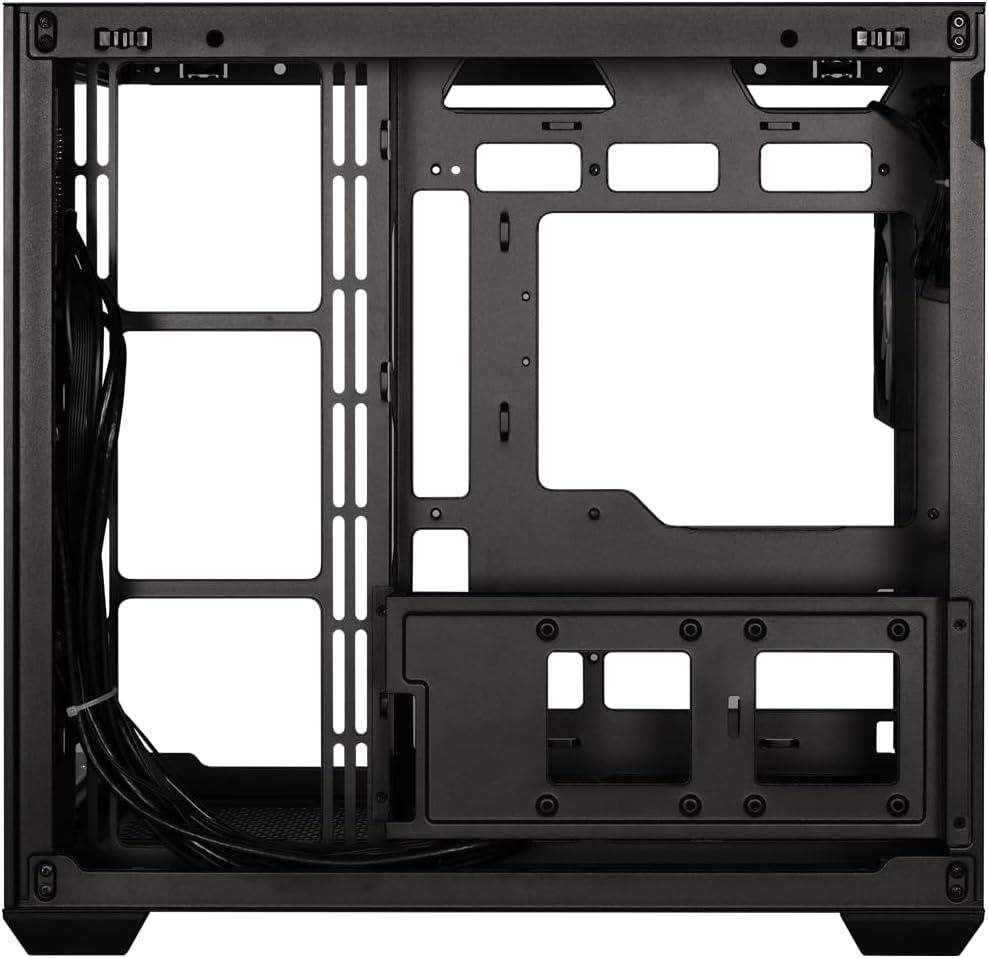
Слика 3.4.1: View behind the motherboard tray, illustrating the cable management channels and mounting locations for 2.5-inch and 3.5-inch storage drives.
3.5 Power Supply Unit (PSU) Connections
Your BitFenix AL118 case comes with a pre-installed 1000W 80+ Gold Gen5 ATX 3.0 PSU. Ensure all necessary power cables are connected:
- 24-пински ATX напајање: Connect to the motherboard.
- 8-pin (4+4) EPS/CPU Power: Connect to the motherboard CPU power header.
- PCIe напајање: Connect to your graphics card(s) as required.
- САТА напајање: Connect to your storage drives.
- Peripheral/Molex Power: Connect to any other components requiring this type of power.
3.6 Прикључци предње плоче
Connect the front panel cables to the corresponding headers on your motherboard:
- УСБ 3.2 Типе-Ц: Connect the internal USB-C header cable to your motherboard's USB 3.2 Gen2 Type-C header.
- УСБ 3.0: Connect the internal USB 3.0 header cable to your motherboard's USB 3.0 header.
- ХД аудио: Connect to your motherboard's audio header.
- Power SW, Reset SW, HDD LED, Power LED: Connect these small connectors to the front panel header pins on your motherboard according to your motherboard manual.

Слика 3.6.1: Унутрашњи view showing the pre-installed ARGB fans and the routing of front panel I/O cables, including USB 3.2 Type-C and USB 3.0 connections.
3.7 Управљање кабловима
Utilize the cable routing cutouts and tie-down points behind the motherboard tray to manage cables. Proper cable management improves airflow and aesthetics.
- Route main power cables (24-pin, EPS) through the largest cutouts.
- Use cable ties or Velcro straps (included in accessory box) to bundle and secure cables.
- Ensure no cables obstruct fan blades or airflow paths.
4. Упутство за употребу
4.1 Укључивање система
- Once all components are installed and cables connected, replace the tempered glass side panel.
- Connect the AC power cord to the PSU and then to a wall outlet.
- Пребаците прекидач за напајање на задњој страни напајања у положај „УКЉУЧЕНО“.
- Press the power button on the front panel of your case.
4.2 ARGB контрола осветљења
The BitFenix AL118 features Addressable RGB (ARGB) lighting. The control method depends on how the ARGB components are connected:
- Синхронизација матичне плоче: If the ARGB cables are connected to a compatible 3-pin 5V ARGB header on your motherboard, you can control the lighting effects using your motherboard's RGB software (e.g., ASUS Aura Sync, MSI Mystic Light, Gigabyte RGB Fusion, ASRock Polychrome Sync).
- Интегрисани контролер: If the case includes a built-in ARGB controller (often connected to a reset button or dedicated ARGB button), you can cycle through pre-programmed lighting modes by pressing that button. Refer to the specific controller's instructions if applicable.
5. Одржавање
Редовно одржавање помаже у обезбеђивању оптималних перформанси и дугог века трајања компоненти вашег рачунара.
- Филтери за прашину: The case is equipped with dust filters (e.g., top, front, bottom). Regularly remove and clean these filters with water and mild soap, or by vacuuming/brushing them. Ensure they are completely dry before re-installing.
- Унутрашње чишћење: Periodically use compressed air to blow dust out of the case interior, especially from fan blades, heatsinks, and vents. Ensure the system is powered off and unplugged before cleaning.
- каљено стакло: Очистите каљено стакло крпом од микрофибера и неабразивним средством за чишћење стакла. Избегавајте јаке хемикалије.
КСНУМКС. Решавање проблема
If you encounter issues with your PC build, refer to the following common troubleshooting steps:
- Нема напајања / Систем се не покреће:
- Ensure the PSU power switch is in the 'ON' position.
- Check that the AC power cord is securely connected to both the PSU and the wall outlet.
- Verify all PSU cables (24-pin, EPS, PCIe) are firmly connected to the motherboard and components.
- Confirm the front panel power switch cable is correctly connected to the motherboard header.
- Нема излаза на екран:
- Ensure your monitor is connected to the graphics card (GPU) output, not the motherboard's integrated graphics output (unless you are using integrated graphics).
- Поново поставите графичку картицу у њен PCIe слот.
- Check that the GPU's power cables are securely connected.
- Fans Not Spinning / ARGB Not Working:
- Verify that all fan power cables are connected to the motherboard fan headers or a fan controller.
- Check ARGB cables are connected to a compatible 3-pin 5V ARGB header on the motherboard or an ARGB controller.
- Ако користите софтвер матичне плоче, уверите се да је правилно инсталиран и конфигурисан.
- прегревање:
- Ensure all case fans are spinning and oriented correctly for optimal airflow (intake/exhaust).
- Clean dust filters and case interior as described in the Maintenance section.
- Verify CPU cooler and GPU cooler are properly installed and functioning.
7. Спецификације
| Феатуре | Спецификација |
|---|---|
| Назив модела | BitFenix AL118 1000W 80+Gold Gen5 ATX 3.0 TemperedGlass ARGB ATX MidTower SiyahKasa BFC-ALB100KKGSK-4A |
| Парт Нумбер | BFC-ALB100KKGSK-4A |
| Тип случаја | АТКС Мид Товер |
| Компатибилност матичне плоче | MicroATX, Mini-ITX (ATX implied by case type) |
| Јединица за напајање (ПСУ) | 1000W 80+ Gold Gen5 ATX 3.0 (Pre-installed) |
| Локација ПСУ | Дно |
| Сиде Панел | Каљено стакло |
| Предњи И / О портови | 1 x USB 3.2 Type-C, 2 x USB 3.0 |
| Унутрашњи одељци за дискове од 2.5 инча | 2 |
| Унутрашњи одељци за дискове од 3.5 инча | 1 |
| Максимална дужина ГПУ-а | 400мм |
| Врхунска подршка за радијаторе | 240 мм, 280 мм, 360 мм |
| Подршка задњег хладњака | 1 к 120 мм |
| Front Panel Fan Support | None (Side fans are present) |
| Rear Panel Fan Support | 1 к 120 мм |
| Top Panel Fan Support | 3 к 120 мм, 3 к 140 мм |
| Pre-installed Fans (Side) | 3 x 120mm ARGB |
| Pre-installed Fans (Rear) | 1 x 120mm ARGB |
| Димензије производа | 48 к 45.5 к 34.5 цм |
| Тежина производа | 8 килограма |
8. Гаранција и подршка
BitFenix products are manufactured to the highest quality standards. For specific warranty terms and conditions, please refer to the warranty card included with your product or visit the official BitFenix website. If you encounter any issues that cannot be resolved using this manual, please contact BitFenix customer support or your retailer for assistance.
Official BitFenix Webсајт: ввв.битфеник.цом