
Увод
Thank you for choosing the RedThunder K75 Wireless Mechanical Keyboard. This manual provides detailed instructions for setting up, operating, and maintaining your keyboard. Please read this manual thoroughly to ensure proper use and to maximize your experience with the K75 keyboard.

Слика: Прекоview of the RedThunder K75 Mechanical Keyboard highlighting its main features.
Шта је у кутији
Проверите да ли су све ставке присутне у пакету:
- К75 тастатура
- УСБ кабл
- Spare Switches (4 pieces)
- Упутство за употребу
- Кеицап Пуллер
- 2.4Г Донгле

Image: All components included in the RedThunder K75 package.
Сетуп
Режими повезивања
The RedThunder K75 supports three connection modes: USB-C Wired, 2.4GHz Wireless, and Bluetooth (BT). Ensure the system switch (Win/Mac) and connection mode switch are in the correct positions before use.
- USB-C жичани: Повежите тастатуру са уређајем помоћу приложеног USB-C кабла за пренос података.
- Бежична веза од 2.4 GHz: Insert the 2.4G dongle into your device's USB port. The keyboard will connect automatically.
- Блуетоотх (БТ): Притисните ФН+К/В/Е to switch between BT1, BT2, or BT3 devices.

Image: Illustration of the three multi-device connection modes available on the K75 keyboard.
Инсталација драјвера (само за Windows)
To access comprehensive programmability and customization options, download and install the K75-US driver. This software is compatible with Windows operating systems and functions when the keyboard is connected via 2.4G wireless or wired mode.
Steps for Driver Download:
- Ensure the system switch on the keyboard is set to "Win".
- Connect the keyboard to your Windows PC using the original USB-C data cable.
- Visit the official RedThunder website or use the provided short link (if available in your product documentation) to download the K75-US driver.
- Пратите упутства на екрану да бисте довршили инсталацију.
Video: Instructions on how to download and install the K75 driver for Windows.
Упутство за употребу
Multi-function CNC Knob
The CNC knob provides versatile control for both gaming and office modes:
- Пребаците режиме: Long press the knob for approximately 5 seconds to switch between Gaming Mode and Office Mode.
- Гаминг Моде: Rotate the knob to adjust backlight brightness. Click the knob to cycle through lighting effects.
- Канцеларијски режим: Rotate the knob to adjust system volume. Click the knob to play or pause media.

Image: Detailed functions of the CNC knob and indicator lights.
RGB контрола позадинског осветљења
The K75 keyboard features full RGB backlighting with 1.68 million colors. Adjust lighting effects using FN key combinations or the dedicated software.
- Подесите осветљеност позадинског осветљења: Притисните FN + ↑ / ↓.
- Подесите брзину позадинског осветљења: Притисните ФН + ← / →.
- Switch Side Lighting Modes: Притисните ФН + ТАБ.
- Пребаците режим позадинског осветљења: Притисните ФН + \|.
- Пребаците боју позадинског осветљења: Притисните FN + PU.
- Self-set Game Lighting: Притисните FN + PD once to activate, press twice to start customized game lighting.
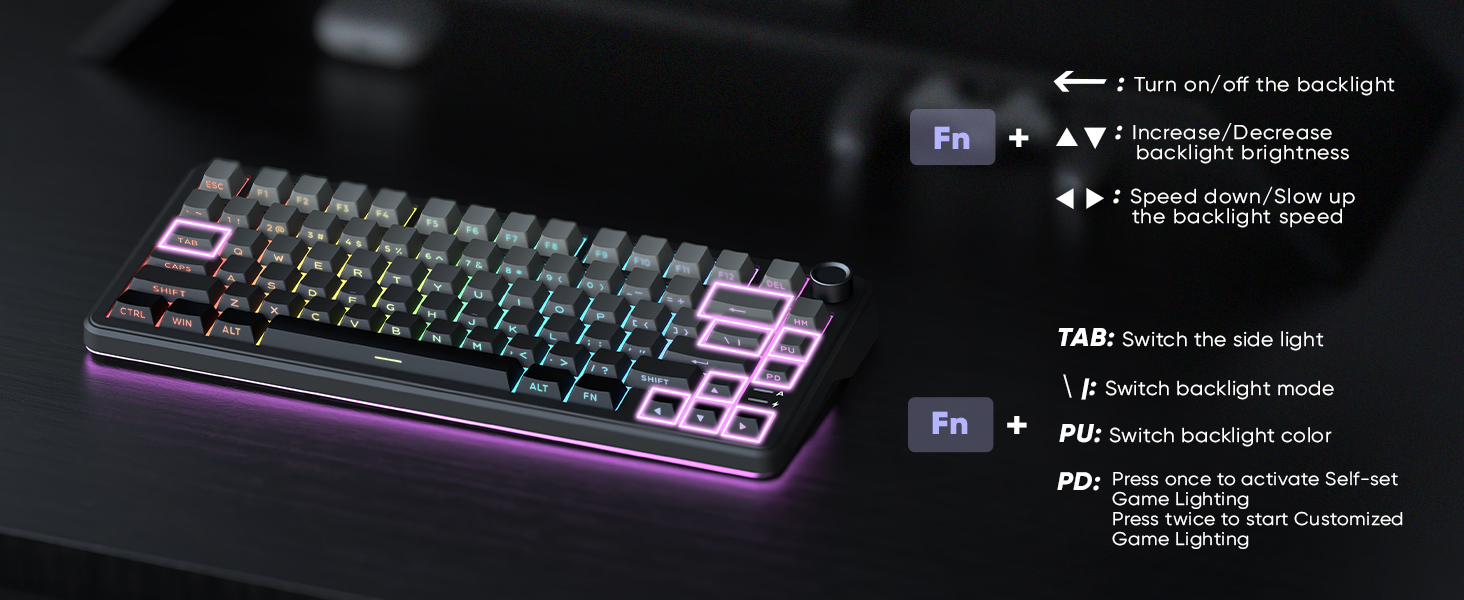
Image: The K75 keyboard displaying its vibrant RGB lighting.
Прекидачи са заменљивом брзином
The K75 features a hot-swappable PCB, allowing you to easily replace 3-pin or 5-pin mechanical switches without soldering. This enables customization of your typing feel.
- Use the included keycap puller to remove keycaps.
- Use the included switch puller to carefully remove the switch.
- Align the pins of the new switch with the sockets on the PCB and press firmly until it clicks into place.
- Замените поклопац тастера.

Image: Hot-swappable switches and components of the K75 keyboard.
Информације о батерији
The keyboard is equipped with a rechargeable 4000mAh lithium-ion battery. A charging indicator light shows the power status:
- Слаба батерија: Трепери црвено.
- Пуњење: Stays red.
- Потпуно напуњен: Green/Off.
For optimal charging, use the original charging cable or a qualified data-capable cable connected to a computer's USB port (DC: 5V).

Image: Battery capacity and estimated usage times for the K75 keyboard.
Програмабилни софтвер
The K75-US driver software (Windows only, 2.4G wireless or wired mode) allows for extensive customization:
- Мапирање тастера: Reassign keys to suit your workflow.
- Macro Definition: Create complex sequences of commands.
- Ефекти позадинског осветљења: Adjust RGB lighting, including music rhythm backlights.
- Sensitivity & Debounce: Fine-tune keyboard response.
- Време спавања: Конфигуришите подешавања за уштеду енергије.

Image: The K75 programmable software interface for customization.
Video: Demonstration of the RedThunder K75 Gaming Keyboard's features and lighting.
Одржавање
Чишћење
Regular cleaning helps maintain keyboard performance and appearance:
- Искључите тастатуру из свих извора напајања пре чишћења.
- Користите меку крпу која не оставља длачицеampводом или благим раствором за чишћење да бисте обрисали капице тастера и кућиште.
- За прашину и остатке између тастера користите компримовани ваздух или малу четку.
- Избегавајте употребу јаких хемикалија или абразивних материјала.
Замена прекидача
As the K75 is hot-swappable, switches can be replaced if they become faulty or if you wish to change the typing feel. Refer to the "Hot-Swappable Switches" section for detailed instructions.
Решавање проблема
If you encounter issues with your RedThunder K75 keyboard, please refer to the following common solutions:
- Проблеми са повезивањем: Ensure the keyboard is fully charged. Check that the system switch (Win/Mac) and connection mode switch (Wired/2.4G/BT) are correctly set. For Bluetooth, ensure your device's Bluetooth is enabled and the keyboard is paired.
- Тастери не реагују: Try reconnecting the keyboard. If using wireless, ensure the dongle is properly inserted or Bluetooth is paired. If a specific key is not working, consider replacing the switch as the keyboard is hot-swappable.
- Проблеми са позадинским осветљењем: Check backlight brightness settings using ФН + ↑. Ensure the keyboard is not in a mode where backlighting is disabled. If using the software, verify settings there.
- Софтвер не детектује тастатуру: Ensure the keyboard is connected via USB-C wired or 2.4G wireless mode and the system switch is set to "Win". Restart the software and/or your computer.
- Батерија се не пуни: Use the original USB-C cable and connect to a reliable power source, preferably a computer's USB port. Check the charging indicator light.
If problems persist, please contact RedThunder customer support for further assistance.
Спецификације
| Број модела | К75 |
| Бранд | РедТхундер |
| Димензије | 14 к 7 к 1.9 инча (35.56 к 17.78 к 4.83 цм) |
| Тежина артикла | 1.98 фунте (0.9 кг) |
| Повезивање | 2.4G Wireless, Bluetooth, USB-C |
| Батерија | 4000mAh литијум-јонска батерија (укључена) |
| Прекидачи | Hot-Swappable (3-pin/5-pin compatible) |
| Позадинско осветљење | Full RGB |
| Кеицапс | Dual-color PBT |
| Посебне карактеристике | CNC Knob, Programmable Keys, Gasket Structure, Two-stage Foot Support |
Гаранција и подршка
For warranty information or technical support, please refer to the documentation included with your product or visit the official RedThunder website. You may also contact RedThunder customer service directly for assistance with product issues or inquiries.