
Увод
Thank you for choosing the CORBOBO Aula F3099 Wireless Keyboard and SM802 Wireless Mouse Combo. This manual provides detailed instructions for setting up, operating, and maintaining your new peripheral devices. Please read this manual thoroughly before use to ensure optimal performance and longevity of your product.
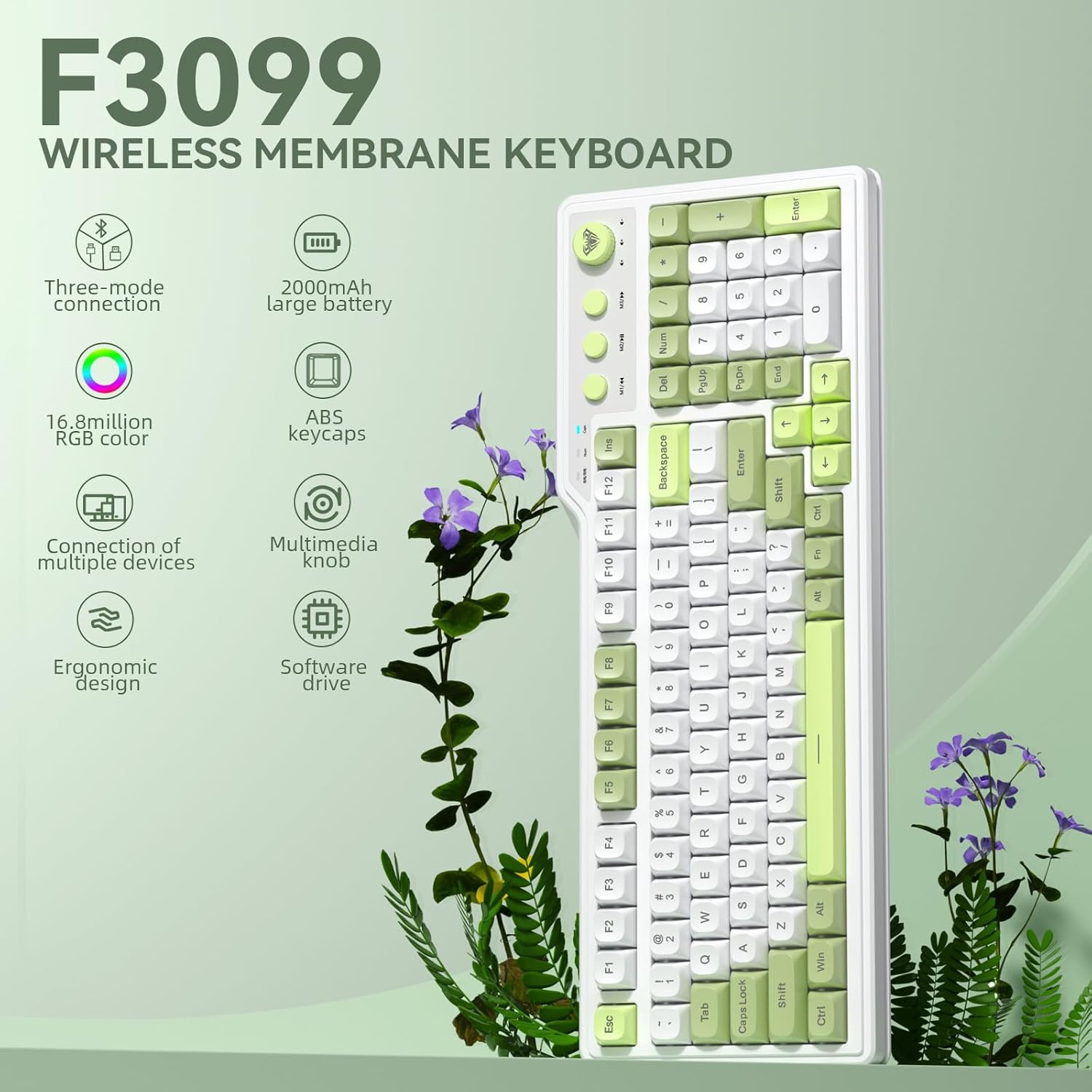
Слика: Прекоview of the Aula F3099 Wireless Keyboard and SM802 Wireless Mouse Combo.
Упутства за подешавање
1. Keyboard Connection (Aula F3099)
The Aula F3099 keyboard supports three connection modes: 2.4G wireless, Bluetooth, and wired USB-C.
- 2.4Г бежични режим: Притисните Фн + ~ to activate 2.4G wireless mode. Insert the USB receiver into an available USB port on your computer. The keyboard will automatically connect.
- Блуетоотх режим: Притисните Фн + КСНУМКС, Фн + КСНУМКС, или Фн + КСНУМКС to switch between three Bluetooth channels. The keyboard can store up to three Bluetooth devices. On your device (PC, laptop, mobile), search for "F3099" in the Bluetooth settings and pair.
- Жични режим: Притисните Фн + КСНУМКС to switch to wired mode. Connect the keyboard to your computer using the provided USB-C cable.

Image: Illustration of the Aula F3099 keyboard's tri-mode connection capabilities.
2. Mouse Connection (SM802)
The SM802 mouse also supports tri-mode connectivity: 2.4GHz wireless, Bluetooth, and wired USB.
- 2.4 ГХз бежични режим: Locate the mode switch on the bottom of the mouse and set it to 2.4G. Insert the USB receiver (often stored in the mouse's bottom compartment) into your computer's USB port.
- Блуетоотх режим: Set the mode switch on the bottom of the mouse to BT. On your device, search for "SM802" in the Bluetooth settings and pair.
- Жични режим: Connect the mouse to your computer using a USB cable. The mouse will function in wired mode and charge simultaneously.
3. Пуњење
Both the Aula F3099 keyboard and SM802 mouse are rechargeable. Connect them via USB-C cable to a power source (e.g., computer USB port, USB wall adapter) to charge. An indicator light will typically show charging status.
Упутство за употребу
1. Aula F3099 Keyboard Operation
- Мултимедијално дугме: The knob has dual modes. Long-press the knob for 3 seconds to switch between Gaming Mode and Office Mode.
- Гаминг Моде: Rotate the knob to adjust RGB backlight brightness. Press the knob to cycle through different backlight effects.
- Канцеларијски режим: Rotate the knob to adjust computer volume. Press the knob to mute/unmute audio.
- Multimedia Hot Keys (M1/M2/M3): These keys function differently based on the knob's mode.
- Гаминг Моде: In wired mode, M1/M2/M3 can be customized for macros. To record a macro: Press Фн + ИНС, then press M1/M2/M3, enter your desired key output, and press Фн + ИНС опет да уштедим.
- Канцеларијски режим: M1 (Previous Song), M2 (Play/Pause), M3 (Next Song).
- RGB Backlight Adjustment:
- Фн + Крај: Adjust constant light mode.
- Фн + ПгУп: Adjust to the next light effect.
- Фн + ПгДн: Adjust to the last light effect.
- Fn + !: Повећајте осветљеност позадинског осветљења.
- Фн + -: Смањите осветљеност позадинског осветљења.
- Fn + =: Increase light speed.
- Fn + _: Decrease light speed.
- Програмабилни драјвер: The keyboard supports macro customization via a driver. The driver only operates in wired mode on Windows systems. Note that this membrane silicone keyboard does not support hot-swap functionality.

Слика: Детаљна view of the Aula F3099 keyboard's dual-mode multimedia knob functions.
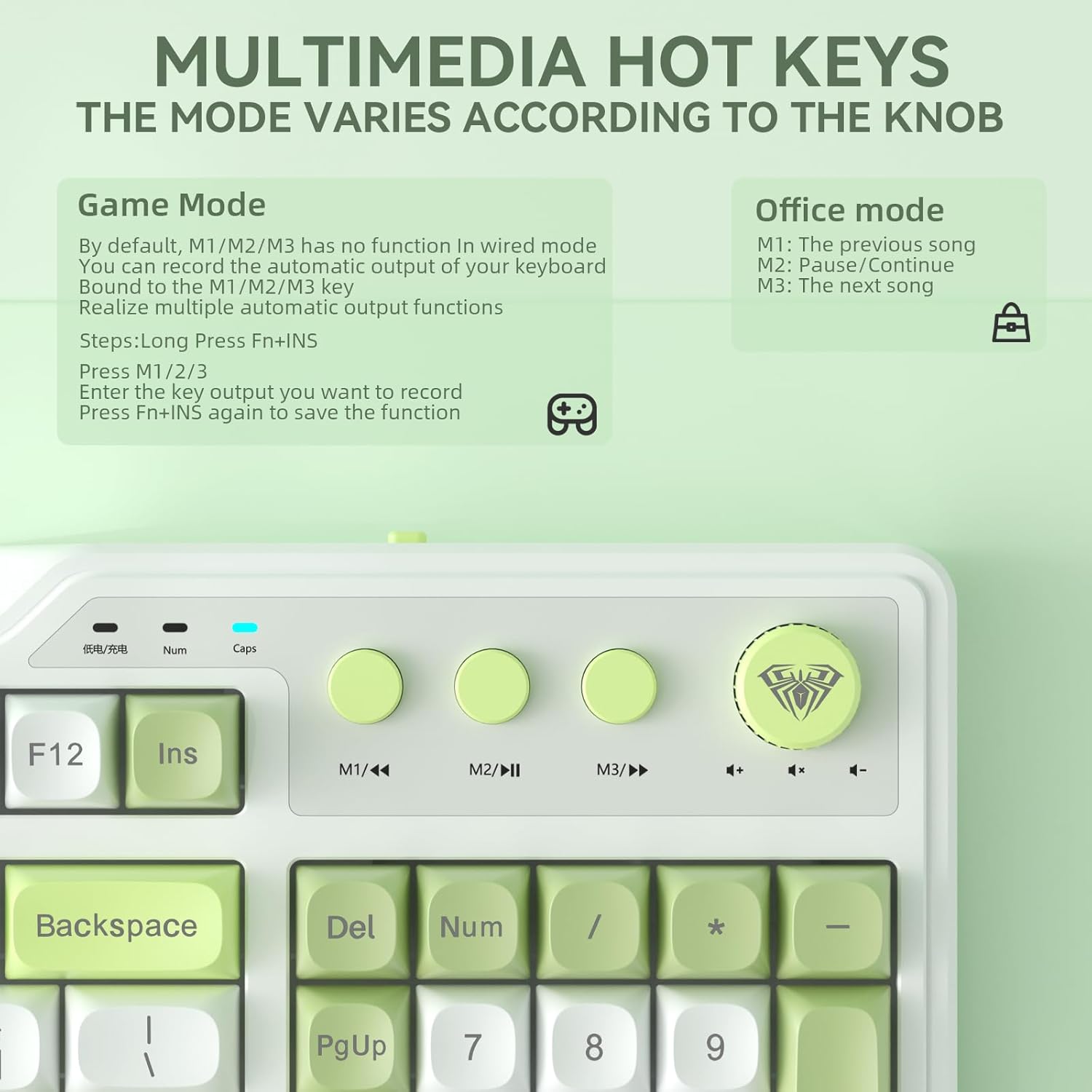
Image: Explanation of multimedia hot key functions in both game and office modes.
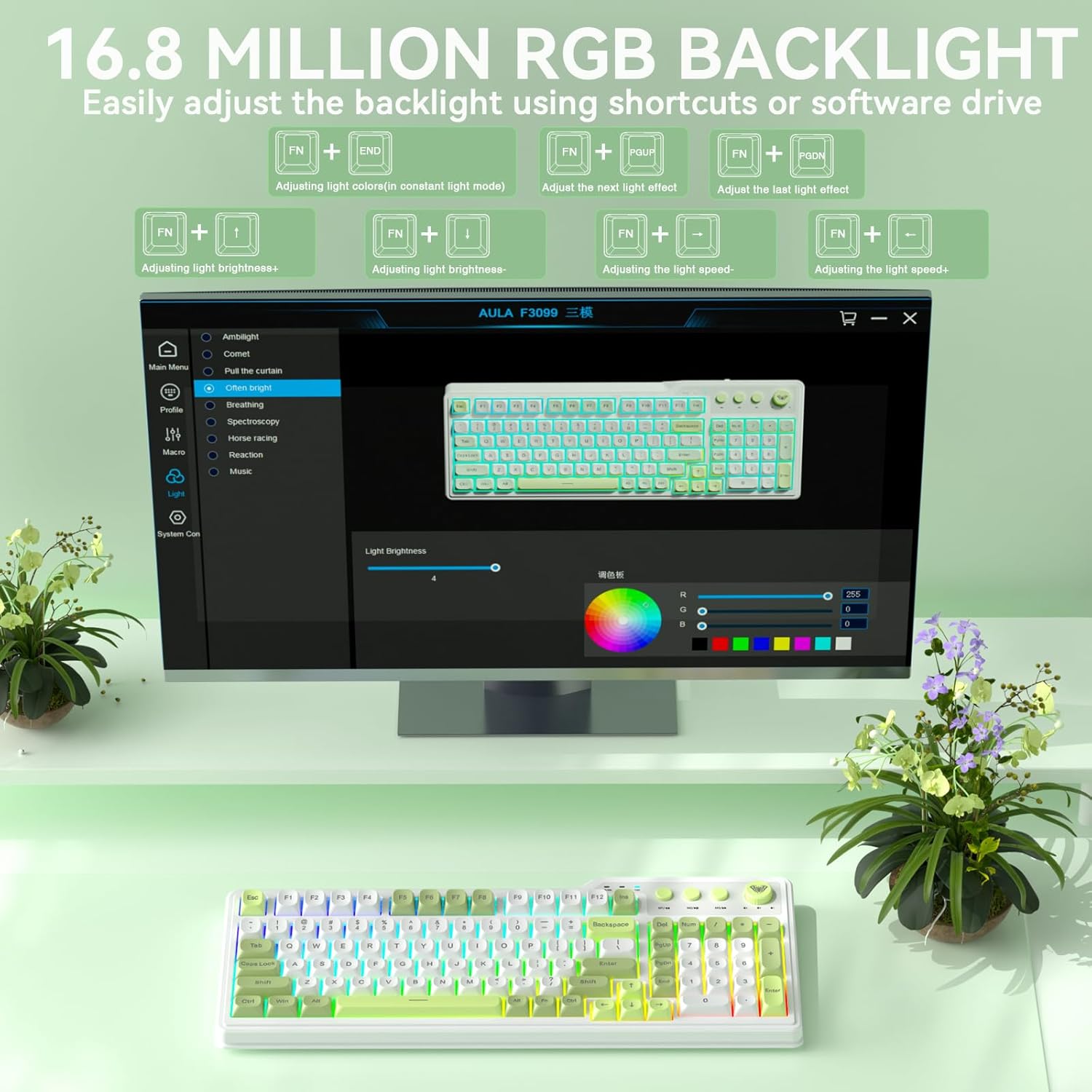
Image: Visual guide for adjusting the 16.8 million RGB backlight effects and brightness.
2. SM802 Mouse Operation

Слика: Прекоview of the SOLAKAKA SM802 Wireless Gaming Mouse, highlighting its features.
- ДПИ подешавање: The mouse comes with 6 preset DPI levels (1200/1600/2400/3200/6400/12800). Use the DPI switching button (located near the scroll wheel) to cycle through these levels. DPI can be adjusted up to 24,000 via the driver software.
- Програмабилна дугмад: The SM802 features 6 programmable buttons. These include Left, Right, Middle Click, Roller Forward, Roller Backward, Forward, and Backward buttons. Macro functions and remapping can be configured using the dedicated driver software.
- RGB ефекти: The mouse features multiple RGB lighting effects. These can be switched via a dedicated RGB switching button (non-programmable) or through the driver software. Available effects include turning off lighting, Wave (colorful RGB waves), and Circular Breathing (single-color breathing light).
- Interchangeable Shells: The mouse includes two interchangeable shell kits: a breathable version and a classic version. These can be swapped to change the mouse's appearance and feel. The breathable shell reduces weight to 68 grams and enhances airflow for comfort.

Image: Diagram illustrating the 6 programmable buttons on the SM802 mouse.

Слика: прamples of RGB lighting effects available on the SM802 mouse.
Одржавање
- Чишћење: Користите меку, суву крпу за чишћење површина тастатуре и миша. За тврдокорну прљавштину, благо дamp cloth with mild soap can be used, ensuring no liquid enters the device. Avoid harsh chemicals or abrasive materials.
- Одржавање батерије: To prolong battery life, avoid fully discharging the devices frequently. Charge them when the battery indicator is low. If storing for an extended period, charge them to about 50% and store in a cool, dry place.
- Складиштење: Store the keyboard and mouse in a clean, dry environment away from extreme temperatures, direct sunlight, and excessive dust.
Решавање проблема
- Уређај се не повезује:
- Уверите се да је уређај укључен и потпуно напуњен.
- Verify the correct connection mode (2.4G, BT, Wired) is selected on the device.
- За 2.4G, уверите се да је USB пријемник безбедно прикључен.
- For Bluetooth, ensure Bluetooth is enabled on your computer/device and re-attempt pairing.
- Покушајте да се повежете путем жичног режима да бисте искључили проблеме са бежичном мрежом.
- Backlight Not Working/Adjusting (Keyboard):
- Check if the keyboard is in Gaming Mode if you are trying to adjust effects via the knob.
- Ensure you are using the correct Fn key combinations for backlight adjustments.
- The backlight may be turned off or set to minimum brightness.
- Проблеми са праћењем миша:
- Уверите се да је сензор миша чист и без прљавштине.
- Use the mouse on a suitable surface (e.g., mouse pad).
- Adjust DPI settings to a comfortable level.
- Напуните миш ако је батерија празна.
- Driver Software Issues:
- Ensure the keyboard/mouse is connected in wired mode when installing or using the driver.
- The driver is compatible with Windows systems only.
- Download the latest driver from the official CORBOBO webсајт ако је доступан.
Спецификације
Aula F3099 Wireless Keyboard
- Повезивање: Tri-Mode (2.4G Wireless, Bluetooth 5.0, USB-C Wired)
- Капацитет батерије: 2000мАх
- Тастери: АБС материјал
- Позадинско осветљење: 16.8 милиона РГБ
- Карактеристике: Multimedia knob (dual-mode), Number pad, Programmable driver (Windows, wired mode), Ergonomic design
- Компатибилност: PCs, Laptops, Mobile devices (Bluetooth)
SOLAKAKA SM802 Wireless Gaming Mouse
- Повезивање: Tri-Mode (2.4GHz Wireless, Bluetooth, Wired USB)
- Сензор: Premium PAW3311 Optical Tracking System
- ДПИ: 1200/1600/2400/3200/6400/12800 (preset), up to 24,000 DPI (via driver)
- Брзина праћења: КСНУМКС ИПС
- убрзање: 35г
- Стопа гласања: До 1000Хз
- Тежина: 68g (with breathable shell)
- Дугмад: 6 Програмабилна дугмад
- Карактеристике: RGB Backlight, Rechargeable, Interchangeable Shells (breathable/classic)
- Компатибилност: Laptop/PC/Mac