
1. Увод
The ASHATA USB Barcode Scanner is an omnidirectional desktop device designed for efficient 1D and 2D (QR) code reading. It is suitable for various environments such as supermarkets, retail stores, and banks, providing fast and accurate scanning capabilities for both printed labels and digital displays.
Кључне карактеристике:
- Скенирање високих перформанси: Equipped with advanced decoding technology for superior scanning performance.
- Меко ЛЕД осветљење: Features an LED light for gentle illumination, designed to reduce eye strain during prolonged use.
- Multi-Feedback System: Provides user feedback through both a buzzer and LED indicator lights.
- Издржљива конструкција: Built with a sturdy ABS structure, IP42 rated, capable of withstanding drops from up to 1.5 meters.
- Свестрано повезивање: Supports USB and RS232 interfaces for broad compatibility with various systems.
2. Садржај пакета
Молимо вас да проверите да ли су све ставке присутне у пакету:
- 1 x Barcode Scanning Platform
- 1 к Упутство за употребу

Image: The ASHATA USB Barcode Scanner shown alongside its included user manual.
3. Подешавање
Follow these steps to set up your ASHATA USB Barcode Scanner:
- Повежите УСБ кабл: Locate the USB cable attached to the barcode scanner.
- Plug into Device: Connect the USB cable to an available USB port on your computer, POS system, or other compatible device.
- Аутоматско препознавање: The scanner is designed for plug-and-play operation. Your operating system (Linux, Android, Windows 7/8/10) should automatically detect and install the necessary drivers. No additional driver installation is typically required.
- Пласман: Place the omnidirectional scanner on a stable, flat surface such as a desk or counter. The anti-slip base ensures stability during use.
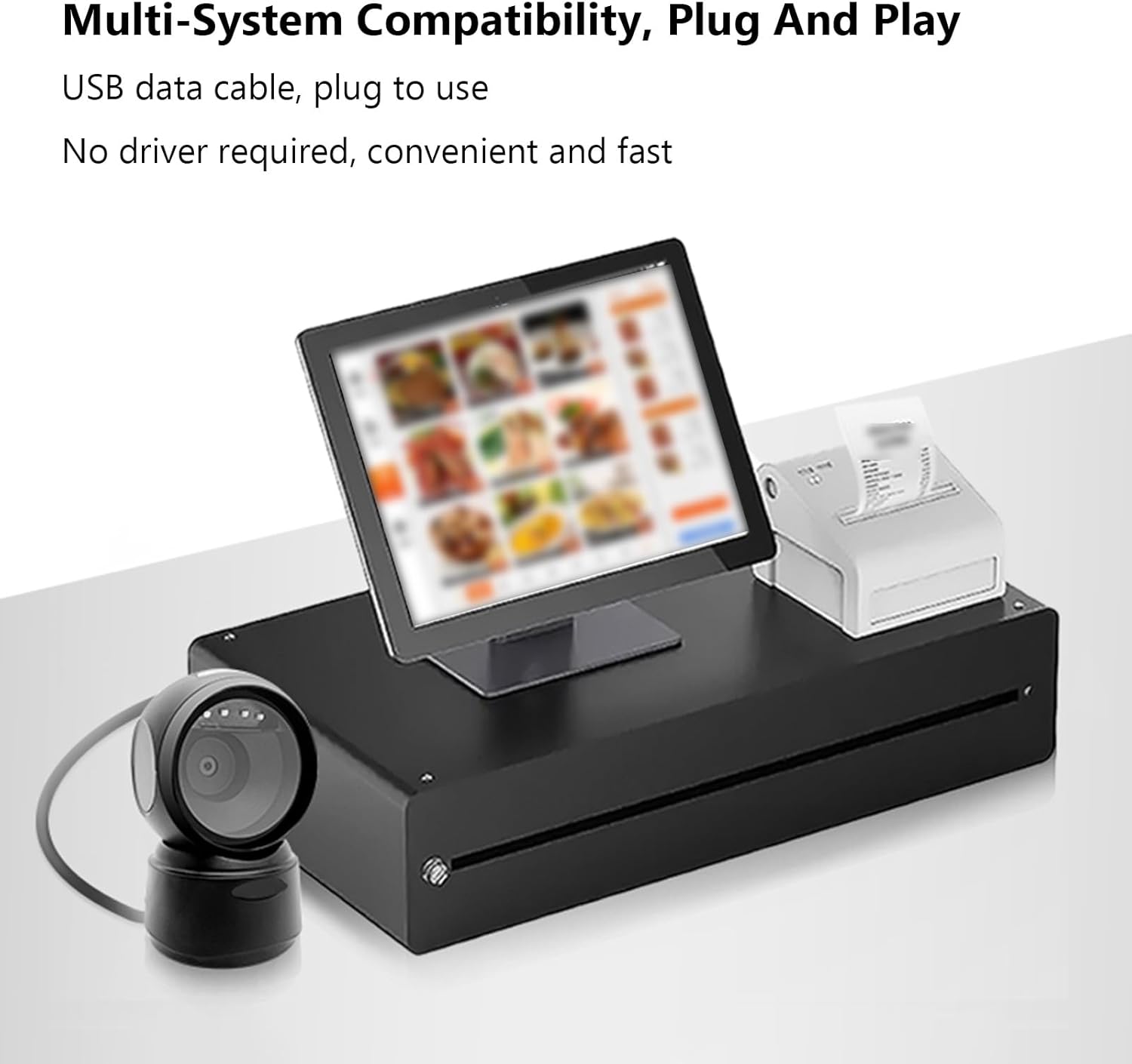
Image: The ASHATA USB Barcode Scanner integrated with a point-of-sale (POS) system, demonstrating multi-system compatibility and plug-and-play functionality.
4. Упутство за употребу
Скенирање бар кодова:
The ASHATA USB Barcode Scanner is designed for hands-free operation, allowing you to simply present items to the scanning window.
- Position Item: Hold the item with the barcode facing the scanner's window.
- Аутоматско скенирање: The scanner will automatically detect and read the barcode. A successful scan is indicated by a beep from the buzzer and a flash of the LED indicator lights.
- Подржани бар кодови: The scanner can read 1D and 2D/QR codes from various surfaces, including labels, paper, and digital displays (mobile phones, computer screens). It can also scan damaged or distorted barcodes.

Image: The ASHATA USB Barcode Scanner positioned on a desk, ready for hands-free scanning of a barcode displayed on a smartphone screen.
Intelligent Sensing and Trigger Modes:
The scanner features intelligent sensing for power efficiency and ease of use.
- Индукциони режим: The scanner automatically activates when a barcode is presented to its window.
- Континуирани режим: The scanner remains continuously active, ready to scan.
- Instruction Mode: Specific instructions or configuration barcodes can be scanned to change settings.
- Аутоматски режим спавања: Upon a period of inactivity, the scanner enters an automatic sleep mode to conserve power. It will automatically wake up when a barcode is detected.

Image: A visual representation of the ASHATA USB Barcode Scanner's intelligent sensing capabilities, illustrating automatic QR code scanning and its power-saving sleep mode during inactivity.
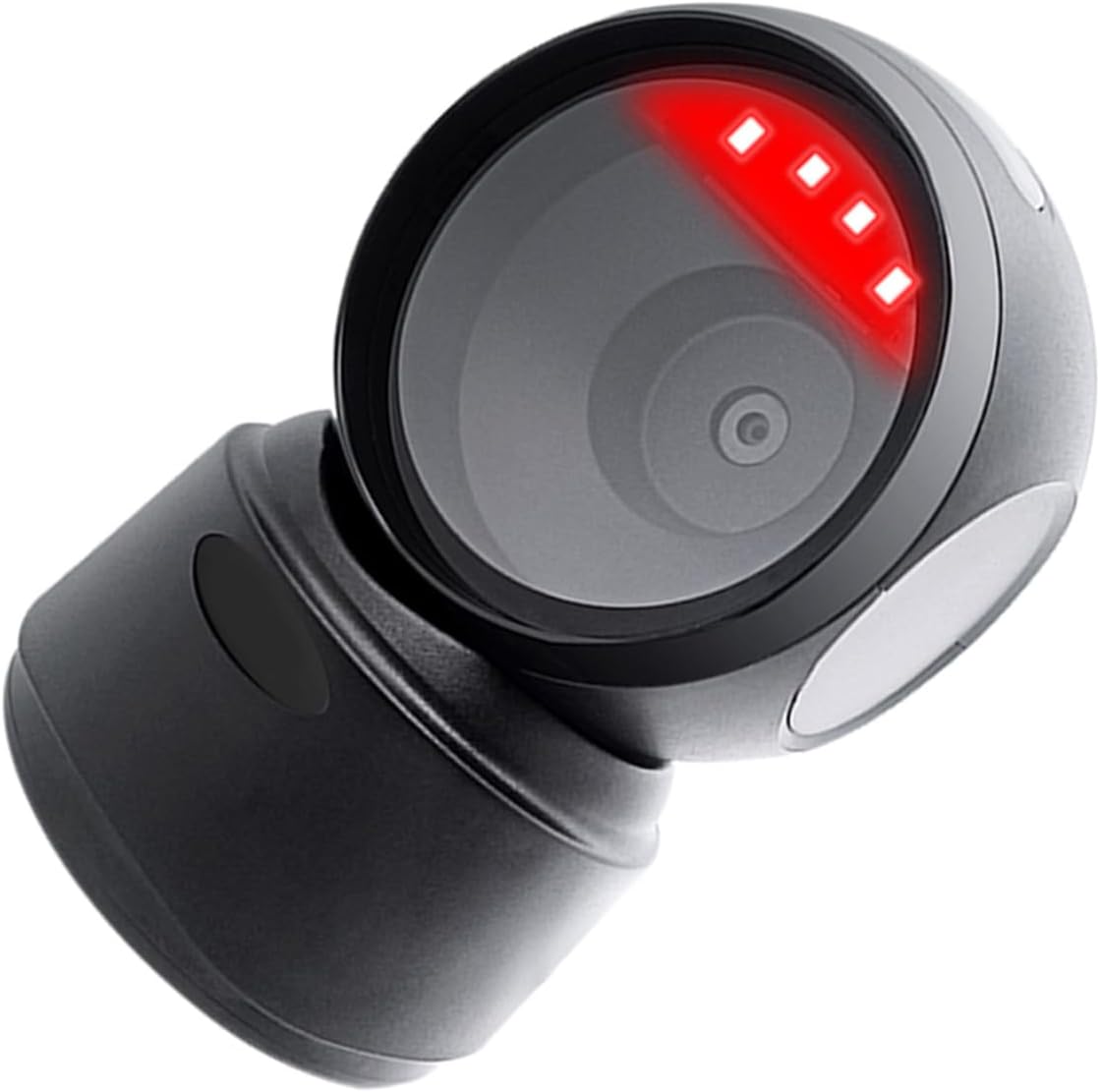
Слика: Крупни план view of the ASHATA USB Barcode Scanner with its red scanning light active, indicating it is in operation.
5. Спецификације
| Феатуре | Опис |
|---|---|
| Врста ставке | 1D/2D Barcode Scanner Platform |
| Тип извора светлости | 625nm LED Supplementary Light |
| Могућност декодирања | QRCode, PDF417, MaxiCode, Aztec, DataMatrix(ECC200), Micro QR, Hanxin Code, Micro PDF417, EAN13, EAN8, UPC-A, UPC-E, Code128, Code39, Code93, CodaBar, Interleaved 2 of 5, Industrial 25, Codel1MSIPlessey, Standard 2 of 5, Plessey, ChinaPost 25, etc. |
| Принцип скенирања | Имаге ЦМОС |
| Триггер Моде | Induction Mode / Continuous Mode / Instruction Mode |
| Угао скенирања | Tilt Angle 65°, Rotate Angle 360°, Skew Angle 75° |
| Тачност скенирања | >4.5мил |
| Дубина поља за читање | 5mil (Code39) 2cm-13cm, UPC-13mil 2cm-28cm, 20mil (Code39) 2cm-35cm, 20mil QR Code 2cm-24cm |
| Цабле Ленгтх | 1.5м / 4.92фт |
| Компатибилност | For Linux, for Android, for Windows 7/8/10 |
| Величина производа | 13.6 к 8.3 к 8 цм / 5.35 к 3.27 к 3.15 инча |
| Тежина производа | 224 г / 7.9 оз |

Image: A diagram illustrating the dimensions of the ASHATA USB Barcode Scanner: 13.6cm (5.35in) height, 8.3cm (3.27in) width, and 8cm (3.15in) depth.
КСНУМКС. Решавање проблема
If you encounter issues with your barcode scanner, please refer to the following common troubleshooting steps:
- Скенер не реагује:
- Ensure the USB cable is securely connected to both the scanner and the host device.
- Try connecting the scanner to a different USB port on your device.
- Restart your computer or POS system.
- Unable to Read Barcodes:
- Уверите се да је бар-код чист, неоштећен и јасно видљив.
- Adjust the distance and angle between the barcode and the scanner window.
- Verify that the barcode type is supported by the scanner (refer to Decoding Capability in Specifications).
- Проверите да ли је скенер у режиму спавања; принесите баркод да бисте га пробудили.
- No Buzzer Sound or LED Feedback:
- Confirm the scanner is powered on and connected.
- If the scanner is working but without sound, check if the buzzer has been disabled via a configuration barcode (refer to advanced settings in the full user manual if available).
7. Одржавање
Proper maintenance ensures the longevity and optimal performance of your ASHATA USB Barcode Scanner:
- Чишћење: Use a soft, dry, lint-free cloth to clean the scanner's exterior and scanning window. Do not use abrasive cleaners, solvents, or excessive moisture, as these can damage the device.
- Складиштење: Чувајте скенер на хладном и сувом месту, даље од директне сунчеве светлости и екстремних температура.
- Руковање: While the scanner is designed to be durable, avoid dropping it or subjecting it to harsh impacts to prevent internal damage.
8. Гаранција и подршка
For warranty information, technical support, or service inquiries, please refer to the documentation provided with your purchase or contact ASHATA customer support through their official channels. Keep your purchase receipt as proof of purchase for warranty claims.