
1. Подешавање
1.1 Садржај пакета
Пре склапања, проверите да ли су све компоненте присутне у паковању:
- KTC H24F7 24 Inch 240Hz Monitor
- Монитор Басе
- Постоље за монитор
- Повер Адаптер
- ХДМИ кабл
- Водич за брзи почетак (КСГ)
1.2 Упутство за састављање
Пратите ове кораке да бисте саставили монитор:
- Пажљиво извадите монитор и све компоненте из паковања.
- Attach the monitor stand to the monitor base. Ensure it clicks securely into place.
- Connect the assembled stand and base to the back of the monitor. The stand is designed for easy snap-in installation.
- Поставите монитор на стабилну, равну површину.

1.3 VESA Mount Installation
The KTC H24F7 monitor supports VESA 100mm x 100mm mounting for alternative stand or wall mount solutions. Ensure you use M4-0.7 x 10mm screws (not included) for secure installation.

1.4 Повезивање са уређајима
Connect your computer or other devices to the monitor using the appropriate cables.
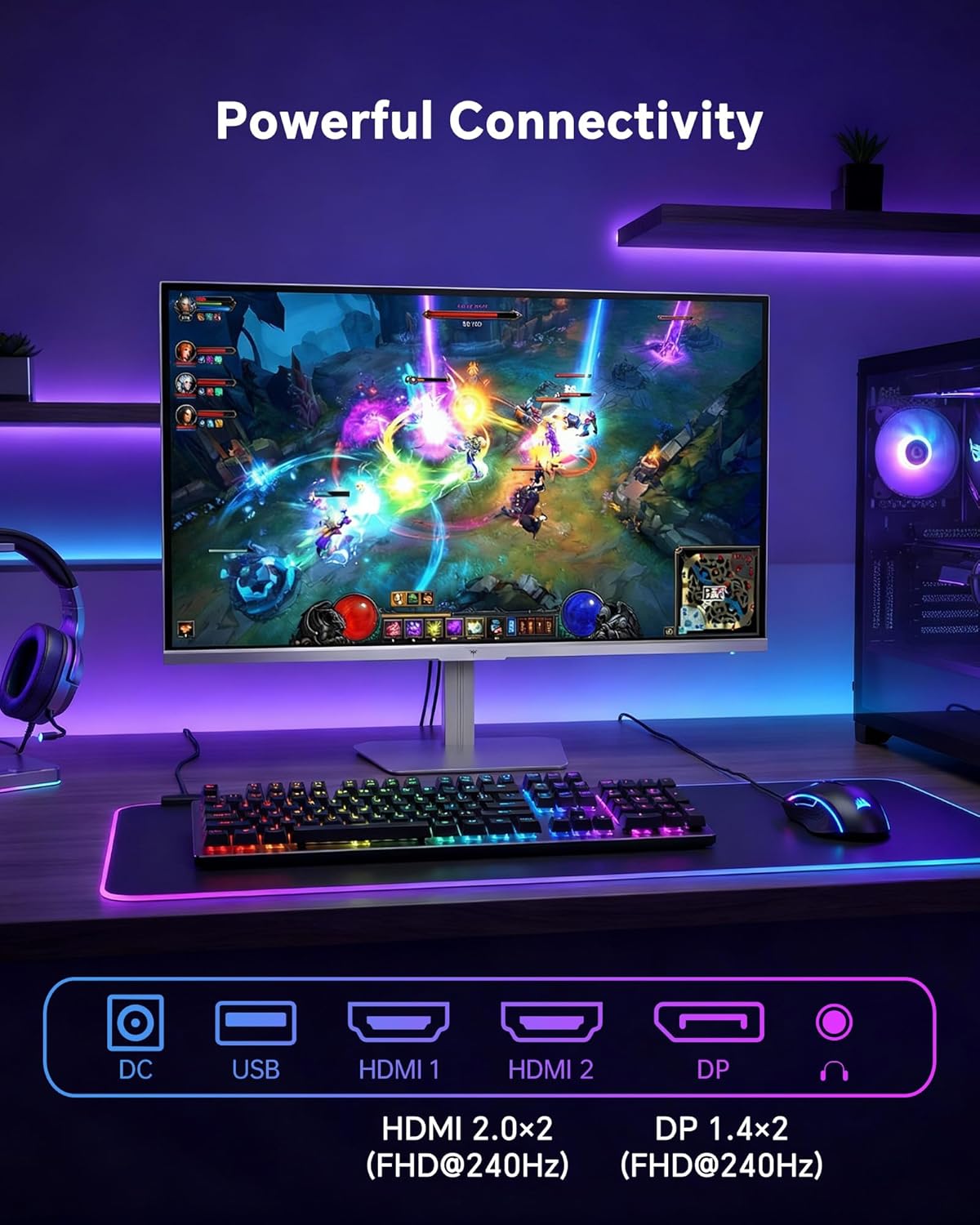
- ДВИ: Use an HDMI cable to connect to devices with HDMI output. The monitor has two HDMI 2.0 ports, supporting FHD at 240Hz.
- ДисплаиПорт: Use a DisplayPort cable for devices with DisplayPort output. The monitor has one DisplayPort 1.4, supporting FHD at 240Hz.
- Снага: Connect the power adaptor to the DC input on the monitor and then to a power outlet.
- УСБ: A USB 2.0 port is available for connecting peripherals.
- Аудио излаз: A 3.5mm audio jack is available for connecting headphones or external speakers.
2. Упутство за употребу
2.1 Укључивање/искључивање
Притисните дугме за напајање које се налази на монитору да бисте га укључили или искључили. Индикаторска лампица напајања ће светлети када је монитор активан.
2.2 Приказ на екрану (ОСД) мени
The OSD menu allows you to adjust various monitor settings. Use the control buttons (typically located on the back or bottom of the monitor) to navigate the menu and select options. Refer to the Quick Start Guide for specific button functions.
2.3 Подешавања екрана
Оптимизујте своје viewискуство подешавањем следећих подешавања:
- Брзина освежавања: The monitor supports a 240Hz refresh rate for smooth motion. Ensure your graphics card settings are configured to utilize this rate.

- Прилагодљива синхронизација: This technology synchronizes the monitor's refresh rate with your graphics card's frame rate to eliminate screen tearing and stuttering. Enable Adaptive Sync in the OSD menu and ensure it is also enabled in your graphics card control panel (FreeSync/G-Sync compatible).

- ХДР 400: High Dynamic Range 400 provides enhanced contrast and color accuracy, delivering brighter highlights and deeper shadows. Activate HDR in the OSD menu and your operating system display settings for compatible content.

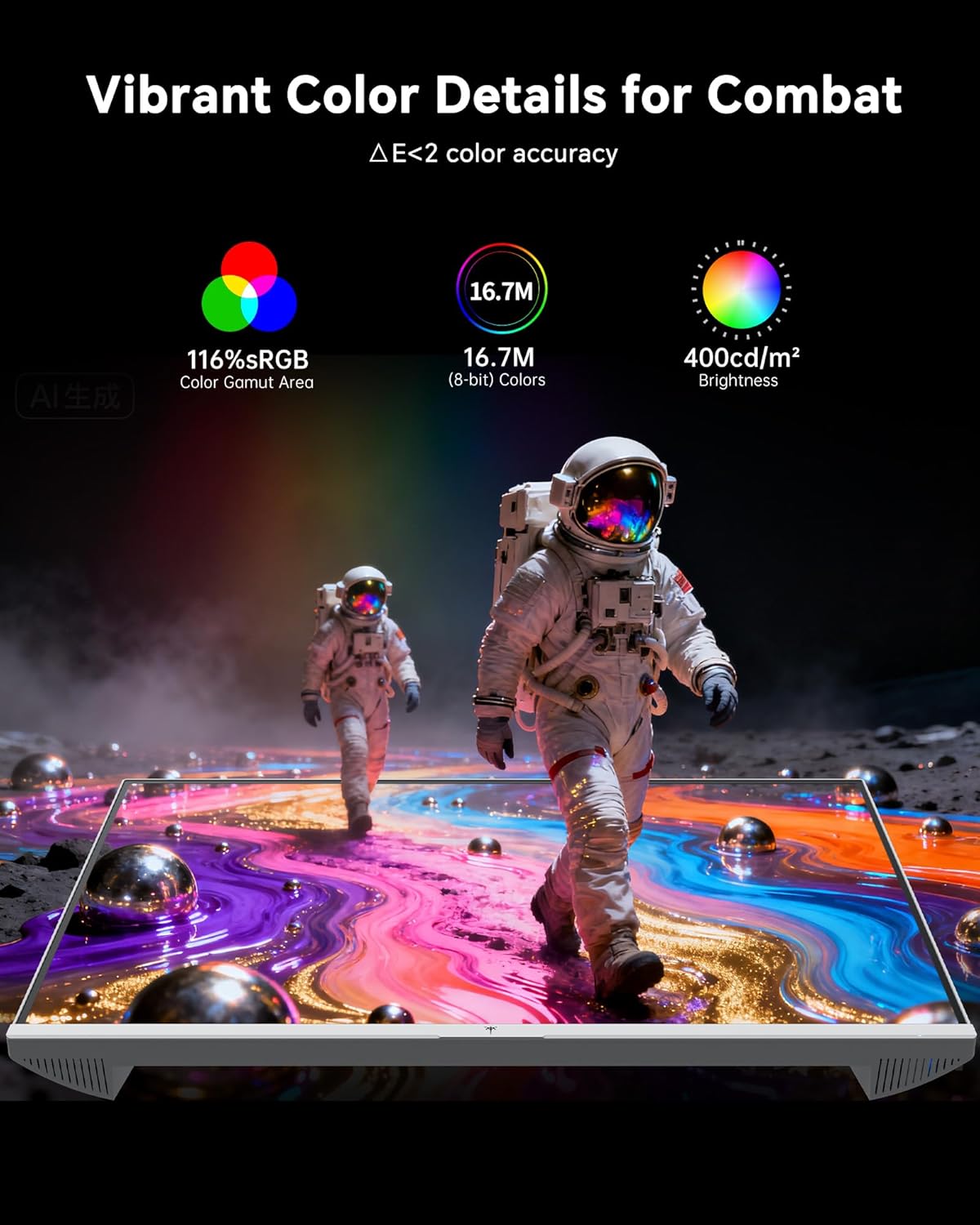
- Подешавања боја: The monitor offers 116% sRGB color gamut and 16.7 million colors. Adjust brightness (up to 400 cd/m²) and color temperature through the OSD menu to suit your preference.
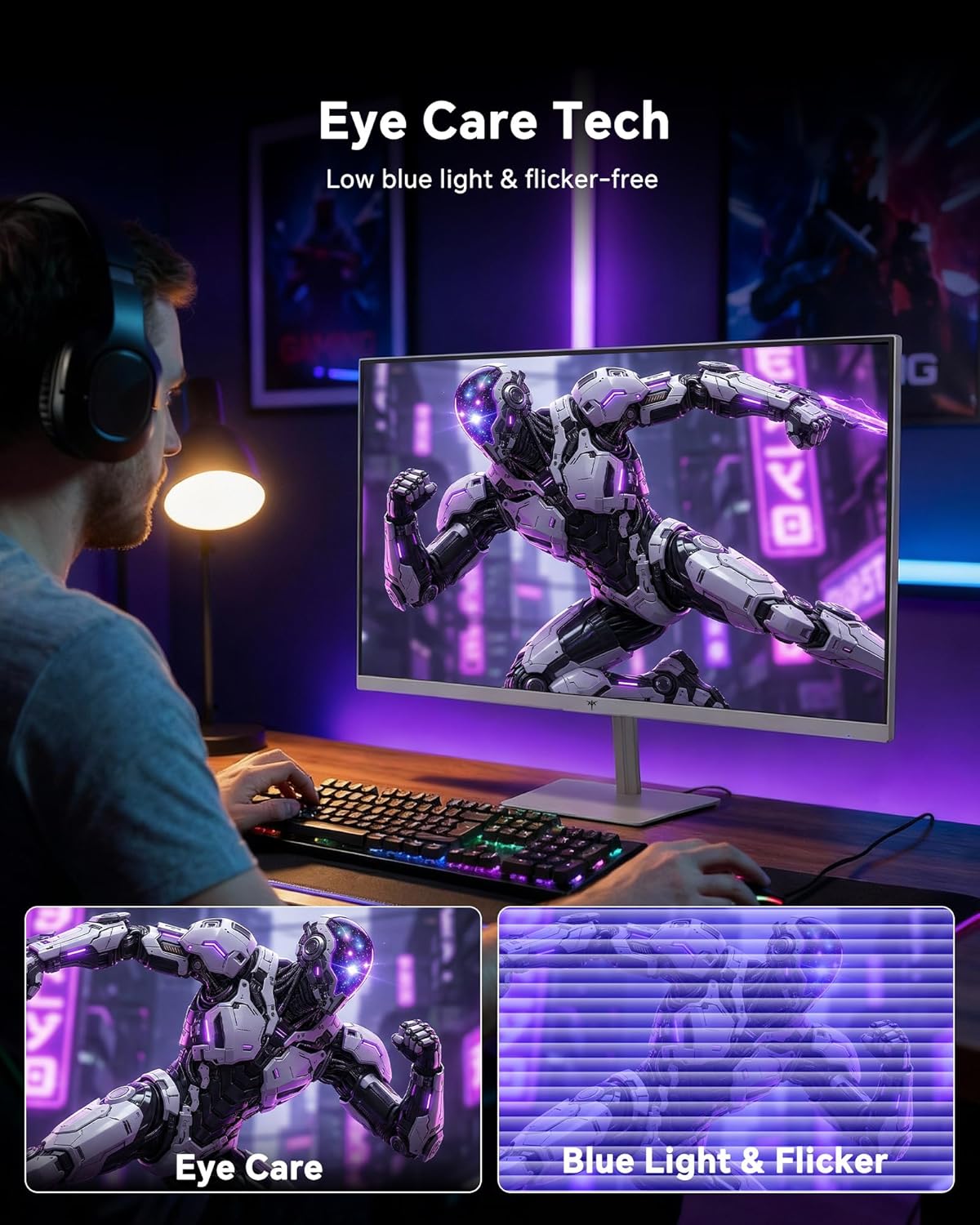
- Технологија за негу очију: The monitor features low blue light and flicker-free technology to reduce eye strain during prolonged use. These settings can typically be adjusted or enabled within the OSD menu.
2.4 Monitor Tilt Adjustment
The monitor supports tilt adjustment from -5° to 15° (±3°). Gently adjust the monitor panel to your desired viewугао уласка.
3. Одржавање
3.1 Чишћење монитора
Да бисте очистили екран монитора и цasing:
- Увек искључите монитор и извуците кабл за напајање пре чишћења.
- Користите меку крпу која не оставља длачицеampводом или благим, неабразивним средством за чишћење екрана.
- Wipe the screen gently to remove dust and smudges. Avoid applying excessive pressure.
- За цasing, use a dry, soft cloth. Do not use alcohol, ammonia, or abrasive cleaners, as these can damage the surface.
3.2 Општа нега
- Избегавајте стављање тешких предмета на монитор или његове каблове.
- Не излажите монитор директној сунчевој светлости, прекомерној топлоти или екстремној хладноћи.
- Држите монитор даље од течности и високе влажности.
- Обезбедите одговарајућу вентилацију око монитора да бисте спречили прегревање.
КСНУМКС. Решавање проблема
If you encounter issues with your KTC H24F7 monitor, refer to the following common problems and solutions:
| Проблем | Могући узрок | Решење |
|---|---|---|
| Нема слике на екрану | Power cable disconnected; Video cable disconnected or loose; Incorrect input source selected; Monitor is off. | Ensure power cable is securely connected and monitor is on. Check video cable connections (HDMI/DisplayPort) at both the monitor and computer. Press the input source button on the monitor to cycle through inputs. |
| Треперење или цепање слике | Adaptive Sync not enabled; Graphics card driver issues; Faulty video cable. | Enable Adaptive Sync in the OSD menu and your graphics card control panel. Update graphics card drivers. Try a different video cable. If using DisplayPort 1, try DisplayPort 2 or HDMI if available, as some units may experience issues with specific ports. |
| Боје изгледају погрешно или испрано | Color settings incorrect; HDR not properly configured; Faulty video cable. | Adjust color settings (brightness, contrast, color temperature) in the OSD menu. Ensure HDR is enabled in both the OSD and your operating system for HDR content. Try a different video cable. |
| Монитор не достиже 240Hz | Graphics card limitations; Incorrect display settings in OS; Cable bandwidth limitations. | Ensure your graphics card supports 240Hz at 1080p. Verify display settings in your operating system (e.g., Windows Display Settings or NVIDIA/AMD control panel) are set to 240Hz. Use the provided HDMI cable or a certified DisplayPort 1.4 cable. |
| Stuck or dead pixels | Дефект у производњи. | A small number of stuck or dead pixels (typically 1-3) may be considered normal for LCD panels. If the issue is severe or persistent, contact customer support. |
5. Спецификације
| Феатуре | Детаљ |
|---|---|
| Бранд | КТЦ |
| Број модела | Х24Ф7 |
| Величина екрана | 24 инча |
| Резолуција | FHD 1080p (1920 x 1080 пиксела) |
| Панел Типе | Скоро ИПС |
| Рефресх Рате | 240 Хз |
| Време одговора | 1 милисекунда (MPRT) |
| Аспецт Ратио | 16:9 |
| Осветљеност | 400 кандела по квадратном метру |
| Однос контраста | 1000:1 |
| Гамут боја | 116% сРГБ |
| ХДР подршка | ХДР 400 |
| Адаптиве Синц | FreeSync, G-Sync Compatible |
| Повезивање | 2x HDMI 2.0, 1x DisplayPort 1.4, 1x USB 2.0, 1x Audio Out (3.5mm) |
| Карактеристике неге очију | Low Blue Light, Flicker-Free, Anti-Glare Screen |
| Подешавања | Нагиб (-5° до 15°) |
| ВЕСА Моунт | 100 мм к 100 мм |
| Димензије (Д к Ш к В) | 5.39"Д к 21.25"Ш к 15.74"В |
| Тежина артикла | 3.2 килограма |
| Боја | Бела |
6. Гаранција и подршка
6.1 Информације о гаранцији
The KTC H24F7 monitor comes with a three-year manufacturer warrantyОва гаранција покрива недостатке у материјалу и изради при нормалној употреби.
Сачувајте доказ о куповини за гаранцијске захтеве.
6.2 Корисничка подршка
For technical assistance, warranty claims, or any questions regarding your KTC H24F7 monitor, please contact KTC customer support. KTC aims to provide responsive customer support and typically responds within 12 hours.
You can usually find contact information on the official KTC website or through the retailer where you purchased the product. When contacting support, please have your monitor model number (H24F7) and purchase details ready.