
1. Увод
Welcome to the TOPTRO TP3 Smart Projector user manual. This guide provides essential information for setting up, operating, maintaining, and troubleshooting your new projector. The TOPTRO TP3 is a versatile smart projector featuring Google TV, native 1080P resolution with 4K support, WiFi 6, Bluetooth 5.3, and advanced AI auto-setup capabilities for focus, keystone correction, obstacle avoidance, and screen alignment. Its ultra-compact design and rotatable stand make it ideal for various projection environments, from home theaters to outdoor movie nights.

Image 1.1: The TOPTRO TP3 Smart Projector displaying its Google TV interface with popular streaming applications.
2. Шта је у кутији
Молимо вас да проверите садржај пакета како бисте били сигурни да су сви предмети присутни:
- TOPTRO TP3 Smart Projector (x1)
- Remote (2x AAA Batteries Required, NOT Included) (x1)
- Кабл за напајање (к1)
- ХДМИ кабл (к1)
- Lens Cap (x1)
- Lens Cleaning Kit (x1)
3. Подешавање
3.1 Физичко постављање
Position your TOPTRO TP3 projector on a stable, flat surface. The built-in rotatable stand allows for flexible projection angles, including walls, ceilings, or even attic spaces. For optimal viewing, ensure the projection surface is smooth and light-colored. The ultra-short throw ratio of 0.8:1 enables a large 120-inch image from just 6.9 feet away, making it suitable for small rooms.
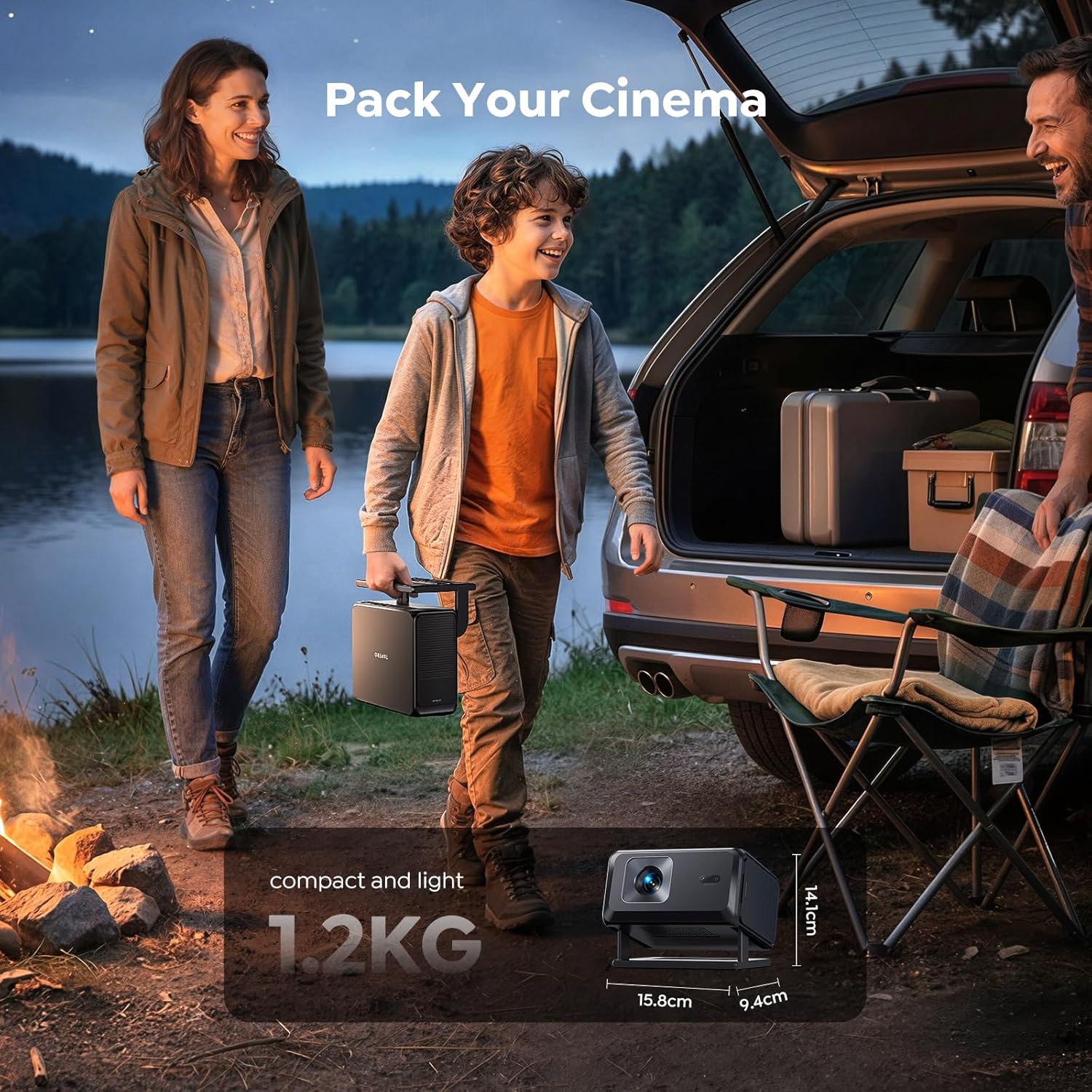
Image 3.1: The TOPTRO TP3 projector creating a large display from a short distance in a living room setting.
3.2 Укључивање и почетна конфигурација
Connect the power cord to the projector and a power outlet. Press the power button to turn on the device. The projector features an advanced AI auto-setup system that automatically adjusts focus, keystone correction, avoids obstacles, and aligns the screen for a perfectly clear image within seconds. For fixed installations, you can turn off Auto Focus and Auto Four-Corner Correction in the settings and manually adjust once; the projector will remember these settings.

Image 3.2: Visual representation of the TOPTRO TP3's AI automatic adjustment features ensuring a perfect display.
3.3 Мрежна веза
Navigate to the settings menu on the projector's main interface. Select 'Network & Internet' and connect to your Wi-Fi network. The projector supports WiFi 6 for fast and stable streaming.
4. Упутство за употребу
4.1 Google TV and Built-in Apps
The TOPTRO TP3 comes bundled with a Google TV Stick, providing access to over 10,000 apps including Netflix, YouTube, Prime Video, Disney+, and more. Use the voice remote with built-in Google Assistant to navigate, search for content, and control playback.

Image 4.1: The projector's home screen powered by Google TV, offering a wide selection of applications.
Видео 4.1: Оверview of the TOPTRO TP3 Smart Projector's features, including its Google TV integration and smart functionalities.
4.2 Пресликавање екрана
The projector supports multi-device screen mirroring from iOS, Android, and laptops. Ensure both your device and the projector are connected to the same Wi-Fi network.
4.2.1 Mirroring iOS Devices
To mirror your Apple iOS device, locate the 'Apps' section on the projector's main screen. Click 'Go to Play Store' at the bottom. Тражи and install 'AirScreen - AirPlay & Cast'. Open the app after installation. Ensure both devices are on the same Wi-Fi network. Use your Apple phone to scan the QR code displayed on the projector or find '[AS-TVStick [AirPlay]]' in your iOS device's screen mirroring options and connect.
Video 4.2: Step-by-step instructions on how to screen mirror an iOS device to the TOPTRO TP3 projector.
4.2.2 Mirroring Android Devices
For Android devices, ensure the projector and your mobile device are connected to the same Wi-Fi network. Select 'Settings' on the projector's main interface, then click 'Device Preferences', and finally 'Google Cast'. Android users should download the Google Home app beforehand and ensure their phone and projector are logged into the same Google account. Find the projector device name (TP3) in the Google Home app and mirror your screen.
4.2.3 Mirroring Computer Devices
Ensure the projector and your computer are connected to the same Wi-Fi network. Open the Google Chrome browser on your computer. Click the three-dot menu in the top-right corner, then select 'Cast...'. In the 'Cast tab' window, find the projector device name (TP3) and click 'Connect'.
4.3 External Connectivity
The TOPTRO TP3 offers versatile connectivity options:
- HDMI ARC/CEC: Connect soundbars, gaming consoles, or other HDMI-enabled devices.
- УСБ портови: For media playback from USB drives or connecting external devices.
- Блуетоотх КСНУМКС: Seamlessly connect headphones, external speakers, or mobile devices for audio.
- 3.5 мм Јацк: For wired audio output to headphones or speakers.

Image 4.2: The TOPTRO TP3 serving as a central entertainment hub with multiple connectivity options.
5. Одржавање
5.1 Cleaning the Lens and Filter
Regular cleaning ensures optimal image quality and extends the projector's lifespan. Use the provided lens cleaning kit for the lens and follow the instructions below for the filter.
Video 5.1: A guide on how to properly clean the lens and internal filter of your TOPTRO TP3 projector.
- Remove the filter screen from the back of the projector.
- Wash the filter screen with clean water and let it air dry, or use a hair dryer on a cool setting.
- Open the dust cover and protective cover on the side of the projector (a flathead screwdriver or utility knife can assist).
- With the projector powered on, use cotton swabs from the cleaning kit to carefully clean any black spots on the projector's LCD screen. Clean both internal layers.
- After cleaning, replace the dust cover and filter screen.
КСНУМКС. Решавање проблема
This section addresses common issues you might encounter with your TOPTRO TP3 projector.
- Нема напајања: Ensure the power cord is securely connected to both the projector and a working power outlet. Check if the power adapter is functioning correctly.
- Нема слике/сигнала: Verify that the input source (HDMI, USB, screen mirroring) is correctly selected on the projector. Check all cable connections. If using screen mirroring, ensure both devices are on the same Wi-Fi network and the mirroring app is active.
- Замућена слика: The projector has auto-focus. If the image remains blurry, try moving the projector slightly or manually adjusting the focus in the settings. Ensure the lens is clean (refer to Maintenance section).
- Искривљена слика (трапезоидни облик): The projector features auto-keystone correction. If the image is still distorted, check for any physical obstructions or try manually adjusting the keystone in the settings.
- Нема звука: Check the volume levels on both the projector and the connected source device. If using external speakers or headphones via Bluetooth or 3.5mm jack, ensure they are properly connected and selected as the audio output.
- Проблеми са повезивањем путем Wi-Fi/Bluetooth-а: Ensure the projector is within range of your Wi-Fi router or Bluetooth device. Restart both the projector and the network device.
7. Спецификације
| Феатуре | Детаљ |
|---|---|
| Бранд | ТОПТРО |
| Број модела | ТП3 |
| Резолуција екрана | Native 1920 x 1080 (1080P) |
| Максимална резолуција екрана | 3840 x 2160 (4K Support) |
| Технологија повезивања | Bluetooth 5.3, Wi-Fi 6, USB, HDMI (CEC/ARC), 3.5mm Jack, IR |
| Тхров Ратио | 0.8:1 (Ultra Short Throw) |
| Максимална величина слике | 120 инча |
| Минимална величина слике | 30 инча |
| Радни век извора светлости | 30,000 сата |
| Димензије артикла (Д к Ш к В) | 7.63 cm D x 6.22 cm Š x 5.55 cm V |
| Тежина артикла | 2.6 фунти |
| Посебне карактеристике | Google TV System, AI Auto Focus, Auto Keystone, Smart Obstacle Avoidance, Screen Alignment, Rotatable Stand, HDR Technology |
8. Гаранција и подршка
The TOPTRO TP3 Smart Projector is backed by a comprehensive 2 година гаранције и доживотна техничка подршка. We are committed to your satisfaction and offer a 1-year replacement policy за додатни мир.
Our dedicated Тим за корисничку подршку 24/7 is available to assist you with setup, troubleshooting, or any questions you may have.
For support inquiries, please contact us at: сервице@топтро.цом