
1. Увод
This manual provides detailed instructions for the installation, operation, and maintenance of your Lemorele 4K HDMI Video Capture Card with USB3.0. This device is designed for high-quality video capture and passthrough, supporting resolutions up to 4K@60Hz for passthrough and 1080p for capture. It is compatible with various gaming consoles, cameras, and computers, making it suitable for streaming, recording, and live presentations.
2. Садржај пакета
Молимо вас да проверите да ли су све ставке присутне у вашем пакету:
- Lemorele 4K HDMI Video Capture Card (Model: 4K60HZ)
- УСБ-Ц на УСБ-А кабл
- Упутство за употребу

Image: The Lemorele 4K HDMI Video Capture Card, USB-C cable, and user manual are shown together, indicating the typical package contents.
3. Производ је готовview
The Lemorele 4K HDMI Video Capture Card features a durable aluminum alloy body and multiple ports for versatile connectivity.
3.1. Изглед уређаја
Слика: Врх view of the capture card highlighting the HDMI OUT, HDMI IN, and Type-C ports. The HDMI OUT port is for looping out the display, HDMI IN is for the device being captured, and Type-C is for connecting to the acquisition device (computer).

Слика: Са стране view of the capture card highlighting the MIC IN, LINE IN, and AUDIO OUT ports. These ports are used for connecting external microphones, mixers, and audio output devices respectively.
3.2. Описи портова
- ХДМИ ОУТ: Connects to a display (monitor, TV, projector) for zero-latency passthrough.
- ХДМИ ИН: Connects to the source device (gaming console, camera, laptop) for video input.
- ТИП-Ц: Connects to your computer (laptop, PC, Mac, iPad Pro) for data transfer and power.
- МИЦ ИН: Connects to an external microphone for audio input.
- ЛИНИЈА У: Connects to an audio mixer or instrument for additional audio input.
- АУДИО ИЗЛАЗ: Connects to headphones or speakers for audio monitoring.
4. Подешавање
Follow these steps to set up your Lemorele 4K HDMI Video Capture Card:
- Повежите изворни уређај: Connect your HDMI source device (e.g., Nintendo Switch dock, PS5, Xbox, camera) to the ХДМИ ИН port on the capture card using an HDMI cable.
- Connect Display (Optional): If you wish to monitor your gameplay or video feed without latency, connect your display (monitor, TV) to the ХДМИ ОУТ port on the capture card using an HDMI cable.
- Повежите се са рачунаром: Connect the capture card to your computer (laptop, PC, Mac, iPad Pro) using the provided USB-C to USB-A cable. Plug the USB-C end into the ТИПЕ-Ц port on the capture card and the USB-A end into an available USB 3.0 port on your computer.
- Повежите аудио (опционо): For external audio input, connect your microphone to the МИЦ ИН port or an audio mixer to the ЛИНЕ ИН port. For audio monitoring, connect headphones or speakers to the АУДИО ИЗЛАЗ лука.
- Подешавање софтвера: Install and open your preferred video capture software (e.g., OBS Studio, Zoom, Twitch, YouTube). The capture card should be recognized as a video input device.
Video: This video demonstrates the connection process for the Lemorele AC09 video capture card, showing how to connect the HDMI IN, HDMI OUT, and Type-C ports to a Nintendo Switch dock, a monitor, and a laptop for capturing game footage using OBS Studio.

Image: A visual diagram illustrating the connection of the capture card to a gaming console (PS5), a monitor, and a laptop for streaming and recording.
5. Упутство за употребу
Once the capture card is set up, you can begin capturing or streaming your content.
5.1. Using with OBS Studio (Exampле)
- Open OBS Studio on your computer.
- In the 'Sources' panel, click the '+' icon and select 'Уређај за снимање видео записа'.
- Create a new source or select an existing one. In the device dropdown, choose your Lemorele capture card (it may appear as 'USB Video' or similar).
- Configure resolution, FPS, and audio input settings as needed. Ensure 'Use custom audio device' is checked and select the capture card's audio input.
- Click 'OK' to add the source. You should now see your video feed in OBS.
- Adjust the video source size and position within the preview прозор.
- To start recording or streaming, click the 'Start Recording' or 'Start Streaming' button in OBS Studio.
5.2. Аудио контрола
The capture card features dedicated MIC IN and LINE IN ports for advanced audio integration. Ensure your capture software is configured to use these audio inputs for optimal sound quality.
Видео: Овај видео пружа прегледview of the Lemorele 4K HDMI Video Capture Card, showcasing its features and various applications in gaming, streaming, and professional settings.

Image: A user is shown actively streaming a game, with the capture card connected to a console and a laptop running streaming software, demonstrating a typical usage scenario.
6. Карактеристике
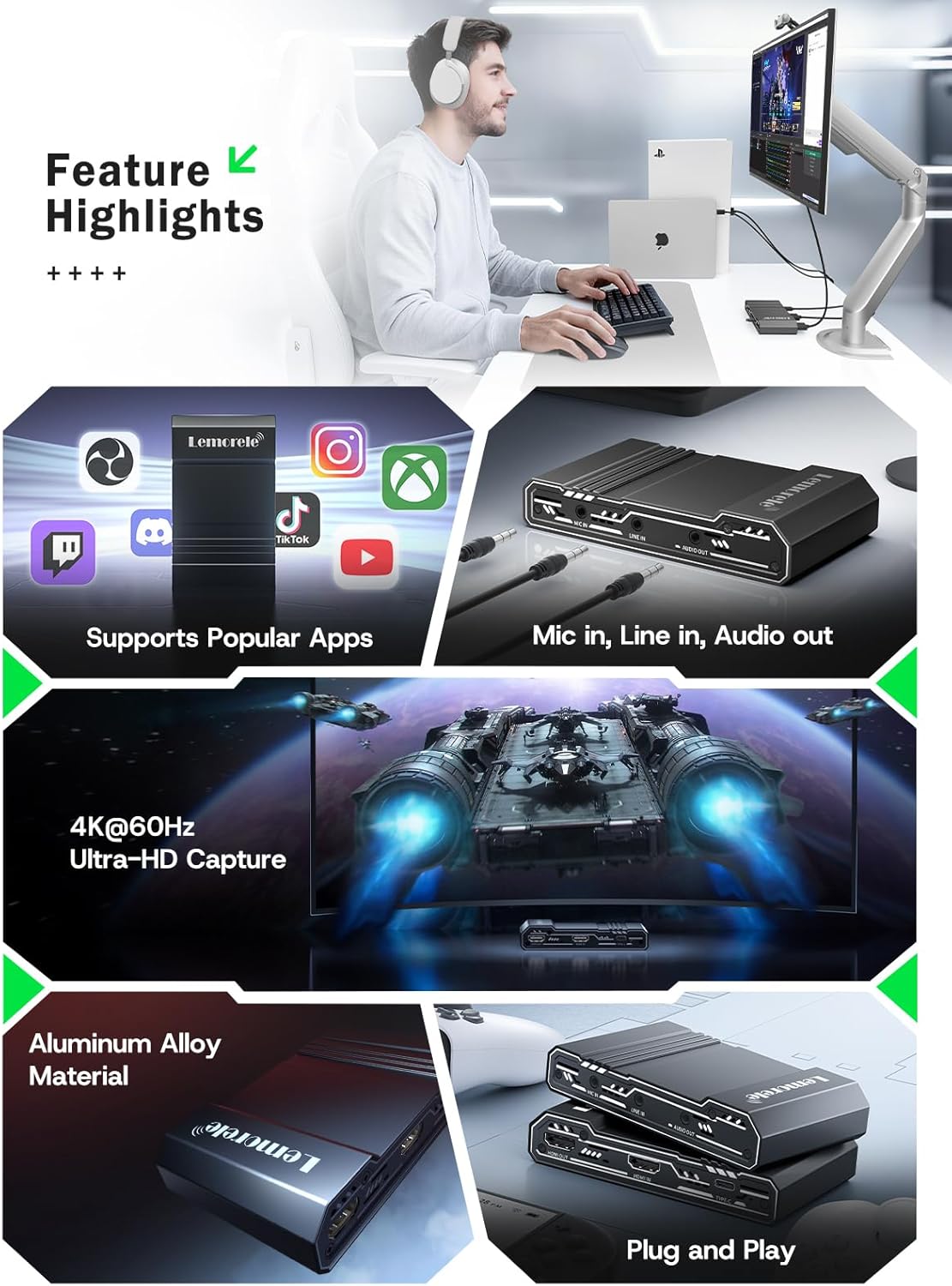
- 4K@60Hz Ultra HD Passthrough: Supports 4K@60Hz zero-lag passthrough to a display while capturing video at 1080p, ensuring a smooth viewing experience for the user and high-quality capture for the audience.
- Advanced Audio Control: Dedicated MIC IN and LINE IN ports allow direct connection to external microphones, mixers, or instruments, facilitating professional audio integration for various content creation needs.
- Comprehensive I/O Connectivity: Equipped with HDMI IN & OUT, USB-C, and AUDIO OUT ports, providing flexible setup options for connecting gaming consoles, cameras, laptops, and monitors.
- Stable & Reliable Performance: The durable aluminum alloy body ensures efficient heat dissipation and anti-interference protection, supporting continuous operation during extended streaming or recording sessions.
- Plug-and-Play Wide Compatibility: Works seamlessly with Windows, macOS, and iPad Pro, and supports popular software such as OBS Studio, Zoom, Twitch, and YouTube. Compatible with PS5, Xbox Series X/S, Nintendo Switch, and DSLR cameras.

Image: This graphic highlights key features of the capture card, including support for popular streaming applications, dedicated audio input/output ports, 4K@60Hz Ultra-HD capture, durable aluminum alloy construction, and plug-and-play functionality.
КСНУМКС. Решавање проблема
Ако наиђете на проблеме, погледајте следеће уобичајене проблеме и решења:
- Нема видео сигнала:
- Ensure all HDMI cables are securely connected to the correct ports (HDMI IN from source, HDMI OUT to display).
- Verify the source device is powered on and outputting video.
- Check your capture software settings to ensure the correct video capture device is selected and configured.
- Disable HDCP on your source device (e.g., PS5 settings) if you are experiencing a blank screen.
- Нема звука:
- Confirm audio cables are correctly connected to MIC IN, LINE IN, or AUDIO OUT ports.
- In your capture software, ensure the audio input device is correctly selected and not muted.
- Check the audio settings on your source device.
- Lag or Stuttering Video:
- Ensure your computer meets the minimum system requirements for video capture and streaming.
- Use a USB 3.0 port for connecting the capture card to your computer.
- Затворите непотребне апликације које раде у позадини да бисте ослободили системске ресурсе.
- Смањите резолуцију снимања или број слика у секунди у подешавањима софтвера.
- Уређај није препознат:
- Try connecting the capture card to a different USB port on your computer.
- Поново покрените рачунар.
- Уверите се да је ваш оперативни систем ажуриран.
8. Спецификације
| Феатуре | Детаљ |
|---|---|
| Бранд | Лемореле |
| Модел | 4K60HZ |
| Хардверски интерфејс | 3.5mm Audio, HDMI, USB 3.0 Type C |
| Max HDMI Input Resolution | 4К@60Хз |
| Максимална ХДМИ пролазна резолуција | 4К@60Хз |
| Максимална резолуција снимања | 1080п |
| Тежина артикла | 9.8 унци |
| Димензије пакета | 6.1 к 4.02 к 1.42 инча |
| Материјал | Алуминијумска легура |
| Компатибилност | Windows, macOS, iPad Pro, OBS Studio, Zoom, Twitch, YouTube, PS5, Xbox Series X/S, Nintendo Switch, DSLR cameras |
9. Одржавање
To ensure the longevity and optimal performance of your capture card, follow these maintenance guidelines:
- Чишћење: Користите меку, суву крпу за чишћење спољашњости уређаја. Избегавајте употребу течних средстава за чишћење или абразивних материјала.
- Складиштење: Уређај чувајте на хладном и сувом месту, даље од директне сунчеве светлости и екстремних температура.
- Руковање: Пажљиво рукујте уређајем како бисте спречили физичка оштећења. Избегавајте испуштање или излагање јаким ударцима.
- вентилација: Ensure the device has adequate ventilation during operation to prevent overheating, especially during long streaming sessions. The aluminum alloy body is designed for efficient heat dissipation.
10. Гаранција и подршка
Lemorele products are designed for reliability and performance. This product comes with a standard manufacturer's warranty. For specific warranty details, please refer to the warranty card included in your package or visit the official Lemorele webсајту.
For technical support, troubleshooting assistance, or any inquiries regarding your Lemorele 4K HDMI Video Capture Card, please contact our customer support team:
- Емаил: суппорт@лемореле.цом
- Webсајт: Visit the Lemorele official webсајт за често постављана питања и додатне ресурсе.