
1. Увод
This manual provides comprehensive instructions for the safe and efficient use of your HGFRTEE 27-inch 4K UHD 60Hz Monitor. Please read this manual thoroughly before operating the device and retain it for future reference.
The HGFRTEE 27-inch 4K UHD monitor features a 3840 x 2160 resolution IPS panel, 60Hz refresh rate, HDR10 support, 100% sRGB color gamut, and AMD FreeSync technology. It is designed for a wide range of applications, from professional work to casual entertainment.
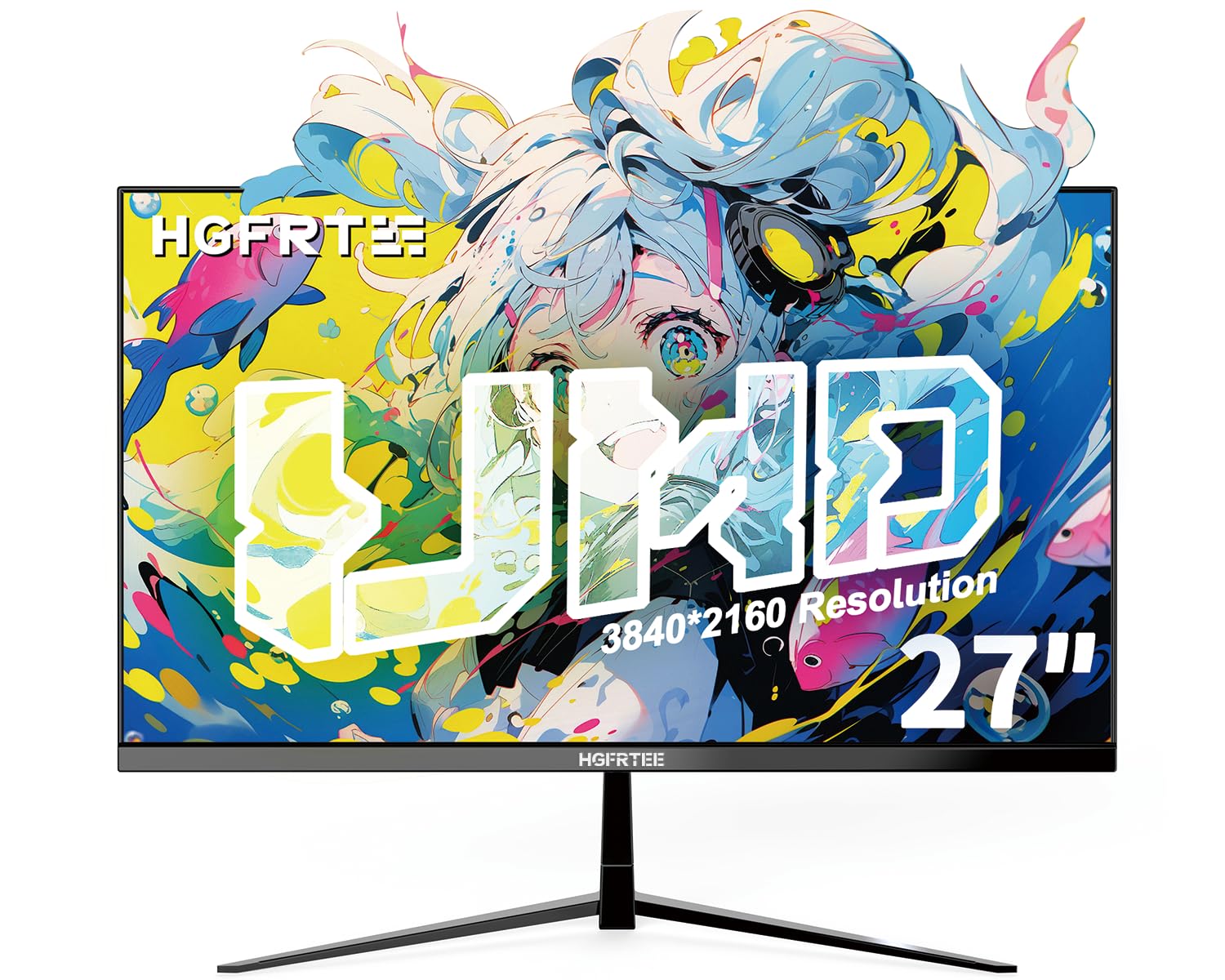
Слика 1.1: Предња страна view of the HGFRTEE 27-inch 4K UHD Monitor.
2. Безбедносне информације
Увек се придржавајте ових основних мера предострожности како бисте смањили ризик од пожара, струјног удара и повреда:
- Не излажите монитор киши или влази.
- Не отварајте монитор цasinг. Сва сервисирања препустите квалификованом особљу.
- Осигурајте одговарајућу вентилацију око монитора.
- Користите само адаптер за напајање који се испоручује са монитором.
- Избегавајте постављање монитора на нестабилне површине.
- Очистите монитор меком, сувом крпом. Не користите течна средства за чишћење или аеросолна средства за чишћење.
3. Садржај пакета
Проверите да ли су све ставке присутне у вашем пакету:
- HGFRTEE 27-inch 4K UHD Monitor
- Постоље за монитор (база и врат)
- Повер Адаптер
- ХДМИ кабл
- ДисплаиПорт Цабле
- Упутство за употребу
4. Подешавање
4.1 Склапање постоља
- Пажљиво извадите монитор из паковања, држећи га заштићеним на мекој површини.
- Attach the stand neck to the monitor's rear mounting point.
- Причврстите основу постоља за врат постоља помоћу приложених вијака.
- Поставите састављени монитор на стабилну, равну површину.

Image 4.1: Illustrated steps for monitor stand assembly.
4.2 ВЕСА монтажа
The monitor supports VESA 100x100mm mounting. To mount the monitor on a wall or an alternative stand:
- Remove the original stand if it is already attached.
- Attach your VESA-compatible mount to the four screw holes on the back of the monitor using M4 screws (not included with the monitor, typically supplied with the VESA mount).
- Ensure the mount is securely fastened before releasinмонитор.
4.3 Повезивање са уређајем
The monitor features multiple input ports for connectivity:
- ХДМИ КСНУМКС: Connect to devices such as PCs, laptops, and gaming consoles.
- DisplayPort 1.4: Connect to PCs and graphics cards for high-resolution and refresh rate output.
- USB (Power): For powering external devices.
- Аудио излаз: Connect external speakers or headphones (monitor does not have built-in speakers).
Да бисте се повезали:
- Connect one end of the HDMI or DisplayPort cable to the corresponding port on your computer or device.
- Повежите други крај кабла на ХДМИ или ДисплаиПорт улаз на монитору.
- Connect the power adapter to the monitor's DC input and then plug it into a power outlet.

Слика 4.2: Позади view of the monitor displaying available input ports.
5. Руковање монитором
5.1 Укључивање/искључивање
Притисните дугме за напајање које се налази на задњој страни монитора да бисте га укључили или искључили.
5.2 Навигација кроз OSD мени
The monitor features a joystick control for navigating the On-Screen Display (OSD) menu. The controls are typically located on the back or bottom of the monitor.

Image 5.1: Diagram illustrating the monitor's control buttons and their functions.
- Дугме за напајање: Укључује или искључује монитор.
- 'E' Button: HDMI Port/DP Port Selection, Back/Exit Key.
- Горе стрелица: Increase value, Up Key.
- Стрелица надоле: Decrease value, Down Key.
- Дугме „М“: Confirmation Key, Enter Submenu Key.
5.3 Подешавања екрана
Приступите OSD менију да бисте подесили различита подешавања екрана:
- Осветљеност/контраст: Подесите укупну осветљеност и контраст екрана.
- Подешавања боја: Fine-tune color temperature, gamma, and color space (e.g., sRGB).
- Извор уноса: Manually select between HDMI and DisplayPort inputs.
- Режим слике: Изаберите један од унапред подешених режима (нпр. Стандардни, Игра, Филм, Текст).
- ФрееСинц: Enable or disable AMD FreeSync for adaptive synchronization with compatible graphics cards.
- ХДР: Enable or disable HDR10 support for enhanced dynamic range.
- Нега очију: Activate features like flicker-free technology and blue light filter to reduce eye strain.
5.4 Напредне функције
- Motion Clarity (MEMC): This feature enhances motion smoothness by inserting black frames and optimizing motion processing, which can improve clarity in fast-moving scenes.
- Gaming Crosshairs: For gaming, the monitor offers six types of on-screen crosshairs to assist with aiming.

Image 5.2: Demonstration of Motion Clarity feature.

Слика 5.3: Примерamples of gaming crosshairs.
6. Одржавање
6.1 Чишћење монитора
Да бисте очистили екран монитора и цasing:
- Искључите монитор и извуците кабл за напајање.
- Користите меку крпу која не оставља влакна да нежно обришете екран. За тврдокорне мрље, благо обришитеampen the cloth with water or a specialized screen cleaner (ensure it is alcohol-free and ammonia-free).
- Обришите цasinг меком, сувом крпом.
- Do not spray cleaners directly onto the screen or into any openings.
6.2 Складиштење
If storing the monitor for an extended period, ensure it is powered off, unplugged, and stored in a cool, dry place away from direct sunlight and extreme temperatures. Use original packaging if available for best protection.
КСНУМКС. Решавање проблема
Погледајте следећу табелу за уобичајене проблеме и њихова решења:
| Проблем | Могући узрок | Решење |
|---|---|---|
| Нема слике на екрану | Монитор није укључен; изабран је погрешан улаз; лабав видео кабл. | Ensure power is connected and monitor is on; Select correct input source via OSD; Check video cable connections. |
| Треперење или цепање слике | FreeSync not enabled or incompatible; Graphics driver issues; Cable quality. | Enable FreeSync in OSD and graphics card settings; Update graphics drivers; Try a different high-quality video cable. |
| Боје изгледају погрешно | Color settings misconfigured; Faulty cable. | Reset color settings in OSD; Adjust color temperature; Try a different video cable. |
| Нема звука из слушалица/звучника | Аудио кабл није повезан; Јачина звука је прениска; На рачунару је изабран погрешан аудио излаз. | Ensure audio cable is securely connected to the monitor's audio out port; Adjust volume on connected device; Select monitor as audio output on your computer. |
Ако проблем и даље постоји након што сте испробали ова решења, обратите се корисничкој подршци.
8. Спецификације
Below are the technical specifications for the HGFRTEE 27-inch 4K UHD Monitor (Model B270BZU06):
| Феатуре | Спецификација |
|---|---|
| Бранд | ХГФРТЕЕ |
| Број модела | B270BZU06 |
| Величина екрана | 27 инча |
| Резолуција | 4К УХД (3840 к 2160) |
| Рефресх Рате | 60 Хз |
| Време одговора | 1 милисекунда (MPRT) |
| Дисплаи Типе | ИПС ЛЦД |
| Аспецт Ратио | 16:9 |
| Гамут боја | 100% сРГБ |
| ХДР подршка | ХДР10 |
| Адаптиве Синц | АМД ФрееСинц |
| Viewинг Англе | 178° (хоризонтално/вертикално) |
| Повезивање | HDMI 2.0 (x2), DisplayPort 1.4 (x1), USB (Power), Audio Out (3.5mm) |
| ВЕСА компатибилност | 100 к 100 мм |
| Ергономија | Tilt Adjustment (-10° to 10°) |
| Димензије (Ш к В к Д) | Приближно 612 мм x 452 мм x 210 мм (са постољем) |
| Тежина | Прибл. 4 кг / 8.81 лбс |

Image 8.1: Monitor dimensions and key physical features.
9. Информације о гаранцији
This HGFRTEE monitor is covered by a 2-годишња гаранција произвођача from the date of purchase. This warranty covers defects in materials and workmanship under normal use. It does not cover damage caused by misuse, accidents, unauthorized modifications, or external causes.
Сачувајте доказ о куповини за гаранцијске захтеве.
10. Корисничка подршка
For technical assistance, warranty claims, or any questions regarding your HGFRTEE monitor, please contact our customer support team.
You can find more information and contact details on the official HGFRTEE store page: HGFRTEE Store on Amazon