
Увод
This manual provides detailed instructions for the setup, operation, and maintenance of your Tera 9200 Omnidirectional Barcode Scanner. Designed for efficiency and versatility, this scanner supports both 1D and 2D QR codes, including those displayed on LCD screens, and features automatic detection for hands-free operation. Please read this manual thoroughly before using the device to ensure optimal performance and longevity.

Ан оверview of the Tera 9200 Omnidirectional Barcode Scanner, highlighting its wired USB connectivity and desktop design.
Сетуп
- Распакивање: Пажљиво извадите скенер и сву додатну опрему из паковања.
- Уклањање заштитне фолије: The scanner lens comes with a protective film. Gently peel off this film before initial use to ensure clear scanning.
- Повежите се са хост уређајем: Connect the scanner to your computer or POS system using the provided USB cable. The scanner is plug-and-play, requiring no additional driver installation.
- Пласман: Place the scanner on a stable, flat surface in a location that allows for easy presentation of barcodes.

This image shows the high-transparency acrylic screen and the process of removing the protective film from the scanner lens before use.

The scanner connects via USB and is compatible with various operating systems (Windows, Android, Linux, iOS) and devices (Laptop, PC, POS) without needing drivers.
Упутство за употребу
Режими скенирања
The Tera 9200 scanner offers three distinct scanning modes to suit various operational needs:
- Режим једног читања: For scanning individual barcodes one at a time. The scanner will read a barcode only once per presentation.
- Режим непрекидног скенирања: The scanner remains in an active scanning state, continuously reading barcodes as they are presented. Ideal for high-volume scanning.
- Режим аутоматског откривања: The scanner automatically activates and reads a barcode when it detects an object (barcode) within its scanning field. This hands-free mode enhances efficiency in busy environments.

This image illustrates the three scanning modes: Single Read, Continuous Scan, and Automatic Detection, showing how each mode operates.
Подржани баркодови
The Tera 9200 is capable of reading a wide array of 1D and 2D barcode symbologies, including:
- 1Д бар кодови: UPC, EAN8, EAN13, Code128, Code39, Codabar (NW-7), Interleaved 2 of 5, etc.
- 2Д бар кодови: КР код, матрица података, ПДФ417 итд.
It can efficiently read barcodes from both printed labels and digital displays such as smartphone screens or computer monitors.
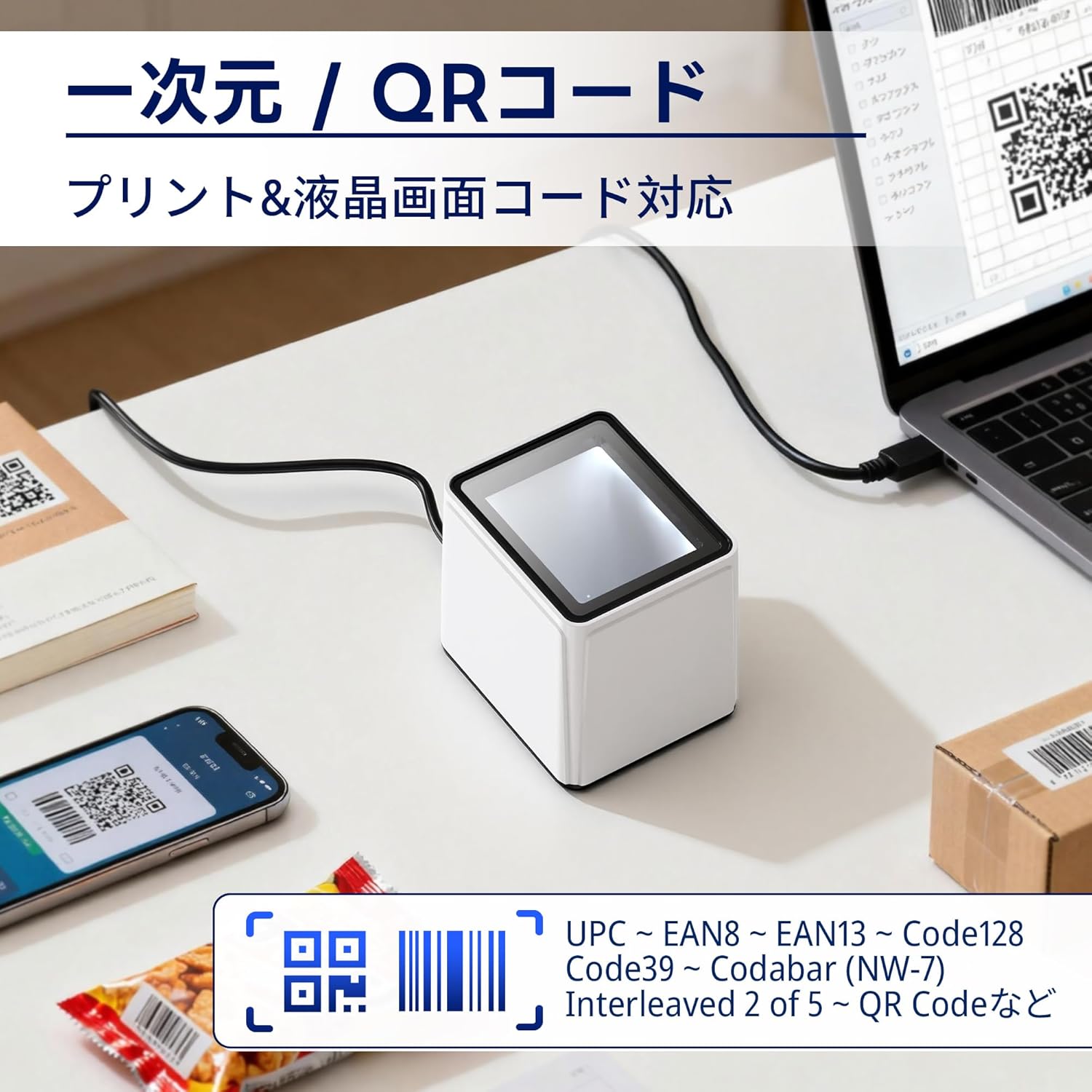
The image demonstrates the scanner's capability to read both printed 1D/2D codes and those displayed on LCD screens, such as on a smartphone or laptop.
Подешавање јачине звука
The scanner's beep volume can be adjusted to suit your environment. Refer to the programming barcodes in the full user guide (if provided separately) or scan the appropriate configuration barcodes for volume levels (Off, Level 1-5).

This image illustrates the different volume levels available for the scanner's feedback beep, from off to level 5.
Терминатор Сеттингс
You can configure the data terminator to append specific characters after each successful scan, which is useful for data entry into various applications. Common options include:
- Add Carriage Return (CR) + Line Feed (LF): Simulates pressing Enter after scanning.
- Add Carriage Return (CR): Simulates pressing Enter.
- Add Tab: Simulates pressing the Tab key.
- Без Терминатора: No additional characters are appended.
To change these settings, scan the corresponding programming barcode provided in the scanner's configuration guide.
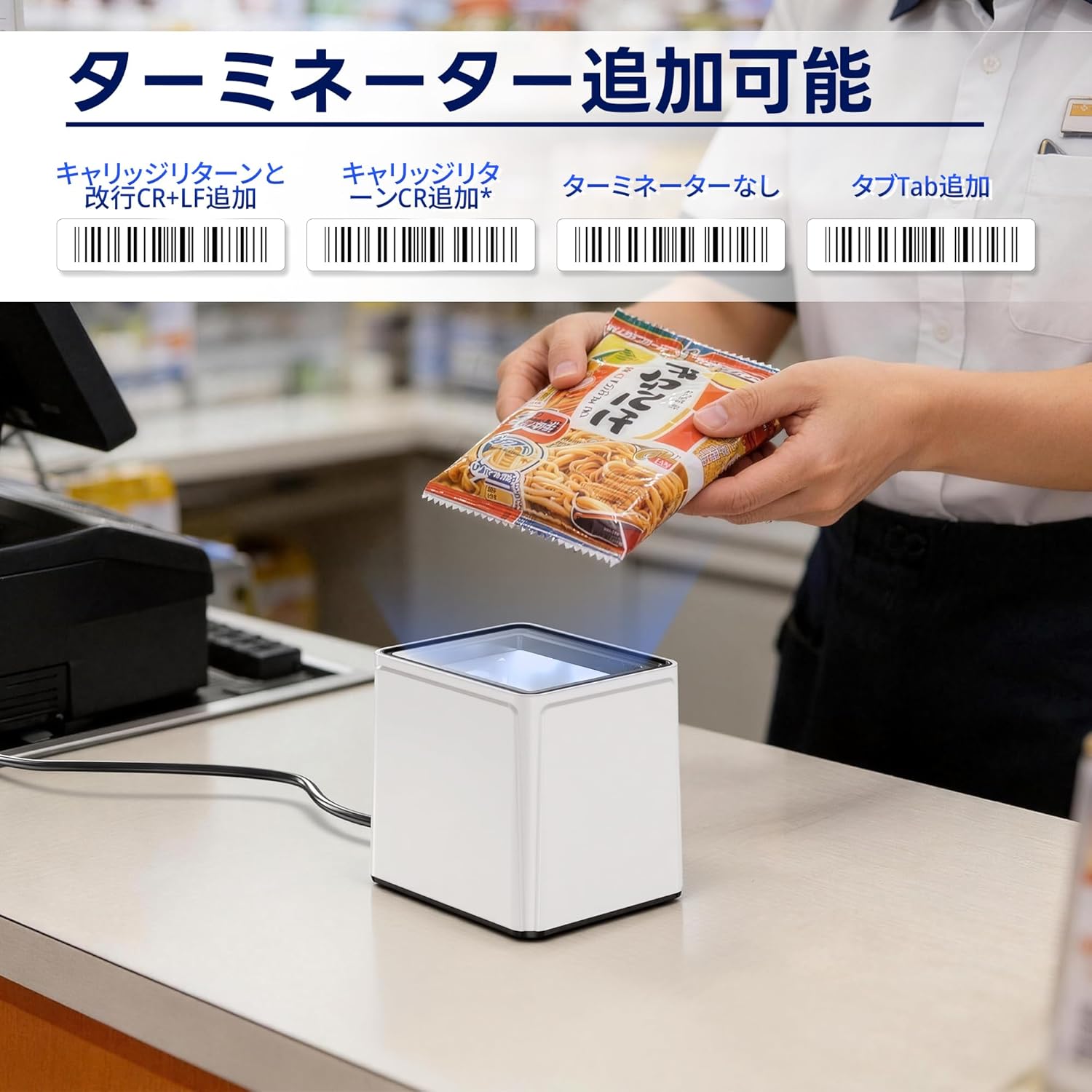
This image displays various barcode options for configuring the data terminator, such as adding CR+LF, CR, Tab, or no terminator.
Одржавање
- Чишћење прозора скенера: Користите меку крпу која не оставља длачицеampened with water or a mild glass cleaner to wipe the scanning window. Avoid abrasive materials or harsh chemicals that could scratch the acrylic surface.
- Генерално чишћење: Keep the exterior of the scanner clean by wiping it with a dry, soft cloth.
- Инспекција каблова: Periodically check the USB cable for any signs of damage or wear. Replace if necessary.
- Складиштење: Када се не користи, чувајте скенер на чистом и сувом месту, даље од директне сунчеве светлости и екстремних температура.
Решавање проблема
| Проблем | Могући узрок | Решење |
|---|---|---|
| Скенер се не укључује. | USB cable not properly connected or damaged. | Ensure the USB cable is securely connected to both the scanner and the host device. Try a different USB port or cable. |
| Скенер не чита баркодове. | Protective film still on lens; incorrect scanning mode; barcode damaged or poorly printed; scanner window dirty. | Remove protective film. Verify the scanner is in the correct operating mode. Ensure the barcode is clear and undamaged. Clean the scanner window. |
| Data is not transmitted correctly. | Incorrect terminator settings; software compatibility issue. | Adjust terminator settings using programming barcodes. Ensure your application is compatible with the scanner's output. |
| Scanner beeps but no data is output. | Host device not recognizing input; application not in focus. | Ensure the cursor is in the correct input field of your application. Restart the host device. |
Спецификације
- Модел: 9200
- Бренд: Тера
- Повезивање: УСБ кабл
- Брзина скенирања: Велика брзина
- Угао скенирања: 360 degrees (Omnidirectional)
- Подржани бар кодови: 1D (UPC, EAN, Code128, Code39, Codabar, Interleaved 2 of 5, etc.), 2D (QR Code, Data Matrix, PDF417, etc.)
- Компатибилност: Windows, Android, Linux, iOS (via USB)
- Материјал: High-transparency acrylic screen
- Порекло: Кина
Гаранција и подршка
The Tera 9200 Omnidirectional Barcode Scanner comes with a Двогодишња гаранција произвођача од дана куповине. Ова гаранција покрива недостатке у материјалу и изради при нормалној употреби.
For technical support, warranty claims, or any questions regarding your product, please contact Tera customer service through the retailer where you purchased the device or visit the official Tera webсајт за контакт информације.
Молимо вас да сачувате доказ о куповини за потребе гарантног сервиса.