
1. Увод
The Huawei OptiXstar K251a-21 is a sub-FTTR (Fiber to the Room) unit designed to extend the high-speed network provided by the Huawei FTTR OptiXstar F50 Plus main unit. This device supports ultra-Gigabit high-speed access via upstream fiber optic lines and delivers Ultra Gigabit dual-band Wi-Fi and ultra-Gigabit network ports to users. It integrates next-generation Wi-Fi 7 technology for higher speeds and lower latency, ensuring a superior home network experience.
2. Безбедносне информације
Please read and understand all safety instructions before using this device. Failure to follow these instructions may result in injury, damage to the device, or property damage.
- Користите само адаптер за напајање који сте добили уз уређај.
- Не излажите уређај води, влази или екстремним температурама.
- Избегавајте постављање уређаја у близини извора топлоте или на директном сунцу.
- Обезбедите одговарајућу вентилацију како бисте спречили прегревање.
- Не покушавајте сами да отворите или поправите уређај. За помоћ контактирајте квалификовано сервисно особље.
- Држите уређај даље од деце и кућних љубимаца.
3. Садржај пакета
Проверите да ли су све ставке присутне у вашем пакету:
- Huawei OptiXstar K251a-21 Sub FTTR Device
- Повер Цабле
- Водич за брзи почетак (ако је укључен)
4. Производ је готовview
Упознајте се са компонентама и индикаторима уређаја.
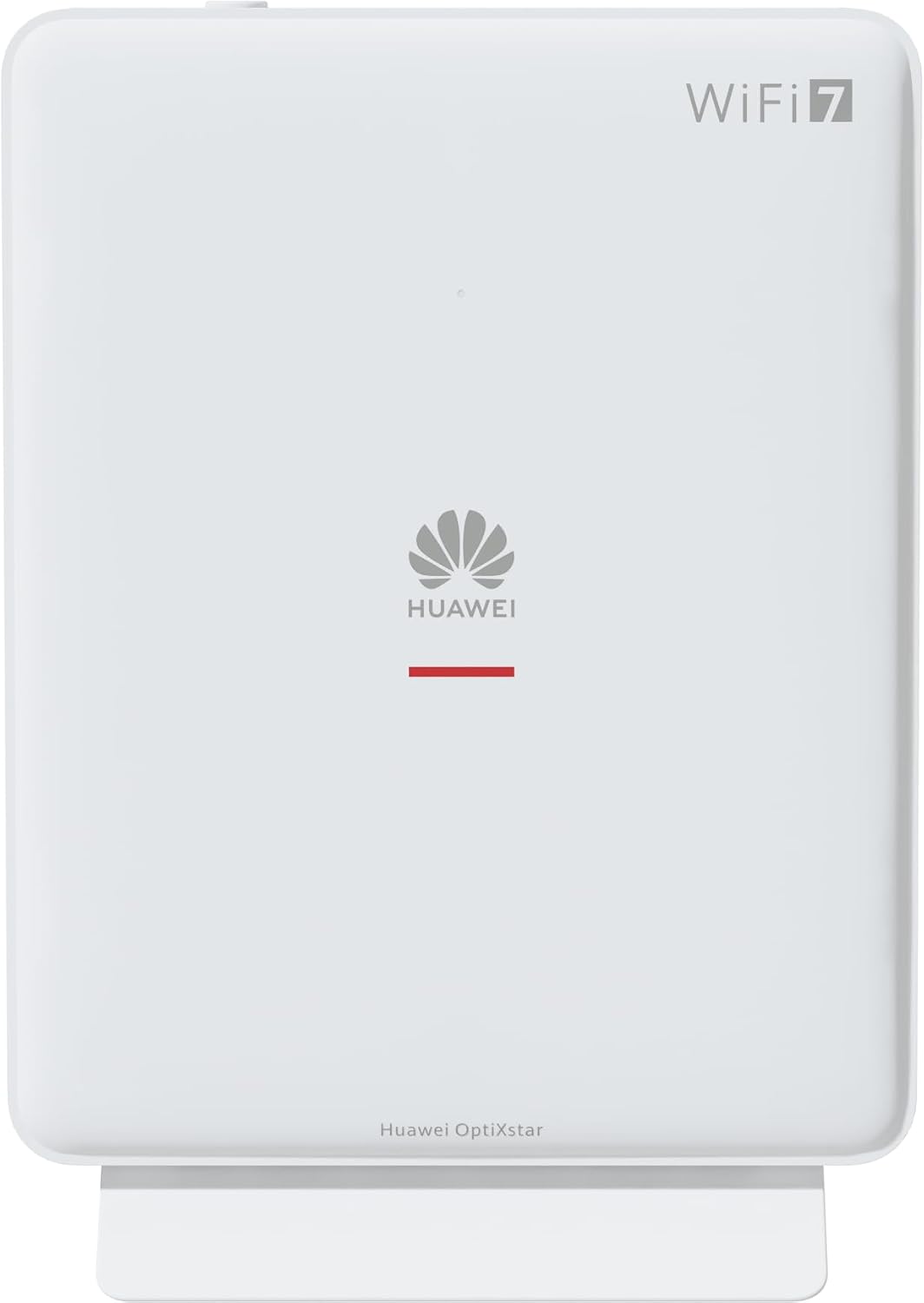
Слика 1: Предња страна view of the Huawei OptiXstar K251a-21 Sub FTTR device, showing the Huawei logo and "WiFi 7" branding.

Figure 2: Angled front-side view of the Huawei OptiXstar K251a-21 Sub FTTR, highlighting its sleek design and ventilation.

Слика 3: Задња страна view of the Huawei OptiXstar K251a-21 Sub FTTR, displaying the ports (Reset, 2-GE, 1-2.5GE, Power, FTTR) and mounting options.

Слика 4: Бочни професионалацfile of the Huawei OptiXstar K251a-21 Sub FTTR, showing its slim form factor and ventilation grilles.

Слика 5: Угаони задњи део view of the Huawei OptiXstar K251a-21 Sub FTTR, providing a clear look at the port labels and layout.

Слика 6: Врх view of the Huawei OptiXstar K251a-21 Sub FTTR, featuring the WPS/LED button.
Портови и дугмад:
- FTTR Port: Connects to the main FTTR unit via a fiber optic cable.
- 1-2.5GE Port: Gigabit Ethernet port for high-speed wired connections.
- 2-GE Port: Gigabit Ethernet port for wired connections.
- Напајање: Повезује се на адаптер за напајање.
- Дугме за ресетовање: Used to restore factory settings (press and hold for 5-10 seconds).
- WPS/LED Button: Initiates Wi-Fi Protected Setup (WPS) for easy device connection and controls LED indicators.
5. Подешавање
Follow these steps to set up your Huawei OptiXstar K251a-21 Sub FTTR device:
- Пласман: Choose a central location in your home for optimal Wi-Fi coverage. The device is suitable for various installation scenarios, including vertical placement on a desk, wall-mounting, plugging into a power strip, or mounting in an 86mm junction box with a bracket.
- Повежите оптички кабл: Connect one end of the fiber optic cable to the FTTR port on the Sub FTTR unit and the other end to the corresponding FTTR port on your Huawei FTTR OptiXstar F50 Plus main unit or wall outlet. Ensure the connection is secure.
- Прикључите напајање: Plug the power adapter into the Power port on the Sub FTTR unit, then plug the other end into a power outlet.
- Укључено: The device will automatically power on. Wait for the indicator lights to stabilize, typically indicating a successful connection to the main FTTR unit and active Wi-Fi.
- Wired Connections (Optional): For wired devices, connect an Ethernet cable from the 1-2.5GE or 2-GE ports on the Sub FTTR to your computer, gaming console, or other network devices.
6. Оперативни
Once set up, your OptiXstar K251a-21 provides seamless Wi-Fi 7 connectivity.
- Ви-Фи веза: Тражи the Wi-Fi network name (SSID) broadcast by your FTTR system on your devices (smartphones, laptops, etc.). Enter the Wi-Fi password. The system's unique SRCN (Seamless Roaming Coordinate Network) technology ensures seamless roaming throughout your home.
- C-WAN Architecture: The C-WAN architecture centrally controls and coordinates network-wide Wi-Fi resources via the Main FTTR, providing an ultra-Gigabit high-speed experience.
- IoT Casing: The device features an IoT casing designed to protect home network security and privacy.
- WPS функција: Press the WPS/LED button briefly to use Wi-Fi Protected Setup (WPS) for quick connection of compatible devices without entering the password.
- ЛЕД индикатори: The LED indicators provide status information. Refer to the main FTTR unit's manual or the device's specific documentation for detailed LED status meanings.
7. Одржавање
Regular maintenance helps ensure optimal performance and longevity of your device.
- Чишћење: Нежно обришите уређај меком, сувом крпом. Не користите течна средства за чишћење или абразивне материјале.
- Ажурирања фирмвера: Huawei periodically releases firmware updates to improve performance and security. These updates are typically managed through the main FTTR unit or a dedicated mobile application. Ensure your system is always running the latest firmware.
- вентилација: Уверите се да отвори за вентилацију нису блокирани да бисте спречили прегревање.
- Управљање кабловима: Keep fiber optic and power cables neatly organized and free from kinks or excessive bending.
КСНУМКС. Решавање проблема
Ако наиђете на проблеме, испробајте следеће кораке за решавање проблема:
- Нема напајања: Check if the power cable is securely connected to both the device and the power outlet. Try a different outlet.
- Нема интернет везе:
- Verify that the fiber optic cable is correctly connected to the FTTR port.
- Check the status indicators on both the Sub FTTR and the main FTTR unit.
- Restart both the Sub FTTR and the main FTTR unit by unplugging them from power for 30 seconds and then plugging them back in.
- Ensure your main FTTR unit has an active internet connection.
- Мала брзина Wi-Fi-ја:
- Ensure the device is placed optimally, away from obstructions and interference sources.
- Check if too many devices are connected to the network.
- Update the firmware of your FTTR system.
- Consider using a wired connection for bandwidth-intensive tasks.
- Не могу да се повежем на Ви-Фи:
- Проверите да ли уносите исправну лозинку за Wi-Fi.
- Try using the WPS button to connect.
- Restart your device and the Sub FTTR unit.
- Фацтори Ресет: If issues persist, you may need to perform a factory reset. With the device powered on, use a pointed object (like a paperclip) to press and hold the Reset button for 5-10 seconds until the indicators change. Note that this will erase all custom settings.
9. Спецификације
| Феатуре | Спецификација |
|---|---|
| Бранд | ХУАВЕИ |
| Број модела | K8M251a-21G02 |
| Димензије (пакет) | 24.5 к 23.7 к 7.4 цм |
| Тежина (пакет) | 300 грама |
| Посебна карактеристика | Интернет безбедност |
| Класа фреквенцијског опсега | Дуал Банд |
| Стандард бежичне комуникације | 802.11ax (Wi-Fi 7 Generation) |
| Компатибилни уређаји | Персонал Цомпутер |
| Препоручена употреба | Хоме |
| Укључене компоненте | Повер Цабле |
| Технологија повезивања | Ethernet, FTTR, Wi-Fi, Fiberglass |
| Боја | Бела |
| Број портова | 4 (FTTR, 1-2.5GE, 2-GE, Power) |
| Брзина преноса података | 1 Gigabits per second |
| Компатибилност паметног дома | Compatible with smart home systems |
| Интернет Цоннецтивити | Да |
| Цоннецтивити Протоцол | Ви-Фи |
10. Гаранција и подршка
For warranty information and technical support, please refer to the official Huawei website or contact your local Huawei customer service. Keep your purchase receipt for warranty claims.
Онлине ресурси: Visit the official Huawei support webсајт за често постављана питања, ажурирана упутства и преузимање софтвера.
Служба за кориснике: Contact details for customer support can typically be found on the Huawei website or in the documentation provided with your main FTTR unit.