
FUNYET NY-01
FUNYET 2026 14.1-inch Laptop User Manual
Модел: НИ-01
Увод
This manual provides essential information for setting up, operating, maintaining, and troubleshooting your FUNYET 2026 14.1-inch Laptop. Please read this manual thoroughly before using your device to ensure proper function and longevity.
Шта је у кутији
Проверите да ли су све ставке присутне у пакету:
- FUNYET 2026 14.1-inch Laptop
- Power Adapter (12V2A DC)
- Упутство за употребу (овај документ)
- Гарантни лист
Производ је завршенview
The FUNYET 2026 laptop is designed for productivity and entertainment, featuring a powerful processor and versatile connectivity.
Кључне карактеристике
- Оперативни систем: Pre-installed Windows 11 Pro for enhanced multitasking and security.
- процесор: Intel Celeron N5095 (4 cores, 4 threads, up to 2.9 GHz) for smooth performance.
- Меморија и складиштење: 16GB LPDDR4 RAM and 512GB M.2 SSD, with support for up to 1TB TF Card expansion.
- Приказ: 14.1-inch IPS Full HD (1920x1080) screen, offering clear and vibrant visuals, with a 180° foldable hinge for flexible viewинг.
- Повезивање: Dual-band 5G Wi-Fi and Bluetooth 5.0 for fast and stable wireless connections.
- Портови: Includes 2x USB 3.0, 1x 3.5mm Headphone Jack, 1x 3.5mm DC Adapter port, 1x Mini-HDMI, and 1x TF Card slot.
- батерија: Integrated 5000mAh battery providing 4-5 hours of normal use and over 50 hours of standby time.
- Camera & Audio: Built-in 0.3-megapixel front camera and dual microphones for video calls and online meetings.
Идентификација компоненте
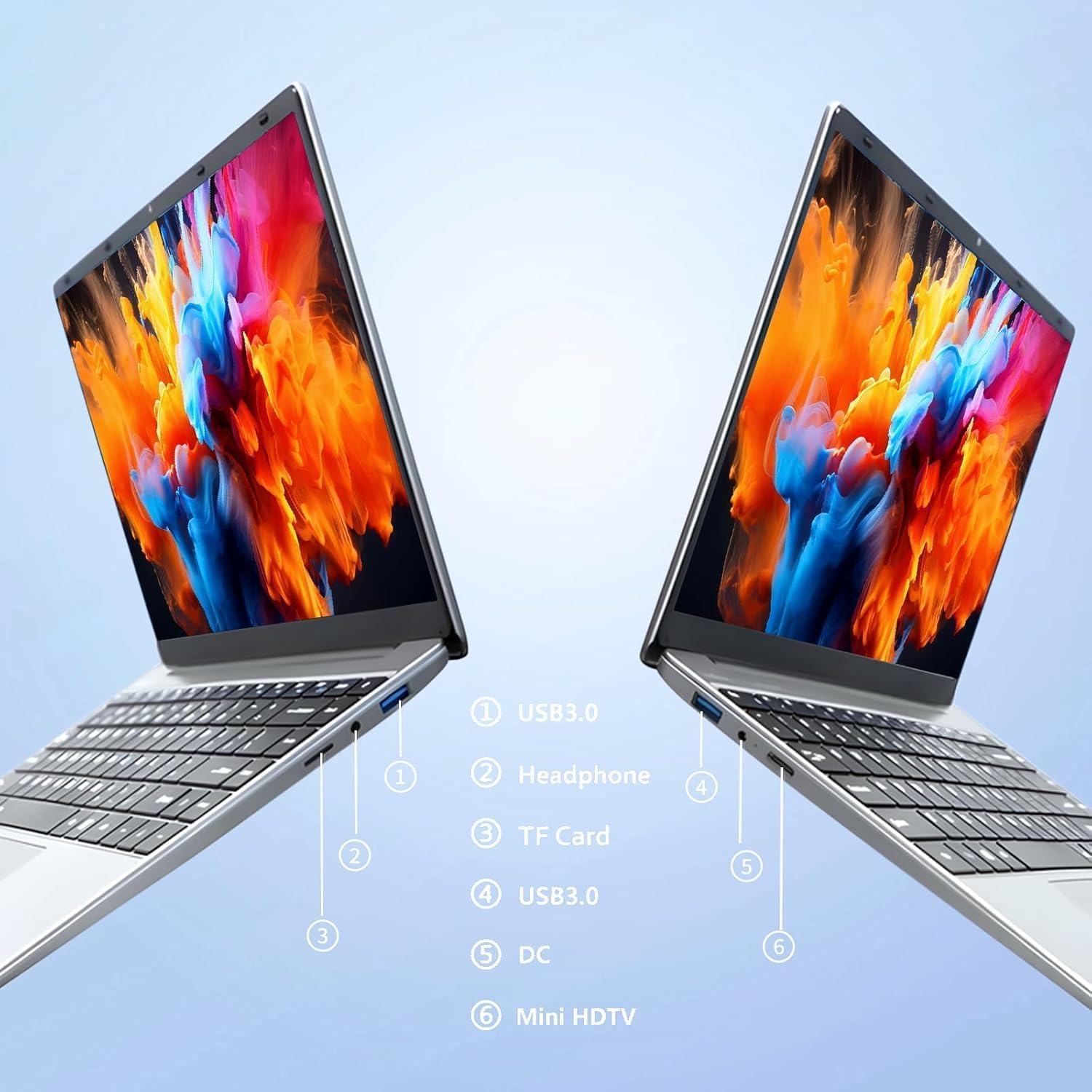
слика: Сиде view of the laptop highlighting port locations.
This image illustrates the various ports available on the FUNYET 2026 laptop. On one side, you will find a USB 3.0 port, a 3.5mm headphone jack, and a TF Card slot. On the opposite side, there is another USB 3.0 port, the DC power input, and a Mini-HDMI port.

слика: Laptop screen displaying its 14-inch Full HD IPS features.
The laptop features a 14-inch Full HD (1920x1080) IPS display with a 16:9 aspect ratio and ultra-narrow bezels, providing a wide perspective and vivid images.

слика: Laptop demonstrating its 180-degree foldable hinge.
The laptop's hinge allows the screen to fold back 180 degrees, offering versatile viewуглове гледања и начине коришћења.
Водич за подешавање
1. Почетно пуњење
- Извадите лаптоп и адаптер за напајање из кутије.
- Connect the power adapter to the DC input port on the side of the laptop.
- Укључите адаптер за напајање у зидну утичницу.
- Оставите лаптоп да се пуни најмање 30 минута пре прве употребе или док индикатор батерије не покаже довољно напуњеност.
2. Прво укључивање
- Отворите поклопац лаптопа.
- Press the power button, usually located on the keyboard deck or side.
- Пратите упутства на екрану да бисте завршили процес подешавања система Windows 11 Pro, укључујући избор језика, мрежну везу и креирање корисничког налога.
3. Повезивање на Ви-Фи
- During the initial Windows setup, you will be prompted to connect to a Wi-Fi network. Select your network from the list and enter the password.
- If setting up later, click the Wi-Fi icon in the taskbar, select your network, and click "Connect".
Упутство за употребу
Управљање напајањем
- Укључено: Притисните дугме за напајање.
- Режим спавања: Затворите поклопац или кратко притисните дугме за напајање.
- Искључи: Кликните на дугме Старт, затим на Напајање, а затим на Искључи.
- Поново покрени: Click the Start button, then Power, then Restart.
Using the Touchpad and Touchscreen
- Тоуцхпад: Use gestures for navigation. Single tap for left-click, two-finger tap for right-click, two-finger scroll for scrolling.
- екран осетљив на додир: Tap to select, pinch to zoom, swipe to scroll.
Повезивање екстерног екрана
To connect an external monitor or projector:
- Connect a Mini-HDMI cable from the laptop's Mini-HDMI port to the external display's HDMI input.
- If necessary, use a Mini-HDMI to HDMI adapter (not included).
- Притисните Windows тастер + P to open the Project menu and select your desired display mode (Duplicate, Extend, Second screen only).
Using TF Card Expansion
Insert a TF card into the designated slot for additional storage. The laptop supports up to 1TB TF card expansion.
Нега и одржавање
- Чишћење: Користите меку крпу која не оставља влакна за чишћење екрана и кућишта. За тврдокорне мрље, благо обришитеampОбришите крпу водом или средством за чишћење екрана. Избегавајте јаке хемикалије.
- Одржавање батерије: Да бисте продужили век трајања батерије, избегавајте често потпуно пражњење батерије. Чувајте лаптоп на хладном и сувом месту ако га не користите дуже време.
- температура: Operate the laptop within a temperature range of 5°C to 35°C (41°F to 95°F). Avoid direct sunlight or extreme heat/cold.
- вентилација: Ensure the ventilation openings are not blocked to prevent overheating. Do not place the laptop on soft surfaces like beds or sofas during operation.
- Ажурирања софтвера: Редовно ажурирајте Windows и драјвере како бисте осигурали оптималне перформансе и безбедност.
Решавање проблема
Уобичајени проблеми и решења
| Проблем | Могуће решење |
|---|---|
| Лаптоп се не укључује. | Ensure the power adapter is securely connected and plugged into a working outlet. Check if the battery is charged. Try holding the power button for 10-15 seconds for a hard reset. |
| Проблеми са Wi-Fi везом. | Check if Wi-Fi is enabled in Windows settings. Restart your router and the laptop. Ensure you are within range of the Wi-Fi signal. Verify the Wi-Fi password. |
| Споре перформансе. | Close unnecessary applications. Check for background processes in Task Manager. Ensure Windows is updated. Consider running a disk cleanup. |
| Спољни екран није детектован. | Ensure the Mini-HDMI cable is connected correctly. Check the input source on your external display. Press Windows тастер + P да бисте се кретали кроз режиме приказа. |
| Батерија се брзо празни. | Adjust screen brightness. Close power-intensive applications. Check power settings in Windows and select a power-saving plan. Disconnect external peripherals when not in use. |
Техничке спецификације
| Бранд | ФУНИЕТ |
| Назив модела | НИ-КСНУМКС |
| Величина екрана | 14.1 инча |
| Резолуција | 1920 к 1080 (Фулл ХД) |
| Технологија екрана | ИПС ЛЦД |
| Процесор | Intel Celeron N5095 (до 2.9 GHz) |
| РАМ | 16 GB LPDDR4 (2400 MHz) |
| Складиштење | 512 GB M.2 SSD (expandable via TF Card up to 1TB) |
| Оперативни систем | Виндовс 11 Про |
| Графика | Интегрисана Интел Грапхицс |
| Бежично повезивање | 5G Wi-Fi (2.4 GHz, 5.8 GHz), Bluetooth 5.0 |
| Портс | 2x USB 3.0, 1x 3.5mm Headphone, 1x 3.5mm DC Adapter, 1x Mini-HDMI, 1x TF Card Slot |
| Webцам | 0.3 Megapixel Front Camera |
| Капацитет батерије | КСНУМКС мАх / КСНУМКС Вх |
| Димензије (Д к Ш к В) | КСНУМКС к КСНУМКС к КСНУМКС цм (КСНУМКС к КСНУМКС к КСНУМКС инча) |
| Тежина | 1.4 кг (3.09 лбс) |
| Посебна карактеристика | 180° Foldable Hinge |
Гаранција и подршка
Информације о гаранцији
Your FUNYET 2026 laptop comes with a 2 година гаранције from the date of purchase. Please retain your proof of purchase for warranty claims. The warranty covers manufacturing defects and malfunctions under normal use. It does not cover damage caused by misuse, accidents, unauthorized repairs, or normal wear and tear.
Поред тога, а 6-month free exchange/return policy may apply, subject to the terms and conditions of your purchase platform.
Корисничка подршка
For any issues, questions, or technical assistance, please contact FUNYET customer support:
- Подршка на мрежи: Available 24/7. You can typically find support by logging into your Amazon account, navigating to "Your Account" -> "Your orders", and selecting "Ask Product Question" for your FUNYET laptop.
- Емаил: funyestore@outlook.com
- Телефон: +49 800-000-7147 (Please note operating hours may vary)

слика: Customer service contact details and warranty information.
This image provides a visual summary of the support options, including the 2-year warranty, 6-month exchange/return policy, and contact information for phone and email support.
Ask a question about this manual
Ask about setup, troubleshooting, compatibility, parts, safety, or missing instructions. Manuals+ will review the question and use this page’s manual context to help answer it.