
1. Увод
Thank you for choosing the Tibuta 10.1-inch Android 14 Tablet, Model E100. This manual provides essential information for the safe and efficient use of your device. Please read it thoroughly before operating your tablet and retain it for future reference.
The Tibuta E100 tablet features a vivid 10.1-inch HD IPS display, a powerful quad-core processor, 6GB RAM, and 128GB of internal storage, expandable up to 512GB. Running on Android 14 with full GMS certification, it offers access to a wide range of applications from the Google Play Store.
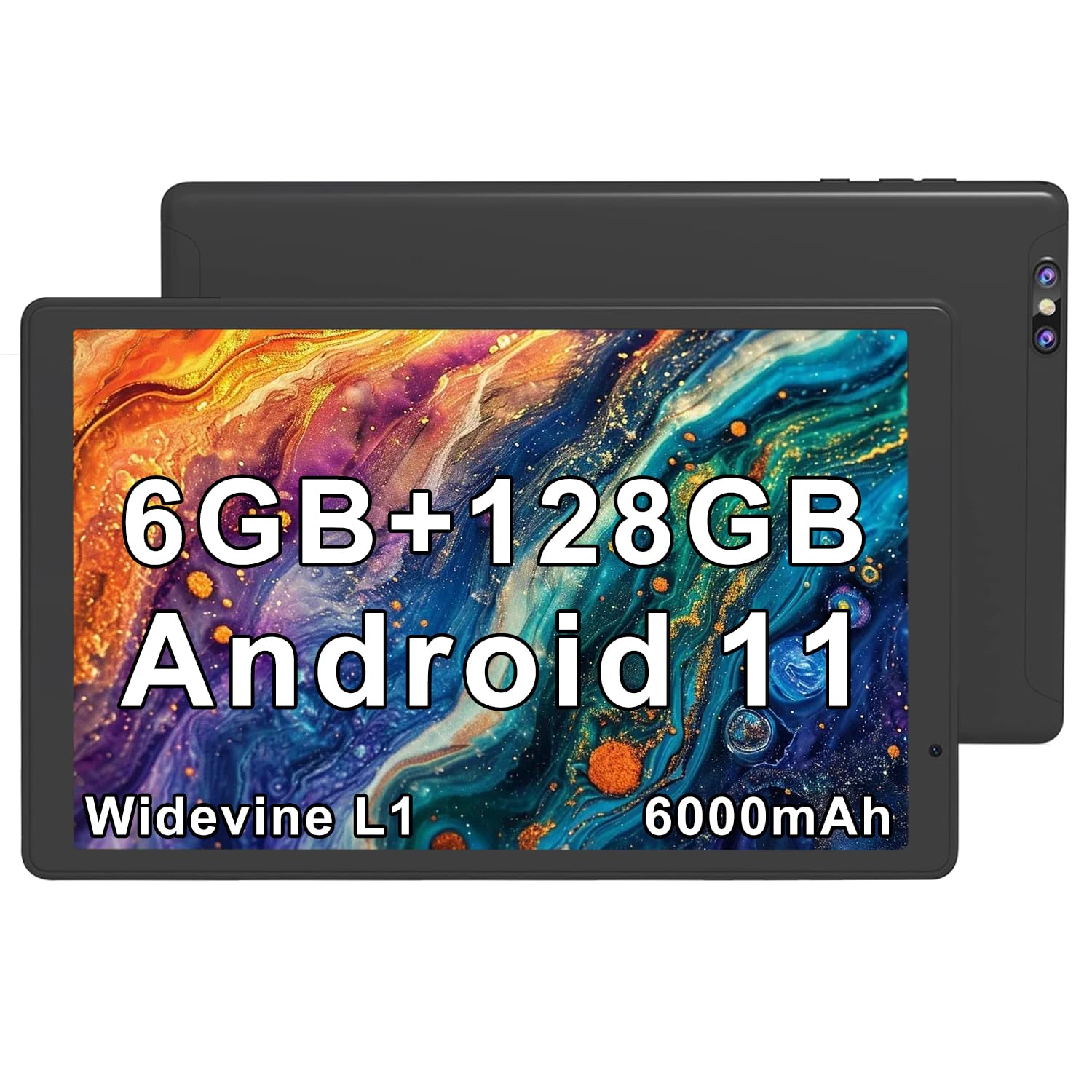
Image 1.1: Tibuta 10.1-inch Android 14 Tablet with included protective case.

Image 1.2: Key performance features of the Tibuta E100 tablet.
2. Садржај пакета
Please check the package contents upon unboxing. If any items are missing or damaged, contact Tibuta customer support.
- Tibuta 10.1-inch Android 14 Tablet (Model E100)
- Протецтиве Цасе
- Charger (USB-C cable and power adapter)
- Кориснички приручник (овај документ)
3. Tablet Layout
Familiarize yourself with the physical features and ports of your Tibuta tablet.

Слика 3.1: Готовоview of tablet ports and buttons.
- 1. 2 MP Front-facing Camera: За видео позиве и селфије.
- 2. USB-C (2.0) Port: За пуњење и пренос података.
- 3. 5 MP Rear Camera: За снимање фотографија и видео записа.
- 4. 3.5mm Stereo Jack: За повезивање слушалица или екстерних звучника.
- 5. Дугмад за јачину звука: Подесите јачину звука.
- 6. Дугме за напајање: Press and hold to power on/off or restart; press briefly to sleep/wake.
- 7. Built-in Microphone: За гласовни унос током позива или снимања.
- 8. Говорник: За аудио излаз.
- 9. MicroSD Card Slot: For expanding storage (card not included).
- 10. SIM Card Slot: For cellular data connectivity (if applicable to your model).
4. Подешавање
4.1 Пуњење батерије
Пре прве употребе, потпуно напуните таблет.
- Connect the USB-C cable to the tablet's USB-C port.
- Повежите други крај кабла на адаптер за напајање.
- Укључите адаптер за напајање у зидну утичницу.
- Икона батерије на екрану ће показати статус пуњења.
Напомена: Use only the provided charger or a certified compatible charger to avoid damage.
4.2 Укључивање/искључивање
- За укључивање: Press and hold the Power Button until the Tibuta logo appears.
- За искључивање: Press and hold the Power Button until the power options menu appears, then select "Power off".
- Рестартовати: Press and hold the Power Button until the power options menu appears, then select "Restart".
- Спавање/Буђење: Briefly press the Power Button to put the tablet to sleep or wake it up.
4.3 Почетно подешавање
The first time you power on your tablet, you will be guided through the initial setup process.
- Изаберите жељени језик.
- Повежите се на Ви-Фи мрежу.
- Sign in with your Google Account or create a new one. This is necessary to download apps from the Google Play Store.
- Follow the on-screen prompts to complete the setup, including setting up screen lock and Google services.
4.4 Уметање MicroSD картице
You can expand the tablet's storage up to 512GB using a microSD card (sold separately).
- Locate the microSD card slot on the side of the tablet (refer to Image 3.1).
- Gently insert the microSD card into the slot with the gold contacts facing down until it clicks into place.
- The tablet will detect the card and prompt you to format it for use. Follow the on-screen instructions.

Image 4.1: Tablet with visual representation of expandable storage.
4.5 Inserting a SIM Card (for Cellular Models)
If your Tibuta E100 model supports cellular connectivity (5G), you can insert a Nano-SIM card for mobile data.
- Power off the tablet before inserting or removing a SIM card.
- Locate the SIM card slot (refer to Image 3.1).
- Use the provided SIM ejector tool (if included) to open the SIM tray.
- Поставите Nano-SIM картицу у лежиште са златним контактима окренутим надоле, водећи рачуна да се чврсто уклопи.
- Пажљиво поново уметните лежиште у таблет.
- Power on the tablet. You may need to configure APN settings in the tablet's network settings.
Напомена: Not all models support cellular connectivity. Refer to your product packaging or specifications for confirmation.
5. Управљање таблетом
5.1 Основна навигација
- Додирните: Изаберите ставку или активирајте дугме.
- Додирните и задржите: Приступите контекстуалним менијима или померите иконе.
- Превуците: Скролујте кроз екране, листе или странице.
- Зумирање штипкањем прстију: Увећајте или умањите слике и web странице.
5.2 Карактеристике екрана
The 10.1-inch HD IPS display provides crisp visuals and rich colors with a resolution of 1280x800 pixels.
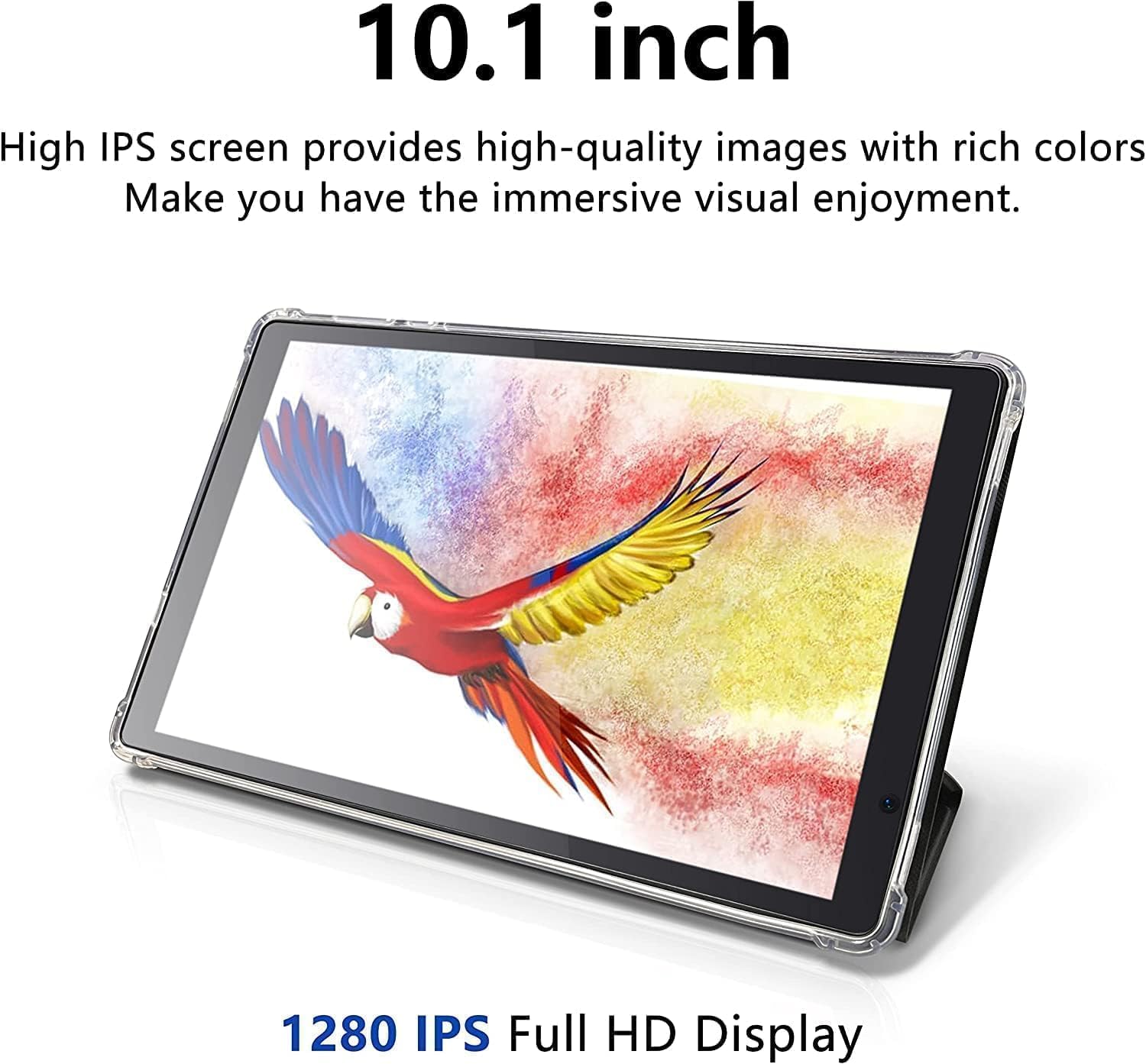
Image 5.1: The tablet's 10.1-inch HD IPS display offers high-quality visuals.
5.3 Повезивање на Ви-Фи
- Иди на Подешавања > Мрежа и интернет > Ви-Фи.
- Укључи/искључи Wi-Fi On.
- Изаберите жељену Wi-Fi мрежу са листе.
- Унесите лозинку ако се то од вас затражи, а затим додирните Повежите се.
5.4 Блуетоотх упаривање
- Иди на Подешавања > Повезани уређаји > Блуетоотх.
- Укључите Блуетоотх On.
- Ensure the device you want to pair is in pairing mode.
- Изаберите уређај са листе доступних уређаја и пратите упутства на екрану да бисте завршили упаривање.
5.5 Коришћење камера
Your tablet is equipped with a 2MP front-facing camera and a 5MP rear camera.
- Отворите Камера апликацију са почетног екрана или из фиоке апликација.
- Додирните икону камере да бисте пребацивали између предње и задње камере.
- Додирните дугме затварача да бисте снимили фотографију или покренули/зауставили снимање видеа.

Image 5.2: Tablet showcasing dual camera capabilities for capturing moments.
5.6 Управљање складиштем
The tablet has 128GB of internal storage. You can view и управљајте коришћењем меморијског простора у Подешавања > Складиштење.
- Free up space: Обришите непотребно files, uninstall unused apps, or move files to your microSD card.
- МицроСД картица: Ensure your microSD card is properly formatted and mounted for use.
5.7 Downloading Apps
Access millions of apps, games, movies, and books through the pre-installed Google Play Store.
- Ensure you are connected to Wi-Fi and signed into your Google Account.
- Отворите Плаи продавница апп.
- Тражи the desired app and tap Инсталирај.
5.8 Управљање батеријом
Батерија од 6000 mAh омогућава продужено коришћење. Да бисте оптимизовали век трајања батерије:
- Смањите осветљеност екрана.
- Turn off Wi-Fi, Bluetooth, or cellular data when not in use.
- Затворите неискоришћене апликације које раде у позадини.
- Омогућите режим уштеде батерије у Подешавања > Батерија.

Image 5.3: Visual representation of the tablet's extended battery life for various activities.
6. Одржавање
6.1 Чишћење таблета
- Користите меку крпу која не оставља влакна за чишћење екрана и кућишта.
- Не користите течна средства за чишћење, аеросоле или абразивне материјале.
- Избегавајте улазак влаге у отворе.
6.2 Ажурирања софтвера
Keep your tablet's software up to date for optimal performance and security.
- Иди на Подешавања > Систем > Ажурирање система.
- Проверите доступна ажурирања и пратите упутства на екрану да бисте их инсталирали.
6.3 Управљање складиштем
Regularly manage your tablet's storage to maintain performance.
- Периодично реview and delete old photos, videos, and documents.
- Деинсталирајте апликације које више не користите.
- Обришите кеш податке за апликације у Подешавања > Аппс > [Назив апликације] > Складиште и кеш.
КСНУМКС. Решавање проблема
If you encounter issues with your tablet, try the following solutions before contacting support.
| Проблем | Решење |
|---|---|
| Таблет се не укључује. | Уверите се да је батерија напуњена. Прикључите пуњач и сачекајте неколико минута пре него што поново покушате да је укључите. |
| Tablet is unresponsive. | Perform a force restart by pressing and holding the Power Button for approximately 10-15 seconds until the tablet restarts. |
| Повезивање на Ви-Фи није могуће. | Check if Wi-Fi is enabled in Settings. Ensure the Wi-Fi password is correct. Restart your Wi-Fi router and the tablet. |
| Апликације се руше или раде споро. | Close background apps. Clear app cache (Settings > Apps > [App Name] > Storage & cache). Ensure sufficient free storage space. Restart the tablet. |
| MicroSD card not detected. | Ensure the card is inserted correctly. Try reinserting the card. Check if the card is damaged by testing it in another device. |
8. Спецификације
Detailed technical specifications for the Tibuta 10.1-inch Android 14 Tablet (Model E100).
| Феатуре | Детаљ |
|---|---|
| Бранд | Тибута |
| Назив модела | Е100 |
| Оперативни систем | Андроид 14 |
| Марка процесора | Allwinner (Quad-core) |
| Инсталирана РАМ меморија | 6 ГБ |
| Капацитет меморије | 128 GB (Expandable up to 512 GB via microSD) |
| Величина екрана | 10.1 инча |
| Дисплаи Типе | LCD, HD IPS |
| Максимална резолуција екрана | 1280*800 пиксела |
| Тип батерије | Литхиум Полимер |
| Lithium-Battery Energy Content | 6000 Милиampпре сат времена (мАх) |
| Предња камера | 2 МП |
| Задња камера | 5 МП |
| Бежична технологија | Блуетоотх, Ви-Фи |
| Целлулар Тецхнологи | 5G (Note: Requires compatible SIM card and service plan) |
| Димензије ставке Д x Ш x Дебљина | 20 cm D x 10 cm Š x 3 cm Deb |
| Уграђени медији | пуњач |
9. Информације о гаранцији
The Tibuta 10.1-inch Android 14 Tablet (Model E100) comes with a 1-годишња ограничена гаранција од датума куповине. Ова гаранција покрива производне недостатке и недостатке у изради при нормалној употреби. Не покрива штету насталу услед злоупотребе, несрећа, неовлашћених модификација или нормалног хабања.
Please retain your proof of purchase for warranty claims. For full warranty terms and conditions, please refer to the official Tibuta webсајту или контактирајте корисничку подршку.
10. Корисничка подршка
For any questions, technical assistance, or warranty inquiries regarding your Tibuta tablet, please contact our dedicated customer support team.
- Подршка на мрежи: Visit the official Tibuta webсајт за често постављана питања, водиче за решавање проблема и контакт форме.
- Подршка путем е-поште: Refer to your product packaging or the Tibuta webсајт за адресу е-поште за корисничку подршку.
- Амазон продавница: Такође можете посетити Tibuta Store on Amazon for product information and support options.